Meow Money Manager Official Detailed User Guide
Table of Contents
- App Introduction
- First-time Use
- Bookkeeping Features
- Budget Management
- Statistics and Analysis
- Asset Management
- Ledger Management
- Recurring Transactions
- Expense Reimbursement
- Settings
- FAQ
App Introduction
Meow Money Manager is a cute cartoon-style bookkeeping app designed for personal financial management. With a cat-themed interface, it combines cute design with powerful features to help you easily manage your personal finances. Available on both Android Google Play Download and iOS App Store Download.
🐱 Adorable Interface Design
- Cat-themed cute cartoon interface that makes bookkeeping fun
- 500+ carefully designed cartoon icons, each one cute and interesting
- Supports dark mode, light mode, and system theme following, meeting different usage scenarios
💰 Comprehensive Bookkeeping Features
- Supports three transaction types: expenses, income, and transfers
- Rich category icons covering dining, shopping, transportation, entertainment, medical care, and other life scenarios
- Supports adding notes to record consumption details
- Quick bookkeeping, completed with one click
📊 Smart Budget Management
- Supports tracking multiple budgets simultaneously
- Flexible budget cycle settings: daily, weekly, monthly, yearly, or custom cycles
- Category budget feature, setting independent budgets for different consumption categories
- Real-time display of budget usage, remaining amount, and daily average budget
📈 Powerful Statistics and Analysis
- Pie chart display: intuitively shows the proportion of income and expenses by category
- Bar chart display: shows income and expenditure trends by day or month
- Calendar view: quickly identify daily income and expenditure through color depth
- Supports statistics by day, week, month, year, and custom time ranges
📒 Multi-Ledger Management
- Supports creating multiple ledgers to categorize different types of income and expenses
- Each ledger has independent statistics, clear and organized
- Quick ledger switching, convenient for recording finances in different scenarios
🔄 Recurring Automatic Bookkeeping
- Automatically records regular income and expenses, such as salary, rent, utilities, etc.
- Supports multiple cycle periods: daily, weekly, monthly, yearly
- Supports selecting multiple dates simultaneously, flexibly setting bookkeeping time
💵 Multi-Currency Support
- Supports 50+ currency symbols, including RMB, USD, EUR, GBP, etc.
- Meets the needs of users in different countries and regions
🔒 Privacy Protection
- Supports fingerprint app lock to protect your financial privacy
- No account registration required, data is completely stored locally
- Does not collect any user personal information
☁️ Data Backup and Recovery
- Supports Google Drive backup, iCloud backup (iOS version), and WebDAV cloud backup
- Automatic backup function to prevent data loss
- Supports manual backup and recovery
- Data export to CSV format, convenient for viewing and editing in Excel
💳 Asset Management
- Supports managing multiple asset types: cash, bank cards, credit cards, stocks, funds, etc.
- Asset trend statistics, tracking asset changes
- Asset transfer function, convenient for fund allocation
🧾 Expense Reimbursement
- Specifically designed for managing expenses that require reimbursement
- Tracks reimbursement status, distinguishing between reimbursed and unreimbursed
- Supports partial reimbursement and full reimbursement
First-time Use
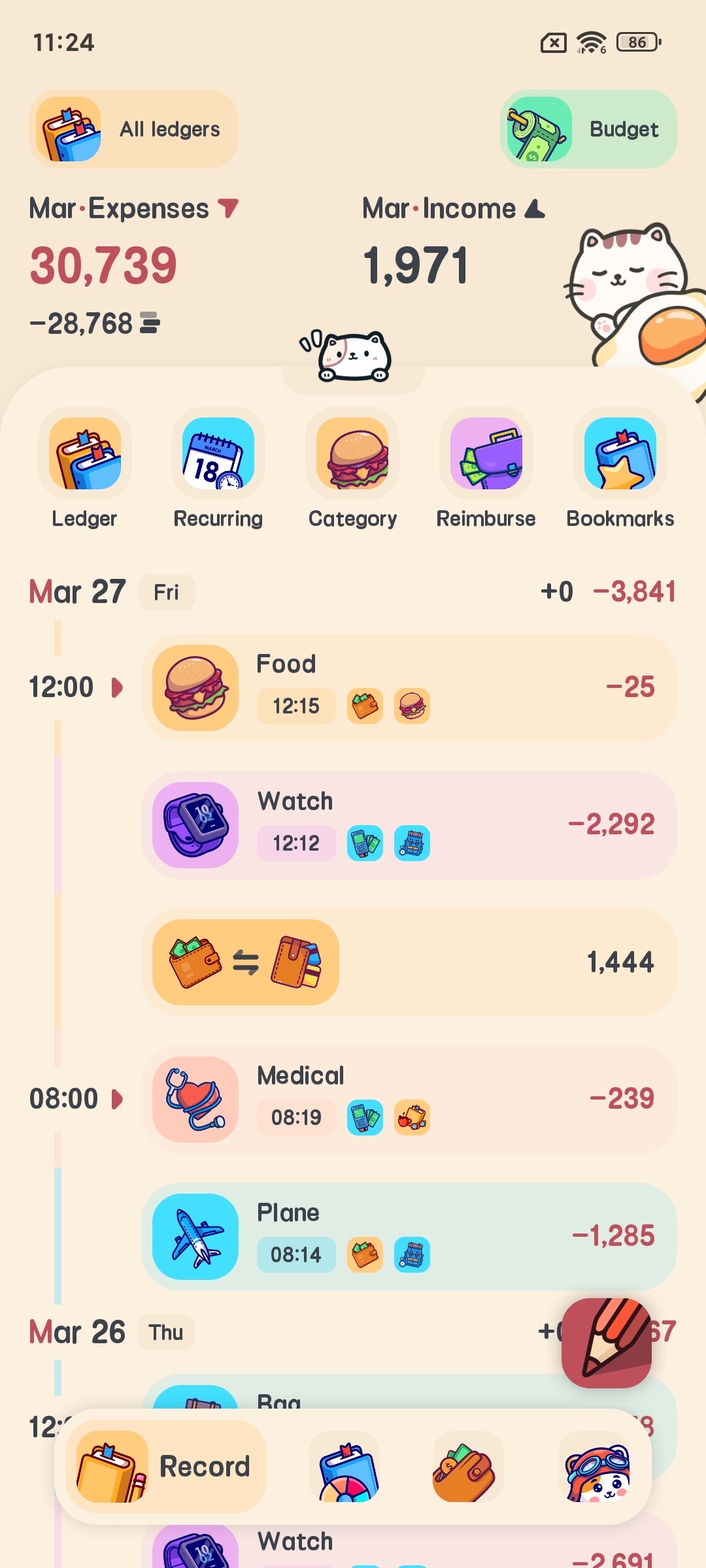
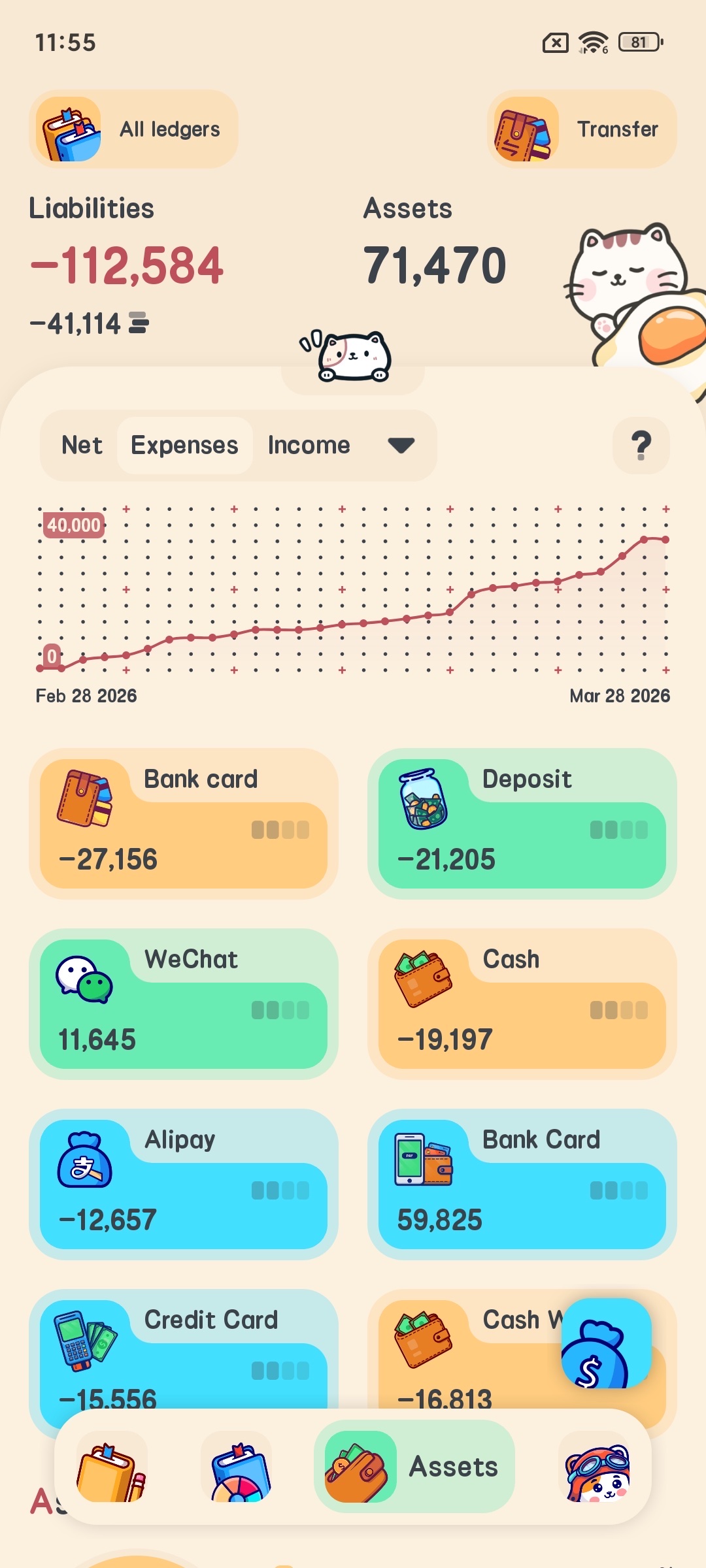
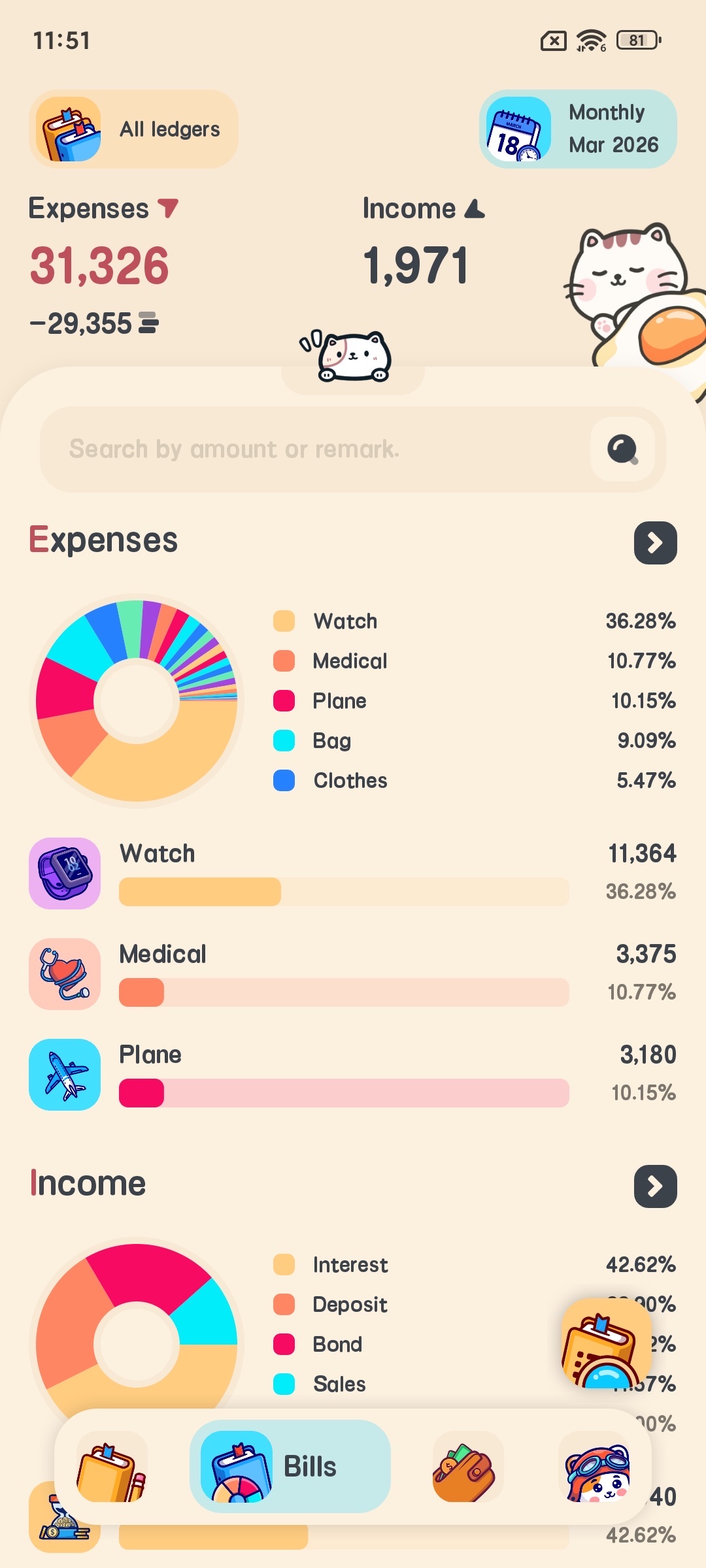
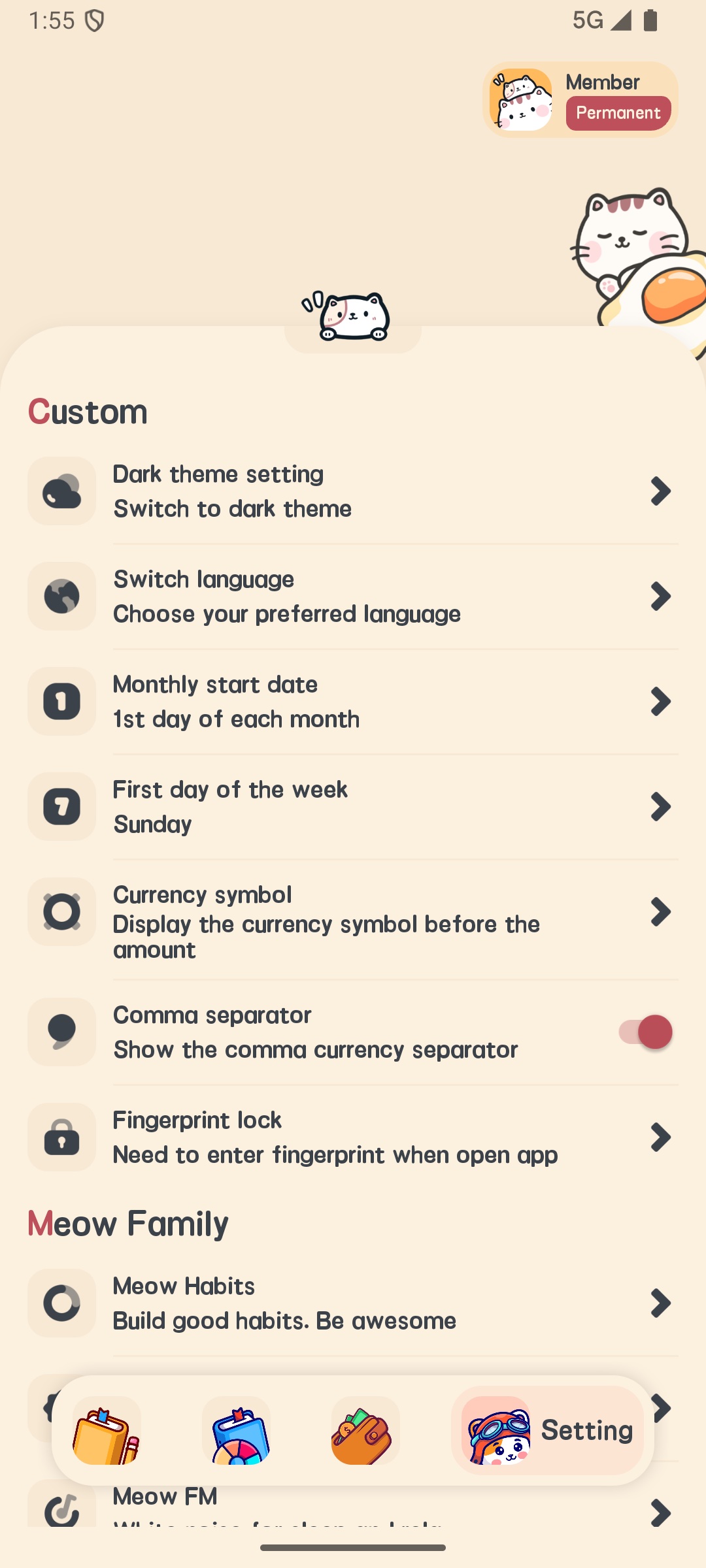
The main interface includes the following main parts:
- Bookkeeping button: located at the bottom right, used to quickly add bookkeeping records
- Bottom navigation bar: includes four options: bookkeeping, statistics, assets, and settings
- Top banner: displays current ledger and asset overview
Bookkeeping Features
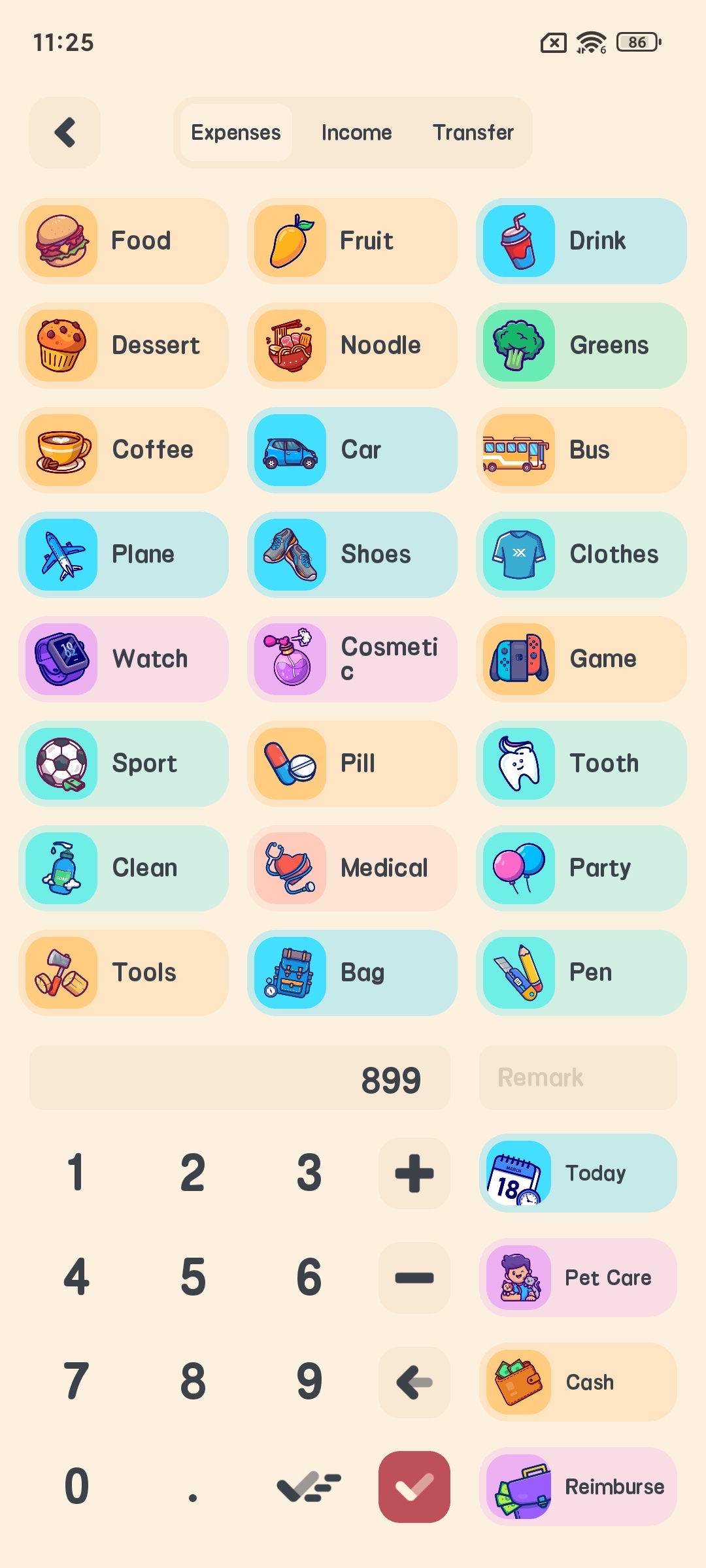
Meow Money Manager’s bookkeeping features are very intuitive, supporting three types of records: expenses, income, and transfers.
Add Expense or Income Record
- Click the bookkeeping button at the bottom of the home page
- In the pop-up bookkeeping interface, switch to the “Expense or Income” tab
- Select an appropriate category icon (such as dining, shopping, transportation, etc.)
- Enter the amount
- Select payment method (asset)
- Select the ledger
- Add notes (optional)
- Click confirm to complete bookkeeping


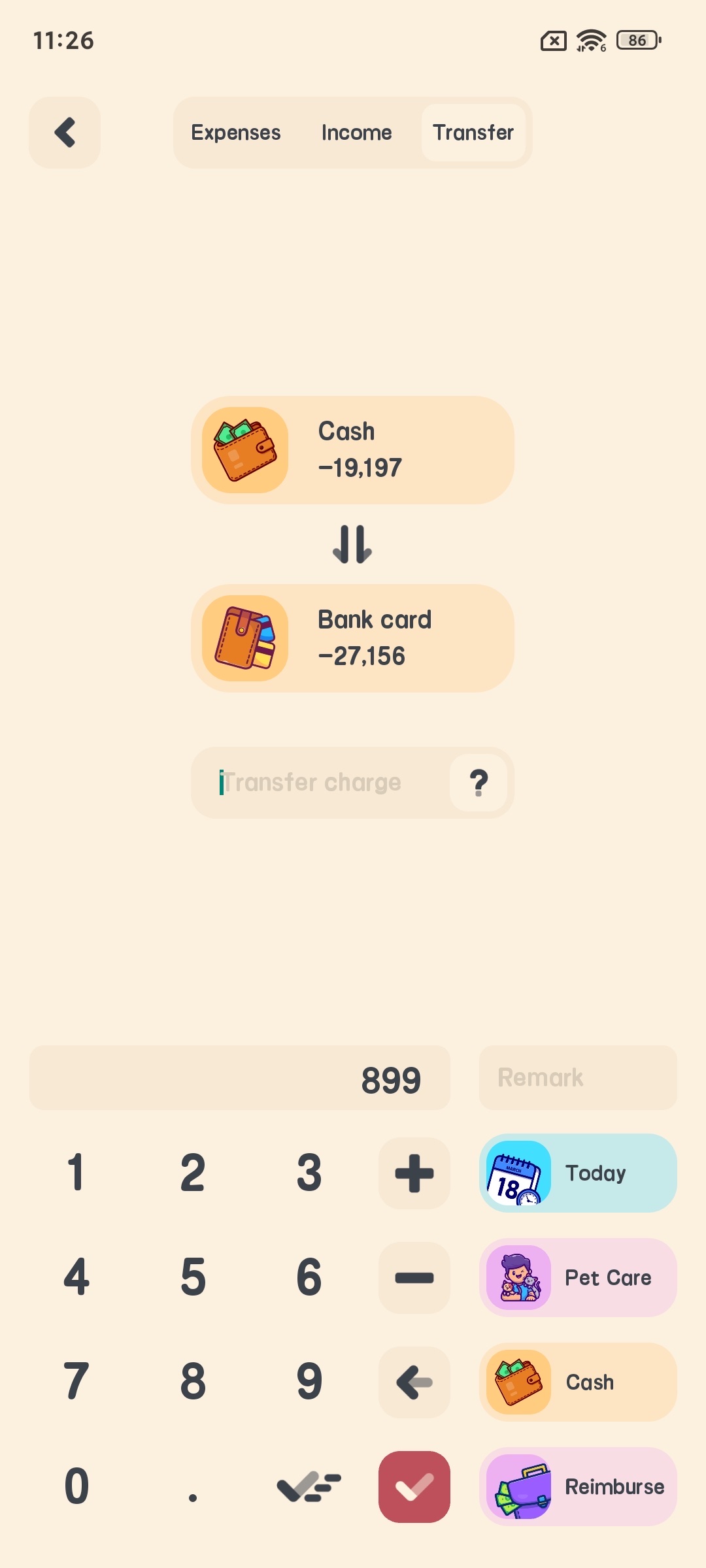
Transfer Function
- Click the bookkeeping button at the bottom of the home page
- In the pop-up bookkeeping interface, switch to the transfer tab
- Select the source asset and target asset
- Enter the transfer amount
- Enter handling fee (optional)
- Select the ledger
- Add notes (optional)
- Click confirm to complete the transfer

Budget Management
Meow Money Manager supports multiple types of budget management, including daily, weekly, monthly, yearly, and custom cycle budgets.
Add Budget
- On the main interface, click the budget banner or enter budget management from settings
- Click the “Add Budget” button
- Select budget type (daily, weekly, monthly, yearly, or custom)
- Click “Add Category Budget” and select the categories for which you want to set budgets
- Enter the total budget amount or enter the budget amount for each category
- Enter budget name
- Click confirm to complete budget creation


Budget Tracking
On the budget details page, you can view:
- Total budget and used amount
- Remaining budget and remaining days
- Daily average budget
- Budget usage for each category

Statistics and Analysis
Meow Money Manager provides multiple statistical analysis functions to help you understand your financial situation.
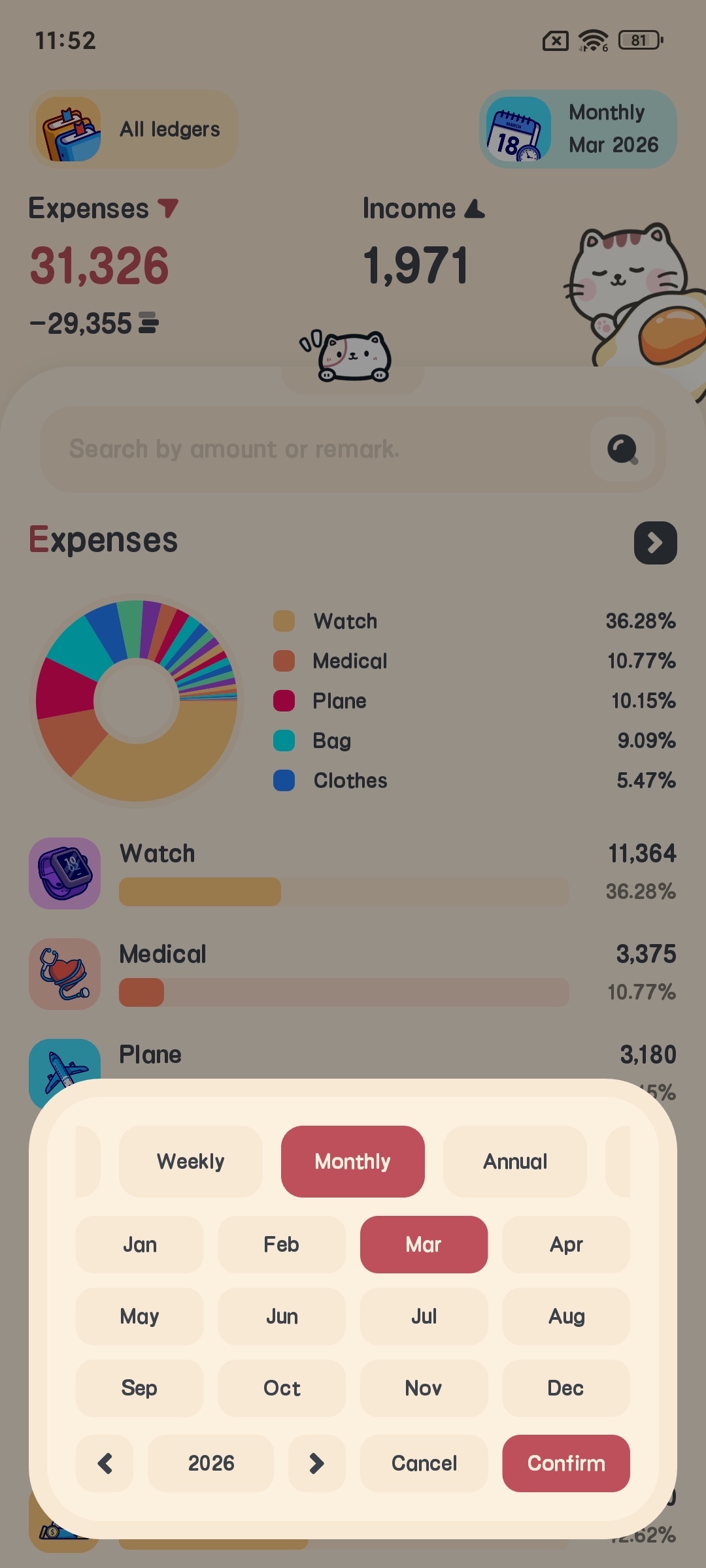
Statistics Types
- On the main interface, click the bottom statistics navigation bar to enter the statistics page
- Select the statistical time range: day, week, month, year, or custom
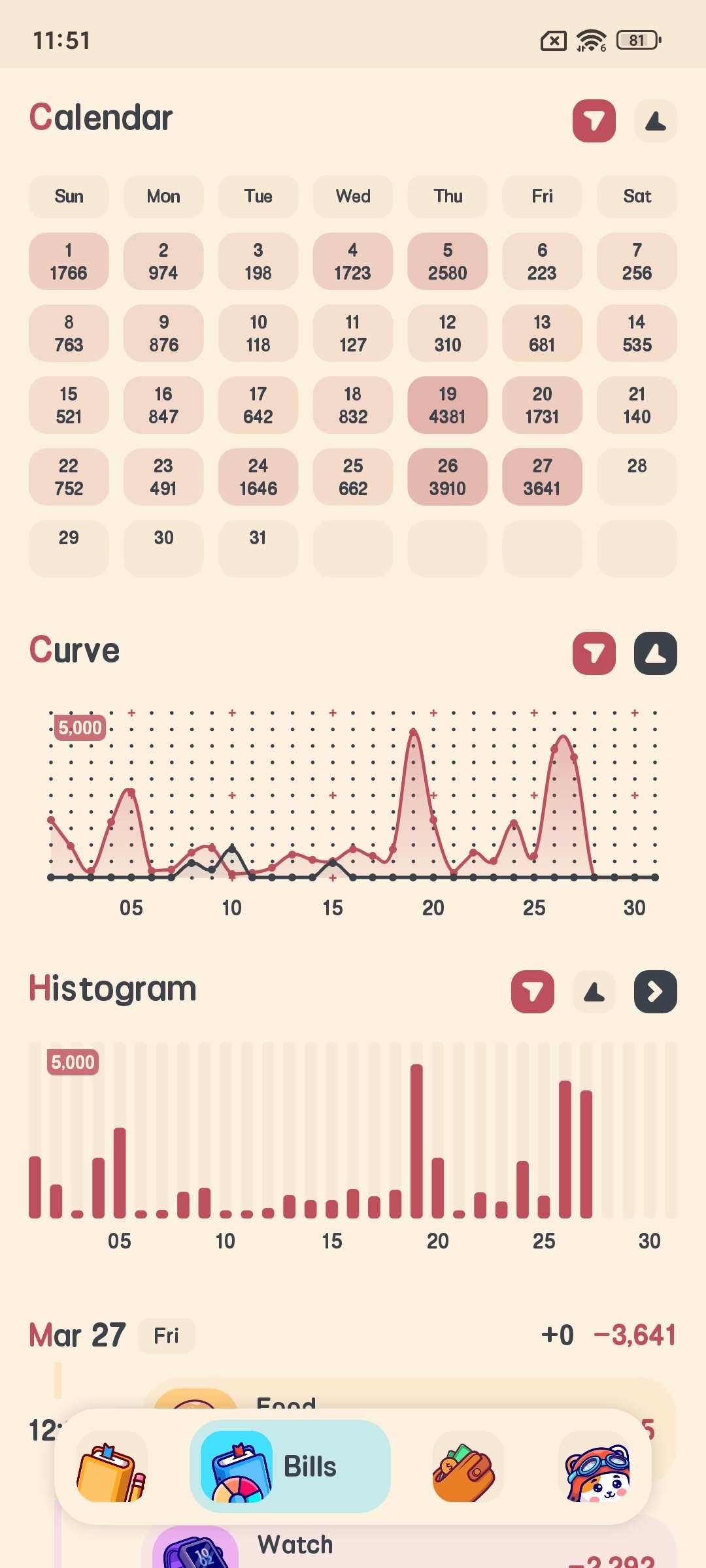
- View different types of statistical charts
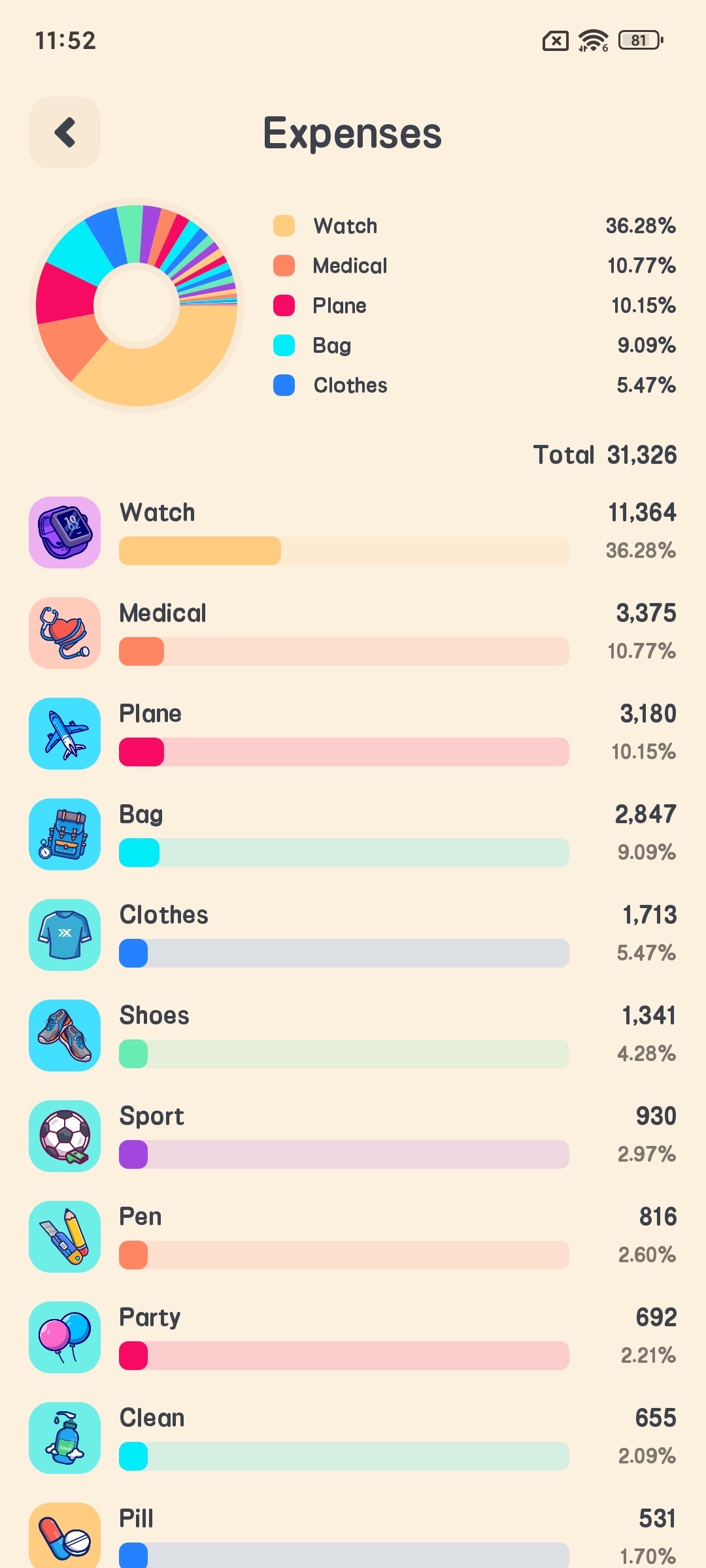
- Pie chart statistics: Pie chart shows the proportion of expenses and income in different categories, helping you understand where your money is spent.
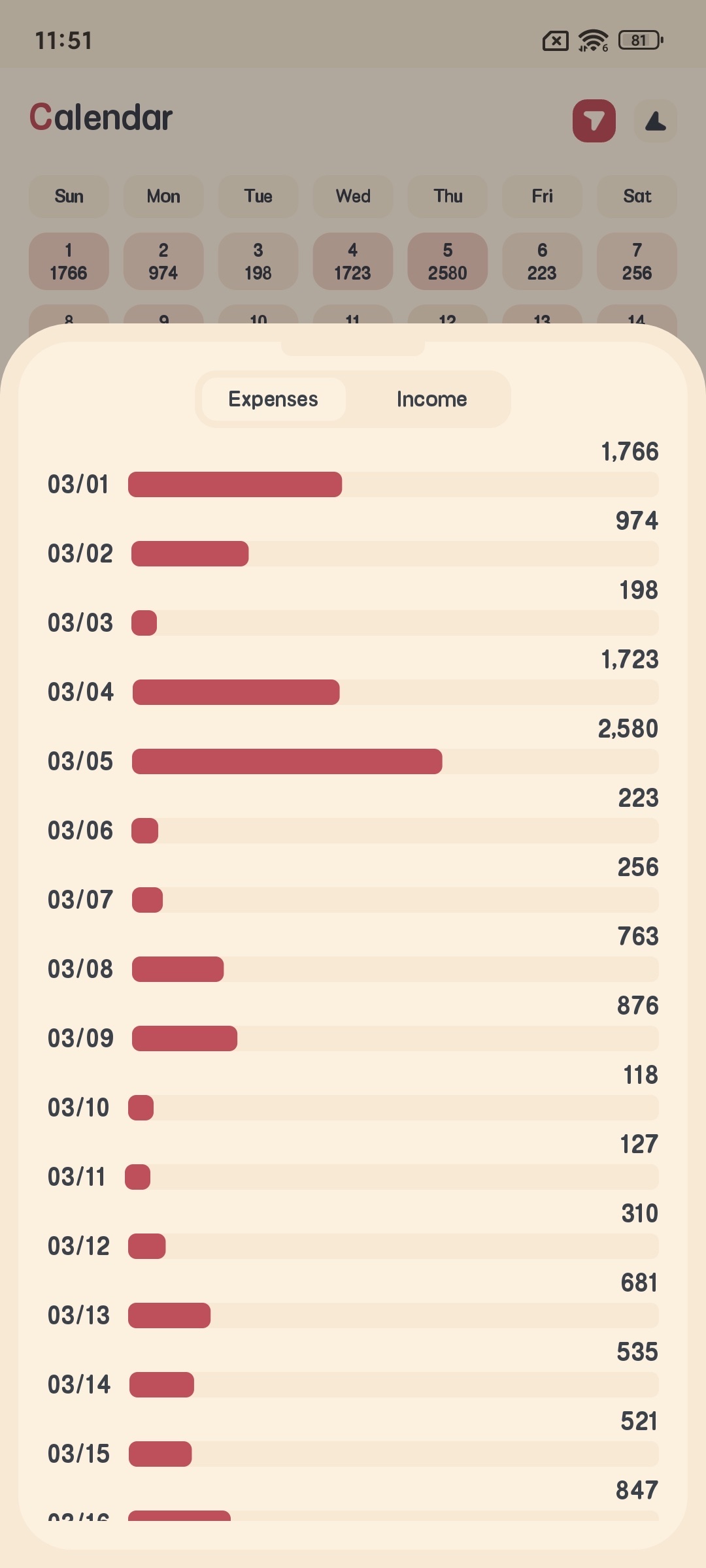
- Bar chart statistics: Bar chart shows daily or monthly income and expenditure, helping you understand income and expenditure trends.
- Calendar view: Calendar view shows daily income and expenditure, with color depth indicating amount size.

Asset Management
Meow Money Manager supports managing multiple types of assets, such as cash, bank cards, credit cards, etc.
Add Asset
- On the main interface, click the bottom asset navigation bar to enter the asset page
- Click the “Add Asset” button
- Select asset type
- Enter asset name
- Enter initial amount
- Select asset icon
- Click confirm to complete asset addition

Asset Details
Click on an asset to enter the details page, where you can view:
- Asset balance
- Asset income and expenditure records
- Asset trend charts


Ledger Management
Meow Money Manager supports creating multiple ledgers for managing different types of income and expenses.
Add Ledger
- On the main interface, click the ledger banner or enter ledger management from settings
- Click the “Add Ledger” button
- Enter ledger name
- Select ledger icon
- Click confirm to complete ledger creation


Switch Ledger
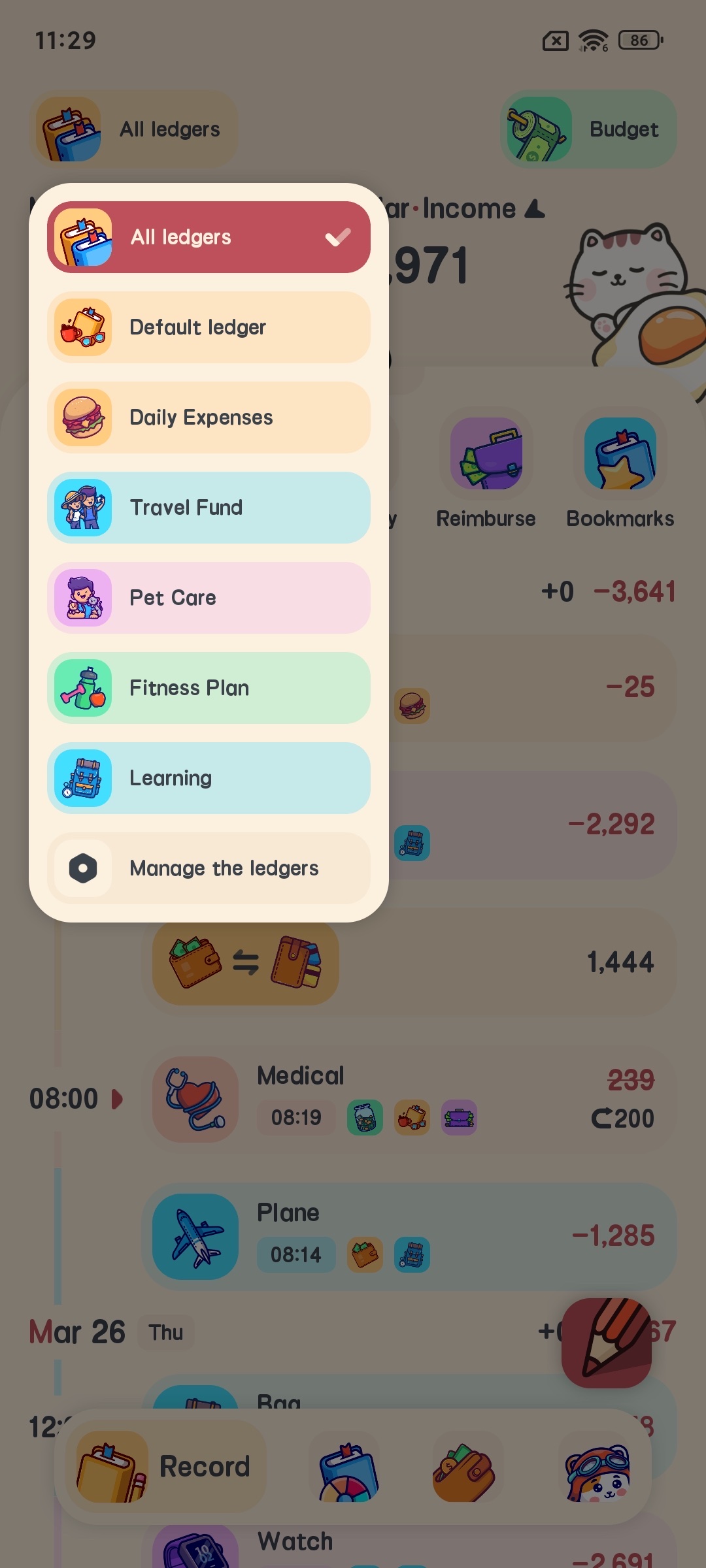
- When bookkeeping, click the ledger selector
- Select the ledger to use from the pop-up ledger list
- After completing the selection, the bookkeeping records for that ledger will be displayed
Ledger Statistics
Click on a ledger to enter the details page, where you can view for that ledger:
- Income and expenditure statistics
- Budget usage
- Detailed bookkeeping records


Recurring Transactions
The recurring transaction feature can help you automatically record regular income and expenses, such as salary, rent, utilities, etc.
Add Recurring Transaction
- Enter recurring transaction management from settings
- Click the “Add Recurring Transaction” button
- Select transaction type (expense or income)
- Select category
- Enter amount
- Select asset
- Select ledger
- Set cycle period (daily, weekly, monthly, yearly)
- Set start date and end date
- Click confirm to complete recurring transaction setup

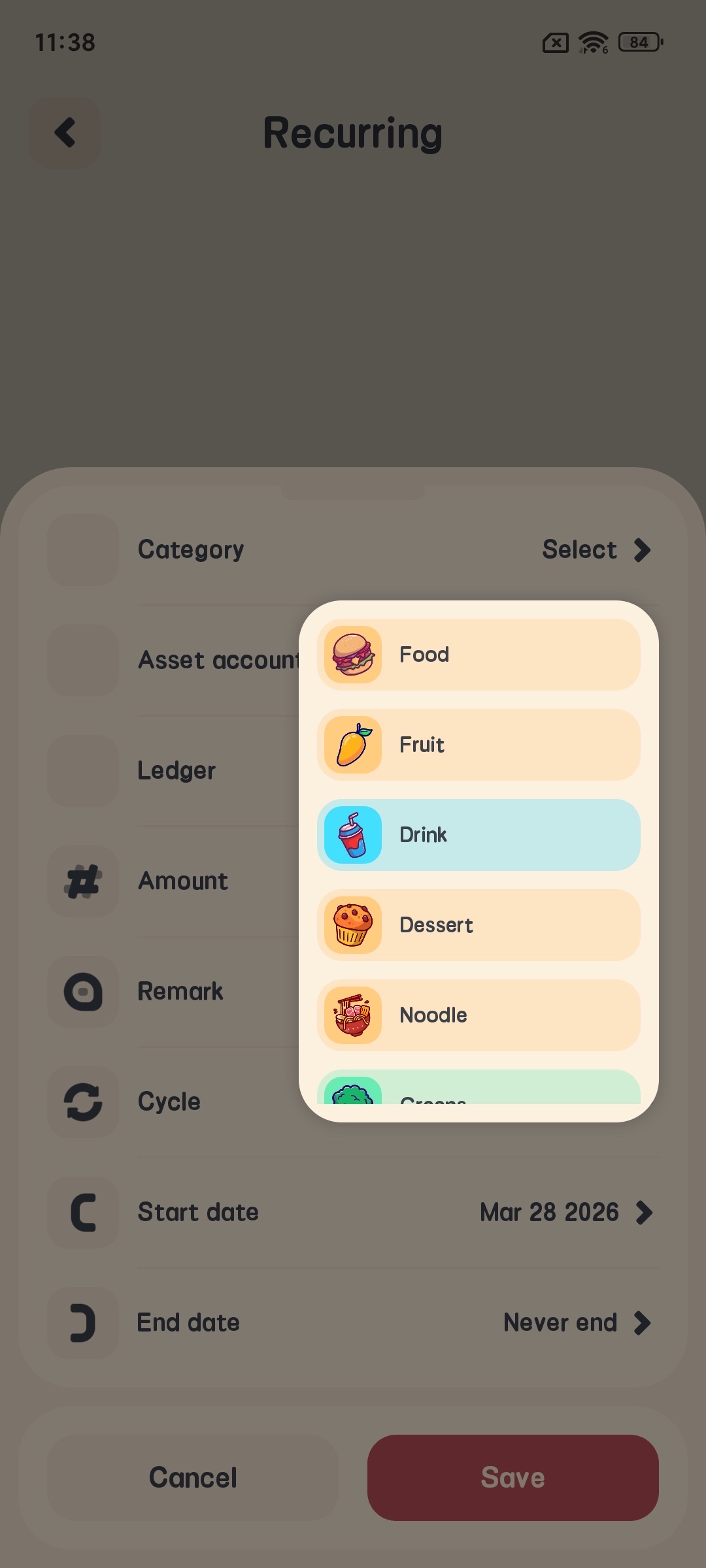


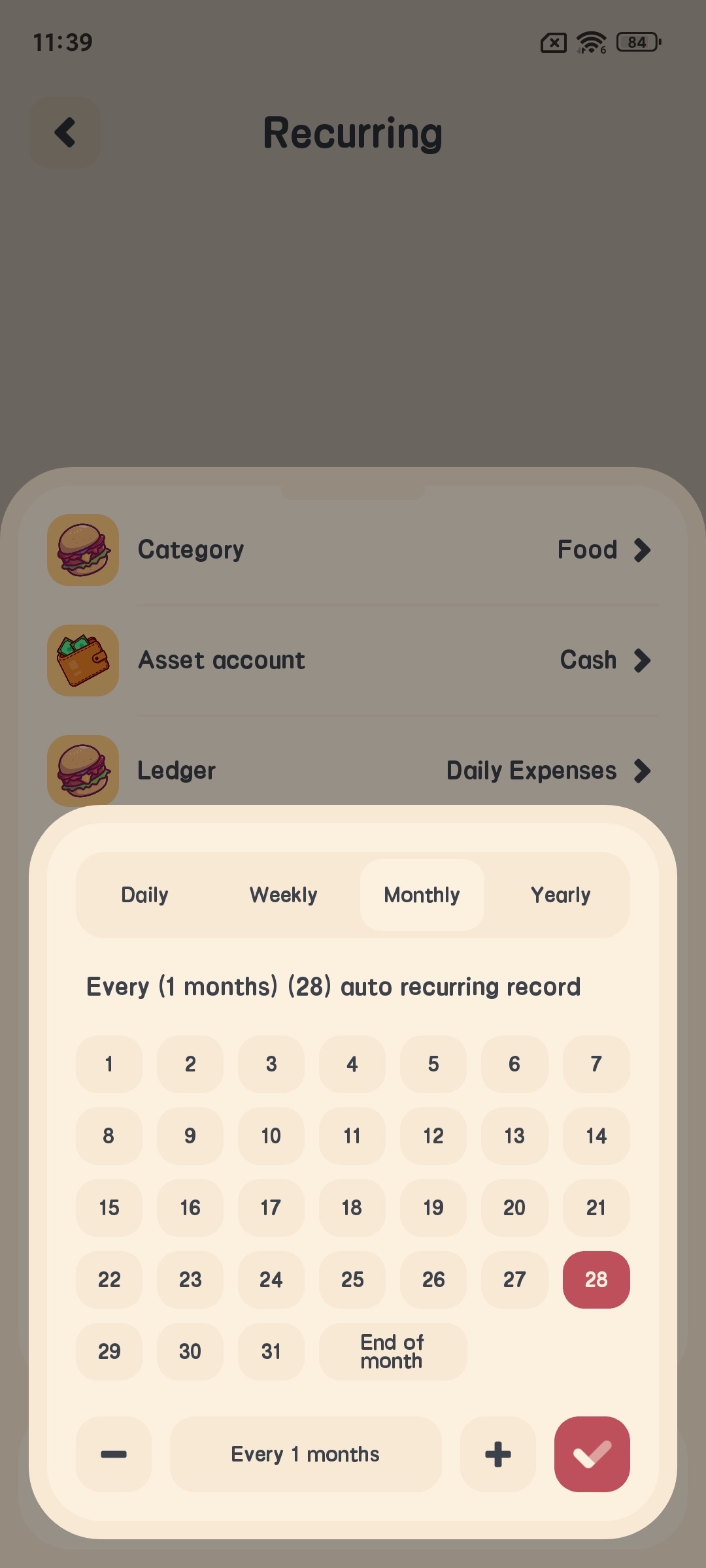
Recurring Transaction Management
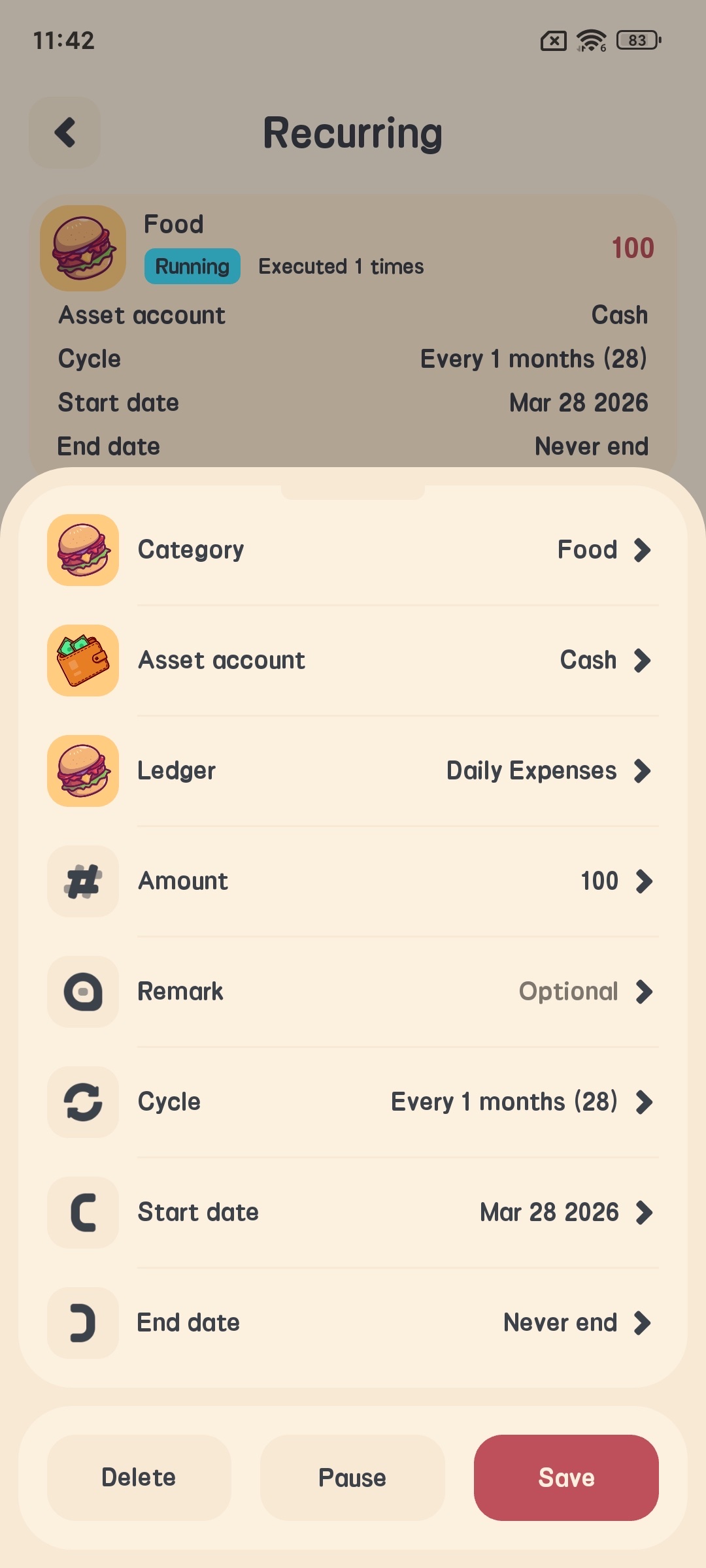
In the recurring transaction list, you can:
- View all recurring transaction tasks
- Edit or delete recurring transaction tasks
- Manually trigger recurring transactions

Expense Reimbursement
The expense reimbursement feature can help you track expenses that need to be reimbursed.
Add Reimbursement Record
- When adding an expense record, check the “Reimburse” option
- Complete other bookkeeping information
- Click confirm to complete reimbursement record addition

Reimbursement Management
- Enter reimbursement management from settings
- View all pending and reimbursed records
- Click on a reimbursement record and mark it as reimbursed
- Enter reimbursement amount and reimbursement date
- Select reimbursement method (asset)
- Click confirm to complete reimbursement


Settings
Meow Money Manager provides multiple setting options to help you customize app functions.
Basic Settings
- Enter the settings page from the bottom navigation bar
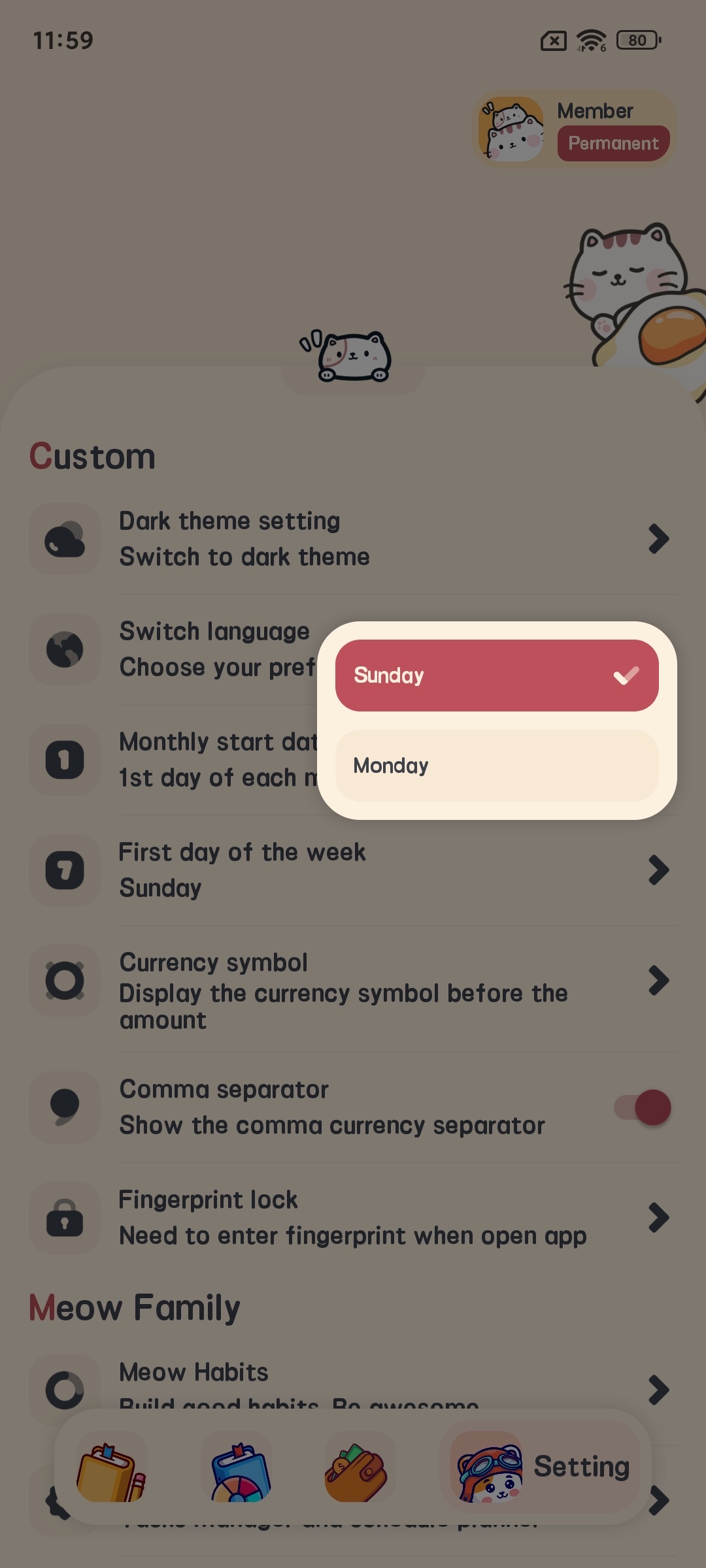
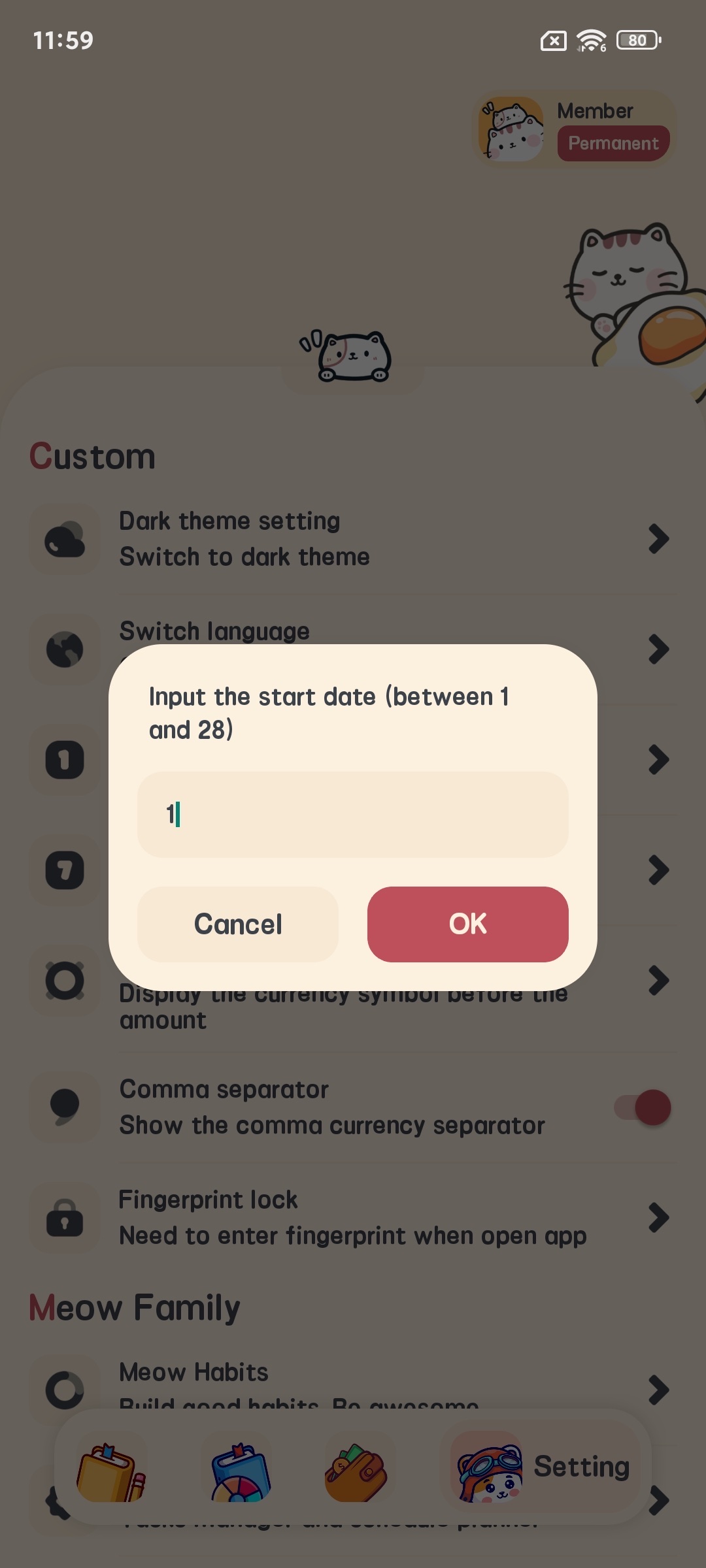
- Adjust the following settings:
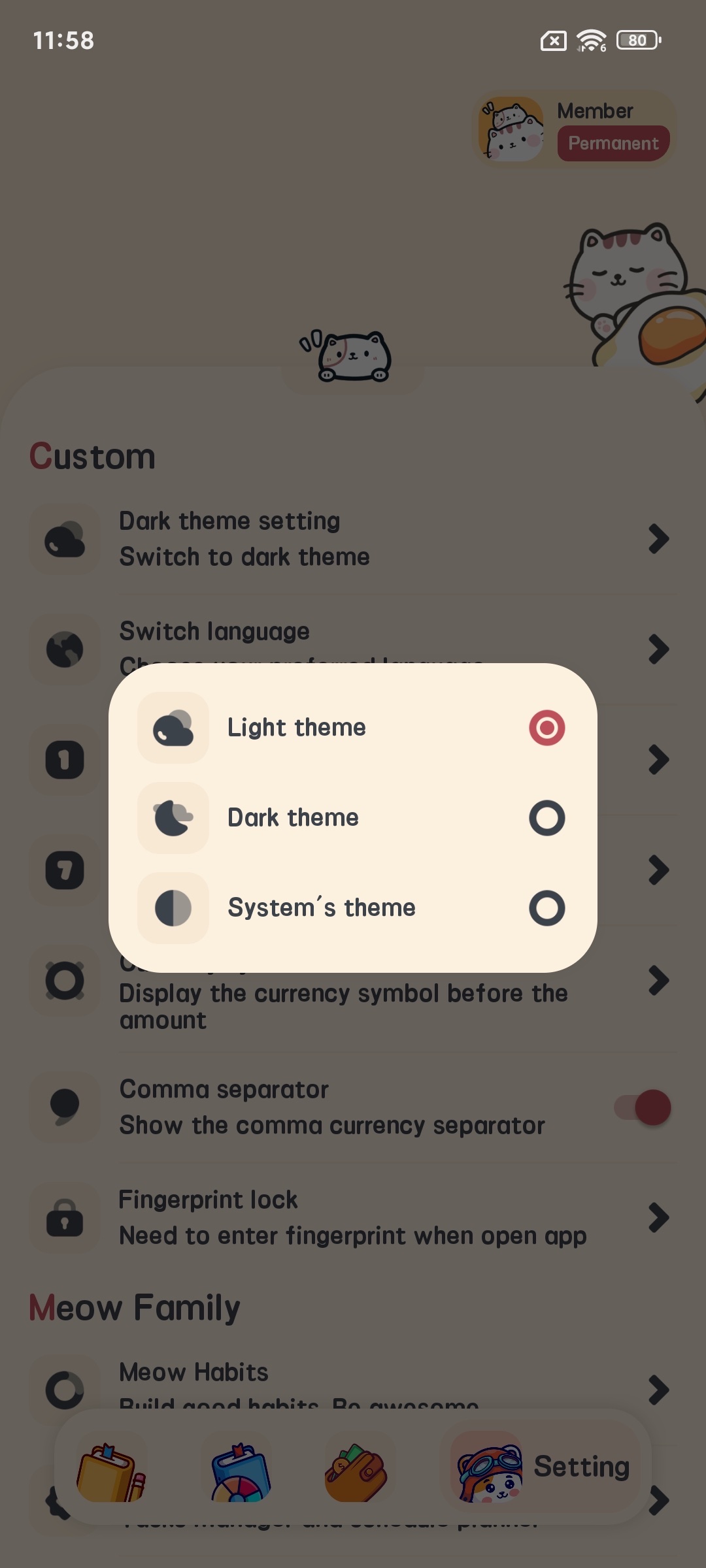
- Theme settings (light, dark, or follow system)
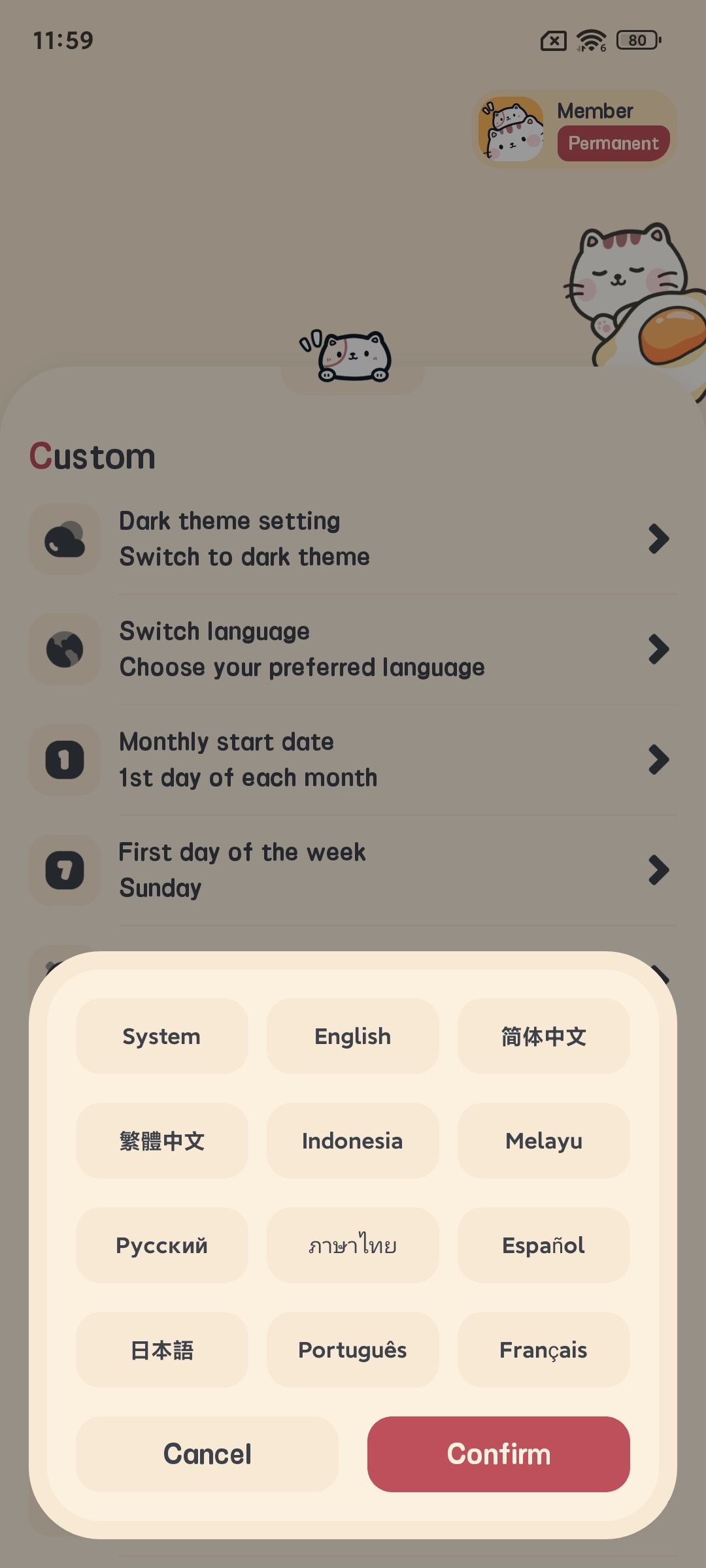
- Language settings
- Currency symbol settings
- Week start day settings
- Month start day settings

Privacy Settings
- On the settings page, click “Privacy Settings”
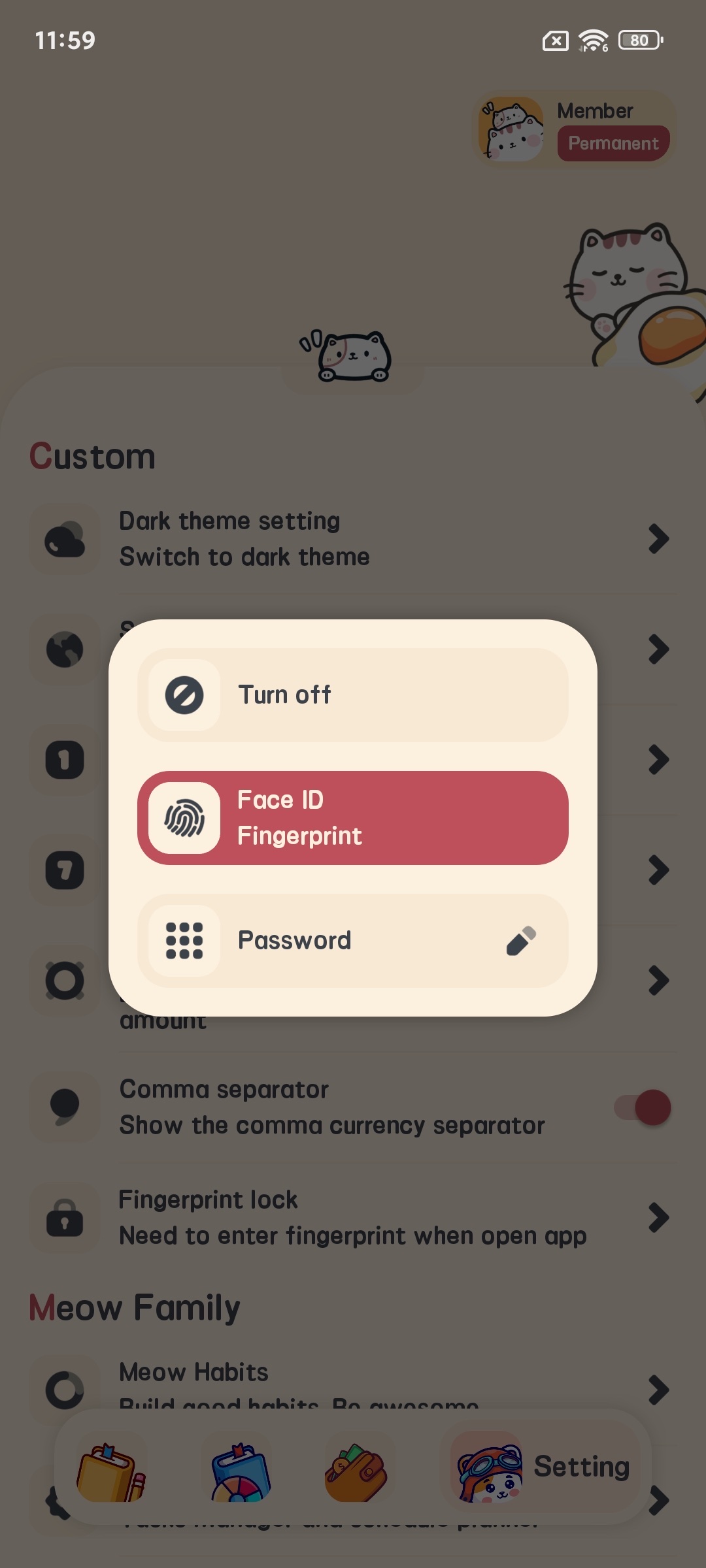
- Enable or disable fingerprint app lock
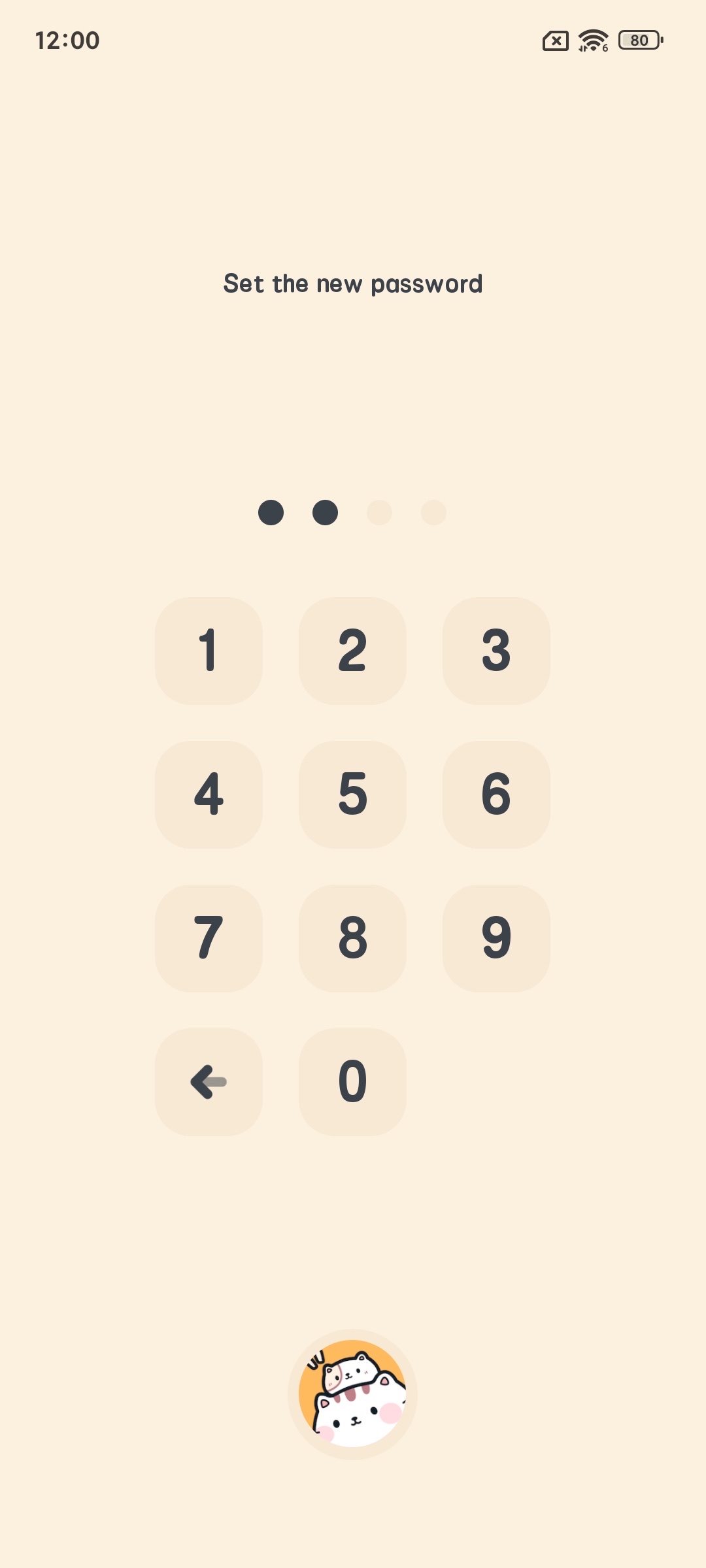
- Set app password (if needed)
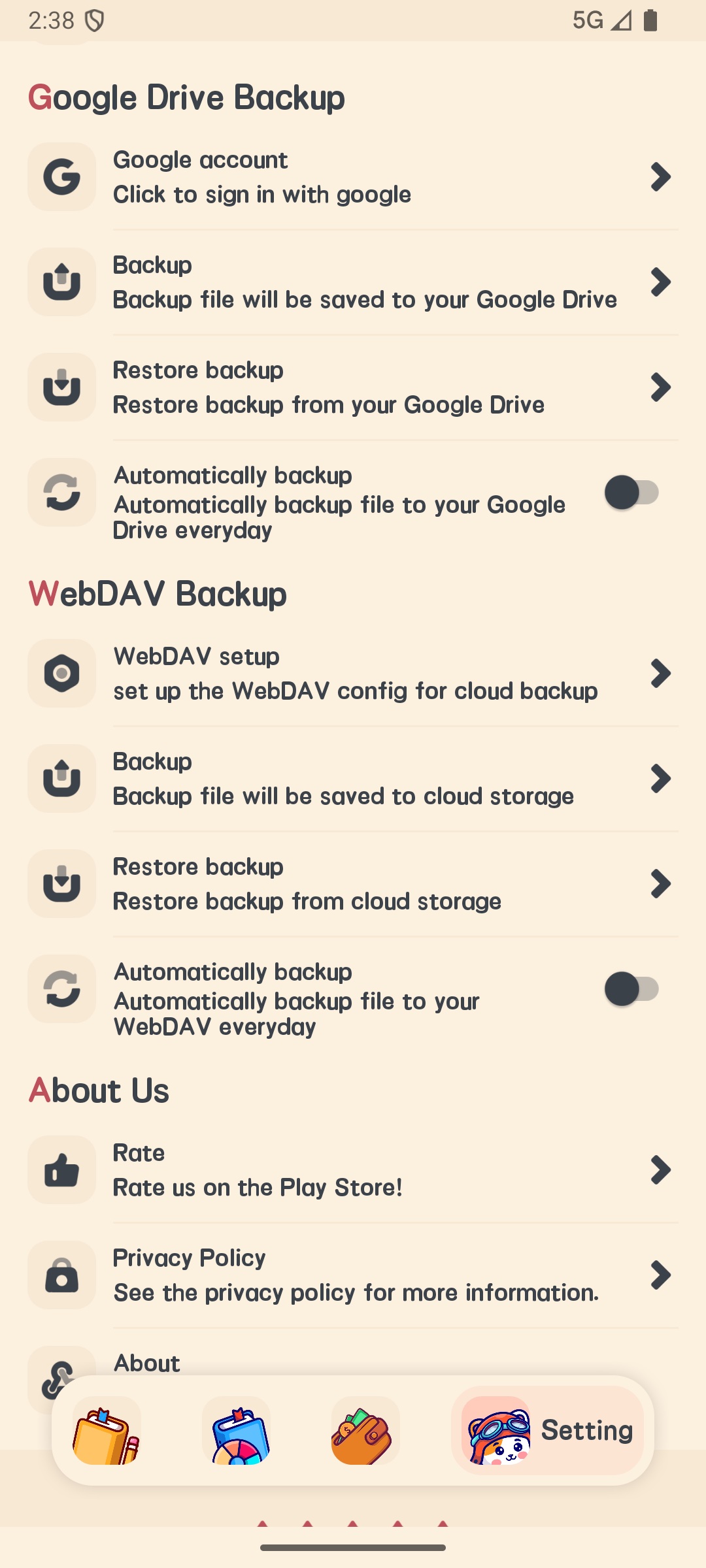
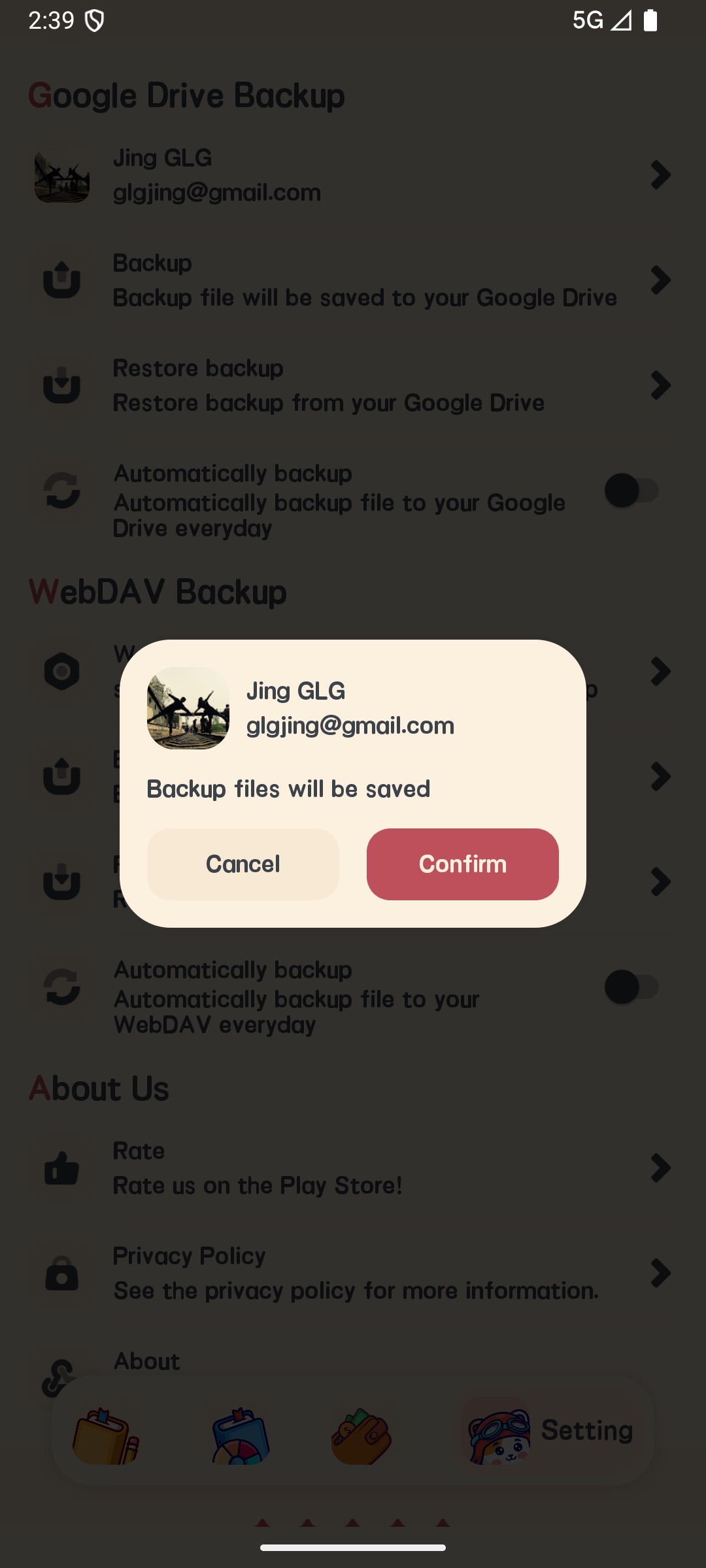
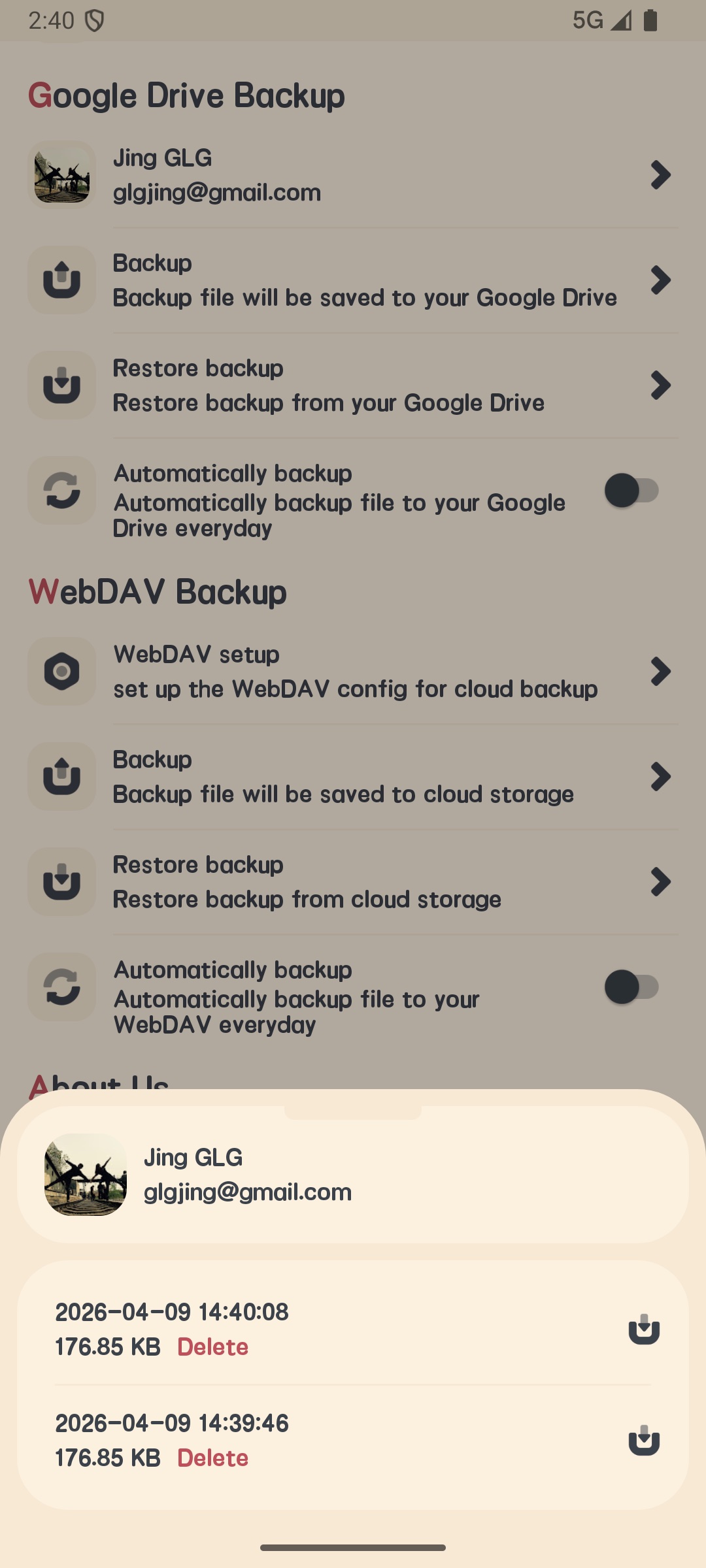
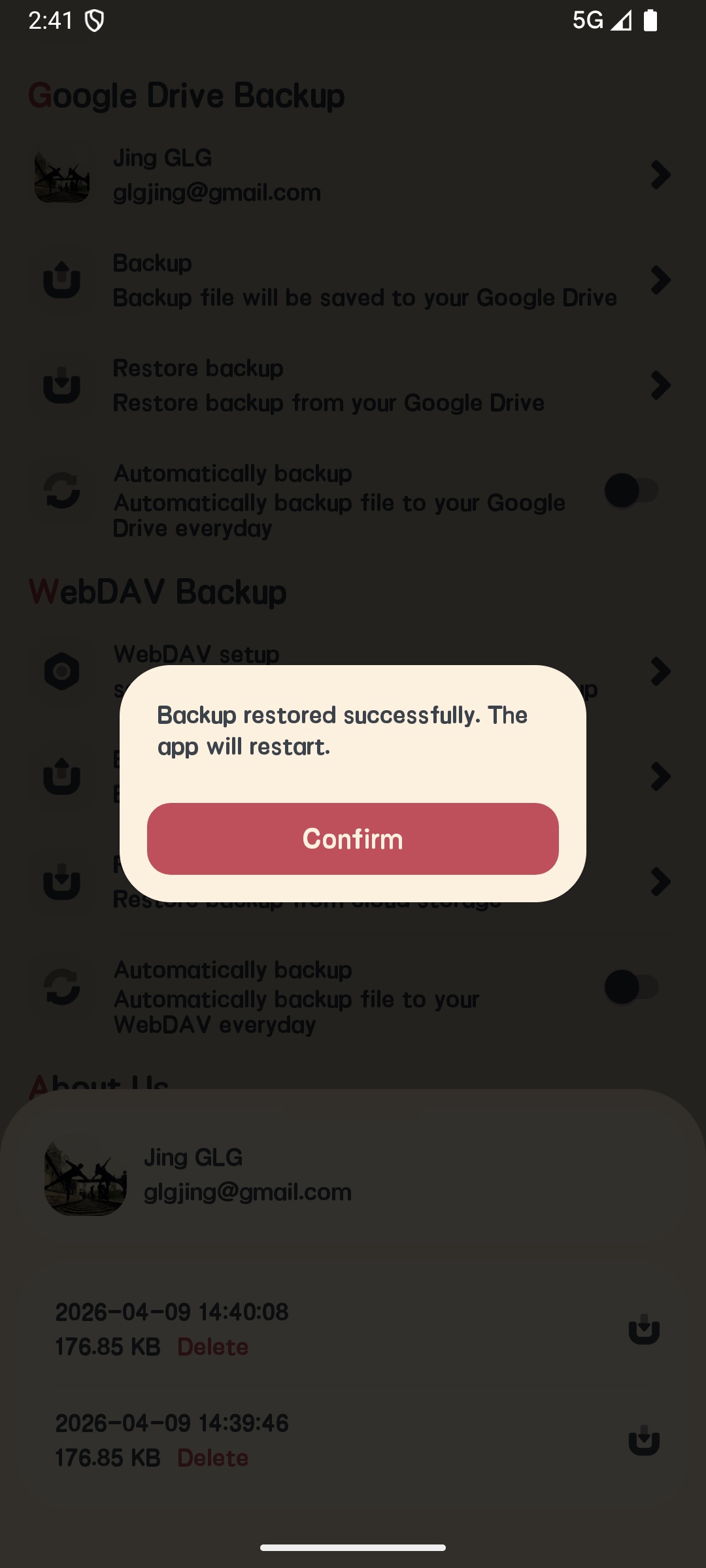
Backup and Restore
- On the settings page, click “Backup and Restore”
- Select backup method:
- Google Drive
- iCloud backup (iOS only)
- WebDAV backup
- Click “Backup Now” for manual backup
- Click “Restore” to restore data from backup files
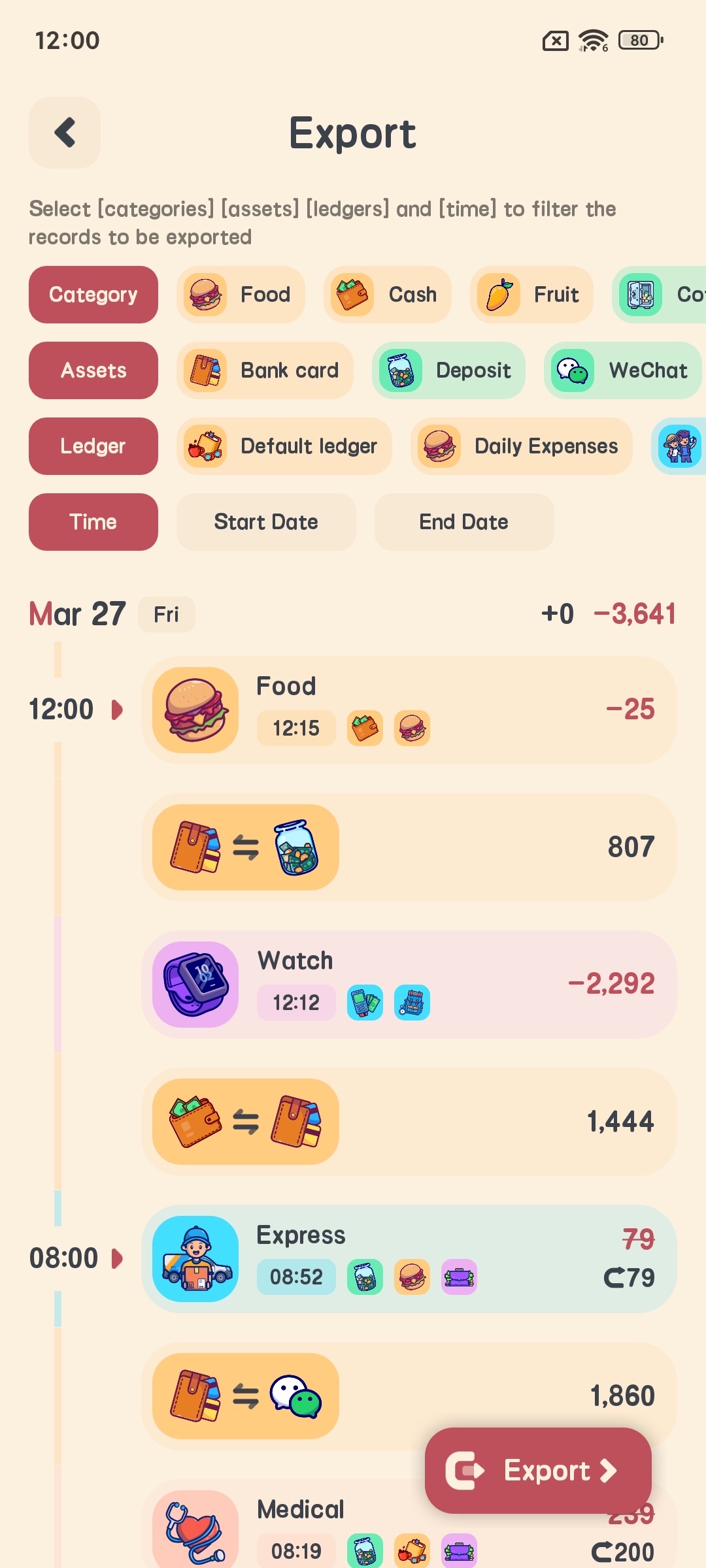
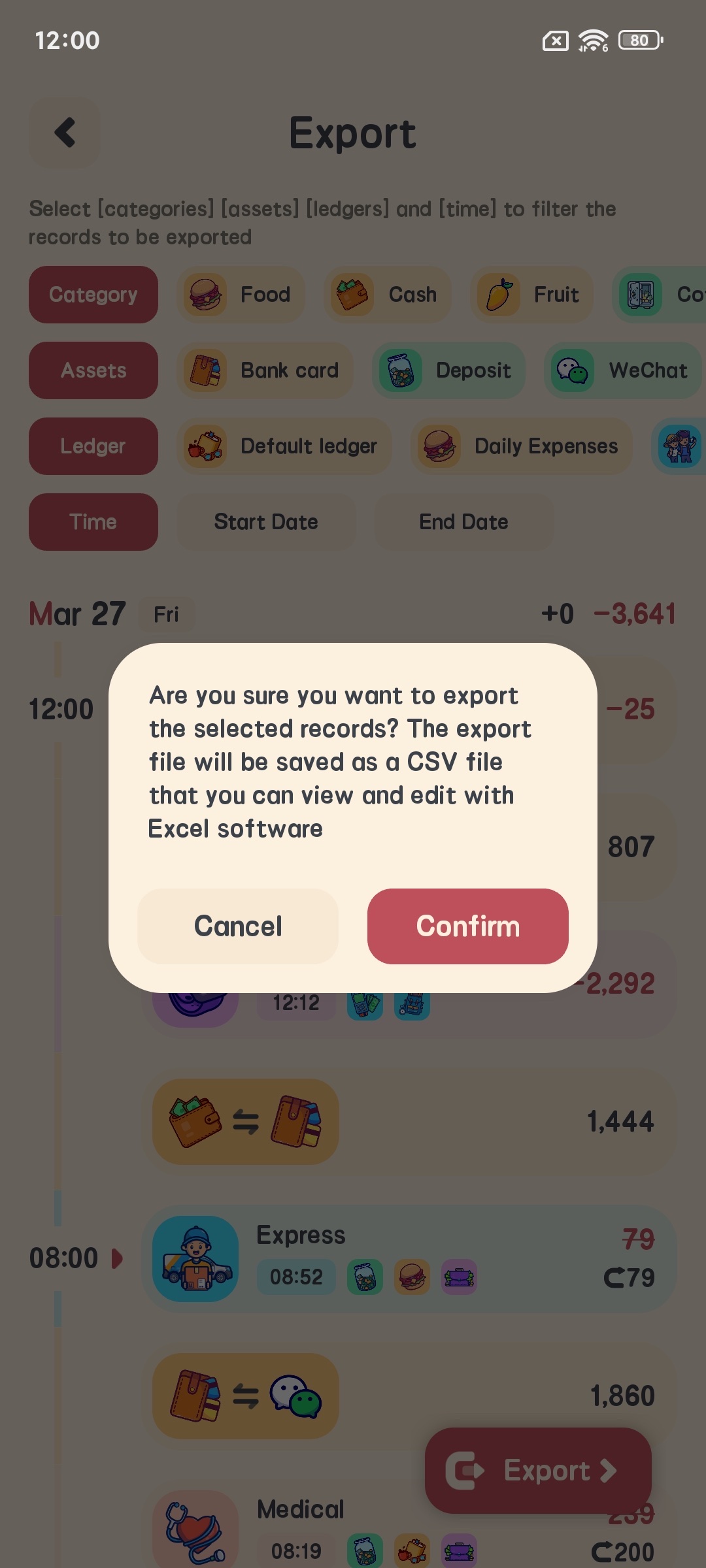
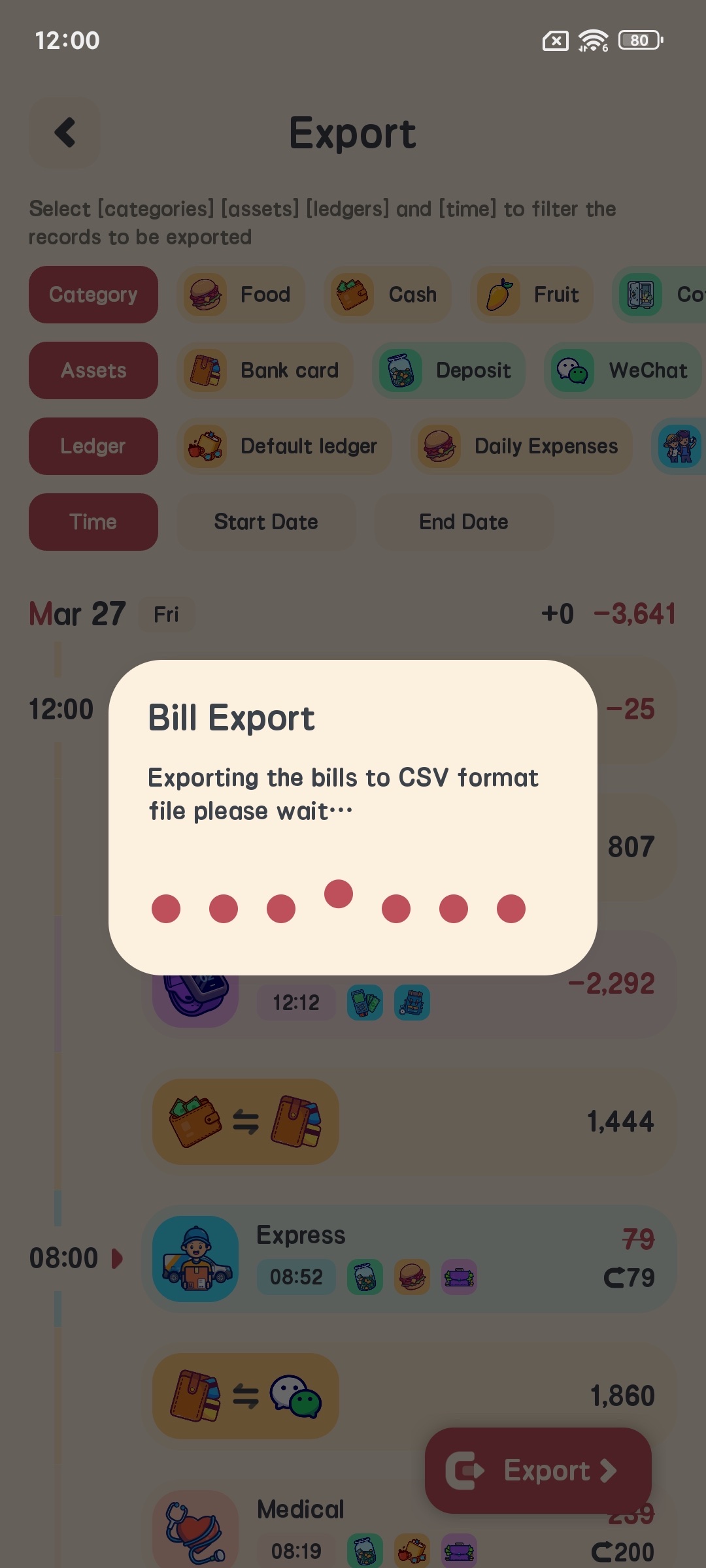
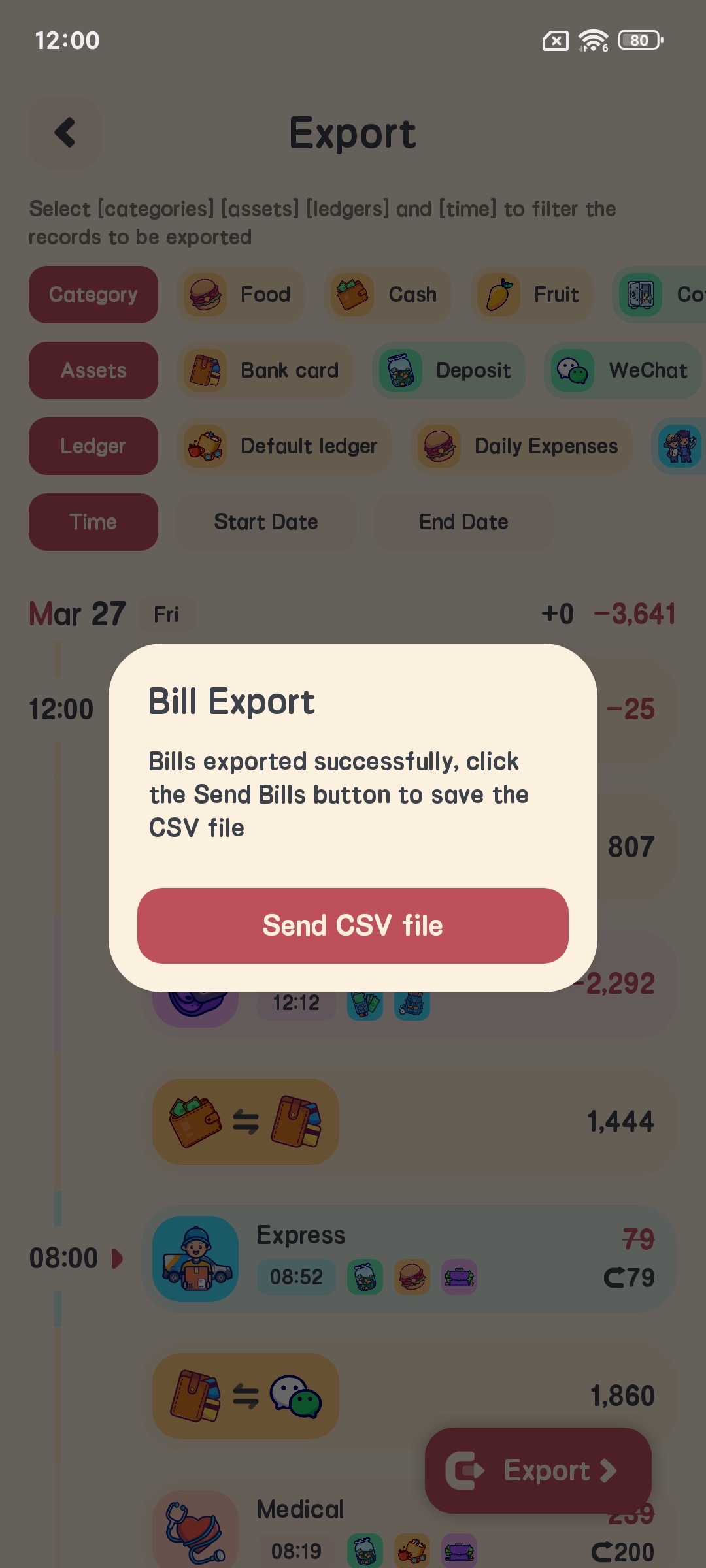
Export Data
- On the settings page, click “Export Data”
- Select export time range
- Select export format (CSV)
- Click “Export” to export data to a file
FAQ
How to modify an added bookkeeping record?
- In the bookkeeping record list, find the record you want to modify
- Click on the record and select “Edit” in the pop-up page
- Modify relevant information
- Click confirm to complete the modification
How to delete a bookkeeping record?
- In the bookkeeping record list, find the record you want to delete
- Long press on the record and select “Delete”
- Confirm the deletion operation
How to switch currency symbols?
- Enter the settings page
- Click “Currency Symbol Settings”
- Select the currency symbol you need
- Click confirm to complete the setting
How to set up app lock?
- Enter the settings page
- Click “Privacy Settings”
- Enable “Fingerprint Lock” or “Password Lock”
- Follow the prompts to complete the setup
How to back up data?
- Enter the settings page
- Click “Backup and Restore”
- Select backup method
- Click “Backup Now” for manual backup
Summary
Meow Money Manager is a powerful and cute personal financial management app. Through this tutorial, you should have mastered its main features and usage methods. We hope it can help you better manage your personal finances and make bookkeeping more easy and enjoyable!
If you encounter any problems during use, please feel free to contact me at: glgjingmarvel@gmail.com