
A To-Do App Is More Than a Checkbox: One Task's Five Stages Across 7 Apps
One task, five stages: capture, organise, act, complete, review. See what a to-do app really does and how 7 apps differ on dates, repeats and data.
At three o’clock on a Wednesday afternoon you suddenly remember: the quarterly report is due next Wednesday. Writing it on a sticky note and putting it into a to-do app differ not in how pretty the screen is, but in what happens to that piece of information afterwards: will it show up on the day, will a missed deadline be flagged or quietly sink, and will finishing it leave a trace or just another item to clear?
Give the same sentence to 7 to-do apps and you get 7 answers. Some split it into a title, a due date and a priority; some keep just one line of text. Some spawn next month’s instance the moment you complete this one; some rebuild your day for you. Some keep the data on the device and make you back it up before switching phones; some require an account before you can start. Feature lists look alike; what decides the experience is all of these “what happens next” rules.
So this is not a contest over who has the longer checklist. We follow one task through five stages — capture it, put it somewhere, do it that day, tick it off, look back — and answer two more basic questions along the way: what a to-do list app actually is, and what it genuinely solves. If you want to compare products directly, see the Android to-do and task manager app overview and how Meow Todo List differs from Todoist.
Verification basis: competitor features, quotas and prices come from official pages, help centres and store listings, checked in November 2026; our own product rules follow the settings and behaviour visible in the app. Versions change quickly, so treat paid-tier numbers as current-page figures. This article covers personal task lists only, not team project management.
1. What a to-do app keeps for you is “not done yet”
A sticky note and a system differ on three layers
A to-do on paper is one sentence; a to-do in an app is a record with somewhere to go. Almost every product is built from three layers:
- Item: the fields one task carries. A title alone is enough at minimum; at most it can hold notes, a planned time, priority, a repeating rule, tags, a list, subtasks and a completion state.
- Container: where the item lives. Lists, folders, projects, areas and tags all give an item a home so you can pull it back out along some dimension.
- View: how the same set of items gets rearranged. Today, tomorrow, the next 7 days, upcoming, completed, calendar and board are not extra data — they are different slices of one dataset.
These three layers explain why a to-do app is not a digital sticky note: the extra step is giving every unfinished thing a rule for when it will be seen again. You do not have to remember it; you only need it to find you at the right moment.
It, the calendar, habit apps and notes each own one stretch
Beginners most often blur four tools by dumping everything worth remembering into one of them. The division is actually clear:
| Tool | Basic unit | Time meaning | Typical question |
|---|---|---|---|
| To-do app | One task (ends when done) | Finish by a day or a deadline | What is still unfinished |
| Calendar | A block of time | Has a fixed start and end, occupies time | What am I doing at 3 pm Wednesday |
| Habit app | One completion inside a cycle | Recurs by period, no endpoint | How many workouts this week |
| Notes and docs | Content editable indefinitely | Usually has no completion state | Where did I put that reference |
A common working setup: tasks live in the to-do app, the ones that really occupy two hours go onto the calendar, long-term repeated behaviours go to a habit app, references stay in notes. What makes a to-do app distinctive is that it reserves an explicit place for the act of finishing — neither notes nor a calendar offers that.
A small dictionary of core concepts
These words recur throughout the comparison, so here is the vocabulary up front:
- Inbox: a holding area where you capture first and classify later. It separates having the thought from deciding where it belongs, so you do not skip capturing just because sorting feels like work.
- Subtask: steps you can tick off inside one task. Most products support only one level, and subtasks carry no independent date; see what a subtask is.
- List, tag and project: a list is usually ownership (one task joins one), a tag a dimension (one task can carry several), and a project tends to imply a goal and phases. Whether these can stack sets the ceiling on organising.
- Recurring rule: makes a task appear again daily, weekly, monthly, yearly or on a custom interval, optionally ending on a date or after a count. The key difference is how the next instance is generated after you finish this one.
- Today view: the few items picked out of everything that you need to face today. It is not a plain filter on today’s date, because products handle overdue items differently.
- Overdue: past its planned time and still unfinished. Some products roll it forward to today automatically, some flag it in red and leave it under Overdue, some fold it into the today view.
- Natural language input: typing a due date and time in the title and letting the app parse a date and reminder. It shortens the entry cost of the first stage.
- Archive and completed state: where an item goes after the tick. Some keep searchable history, some collapse it into a count, some remove it from the list entirely.
The concepts look fussy, but almost everything that makes two apps feel different comes from the rules behind these words.
2. Following one task through five stages
Stage 1 — Capture: one sentence split into fields
Entry cost decides whether a list actually gets used. The lightest approach gives you a title box and leaves date, priority, repeat and tags for later; the most convenient packs those fields into one sentence and parses it.
Todoist and TickTick both make natural-language quick add a core entry point, and their official pages list it as a free feature: write a weekly report with a Friday time and you get a date and a repeating rule. Google Tasks goes further, letting you turn something into a task beside the email in Gmail or in the Google Calendar sidebar without switching apps. Meow Todo List takes the other route: the title is plain text and date, priority, tags and repeat are each chosen in a separate panel — a few more taps, but no parsing ambiguity: what you type is what gets stored.
One easily missed detail in this stage: whether reminders are an independent field. Meow Todo List has no “remind me 10 minutes before” option; the reminder time equals the task’s planned time, plus a separate daily digest. Custom reminders in Todoist belong to the paid tier. If you want an advance nudge, check this before choosing.
There is also a prior question: what if you want to capture something but have not decided where it belongs. Things 3 has a dedicated inbox, TickTick puts its inbox first in the sidebar, and Google Tasks simply grows the entry point beside mail and calendar; Meow Todo List has no dedicated inbox, with the Default list and the No date group taking such items. Whether this step exists decides if you capture now and sort later, or must classify on the spot — and the latter often means you capture nothing at all.
Stage 2 — Organise: lists, tags, subtasks and priority
Once tasks pile up, the problem shifts from will I remember to can I find it. The most substantive divide here is whether layers can stack.
Things 3 builds a long-term structure of areas, projects, headings and to-dos, good for keeping work, family and personal goals apart over time; Todoist uses projects, nested subtasks, labels and filters; Microsoft To Do and Google Tasks are more restrained, relying on several flat lists; Meow Todo List is one level of lists, one level of tags and one level of subtasks, with no parent lists or tags and no further nesting. The payoff is simplicity: creating a task does not require answering which folder it belongs in first. The cost is that complex projects are hard to break down cleanly.
Sorting and filtering belong here too. Meow Todo List offers four sort modes — by date, priority, list or none — with manual drag ordering in non-date modes; search and export can be filtered by list, tag, priority and date range. Its free tier caps the number of lists (10), tags (10) and subtasks per task (10), not the total number of tasks — a very different basis from TickTick’s 9 lists and 99 tasks per list on free, and worth checking when comparing quotas.
Priority is part of this stage too, but the scales differ: Meow Todo List has four levels (none, low, medium, high), TickTick offers an Eisenhower matrix, and Google Tasks has no priority at all. Four levels suit quick sorting, a matrix suits trade-offs, and no priority means weight can only be expressed by which list and which position. The same goes for sort rules — by date, by priority, by list, or purely manual drag are four different ideas of order.
Stage 3 — Act: the semantics of Today and Overdue
Products only show their character when the day arrives.
What exactly does today contain? Meow Todo List’s answer: tasks due today plus every task that is overdue but unfinished, grouped and marked under Overdue; overdue items are neither rolled forward nor auto-completed. With date sorting, all tasks split into six groups: Overdue, Today, Tomorrow, 7 days, Later and No date. Microsoft To Do’s My Day takes another approach: it starts empty every day, and you or its Suggestions pick what to do, with anything unfinished offered again tomorrow. One is a ledger, the other a list rebuilt daily; neither is better, it depends on whether you fear missing things or being weighed down by old ones.
Repeating tasks are the most overlooked part of this stage and the one that exposes design assumptions best. Take paying rent on the first of each month: when you tick off the current instance, Meow Todo List generates a brand-new next one, copying title, notes, list, tags, priority, the repeating rule and all subtasks, resetting subtasks to incomplete and moving the planned time to the next valid cycle; cycles that already passed unhandled are skipped, landing on today or a future date, and an end date or count stops generation. The original stays completed and stops repeating. History is therefore a set of genuinely completed records, not one task rewritten forever. Google’s official help says repeating tasks can be set on specific dates, but subtasks have only one level and no independent dates — the two histories mean different things.
Reminders and entry points also sit here. Meow Todo List splits reminders into two kinds: a notification when a task is due, and a daily digest at a fixed time that can optionally include overdue items; home-screen widgets add quick add, task lists, calendar and statistics. But tapping a notification opens the app home, with no Complete or Later action inside the notification, and widget items open detail view. Products that put completion into the notification shave off one more layer of friction, at the price of a noisier notification shade.
Stage 4 — Complete: where the data goes after the tick
The action is so light that few people ask about its result, yet it decides whether you can still answer, six months later, which day that thing was actually finished.
Meow Todo List moves finished tasks into a Completed group, with a home-page toggle, the latest 10 shown by default and a Show more option; finishing records a completion time and can play a sound. It has no recycle bin and no archive: deletion is permanent, and Clear completed explicitly warns that it cannot be undone. Things 3 has a completion log called Logbook, while Todoist turns activity history into searchable productivity visualisations (1 week on free, full history on paid).
For anyone who needs a trail, a review, or proof that something was done, this stage matters far more than the colour scheme; for someone who just wants an empty list once a day, simpler is better.
One easy trap is Clear completed. It makes the list instantly tidy, but in a product with neither archive nor recycle bin it also erases the trail, and the interface warns that it cannot be undone. If you review quarterly, export before clearing; if you use the list as a temporary board, clearing regularly keeps completed tasks from crowding the home screen.
Stage 5 — Review: calendar, statistics and a data exit
The last stage decides whether the system is usable for years.
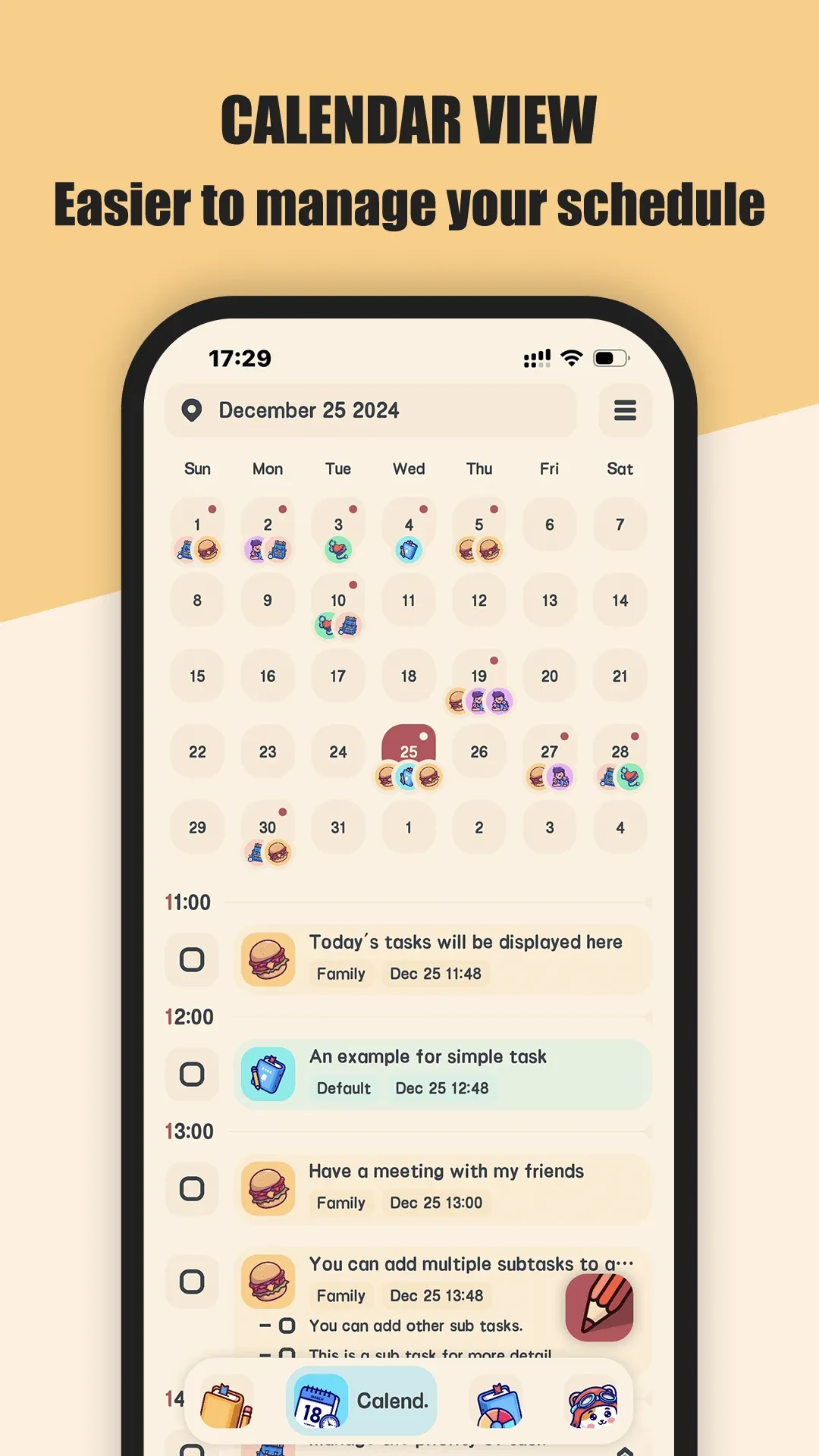
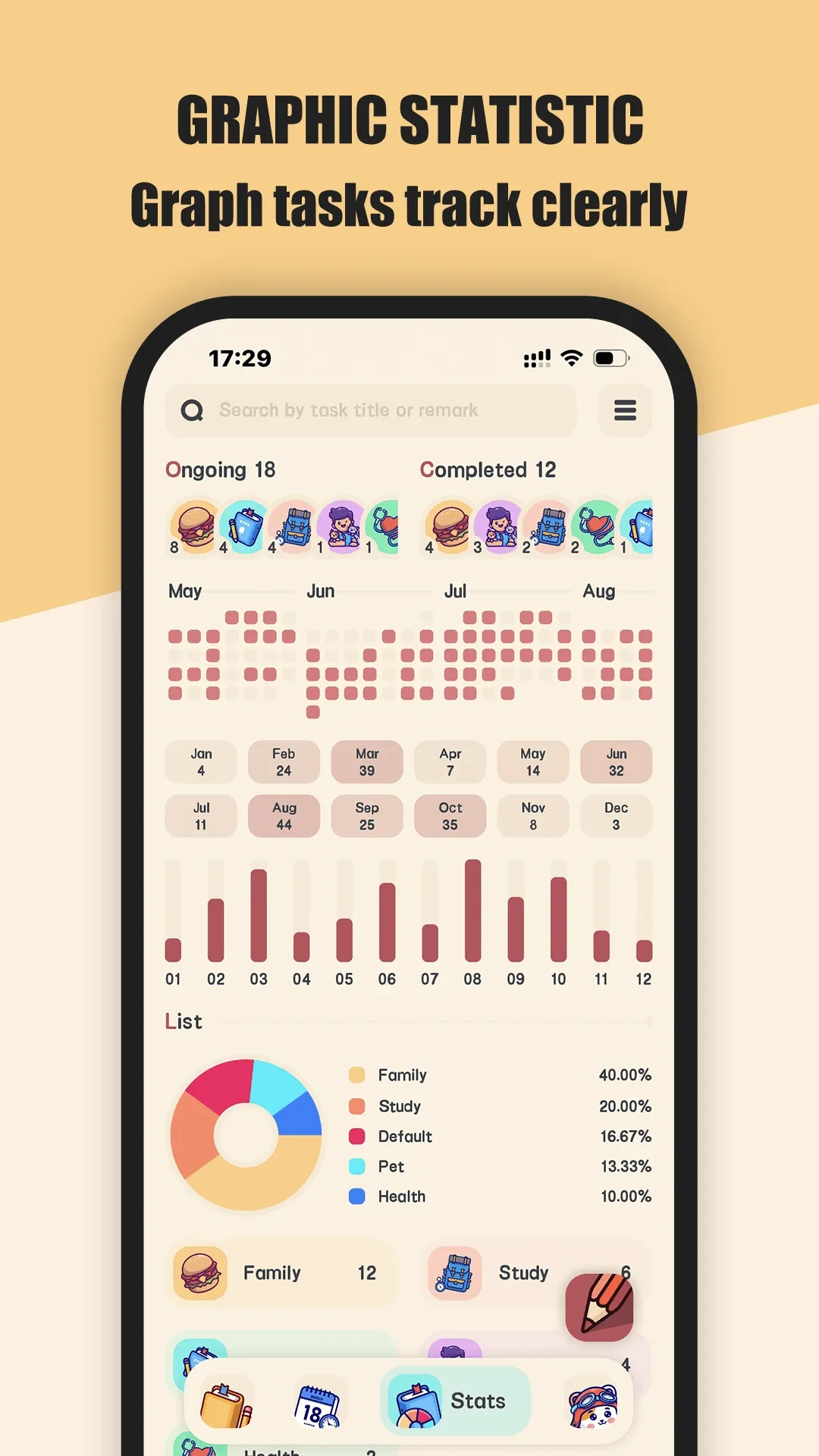
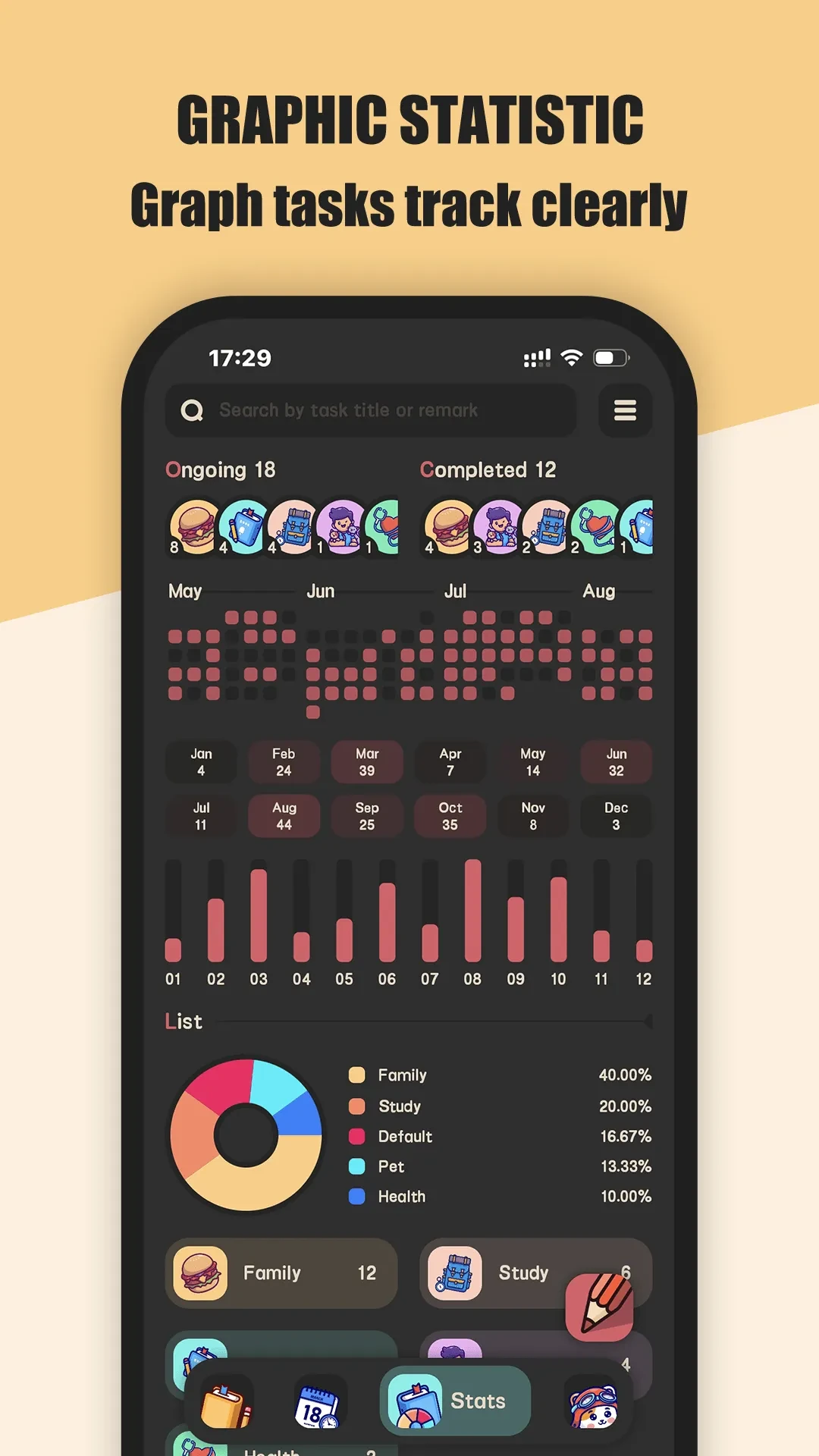
Meow Todo List has four main views — Tasks, Calendar, Statistics and Settings — with day, week and month calendar modes. Statistics can be viewed by day, week, month, year, a custom range or all time, including a yearly contribution graph, monthly, weekly and yearly calendar heat, pies and rankings by list and by tag, and task lists grouped by hour, week or date. On the home screen there are 10 kinds of widgets — quick add, task book, task list, pie statistics, month and week calendars, and week, month and year statistics — many of which show the day’s overview directly. There are no achievement badges or streak systems; statistics answer only how much was done and where it landed, without inventing another score to maintain.
The data exit deserves its own look. Meow Todo List keeps data on the device, needs no account, and has no real-time multi-device sync; switching devices relies on full-database backup and restore, with Google Drive or your own WebDAV address and optional automatic backups. Exporting CSV after filtering by list, tag, priority and date range is a premium feature, with columns for list, title, description, tags, date and completion state; there is no matching import. It suits people who do not want everyday records on a server but still want to take them away at any time, not people who add a task on the phone and expect to see it on a computer immediately.
3. What a to-do app is actually good for
Outsourcing remembering
In the 1920s Bluma Zeigarnik noticed that waiters recalled unpaid orders more vividly than settled ones, later generalised as the Zeigarnik effect: unfinished matters tend to stay in mind. Closer to to-do apps is Masicampo and Baumeister’s 2011 experiment in the Journal of Personality and Social Psychology (101(4), 667–683, doi:10.1037/a0024192): what keeps an unfulfilled goal intruding is often not the incompleteness itself but the absence of a concrete plan; writing down when, where and how reduces the interference markedly.
That conclusion matters for understanding to-do apps: their value is not only helping you finish, but moving something out of your head into a place with a clear next step. Writing it down plus arranging it already offloads part of the burden. Mind the limits too — these are short-term laboratory task studies, not proof that installing a to-do app makes you more productive; what still decides the outcome is whether the task can actually be executed.
Translated into daily practice: do not write nouns, write the next action. A vague report item offers almost nothing executable; a line naming Wednesday 9:00 at the desk and the first action gives a time, a place and a starting move. Behavioural science calls this if-then phrasing implementation intentions, and one value of a to-do app is giving that phrasing a fixed home.
Four values you can use every day
- External memory: hand do-not-forget to the system and keep your head for judgement. Especially for things with no fixed trigger (expenses, replies, bills), sticky notes and memory are both unreliable.
- Turning vagueness into action: a vague report item invites delay; split into pulling figures, booking a room and writing an outline, and the starting cost drops at once. Subtasks and repeating rules do exactly this.
- Shortening the distance from thought to capture: widgets, notifications, sidebars and quick add all compete on the same thing — writing it down the second the thought appears, rather than catching up in the evening.
- Leaving a reviewable trail: completion times, contribution graphs and per-list distribution turn what I was busy with this month into a checkable fact instead of an impression.
A list is a container, not a method
GTD, weekly reviews, the Eisenhower matrix and time blocking are methods, not features of any app. A tool can offer only three things: a place for items, a way for them to reappear at the right time, and a record of completion. Switching apps will not fix an unclear method; conversely, a tool simple enough that you open it daily usually beats a full-featured system you stop maintaining after three days.
When a list gets in the way
The same mechanisms can backfire. A list that keeps growing and is never pruned becomes a liability that only produces anxiety; twenty minutes a day spent re-sorting priorities consumes time meant for the work itself; treating tidying the list as making progress is the most common self-deception. And for work that needs collaboration, real-time sync across devices, or tasks that depend heavily on outside conditions such as waiting on someone’s reply, a purely local personal list is the wrong fit — it was never meant to solve those.
In one line: a to-do app is responsible for giving unfinished things somewhere to be, not for doing them for you.
4. Where 7 products spend their effort
Meow Todo List (Android / iOS): all five stages stay local
Meow Todo List is available on both Android and iOS, and both versions take the no-account, data-stays-on-the-device route; the functional details below follow the Android interface, so check the in-app display on iOS. It is the most thoroughly local-first of the seven: no account, with tasks, lists and tags stored on the device; one level each of lists, tags and subtasks for organisation; Tasks, Calendar, Statistics and Settings views; task reminders and a daily digest; and 10 kinds of home-screen widgets. The trade-off is consistent — capture, organisation and review are all local capabilities, at the cost of no real-time sync across devices.
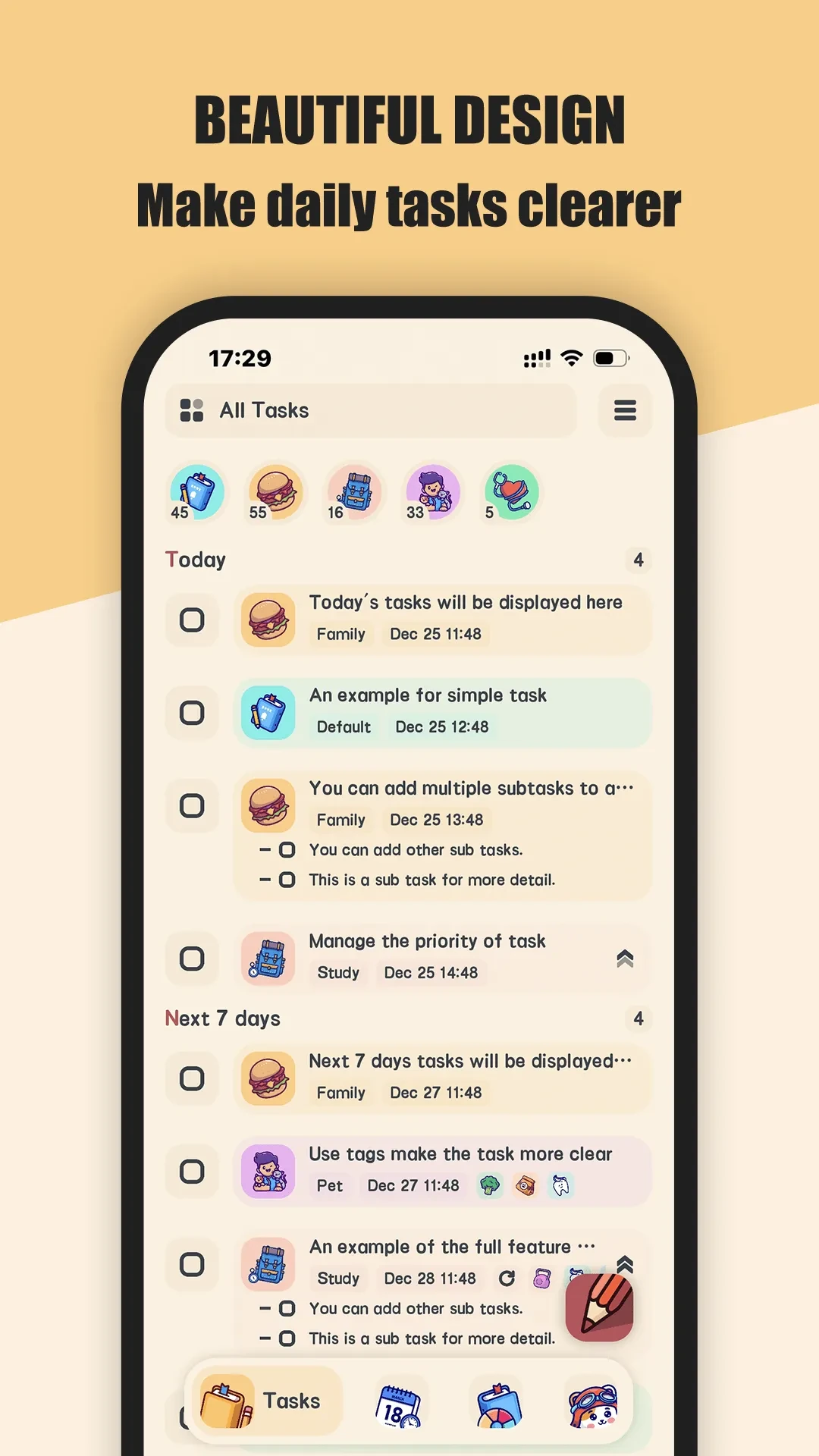
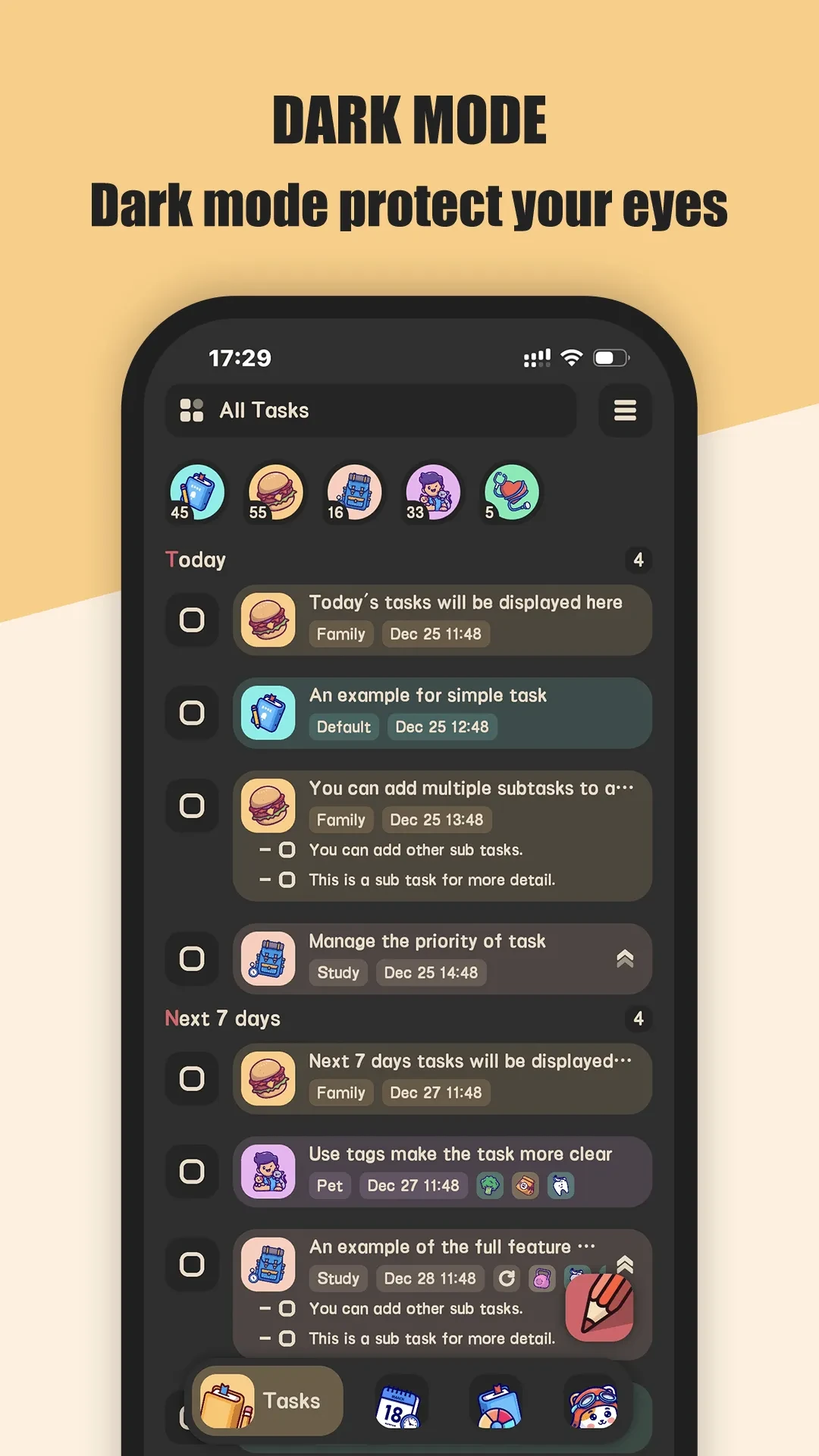
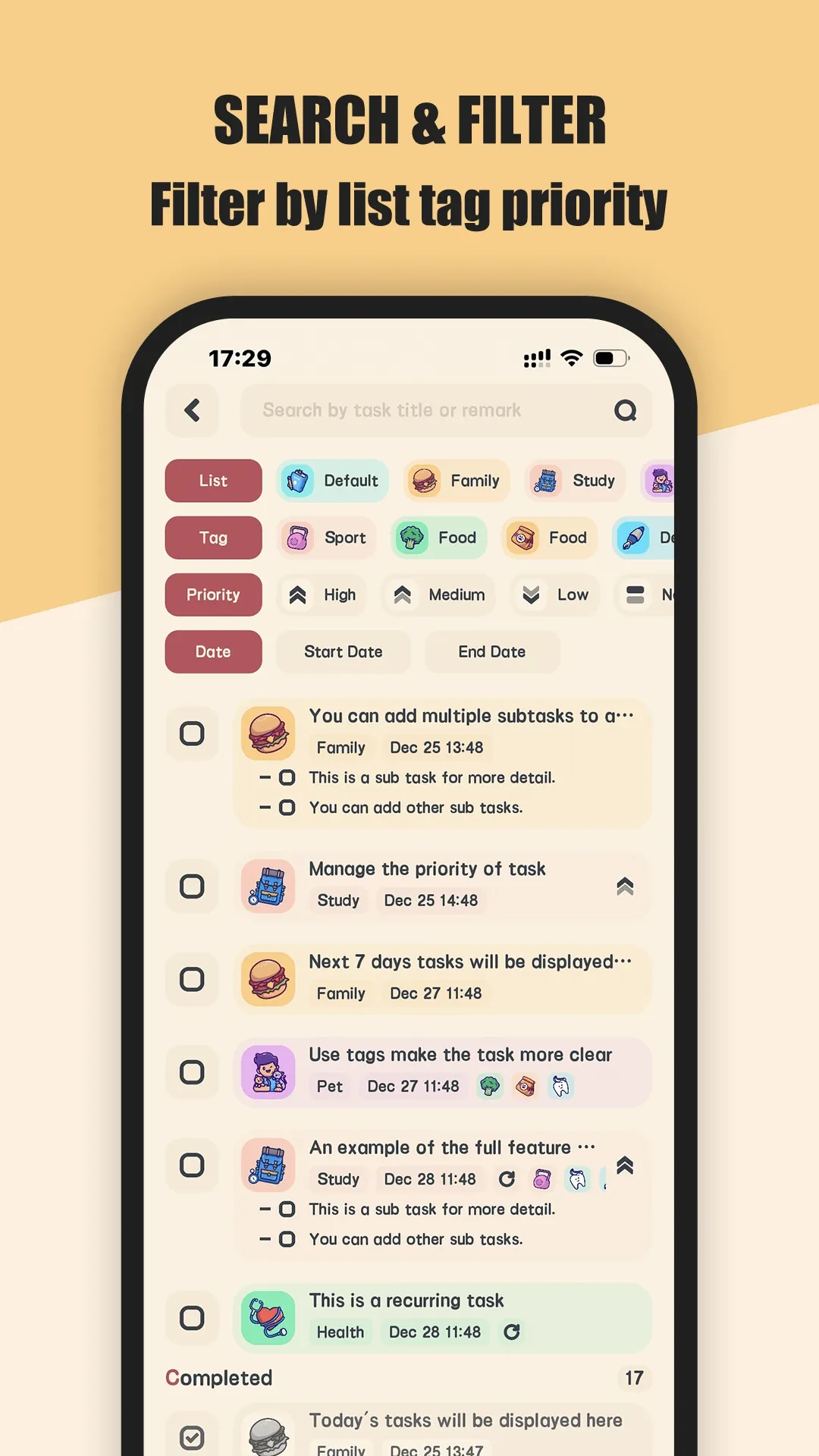
Its handling of repeating tasks is worth a separate note: finishing the current instance spawns a brand-new next one, copying and resetting subtasks, without padding skipped cycles into a string of missed records, and it can end by date or by count. Overdue tasks are not rolled forward; they are explicitly grouped under Overdue and pulled into the today view. Completed items enter the Completed group with a recorded time, but there is no recycle bin, no undo delete and no import.
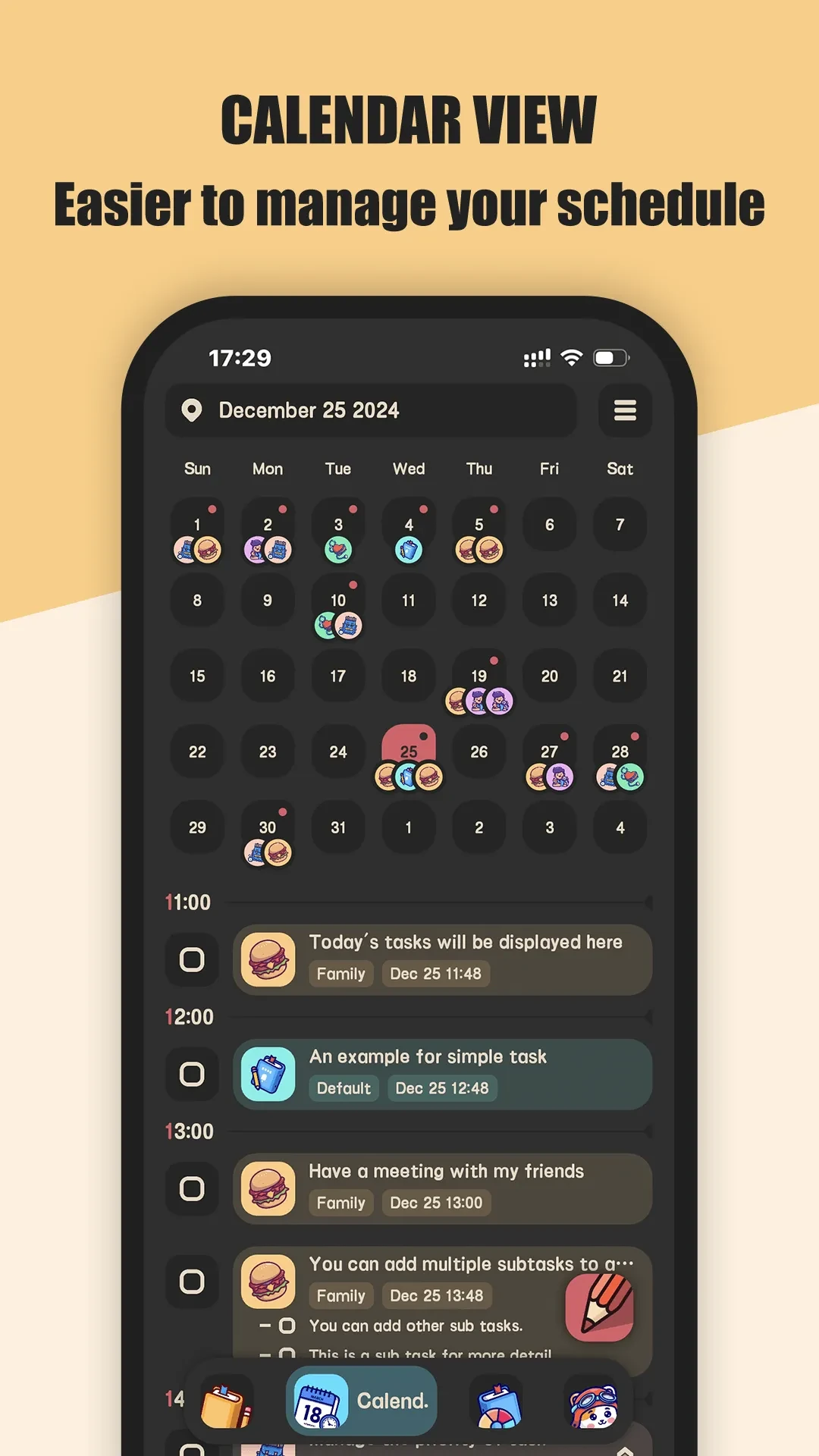
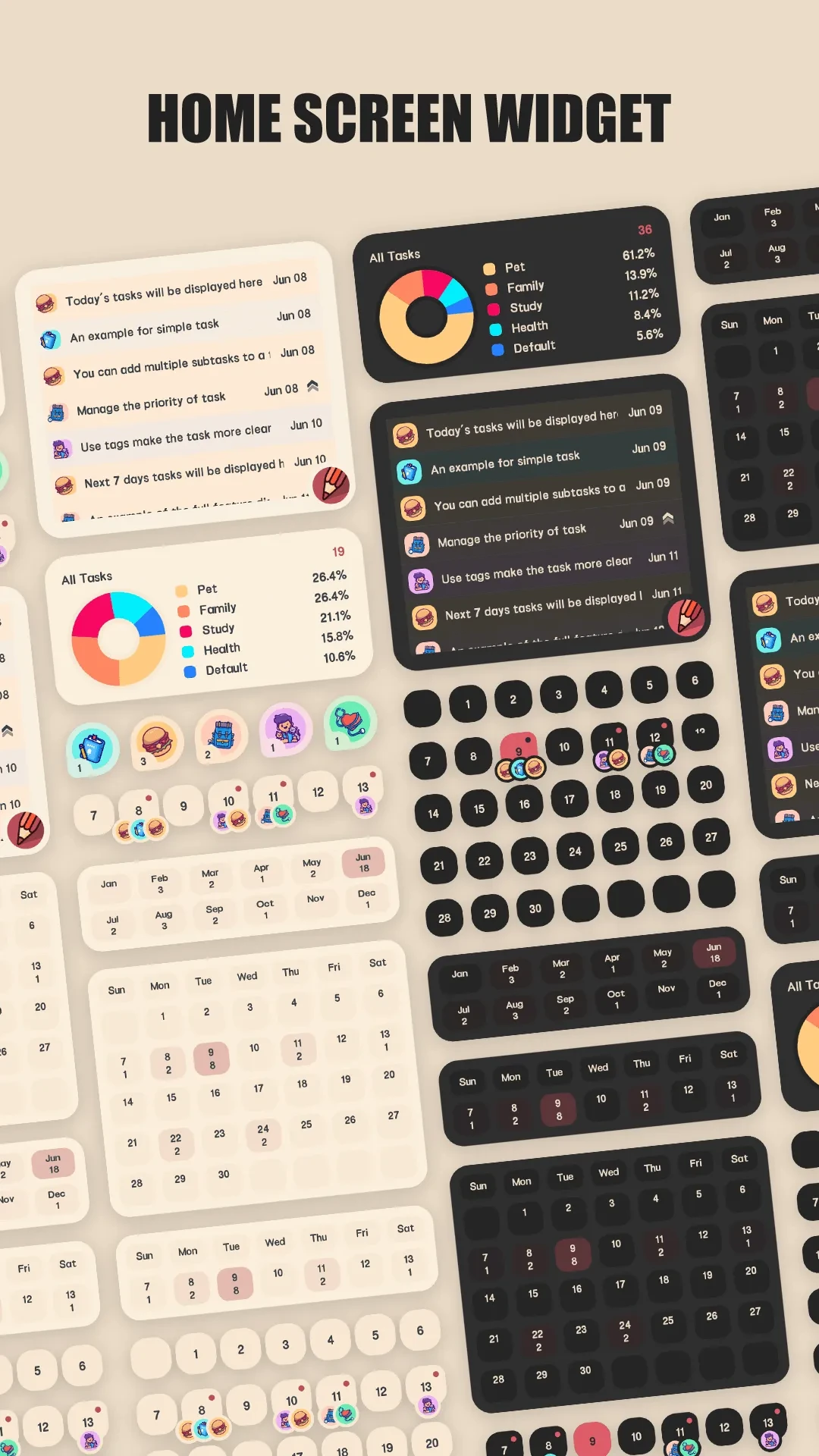
The free tier allows at most 10 lists, 10 tags and 10 subtasks per task, with unlimited total tasks; dark theme, app lock, unlimited lists, tags and subtasks, and CSV export are unlockables, and non-members see ads in list views. There is no natural-language parsing, no collaboration or assignment, no one-tap completion inside notifications, no achievement badges and no separate reminder lead time. These omissions belong to the same local-only positioning: knowing the boundaries is a better way to judge fit than counting extra switches.
Todoist: making stage 1 as short as possible
Todoist’s core strength is capture: smart quick add compresses date, priority, project and labels into one sentence, and its official pricing page lists smart quick add under the free plan. Organisation uses projects, subtasks, labels and filters, with list and board views; calendar and table layouts belong to the paid tier.
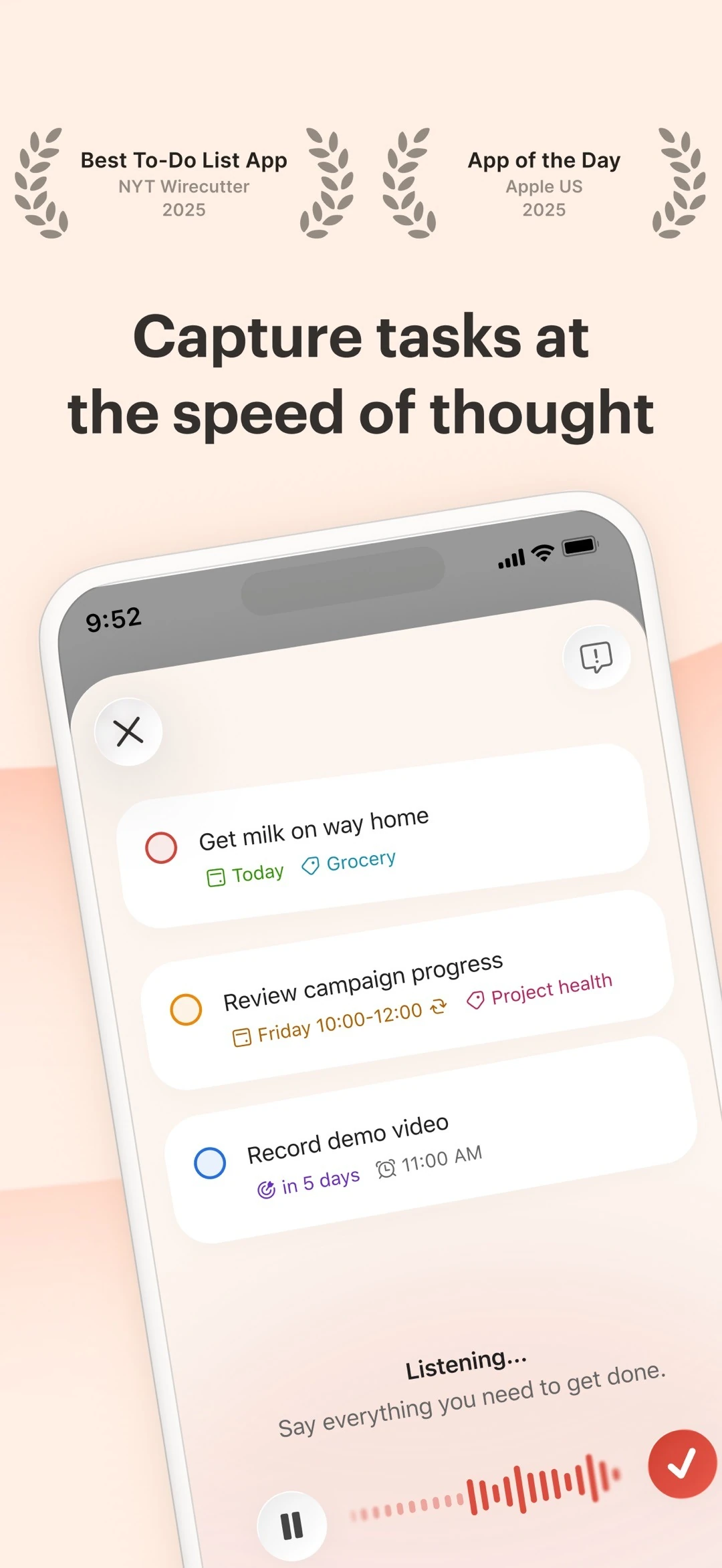
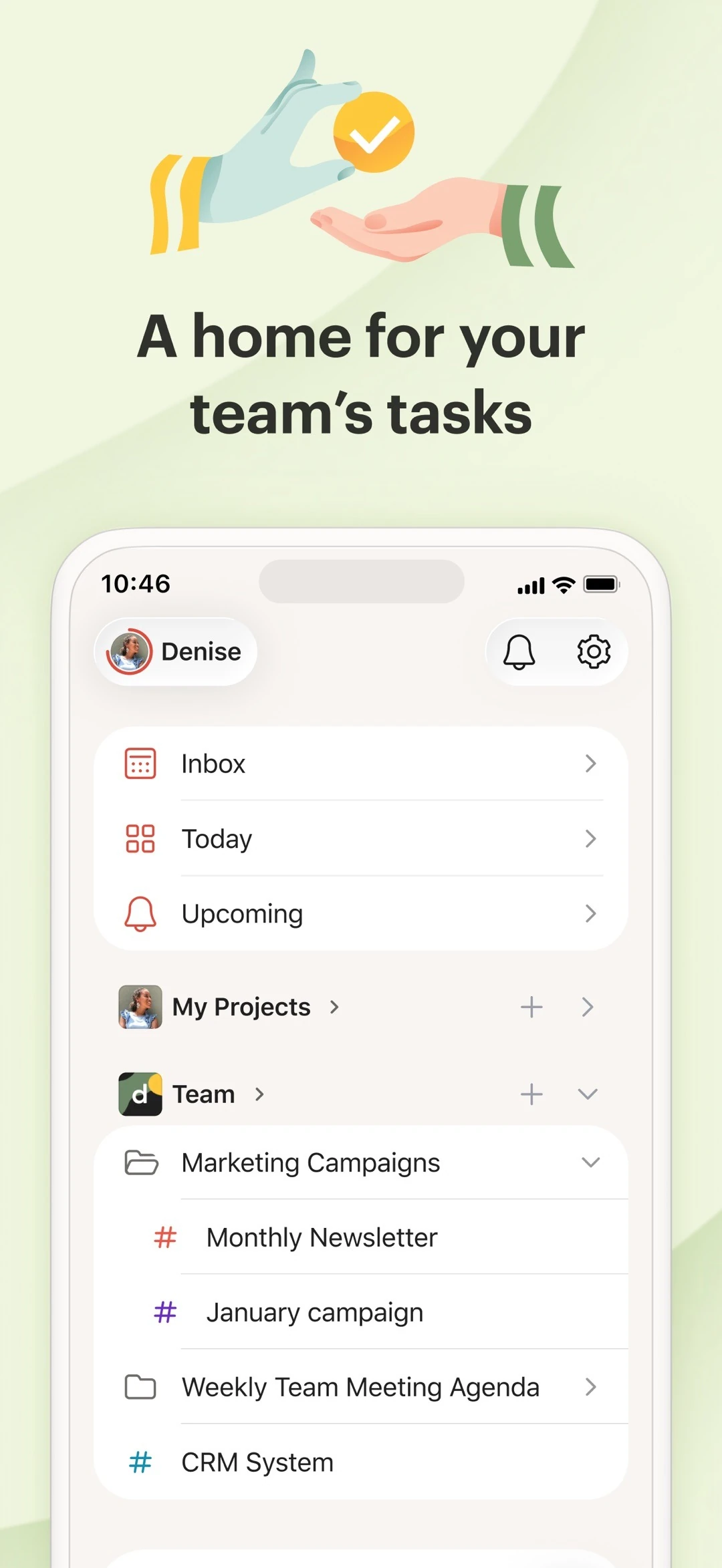
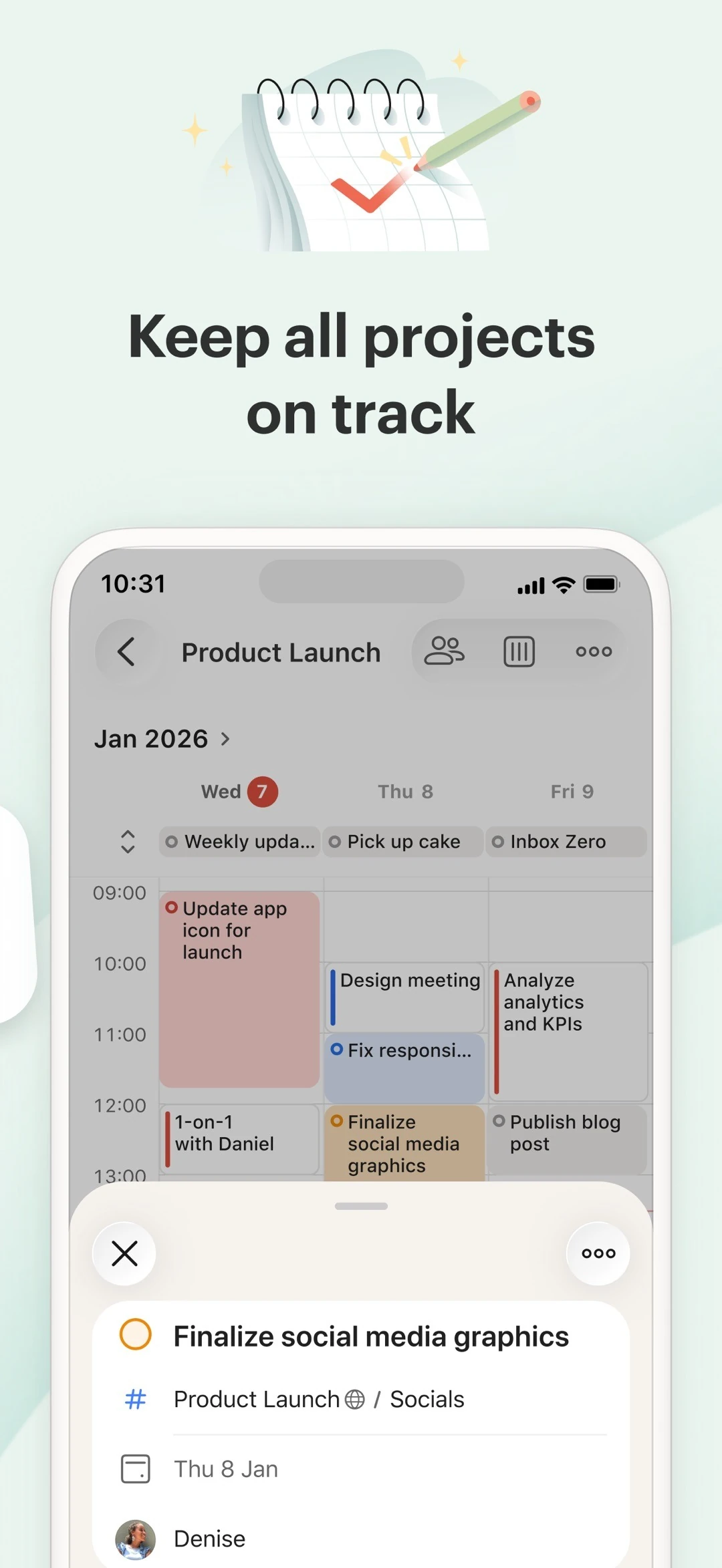
The official pricing page is explicit: the free Beginner plan has 5 personal projects, 3 filter views and 1 week of activity history, with task reminders, repeating due dates and labels, but not calendar layout, custom reminders, task duration or automatic backups; Pro is US$5/month billed yearly (US$60/year) or US$7/month billed monthly, opening 300 personal projects, 150 filters and full history. Collaboration, task assignment and comments are available on free too, with up to 5 people per personal project. In short, it makes quick capture and cross-device collaboration light, and puts review and advanced views behind the paywall.
TickTick: turning execution into calendar, habits and focus
TickTick packs a whole set of execution tools beyond a list into one app: calendar view, kanban, priority matrix, Pomodoro, habit tracking, countdown days and widgets — its official store screenshots read almost like a feature list.
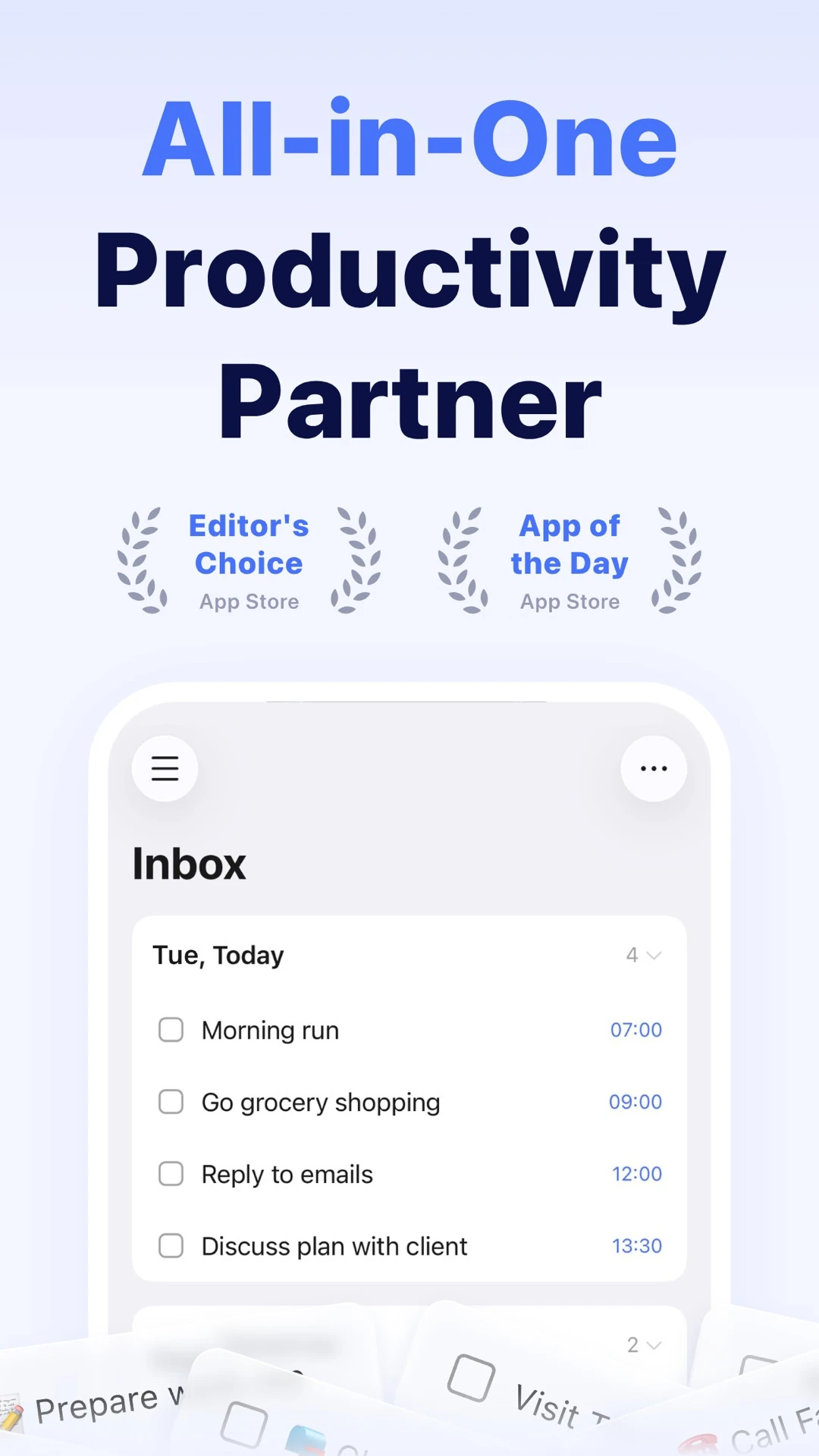
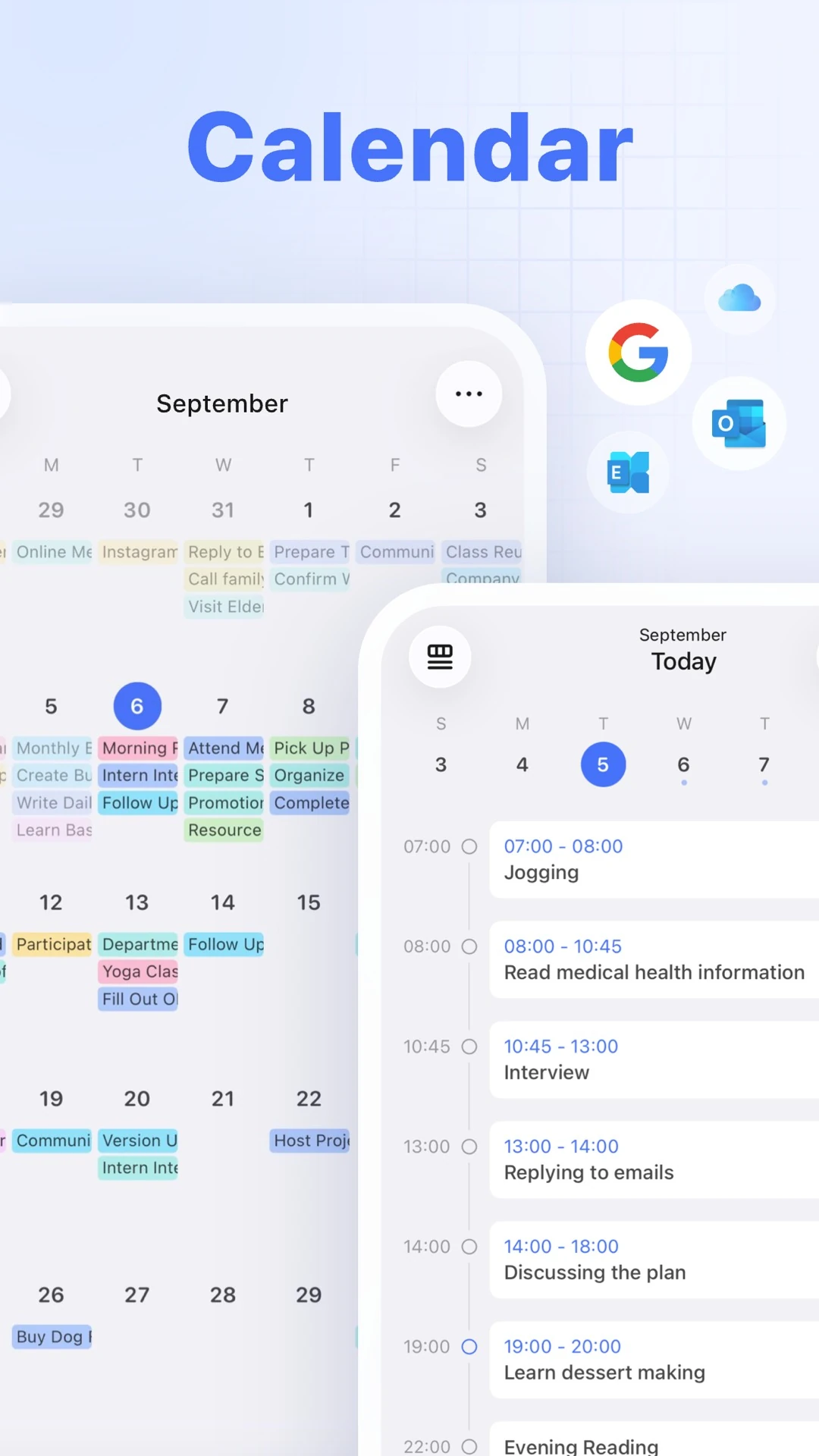
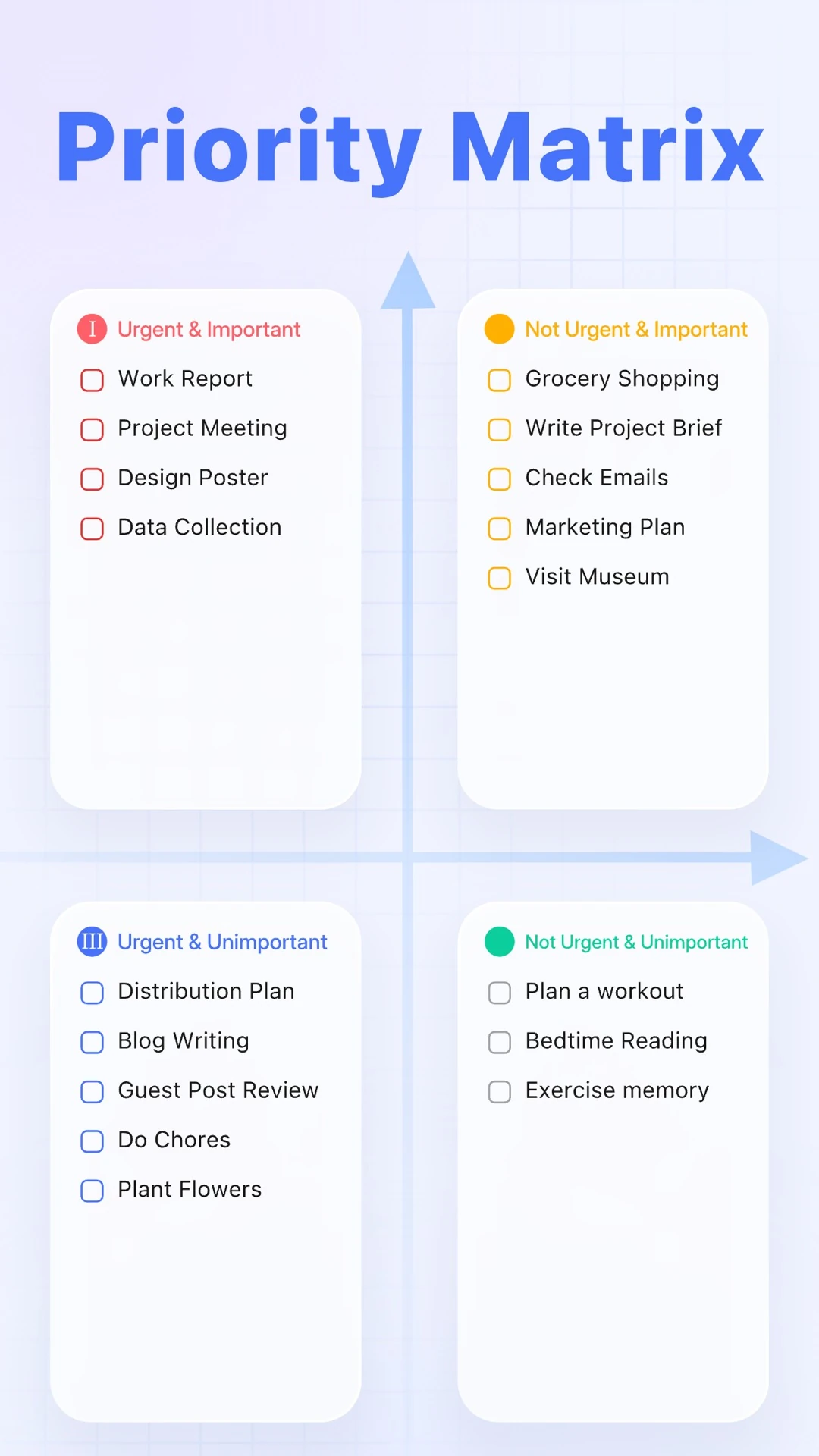
Its free quota falls on the number of lists: the official upgrade page states 9 lists, 99 tasks per list, list and board views, natural-language task reminders and cross-platform sync; Premium is US$49.99/year, raising this to 299 lists and 999 tasks per list and adding multiple calendar views, task duration, email reminders and themes. If you want not just capture but planning, focus and habits behind one entry point, it is the broadest of the group; if you only want a quiet list, these modules are surplus interface.
Microsoft To Do: My Day is a daily rebuild
Microsoft To Do puts its weight on stage 3. Officially, My Day is a personalised list that starts empty each day, with Suggestions re-picking tasks; anything unfinished today is suggested again tomorrow. It also connects to Outlook: flagged mail becomes a task, task data syncs over Exchange, and tasks can be split into steps, given notes, attached with files up to 25 MB, and set one-off or repeating due reminders.
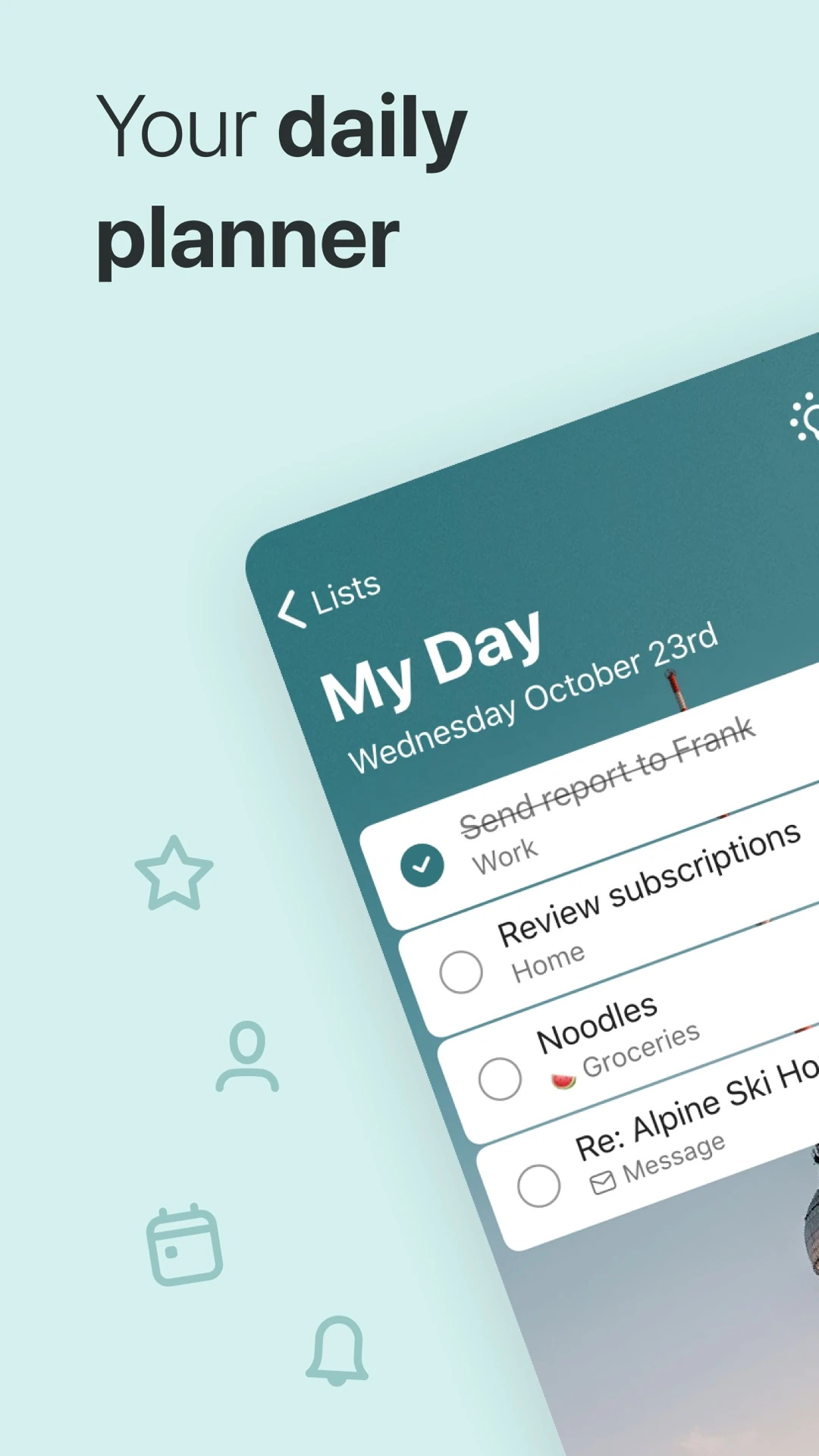
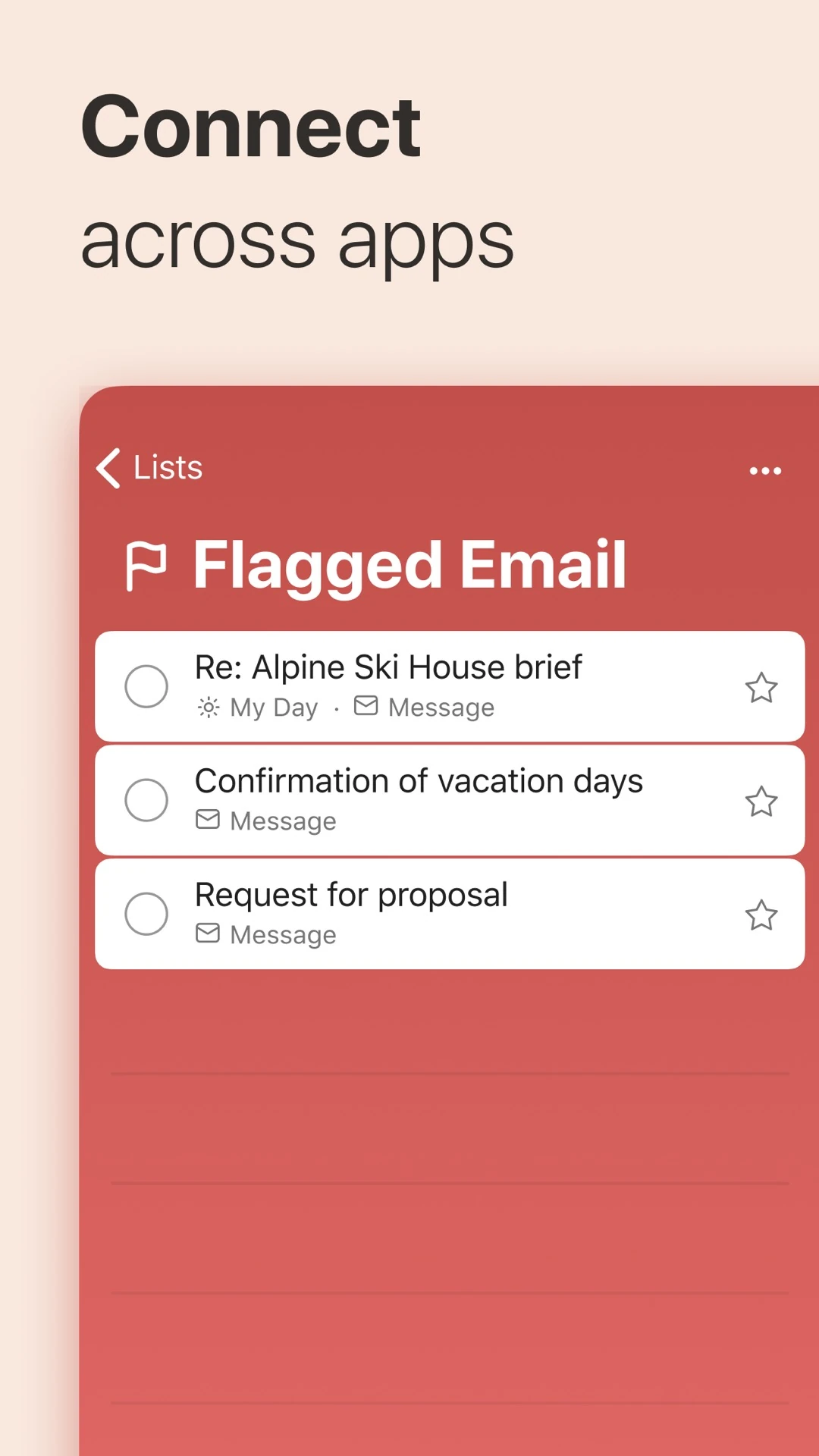
It syncs for free across iPhone, Android, Windows and Web, with no separate paid tier and no deep hierarchy. It suits people whose inbox is already their workspace; the cost is shallow organisation, awkward for long-running projects and complex filters.
Things 3: making stage 2 into a structure
Things 3 is the only one here that makes organisational structure the headline. Areas hold long-term responsibilities, Projects hold goals with an endpoint, and headings group items inside a project; Today, Upcoming, Anytime, Someday and Logbook form an explicit view vocabulary, and quick add can include notes, subtasks and reminders directly.
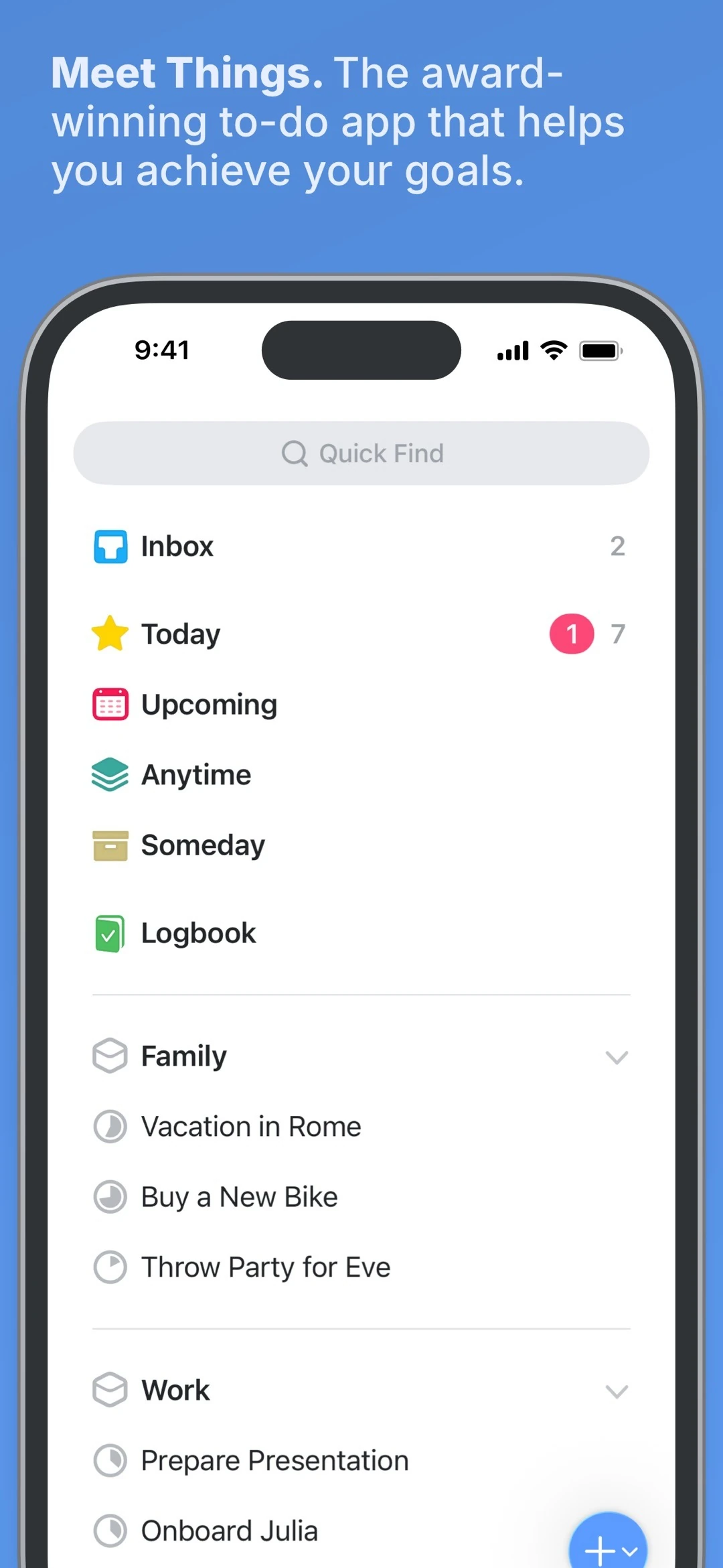
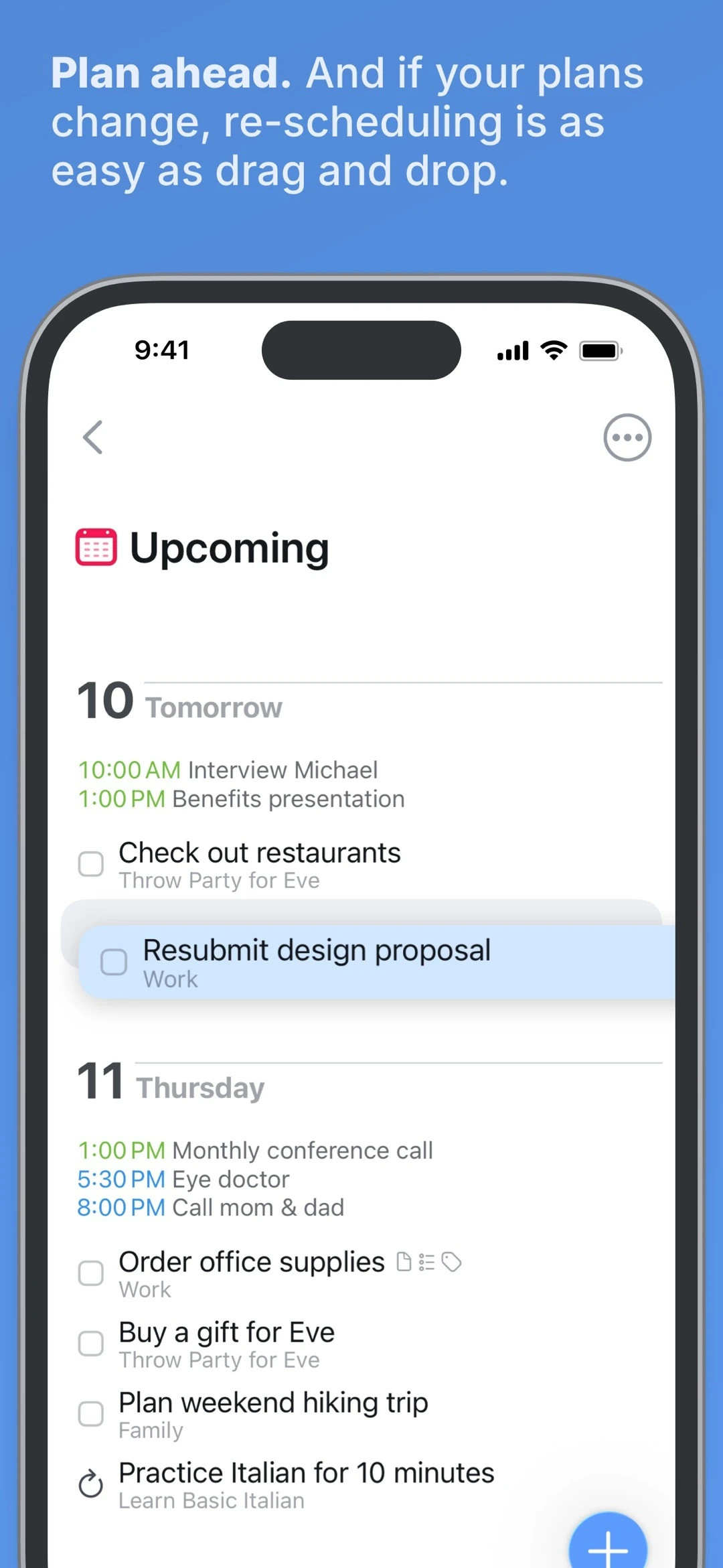
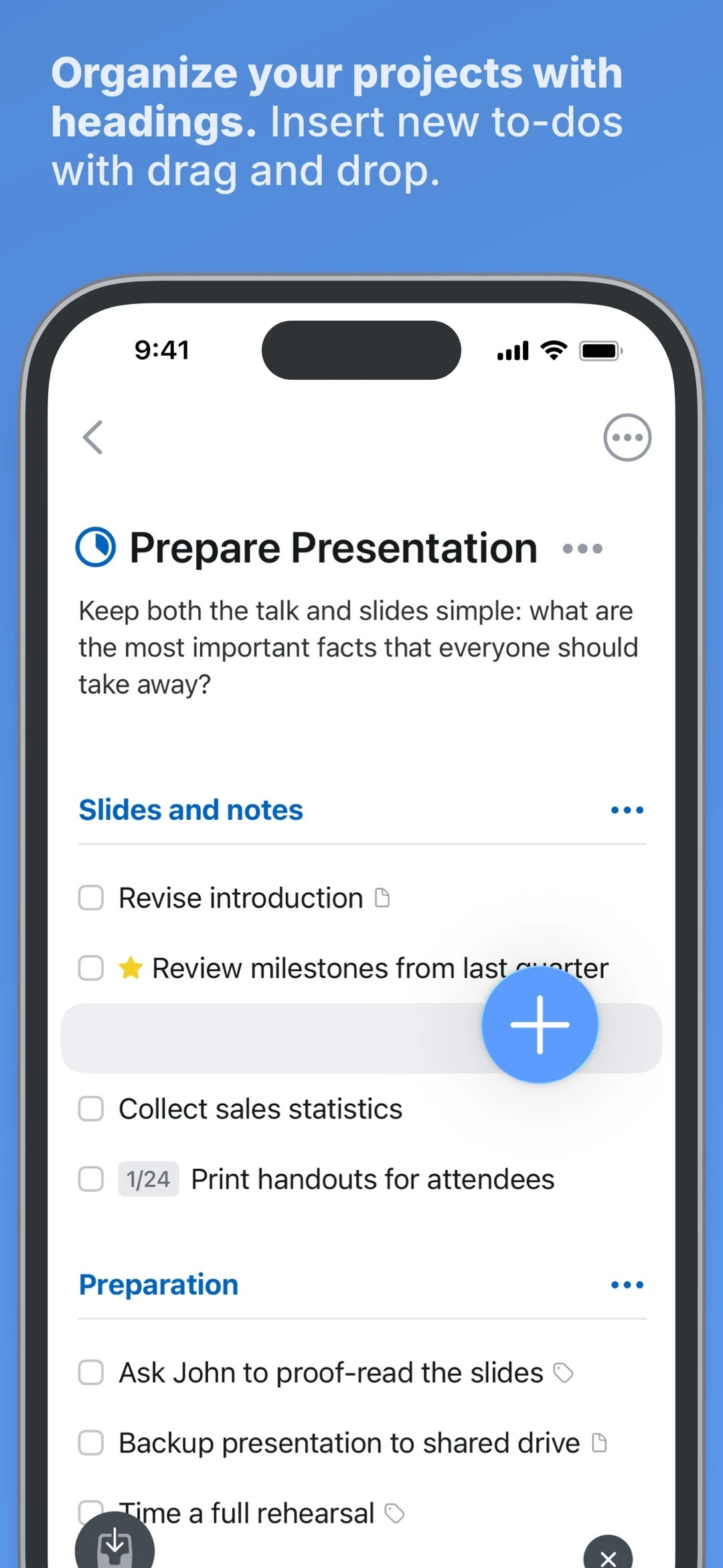
It is a one-time purchase per platform, not a subscription (iPhone and Apple Watch US$9.99, iPad US$19.99, Mac US$49.99, prices per the official page), with Things Cloud sync between your own devices included and no extra subscription. The limits are equally clear: Apple ecosystem only, no Android or Windows, no web version, and no multi-person collaboration. People who love it are usually kept by that long-term structure.
Google Tasks: embedded where you already are
Google Tasks puts almost all its cost into the entry point. Officially, tasks can be created right in the sidebars of Gmail, Google Calendar, Chat and Docs; adding a date and time makes them appear on the calendar automatically, and due dates, repeats on specific dates and subtasks are supported.
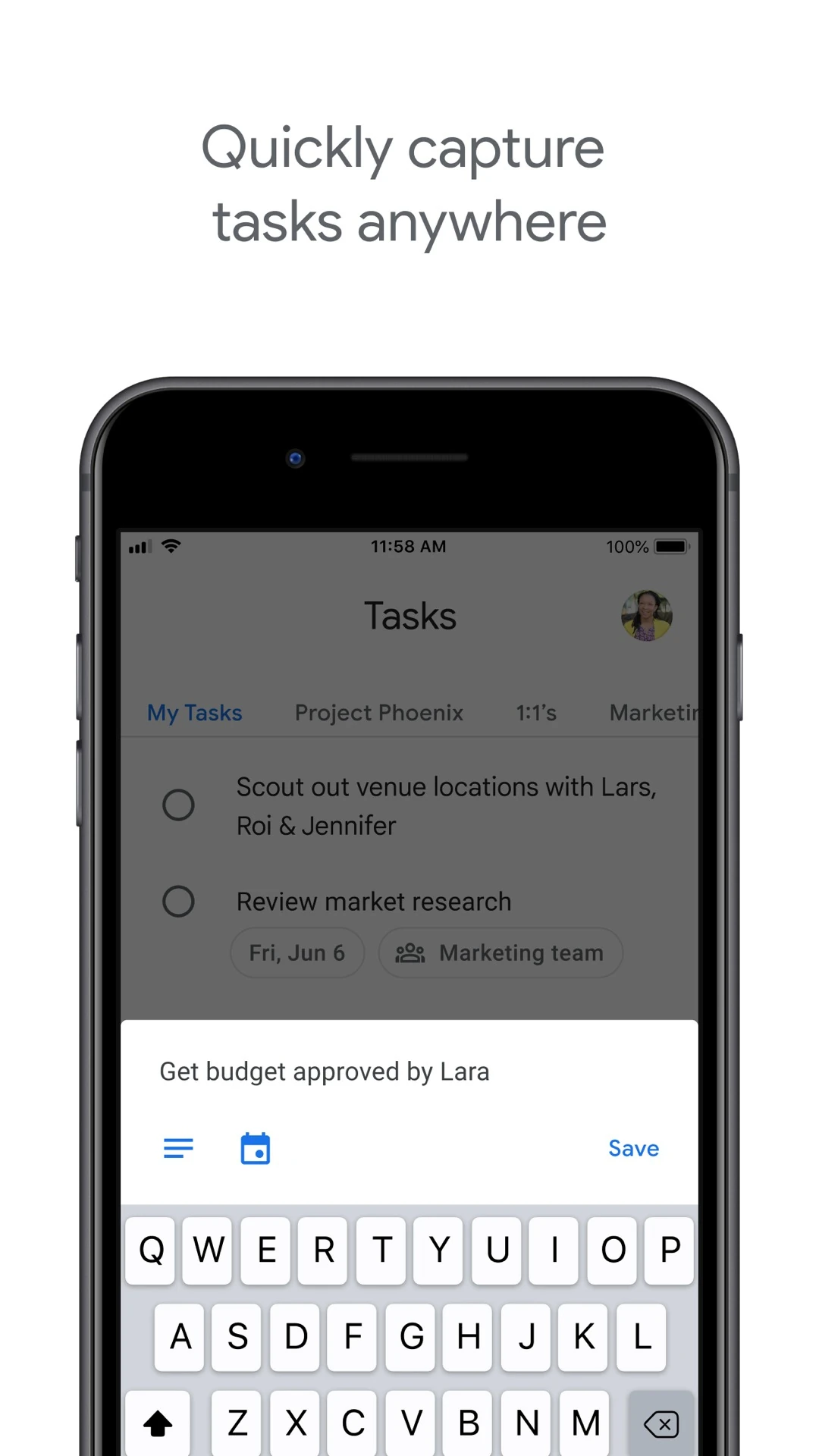
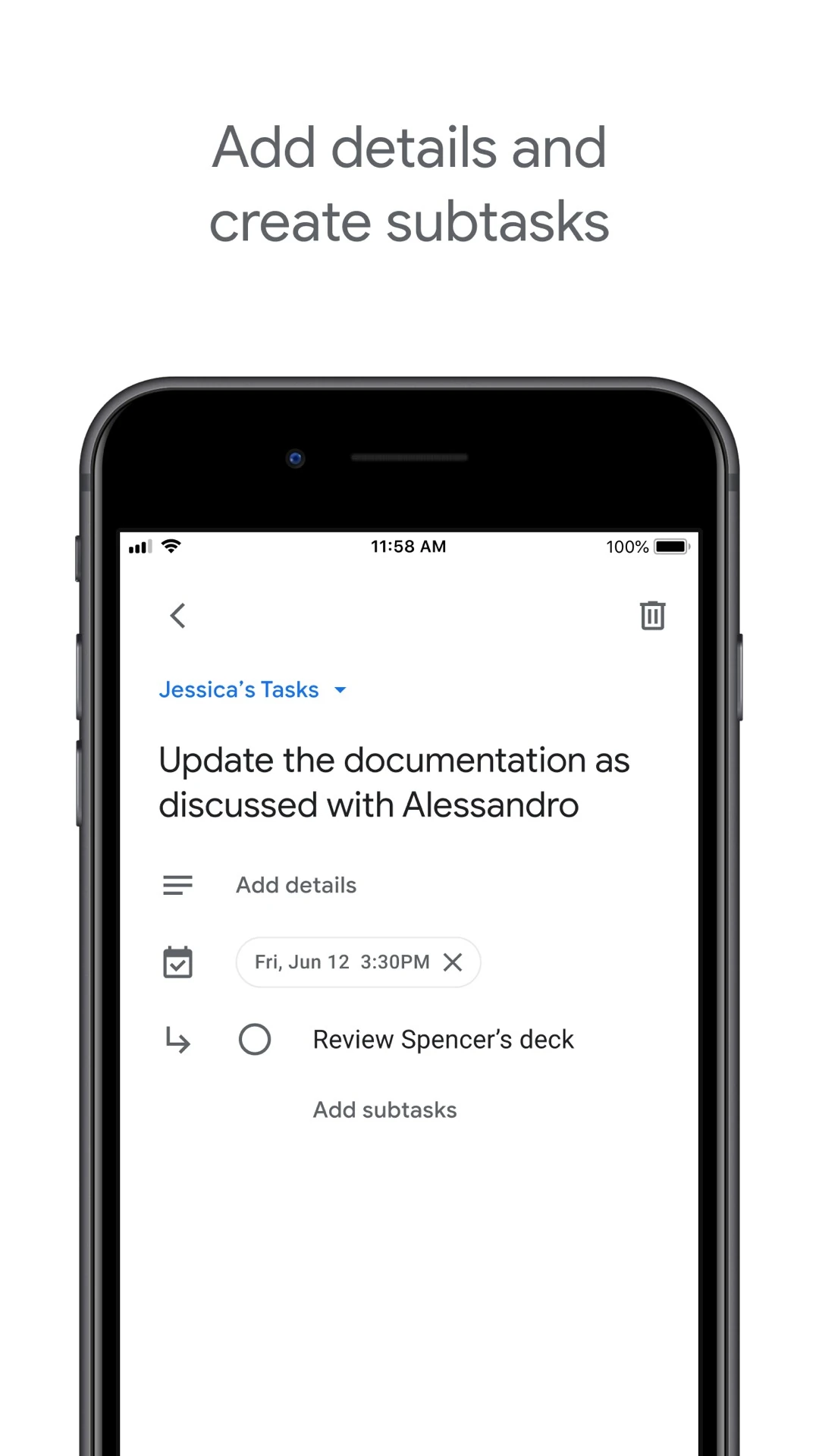
The official help centre gives the quotas: up to 100,000 tasks across all lists and 20,000 unfinished tasks in a single list. Subtasks have only one level and no independent dates, and there is no priority, kanban or statistics; when subtasks exist, a repeating rule cannot be used. It comes free with a Google account, with neither data localisation nor complex organisation — its position is simply jotting it down next to the email.
Any.do: putting tasks into the day’s schedule
Any.do places the list and calendar on one screen, emphasising what to do today over how many tasks exist; it also offers daily planning, shared tasks and collaborative boards, cross-device sync, and paid tiers for small teams.
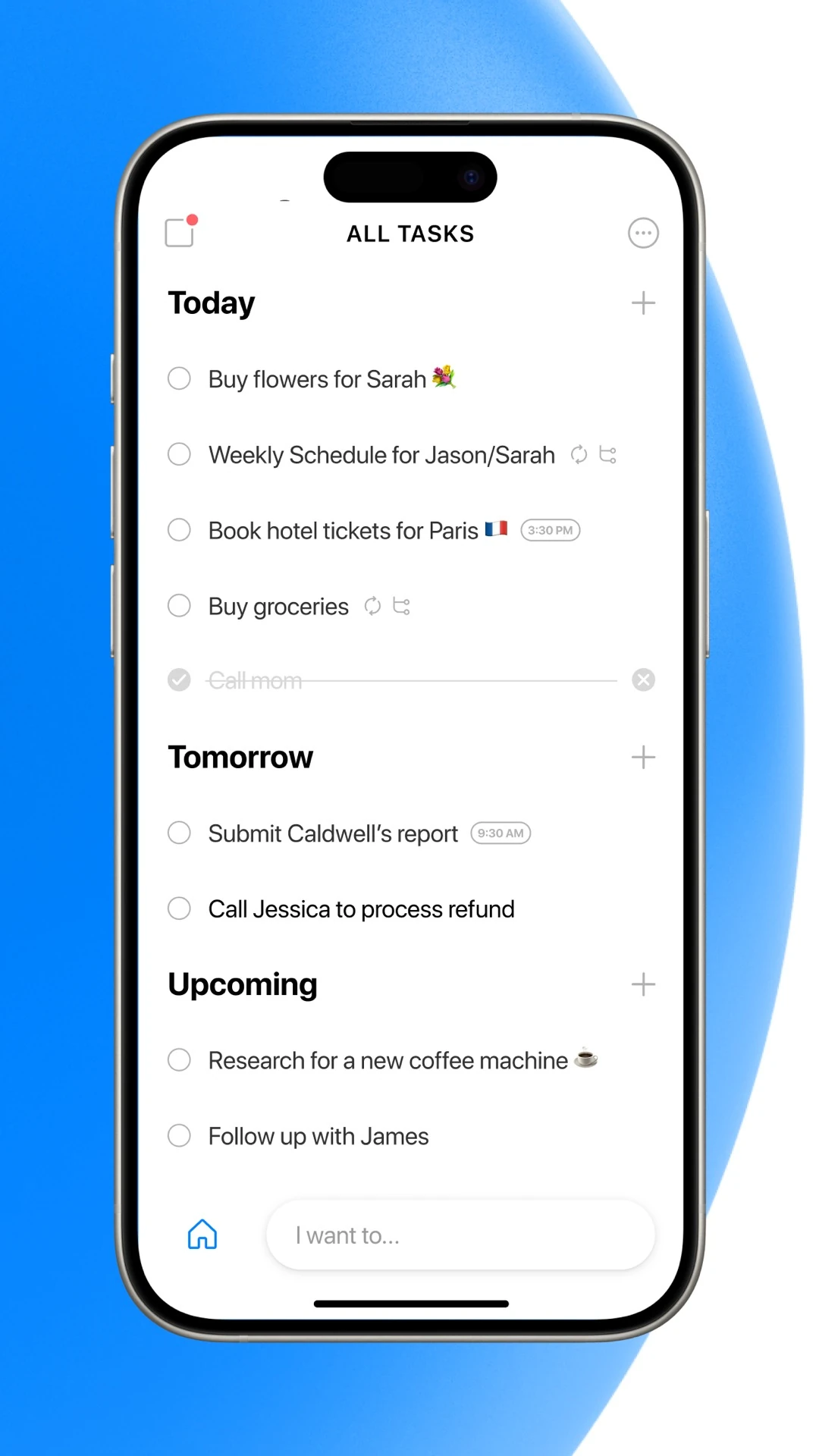
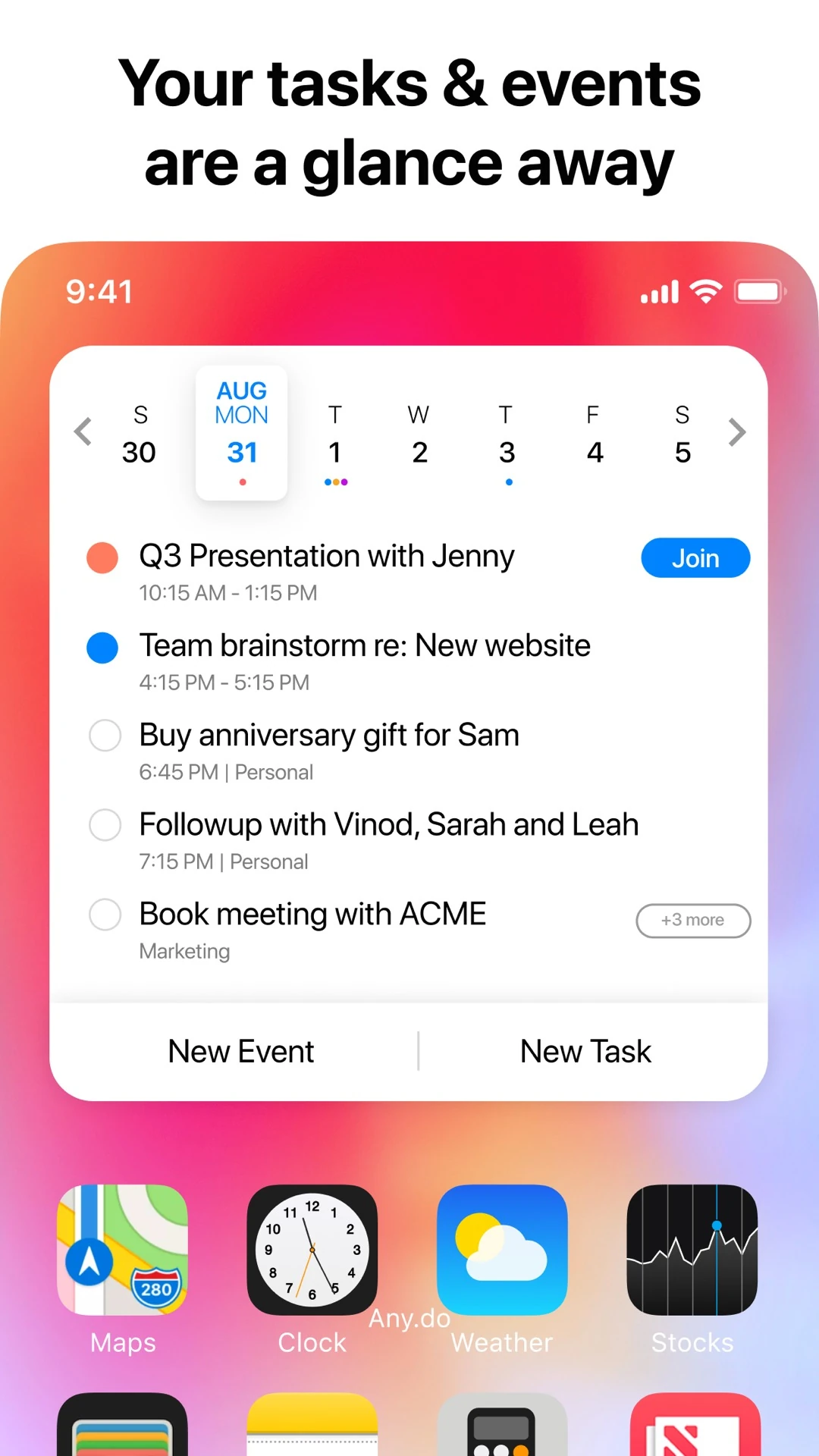
Like Microsoft To Do it leans towards scheduling, but with more emphasis on collaboration and subscription upsell; a free tier exists, with current entitlements and prices per its official pricing page. If you mostly work alone and do not want to move your list into a subscription, check first which capabilities are free.
5. What one task becomes in 7 apps
Feed the opening sentence about a quarterly report due next Wednesday into each one unchanged and the differences compress into a table:
| Product | What happens at entry | Which container | After next Wednesday | After the tick | Where the data is |
|---|---|---|---|---|---|
| Meow Todo List | Plain-text title; date, priority, tags and repeat set in separate panels | One level of lists, tags and subtasks | Grouped and marked Overdue, not rolled forward | Into Completed with a completion time; no recycle bin | On-device; full backup to Google Drive or WebDAV, CSV export premium |
| Todoist | Smart quick add parses date and project | Projects, subtasks, labels and filters | Stays unfinished; calendar layout is paid | Activity history (1 week free), productivity visuals | Account cloud sync |
| TickTick | Natural-language input, with reminders and repeats | Lists, kanban and priority matrix | Visible in calendar, with focus and Pomodoro | Completion records plus habit and focus stats | Cross-platform account sync |
| Microsoft To Do | Added manually or from flagged Outlook mail | Flat lists and steps | Unfinished tasks enter tomorrow’s Suggestions | Stays in the list, can be marked done | Exchange and Microsoft account sync |
| Things 3 | Quick add can carry notes, subtasks and reminders | Areas, Projects, Headings | Stays in the Upcoming timeline | Into the Logbook completion record | Apple devices only, Things Cloud sync |
| Google Tasks | Jotted from Gmail, Calendar, Chat or Docs sidebars | Flat lists and one level of subtasks | Dated tasks appear on the calendar | Stays in the list after being marked done | Google account |
| Any.do | Added manually, can go into the day’s plan | Lists, calendar view and shared boards | Visible alongside the calendar | Completion state plus daily plan review | Account cross-device sync |
This table deliberately compares only where one task goes. Feature counts, visual style and template libraries do not change whether that task will be seen again when it needs to be.
6. Platforms, payment and data ownership
| Product | Main platforms | Pricing (official pages, Nov 2026) | Account needed | Data and export |
|---|---|---|---|---|
| Meow Todo List | Android / iOS | Free: 10 lists, 10 tags, 10 subtasks per task; dark theme, app lock, unlimited quotas and CSV export are unlockables | No | On-device; full backup can target your own WebDAV; no import |
| Todoist | Web / iOS / Android / desktop | Free: 5 personal projects; Pro US$60 yearly or US$7 monthly; Business per seat | Yes | Cloud sync; automatic backup is paid |
| TickTick | All platforms (incl. web, watch) | Free: 9 lists, 99 tasks per list; Premium US$49.99/year | Yes | Cross-platform sync |
| Microsoft To Do | iPhone / Android / Windows / Web | Free, no separate paid tier | Yes (Microsoft account) | Exchange sync, within the Microsoft 365 ecosystem |
| Things 3 | iPhone / iPad / Mac / Apple Watch only | One-time purchase per platform, no subscription | No | Things Cloud sync across own devices |
| Google Tasks | Gmail / Calendar / Chat / Docs plus mobile apps | Free with a Google account | Yes | Google account; 100,000 total cap |
| Any.do | iPhone / Android / Mac / Windows / Web | Free tier plus subscription tiers (per official pricing page) | Yes | Cross-device sync |
7. Find the stage where you get stuck
Do not start with which one is best; look at which of the five stages you most often slip on:
- Always forget to capture: start with entry points. Natural-language quick add (Todoist, TickTick), the Gmail sidebar (Google Tasks) and a home-screen quick-add widget (Meow Todo List) all cut the cost to seconds.
- Capture but cannot find it: that is stage 2. Long-running projects suit Things 3 or Todoist; for simple grouping, flat lists or one level of lists are enough — do not pay a learning cost for hierarchy you will not use.
- Capture but never do it: that is stage 3. A daily rebuild of My Day (Microsoft To Do), a calendar beside the list (Any.do, TickTick) and marking overdue items explicitly (Meow Todo List) are three different answers.
- No trace after finishing: look at stages 4 and 5. For full history choose paid Todoist or Things 3’s Logbook; Meow Todo List has no recycle bin and deletion cannot be undone, so know that in advance.
- Care about data ownership: if you want no sign-up and your own backups, Meow Todo List and Things 3 (Apple only) are the two ends; if you switch devices often and need live sync, account-based cloud products are less work.
Still undecided? Start with Meow Todo List for beginners and the complete Meow Todo List tutorial; if offline use, purely local data and home-screen widgets matter more, the Meow Todo List app page has fuller feature notes.
8. Six common misconceptions
- “More features means better adherence”: Pomodoro, habits, kanban and collaboration are useful, but every extra module is another thing to maintain. Spend a week or two finding your sticking stage before choosing a heavier tool.
- “Writing the list means making progress”: Masicampo and Baumeister found that a concrete plan reduces intrusive thoughts, not that listing a task equals completing it. Give each item a next action, not just a noun.
- “An overdue task should move to today automatically”: rolling it forward makes the missed days vanish from the statistics. Explicitly marking overdue suits people who review; rebuilding daily suits people who do not want old items weighing on them — do not mix the two.
- “Free tiers let you create unlimited tasks”: the cap may land on lists (Meow Todo List 10, TickTick 9), projects (Todoist 5), tasks per list (TickTick 99), or on subtasks or history length. Check what is being limited before judging whether it is enough.
-
“Local means unsafe, cloud means more convenient”: local has no live sync and needs a backup file when switching devices, but records never pass through a server; cloud sync is effortless at the price of an account and hosted data. It is a trade-off, not a ranking.
- “Repeating tasks and habit streaks are the same thing”: in a habit app, reading daily is one goal completed across cycles and a missed day breaks the streak; in a to-do app, paying rent on the first spawns a new independent record each time. Mixing the two makes the statistics meaningless.
9. Official download links
Only each product’s own store pages are listed here, with no third-party download sites. Google Play links were opened one by one to verify app names, and App Store IDs were checked against Apple’s official Lookup API for app name and developer (verified November 2026); if an app is renamed or its availability changes, follow the store search results.
- Meow Todo List: Google Play · App Store
- Todoist: Google Play · App Store
- TickTick: Google Play · App Store
- Microsoft To Do: Google Play · App Store
- Things 3: App Store · Official site; Apple ecosystem only, no Android version
- Google Tasks: Google Play · App Store
- Any.do: Google Play · App Store
10. Frequently asked questions (FAQ)
Are to-do apps, to-do lists and task managers the same kind of product?
Broadly yes, just different names emphasising different sides: all are built on one task, a completion state and when it will be seen again. What needs separating is the boundary with three other tools — a calendar handles time blocks with fixed start and end, a habit app handles behaviour that recurs by period with no endpoint, notes hold content editable over time, and a to-do list holds things that end when done. Putting all four into one tool is often the first step towards a list that runs out of control.
How detailed should one task be? Does every task need subtasks?
A simple test: can you act on it the moment you see it. A vague report item usually needs several actions; replying to a short email does not. In most products subtasks have only one level and no independent date (as Google’s official help states), so they work better as a step list than as nested projects; Meow Todo List’s free tier allows 10 subtasks per task before an unlock. Rather than splitting every task, split only the ones you keep postponing.
After a repeating task is completed, where does the next one come from?
Take Meow Todo List: ticking off the current instance generates a brand-new next one, copying title, notes, list, tags, priority, the repeating rule and subtasks, with subtasks reset to incomplete and the planned time moved to the next valid cycle; cycles that already passed unhandled are skipped so it lands on today or a future date, and it can end by date or by count. The original becomes completed and stops repeating. History is therefore a series of genuinely completed records, not one task rewritten over and over.
If the date passes and it is not done, does the task move to today automatically?
Not necessarily — this is where products differ most. Meow Todo List does not roll tasks forward: overdue items are grouped and marked under Overdue and also pulled into the today view. Microsoft To Do’s My Day starts empty each day, with anything unfinished entering tomorrow’s Suggestions. The former is a ledger for people who review; the latter a daily rebuild for people who do not want old items pressing on them. Decide whether you fear missing things or being weighed down.
After switching phones, are my old tasks still there?
It depends on where the data lives. Meow Todo List is purely local with no account: switching devices needs full-database backup and restore, with Google Drive or your own WebDAV address and optional automatic backups; exporting CSV after filtering by list, tag, priority and date range is a premium feature, with no matching import. Todoist, TickTick, Microsoft To Do, Google Tasks and Any.do use account cloud sync, which makes switching easier; Things 3 syncs across your own Apple devices via Things Cloud. Whichever you choose, confirm a backup or sync has actually run before changing phones.
Is the free tier enough? Where are the usual limits?
The limited thing differs, so do not just count how many tasks you can create. Meow Todo List caps 10 lists, 10 tags and 10 subtasks per task, with unlimited total tasks; TickTick officially states 9 free lists and 99 tasks per list; Todoist free gives 5 personal projects, 3 filters and 1 week of activity history, with calendar layout and automatic backups on paid; Google’s official figures are 100,000 tasks across all lists and 20,000 unfinished per list. Find the cap you are most likely to hit before deciding to pay.
Can I type a due date and time in the title and let the app parse it?
Depends on the product. Todoist and TickTick both list natural-language quick add as a free capability, where one sentence produces a date and a repeating rule; Meow Todo List has no natural-language parsing — the title is plain text and date, priority, tags and repeat are chosen in separate panels, which avoids parsing ambiguity and stores exactly what you write. Its reminder time also equals the planned time, with no separate advance-reminder setting, plus a daily digest at a fixed time.
Can I use it offline and without an account?
Meow Todo List can: tasks, lists and tags are stored on the device and work offline, at the cost of no real-time multi-device sync and of needing a backup file when switching devices. Things 3 also needs no account, but only on Apple devices. The rest start with an account; offline you can usually still view or edit temporarily, but full functionality depends on syncing after sign-in. For a fully local setup, also check that export and backup are available — that decides whether you can take the data with you years later.