
Meow Todo List Official User Guide
Table of Contents
- App Introduction
- First-time Use
- Add a Task
- Subtasks
- Reminders
- Calendar View
- Statistics
- Lists and Tags
- Backup and Sync
- CSV Export (VIP)
- Settings
- FAQ
App Introduction
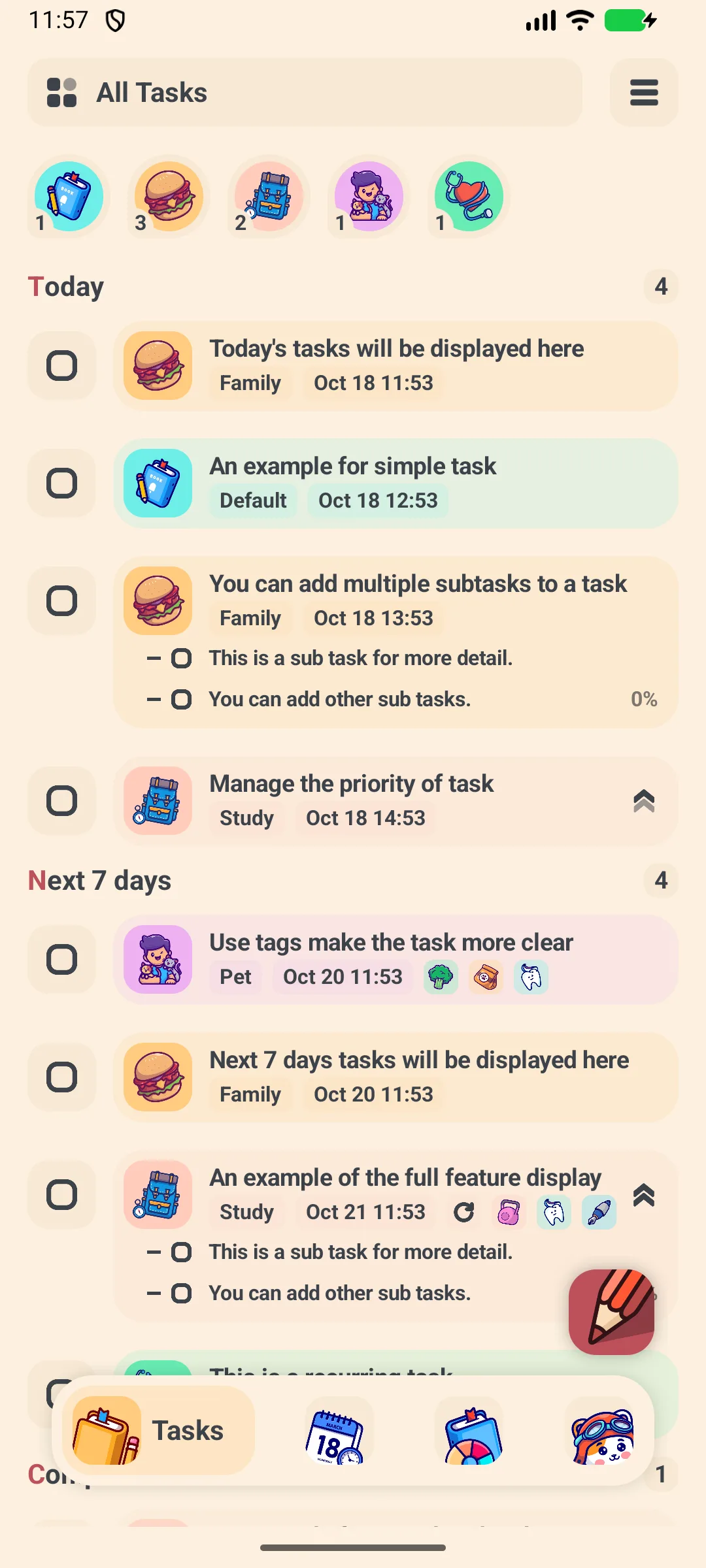
Meow Todo List is a cute cartoon-style task manager and to-do list for Android and iOS. It helps you capture tasks quickly and review them by day, week, month, or list.
📝 Quick Capture
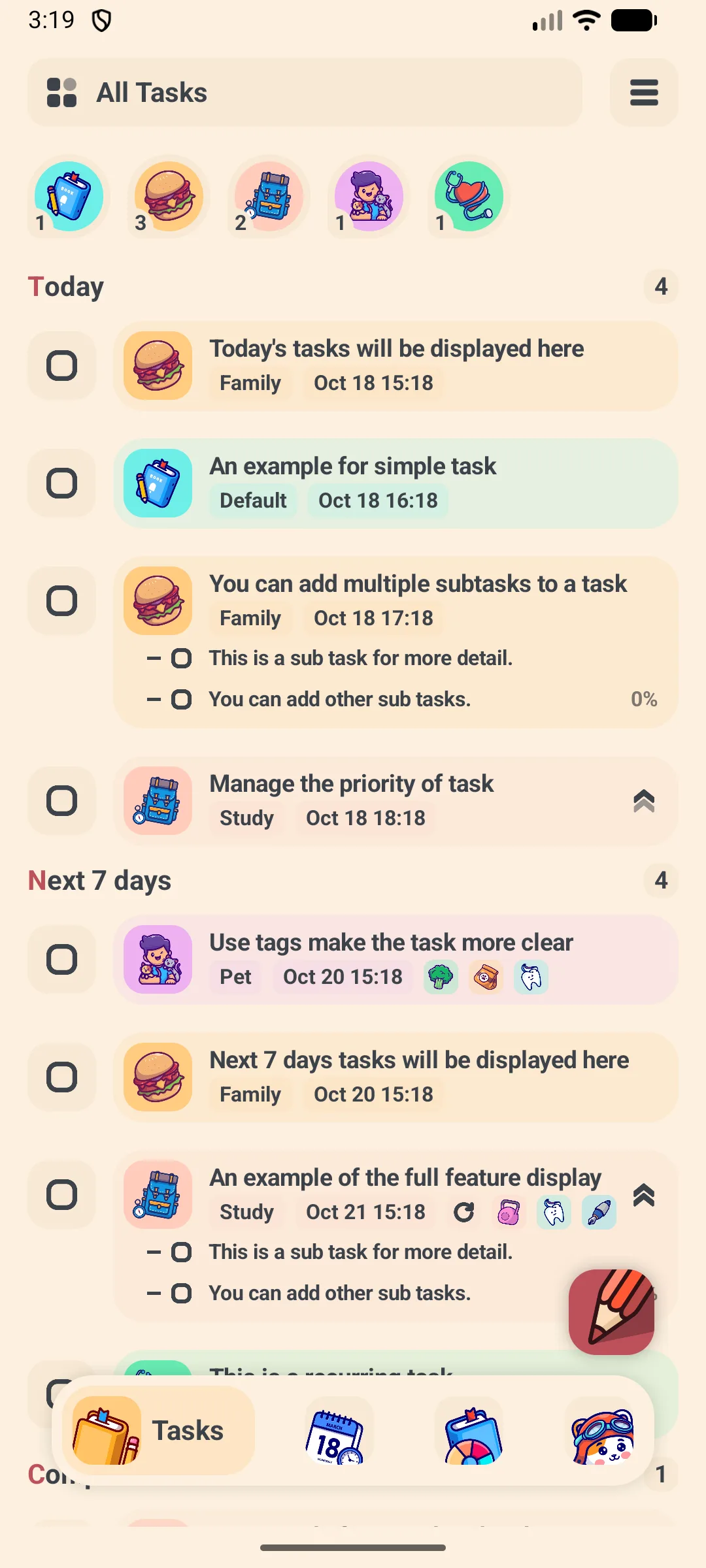
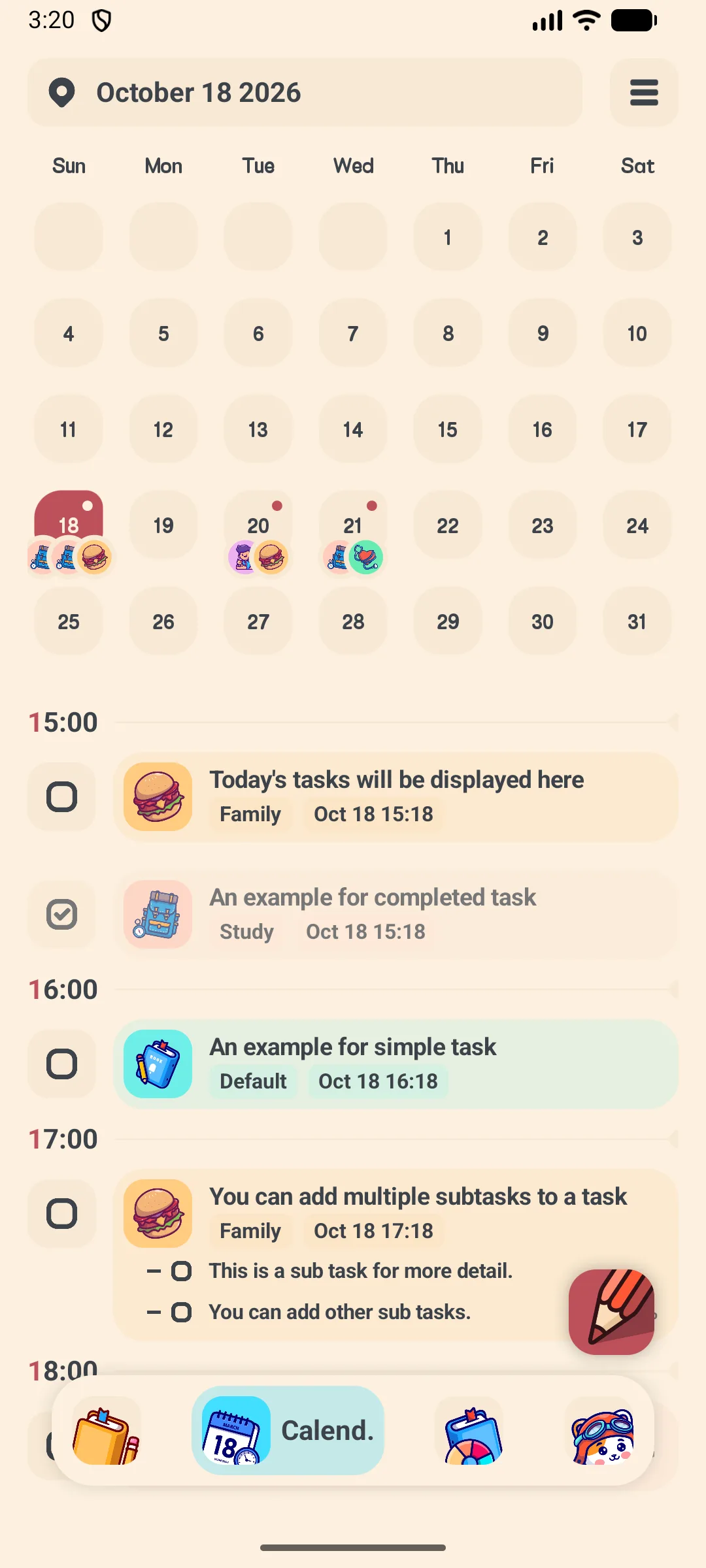
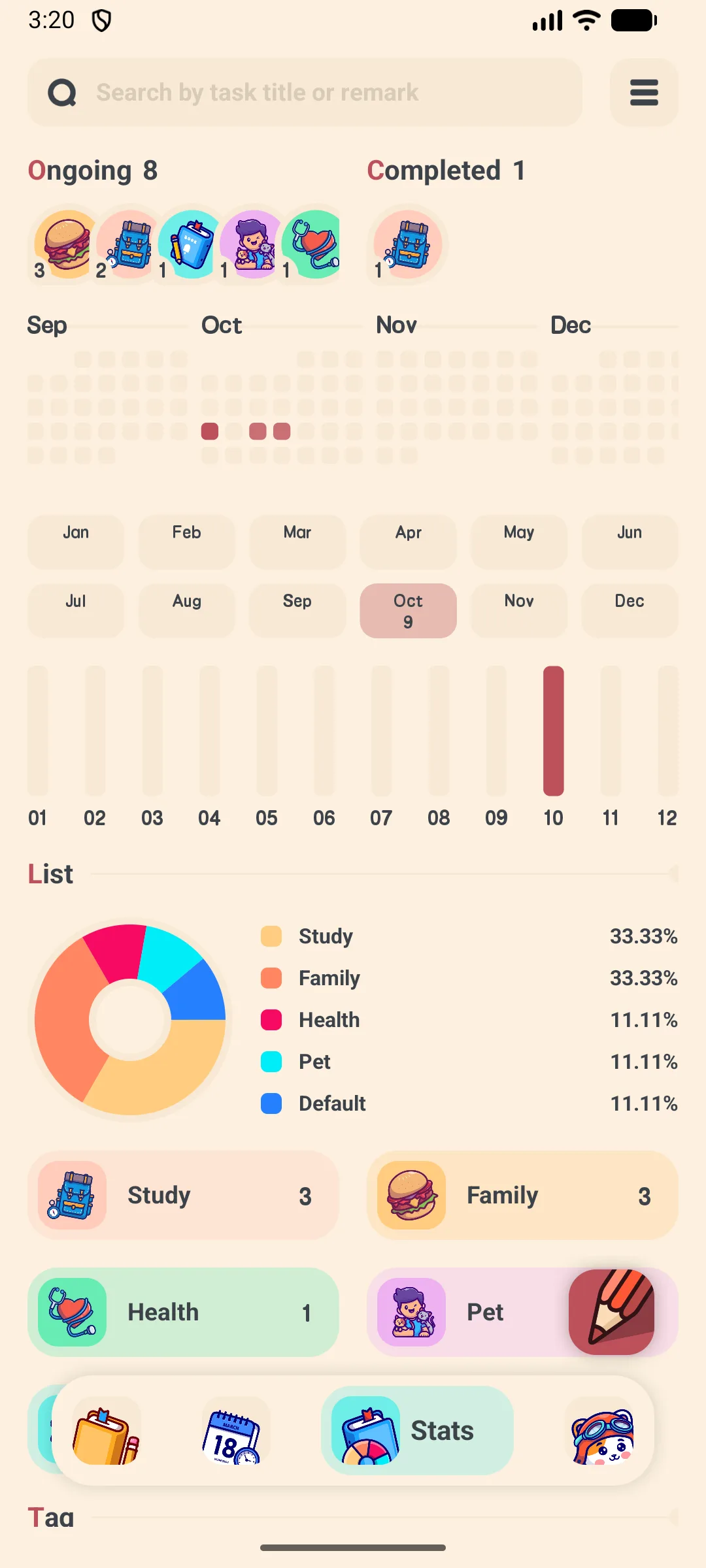
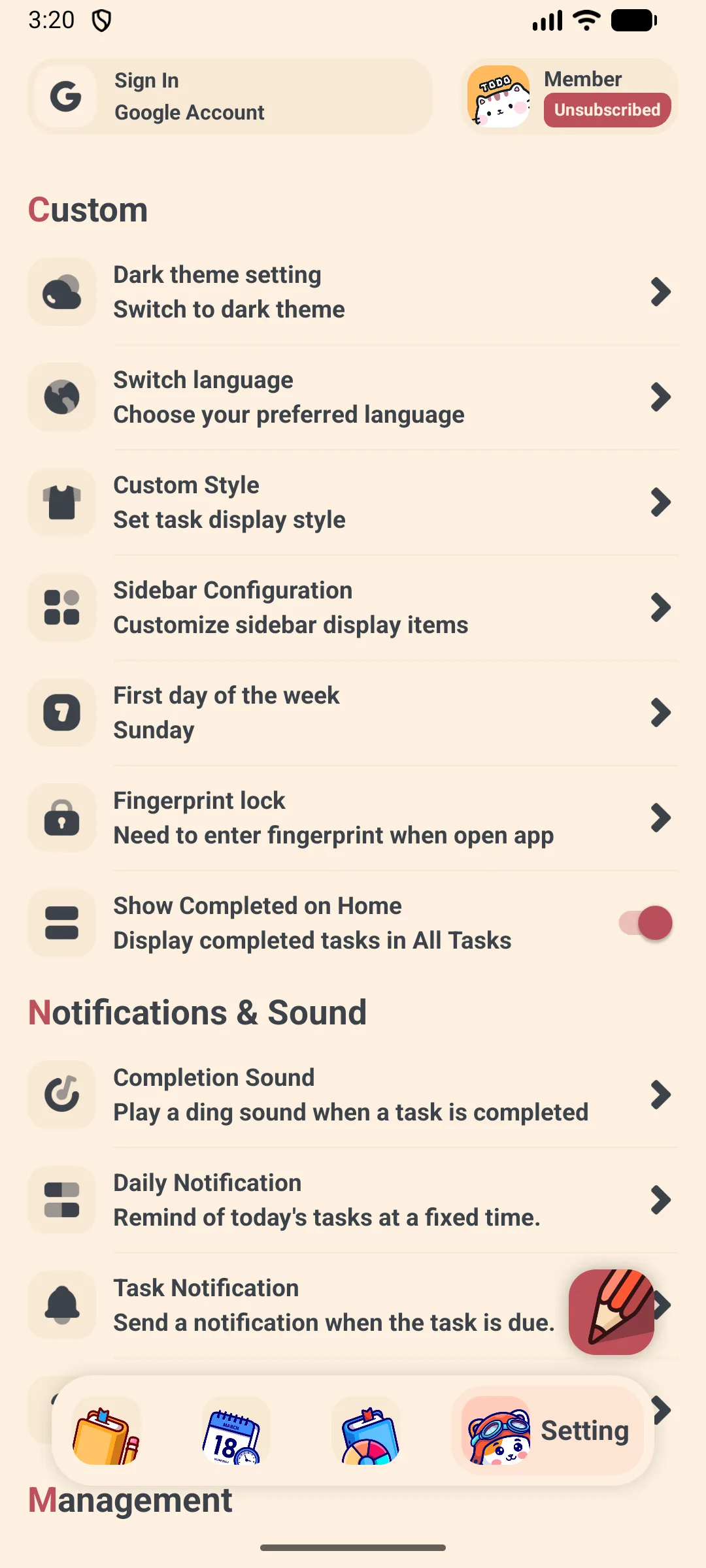
- Four bottom tabs: Tasks, Calendar, Statistics, Settings
- A floating + button adds a task from anywhere
- Side drawer filters: All / Today / Tomorrow / 7 days / Completed, plus your Books (lists) and Tags
🗓 Planning
- Set a date and time on every task
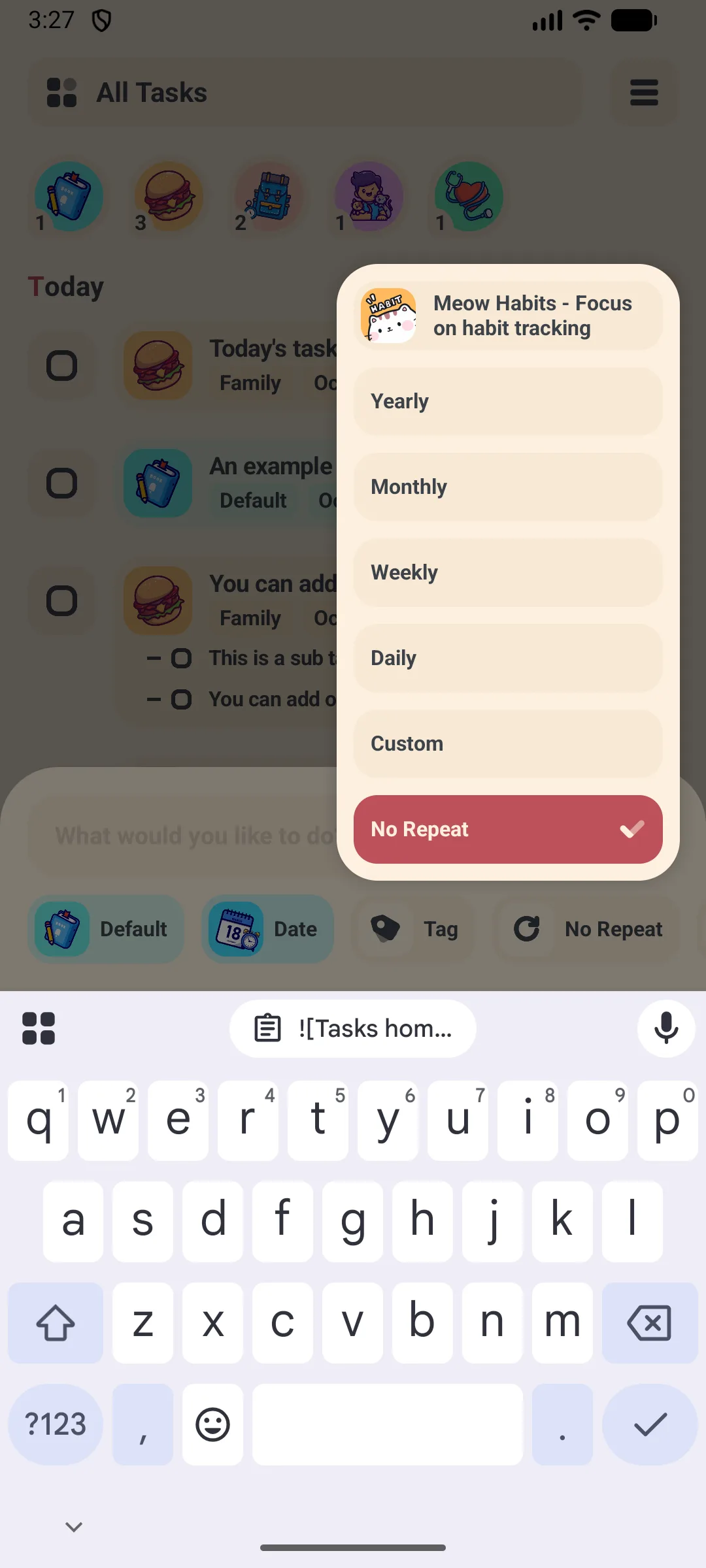
- Repeat tasks: daily, weekly, monthly, yearly, or a custom “every N days/weeks” rule
- Calendar view with Day / Week / Month switching
📊 Insights
- Contribution heatmap and pie charts grouped by Book/Tag
- Weekly / monthly / yearly overview
☁️ Safe & Private
- Local storage (Room database); optional Google Drive / WebDAV backup
- VIP unlocks dark mode, app lock, CSV export, and higher limits
First-time Use
When you first open Meow Todo List you land on the Tasks tab.
- The + button (bottom-right) creates a task
- The left drawer switches between Today / Tomorrow / 7 days / Completed and your custom Books & Tags
- The bottom bar moves between Tasks / Calendar / Statistics / Settings
Add a Task
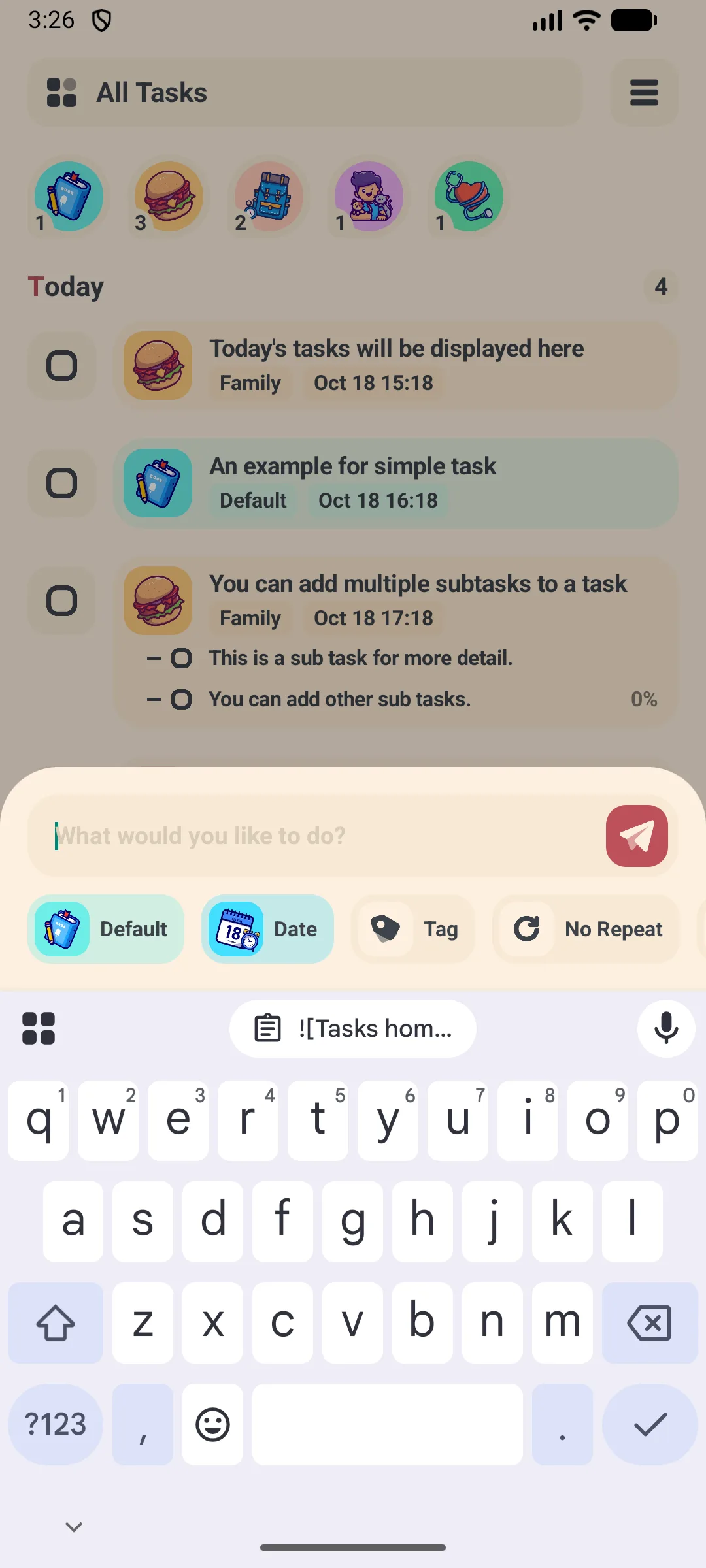
- Tap the + button
- Type the task title
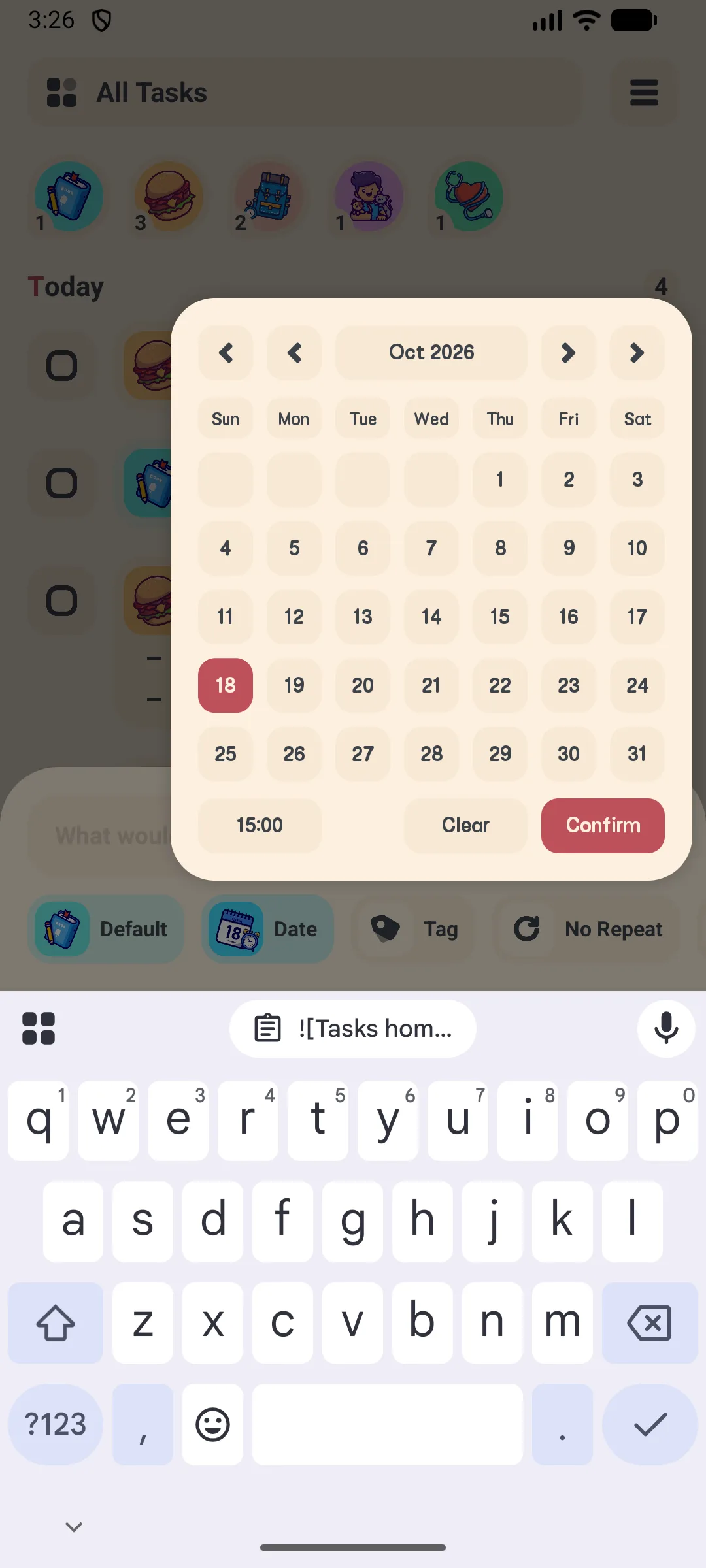
- Tap the date row to open the calendar pop-up; toggle hour on to set a specific time, or clear it for an all-day task
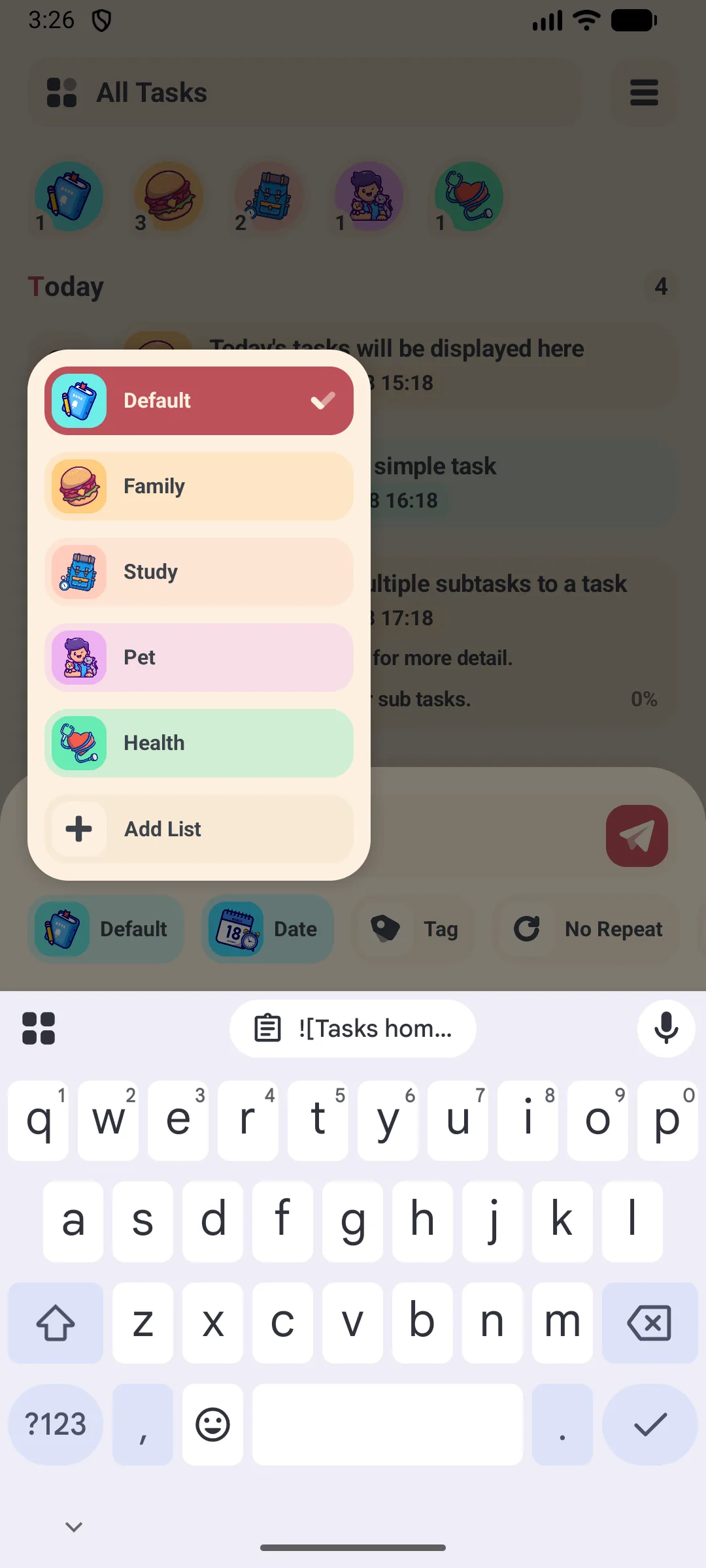
- Choose a Book (list) — e.g. Work, Life, Study
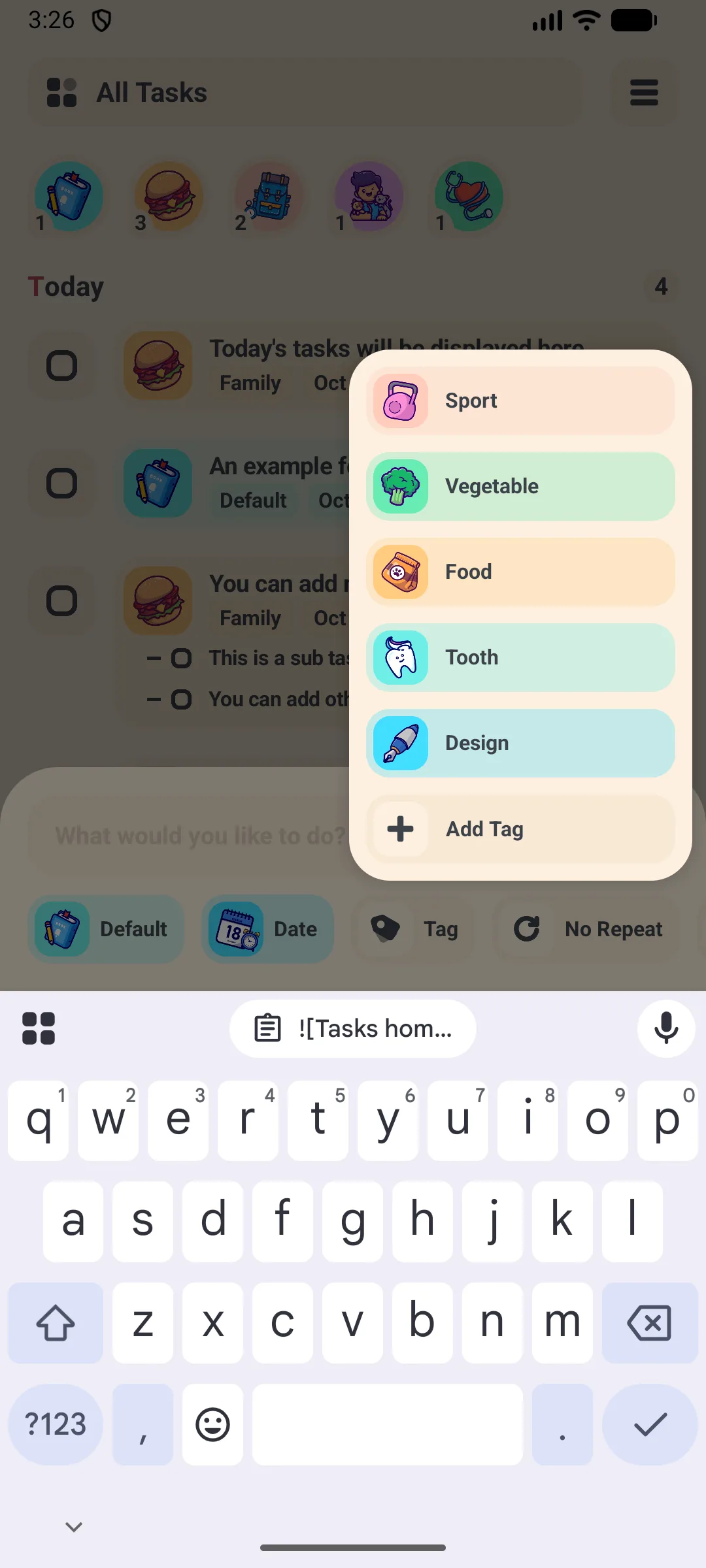
- Pick one or more Tags for filtering
- Set a priority if you like
- Tap Confirm to save
Subtasks
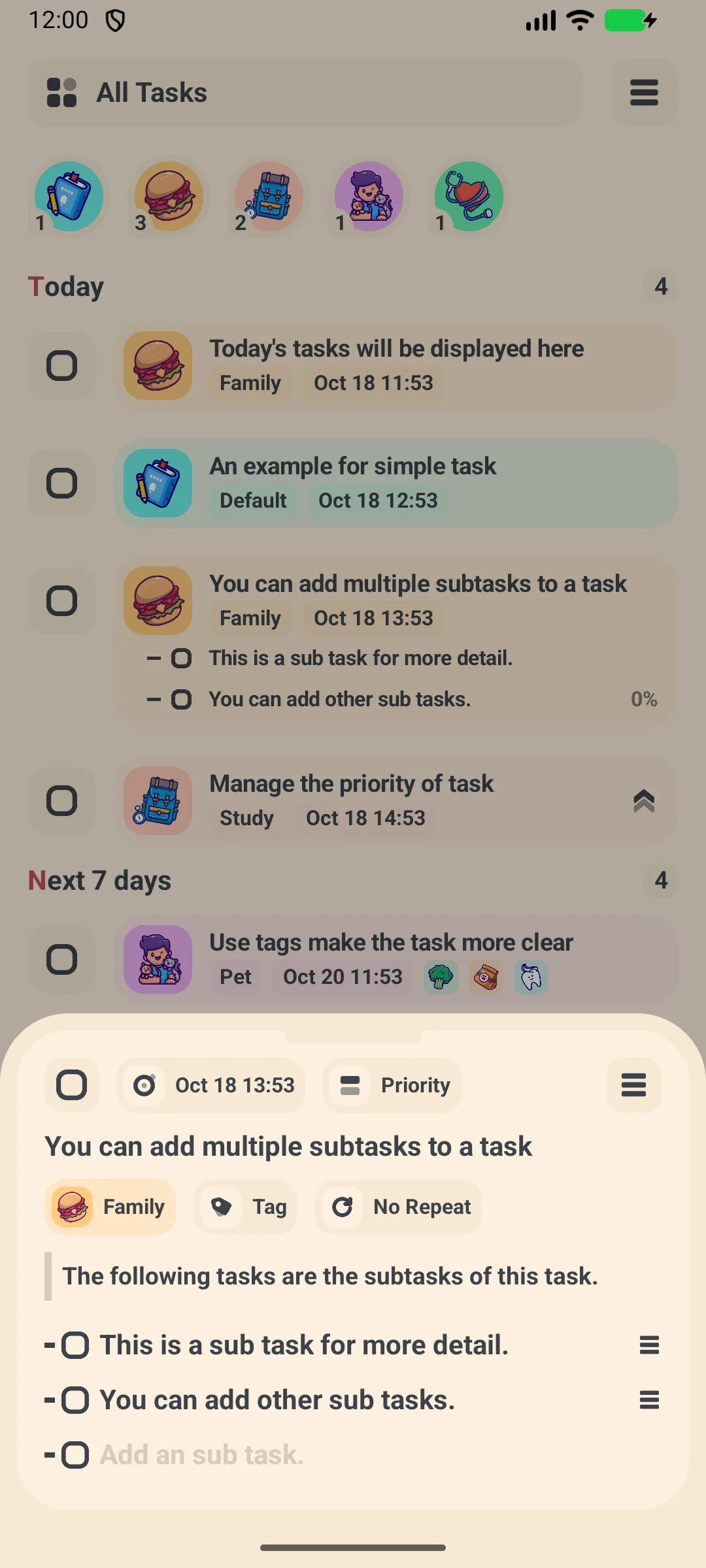
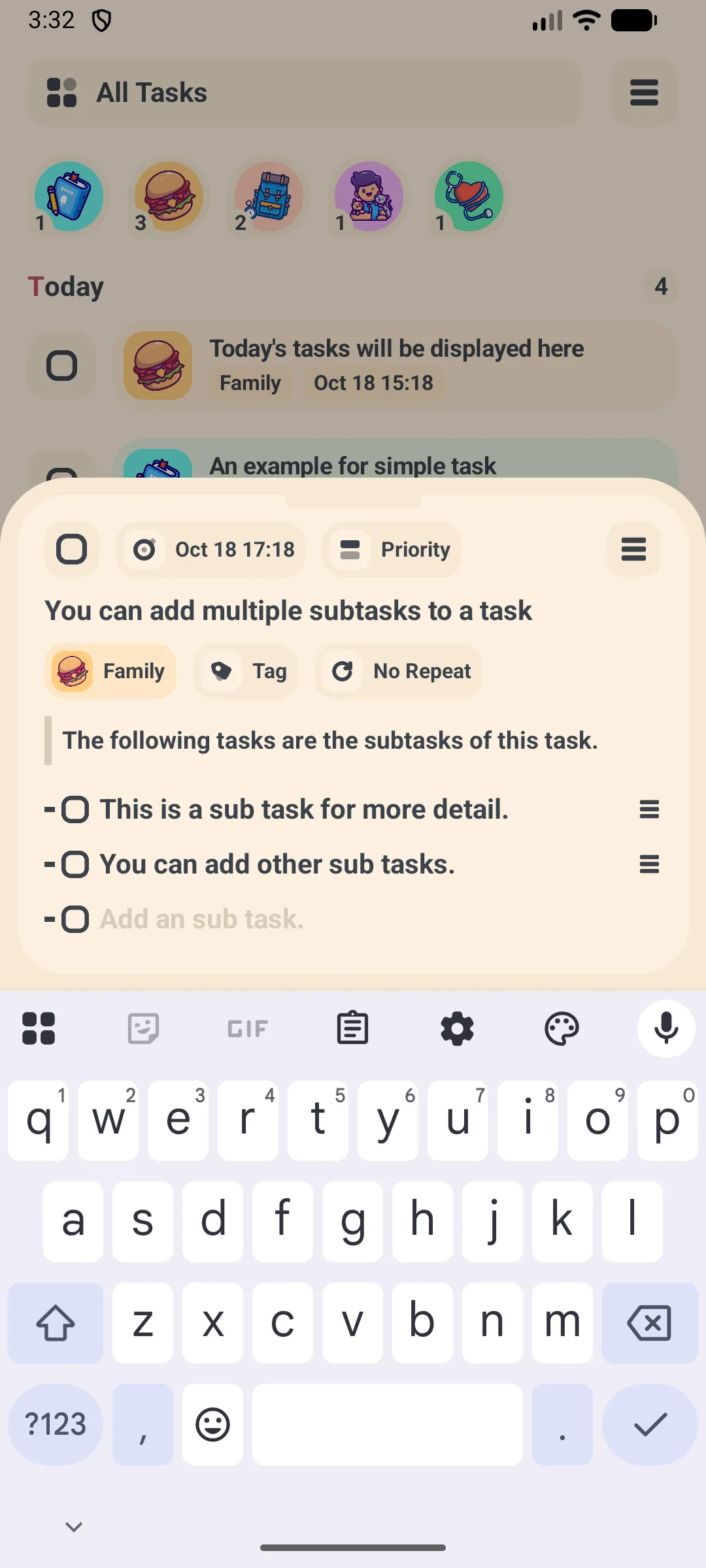
Open a task, then use the Add subtask field at the bottom of the detail page.
- Type a subtask and it is added to the list
- Free accounts can add up to 15 subtasks per task; VIP removes the cap
- Check items off as you complete them
Reminders
Reminders are scheduled with WorkManager, so they fire even if you do not open the app.
- While editing a task, set a date/time (the reminder uses that time)
- Make sure notifications are allowed for the app
- The app reschedules the reminder automatically when you edit the task
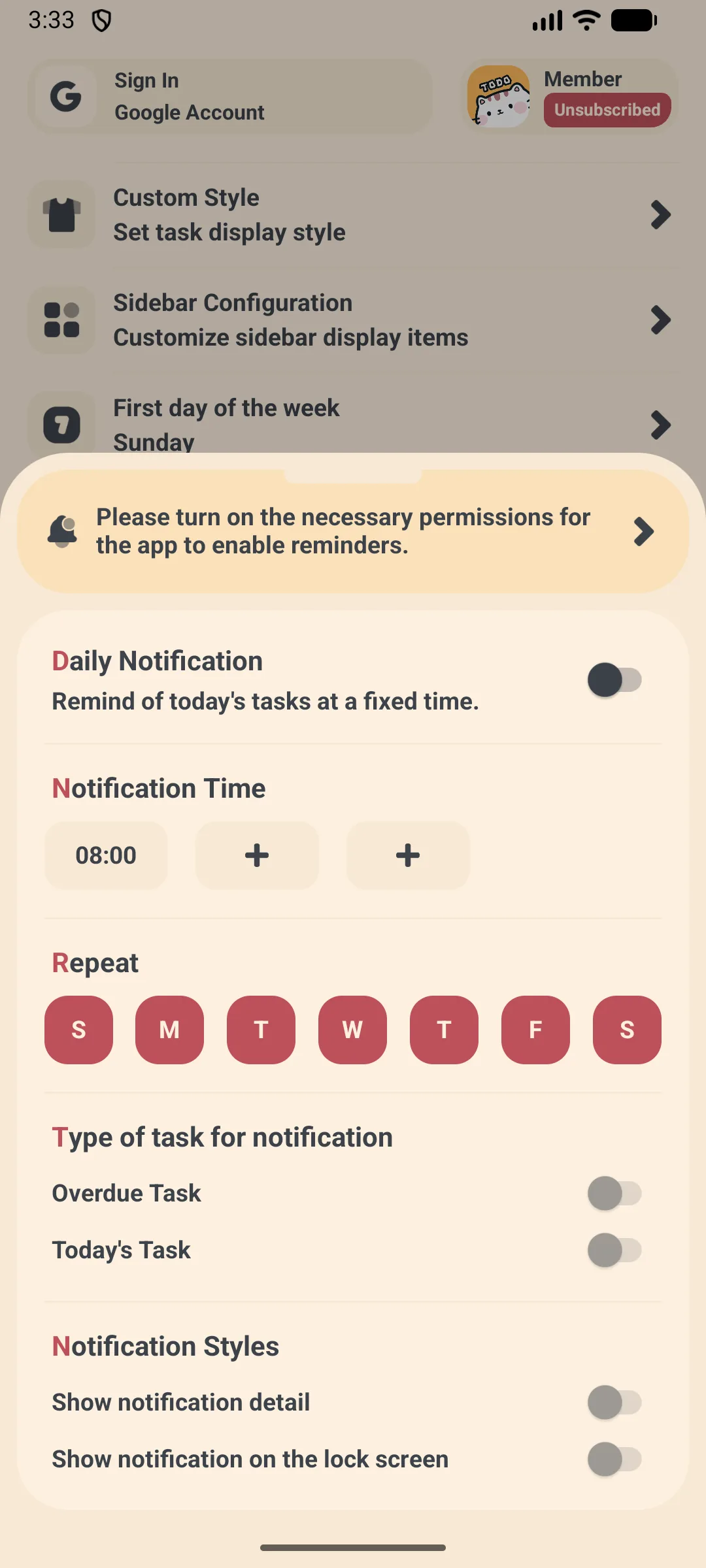
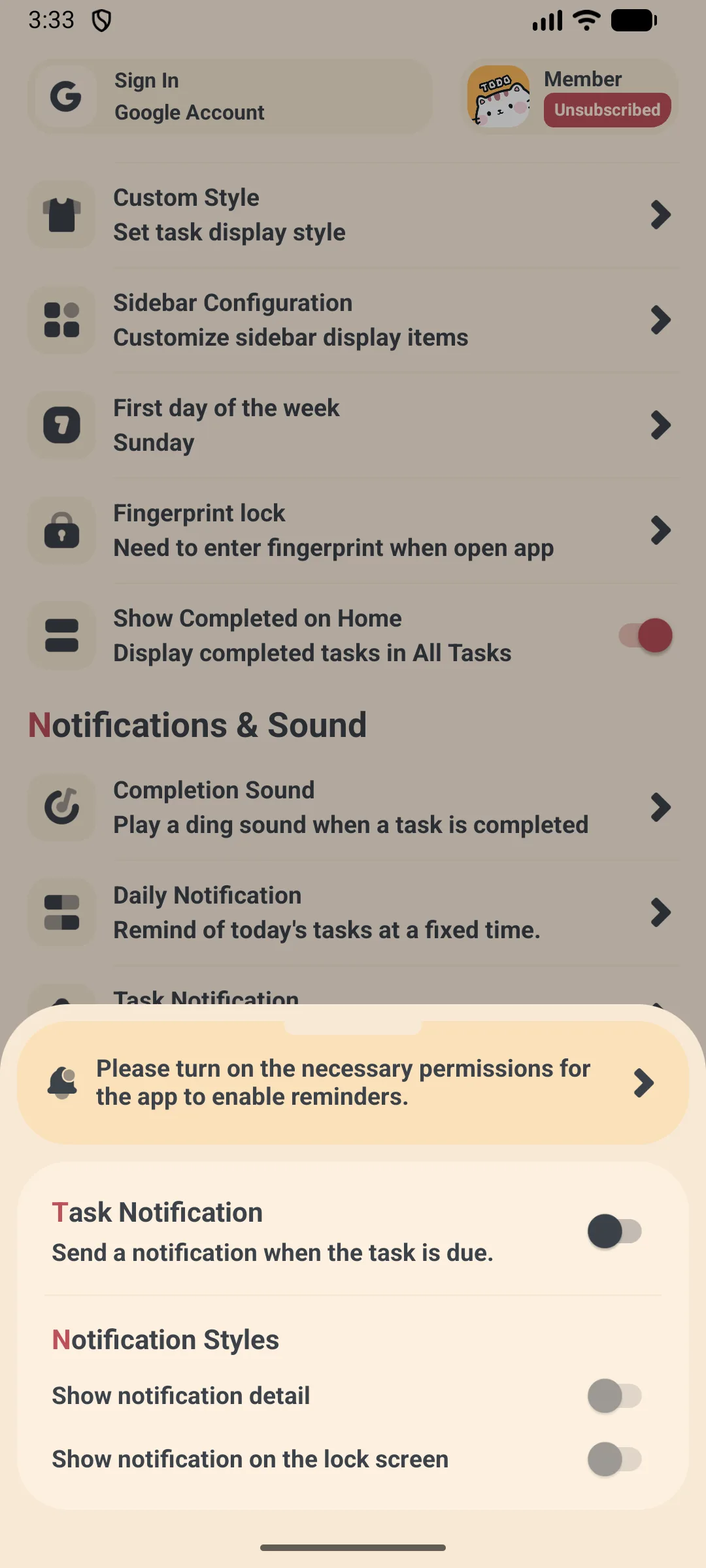
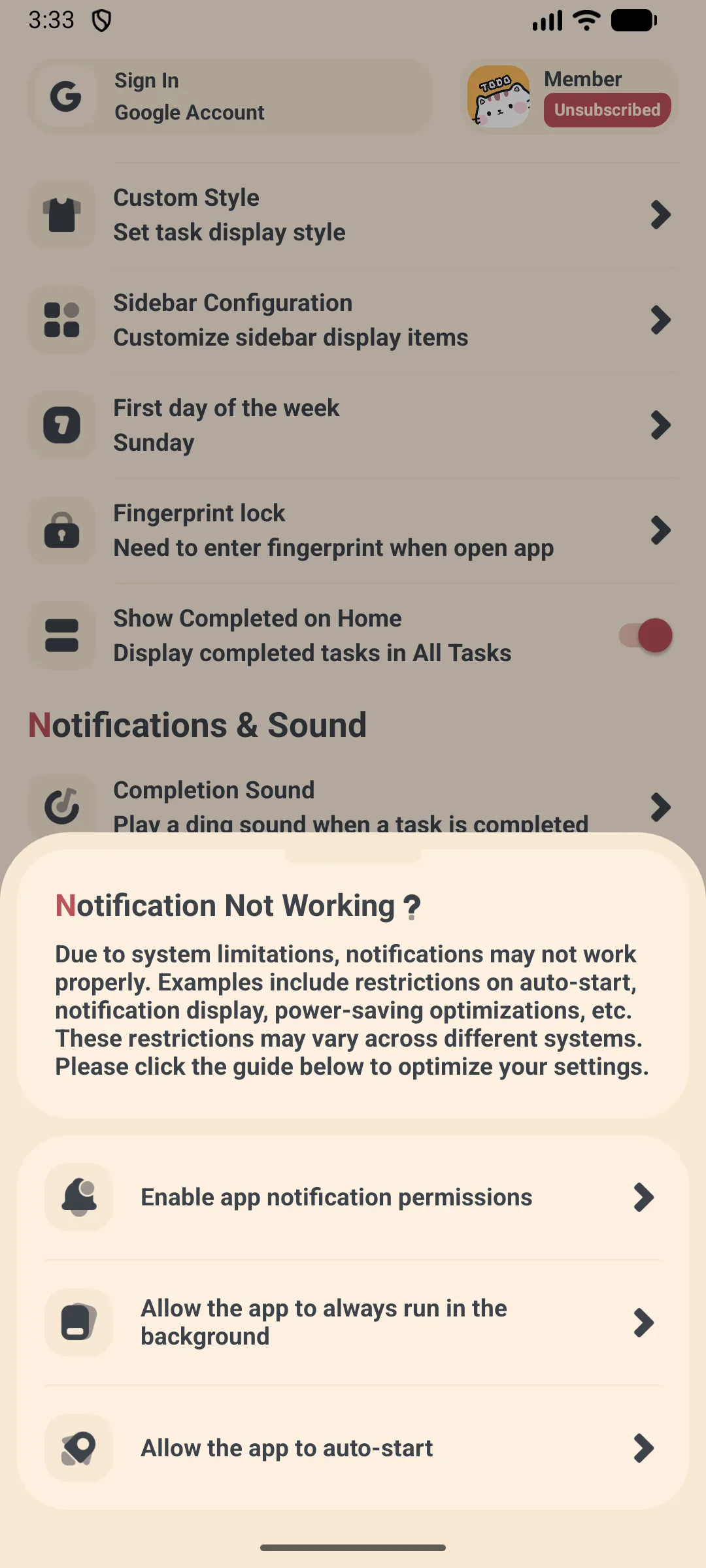
If you do not see a reminder, open the task and confirm it has a future date/time, then allow notifications in system settings.
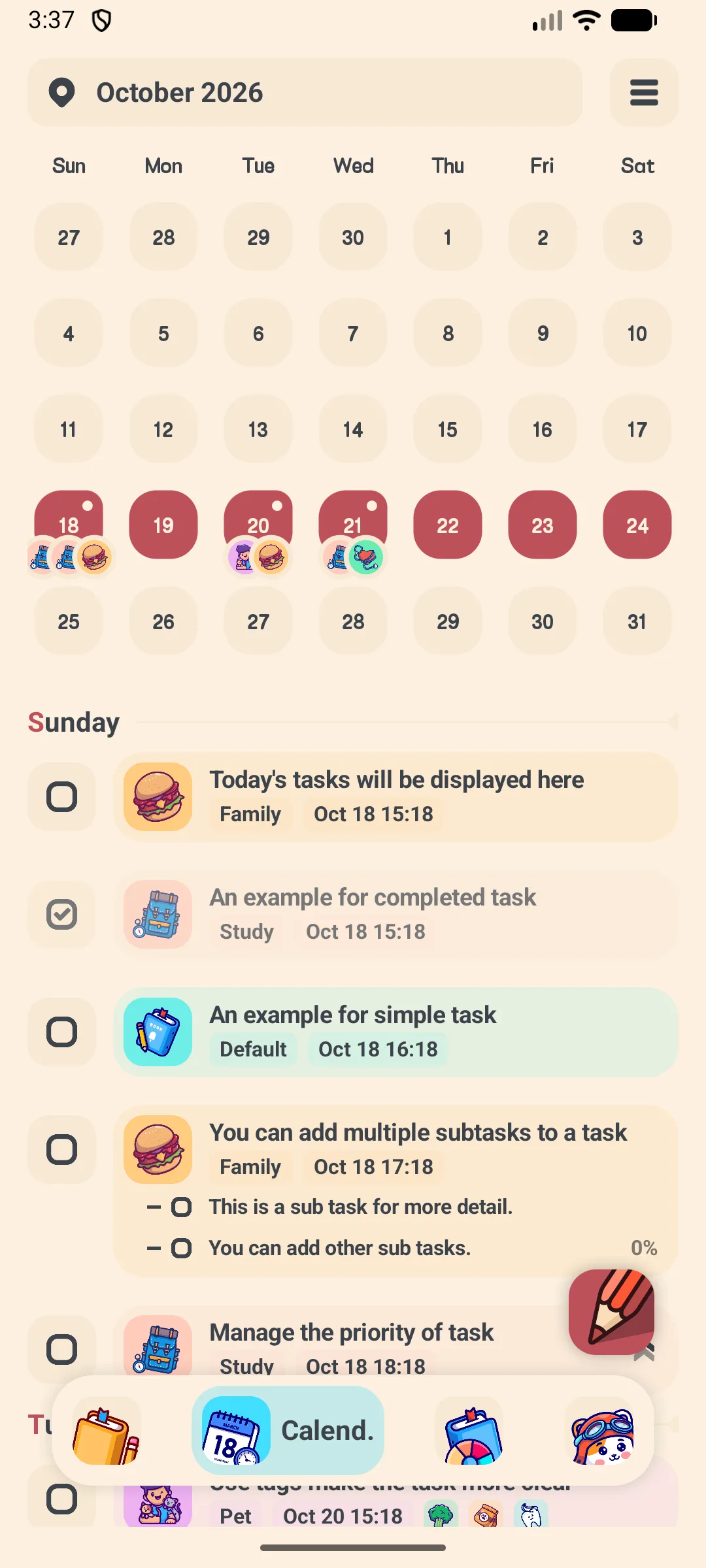
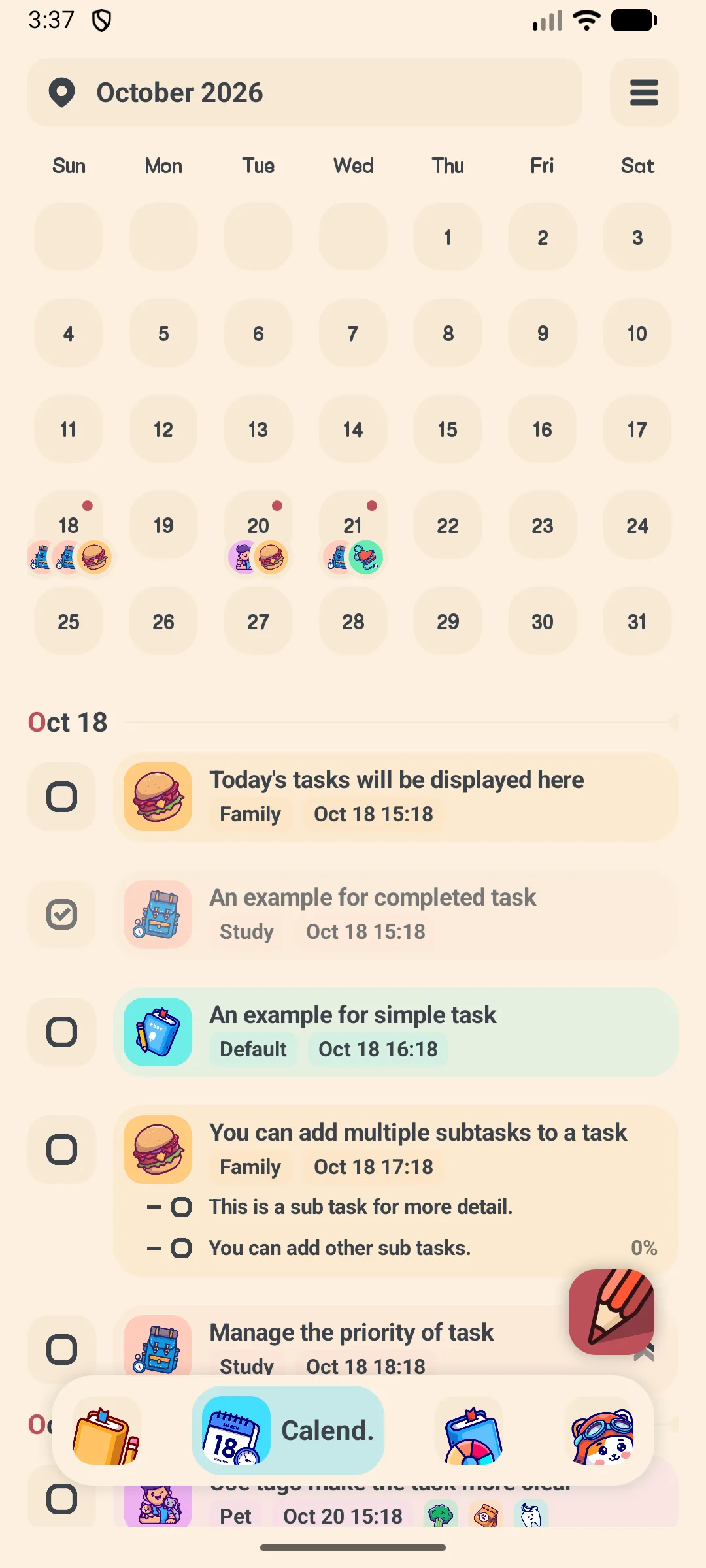
Calendar View
- Switch to the Calendar tab
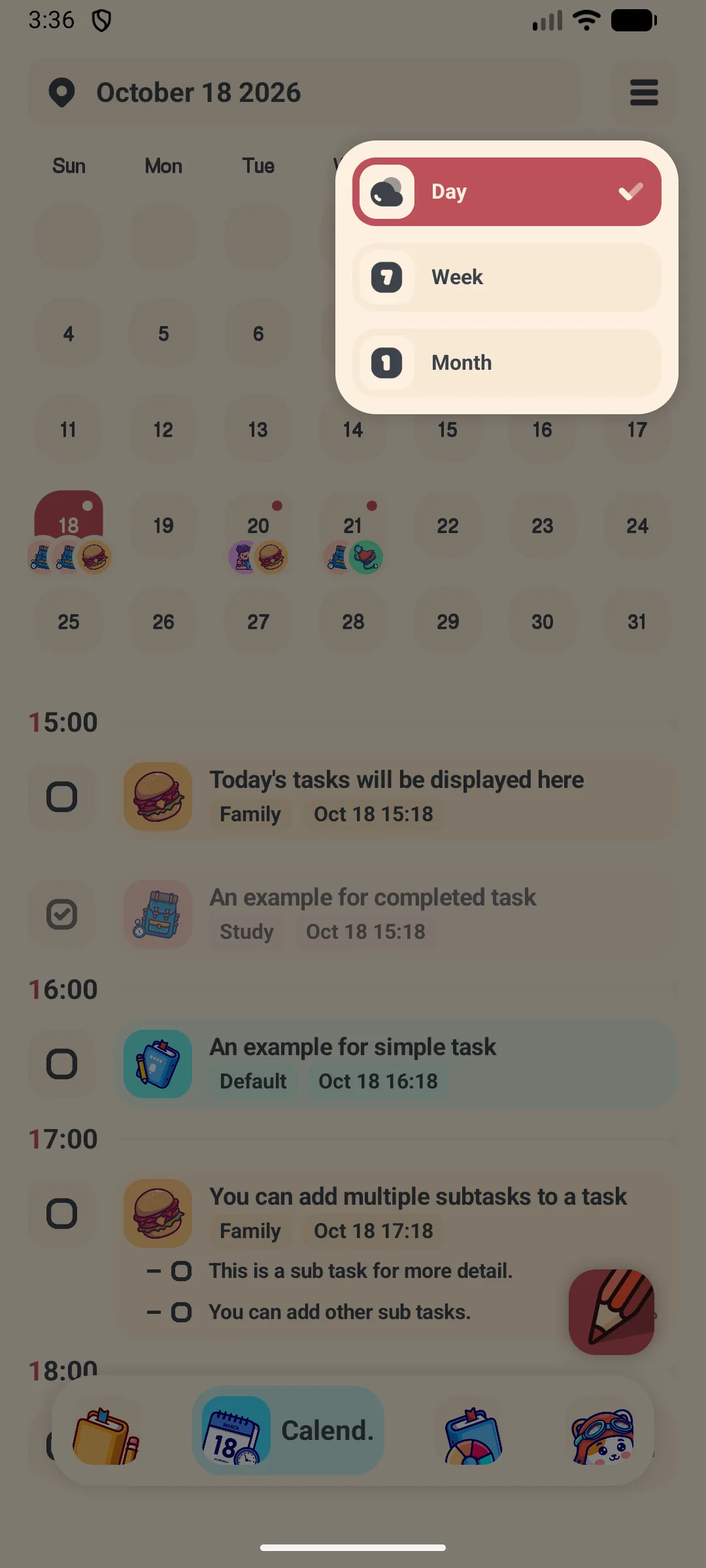
- Use the Day / Week / Month switch at the top-right
- Days that have tasks show a small dot
- Tap a day to see that day’s tasks
Statistics
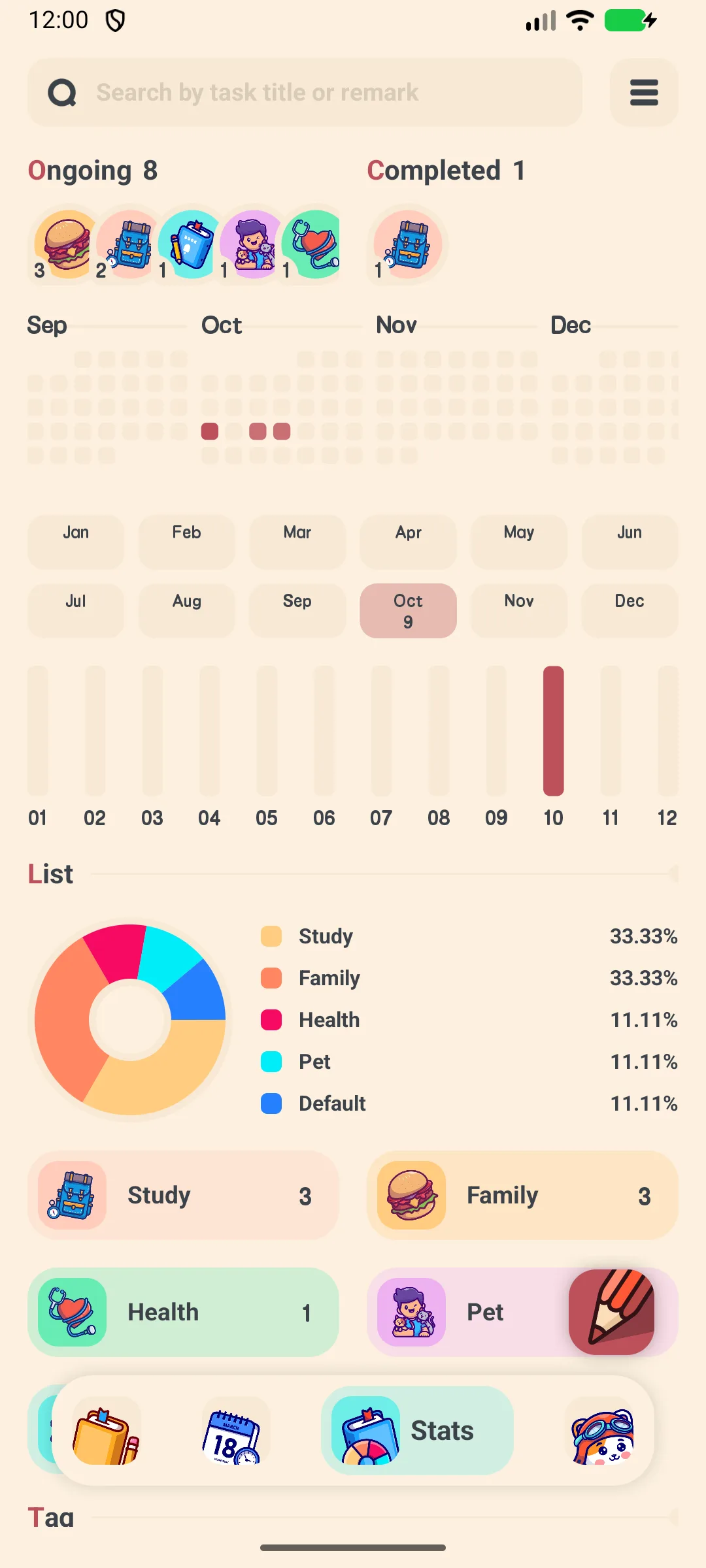
- Open the Statistics tab
- View the contribution heatmap and pie charts
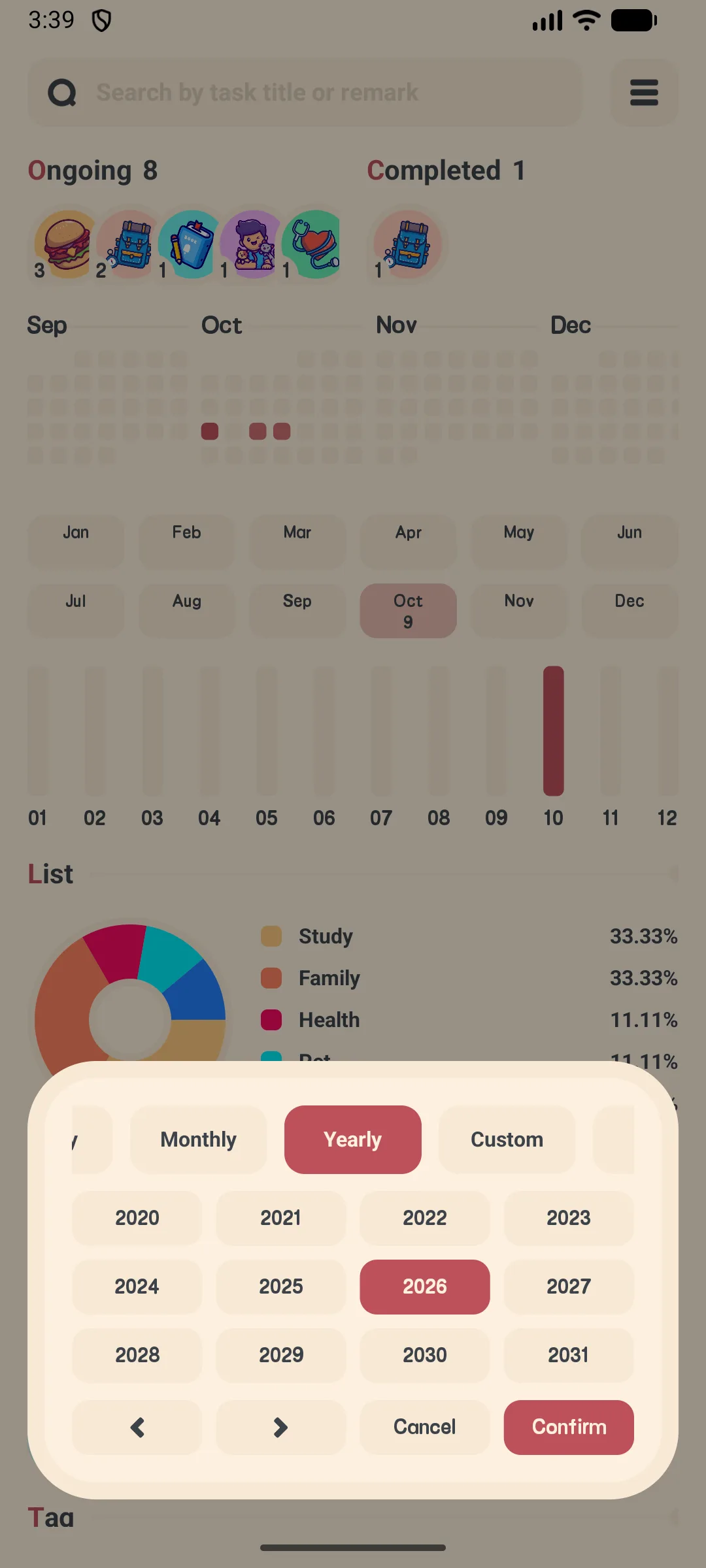
- Switch the range (week / month / year) to see trends by Book and Tag
Lists and Tags
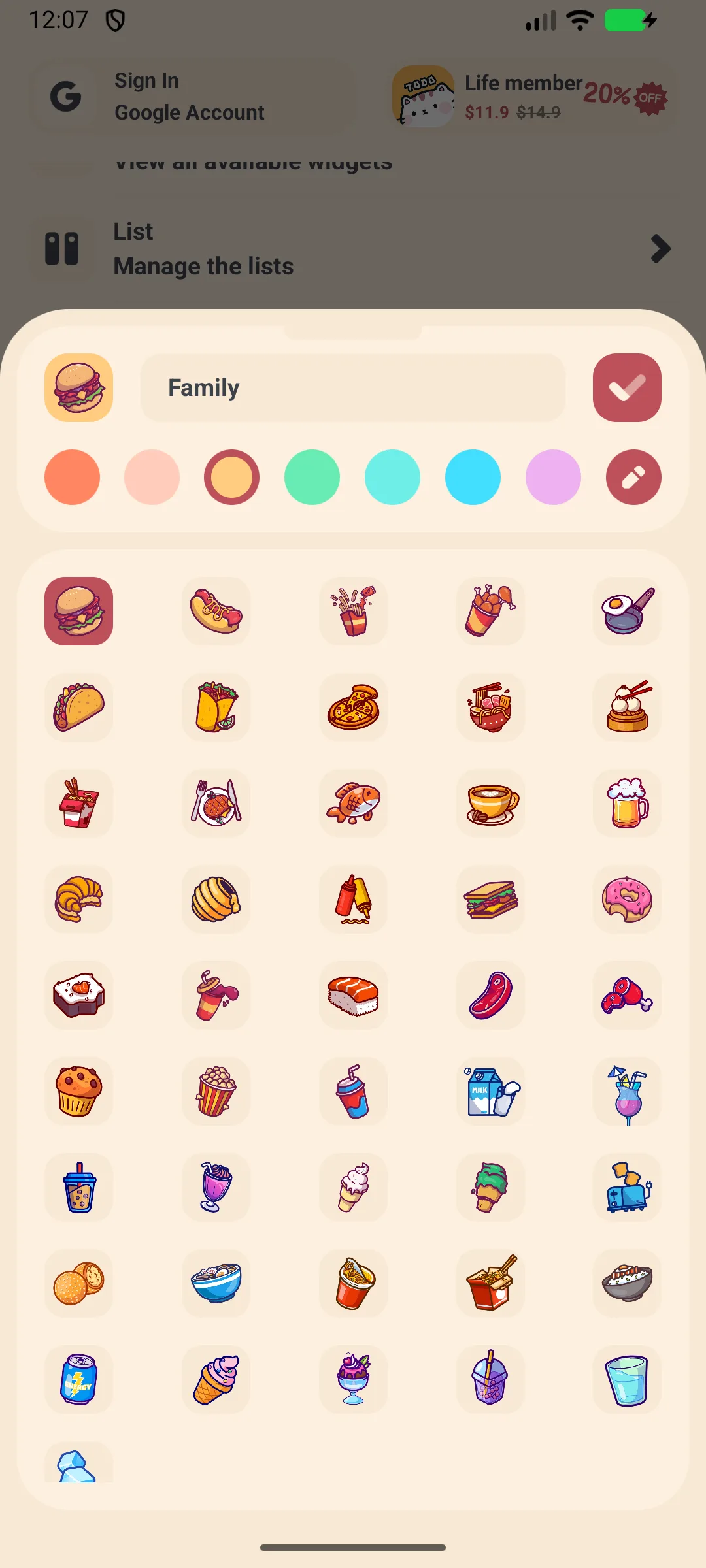
- Books (lists) group tasks — e.g. Work, Travel. Free accounts can create up to 10 Books
- Tags let you filter across lists — free accounts can create up to 10 Tags
- Create them from the drawer or the Settings → Management screen
Backup and Sync
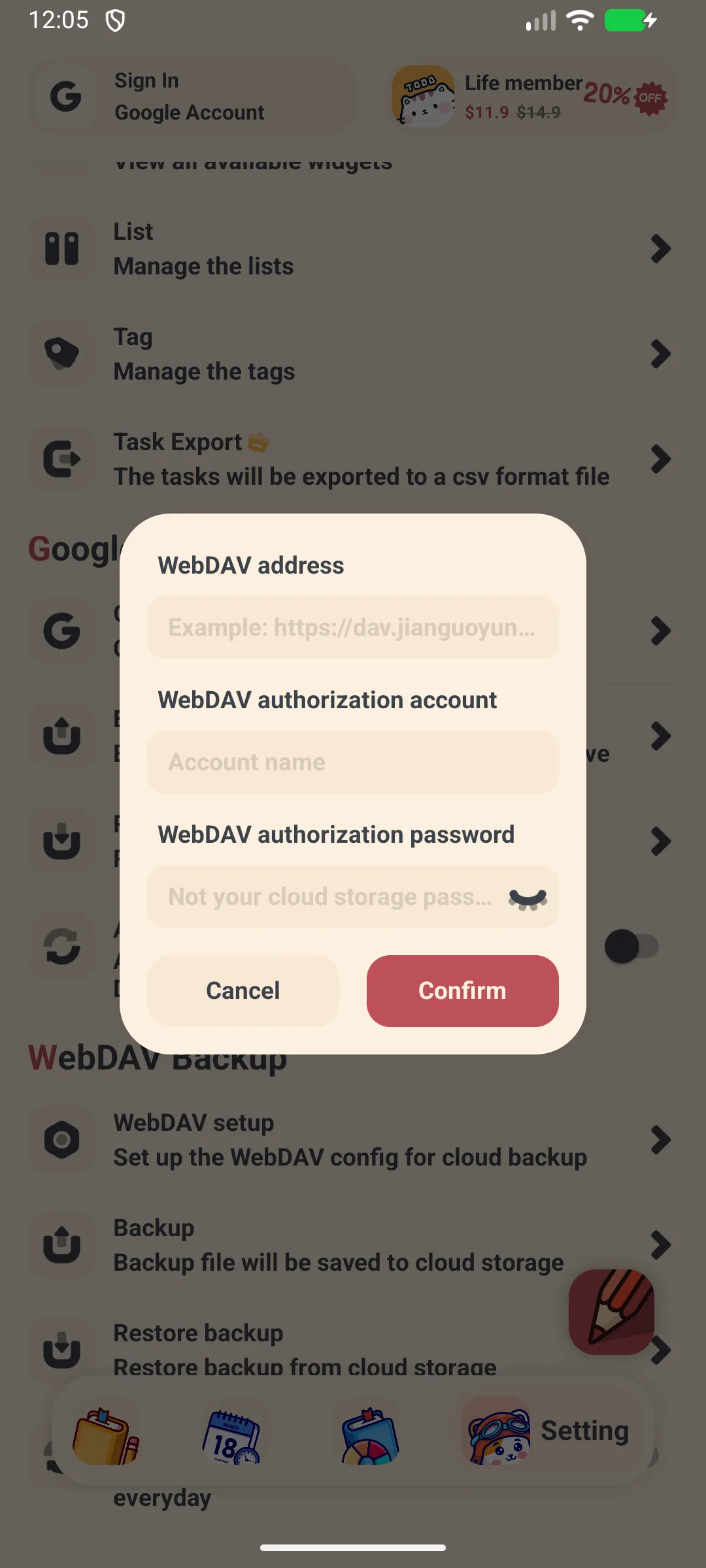
- Open Settings → Management → Google Drive (or WebDAV)
- Sign in / fill in your server, account and password
- Tap Backup to upload, Restore to download
- Turn on Auto backup to back up periodically
CSV Export (VIP)
- Open Settings → Management → Export
- Filter by Book / Tag / priority / date range
- Tap Export, then share the
.csvfile (open in Excel or Sheets)
CSV export is a VIP feature.
Settings
Settings include:
- Dark mode (VIP)
- App lock — fingerprint or password (VIP)
- Week start day and language
- Completed tasks display (shows the last 10 by default, with “show all”)
- Google Drive / WebDAV and Widgets
FAQ
How do I edit or delete a task?
Open the task, change the fields, and tap confirm to save. Use the 3-dot menu (or long-press) to delete.
How do repeat tasks work?
When you complete a repeating task, the app creates the next occurrence automatically (day +1, week +7, month +1, year +1, or your custom interval) and stops the original.
Are there limits on the free version?
Total tasks have no hard cap, but Books are limited to 10, Tags to 10, and subtasks to 15 on the free tier. The free version also shows ads.
Summary
Meow Todo List is a friendly, cute task manager that covers quick capture, repeating tasks, a calendar view, and statistics — with Drive/WebDav backup to keep your lists safe.