
Floating Assistant vs Assistive Touch: Which Overlay Tool?
Floating Assistant vs Assistive Touch compared in depth for 2026: a 3-in-1 overlay with clock and monitor versus a classic free floating-ball button app. Features, price and a verdict per need.
Both put controls on top of your screen, but they solve different problems. Floating Assistant is a 3-in-1 overlay — assistive touch, a floating clock, and a live system monitor. Assistive Touch (Easy Touch) is the classic floating navigation ball. This Floating Assistant vs Assistive Touch comparison helps you choose an overlay widget app in 2026.
At a glance
| Floating Assistant | Assistive Touch (Easy Touch) | |
|---|---|---|
| Core | 3-in-1: touch + floating clock + monitor | Floating navigation ball |
| Platforms | Android | Android |
| Assistive touch buttons | Yes | Yes |
| Floating clock | Yes | Usually no |
| Floating monitor (CPU/RAM/battery) | Yes, live | No |
| One-tap boost | Yes | Varies |
| Screenshot / flashlight | Yes | Yes |
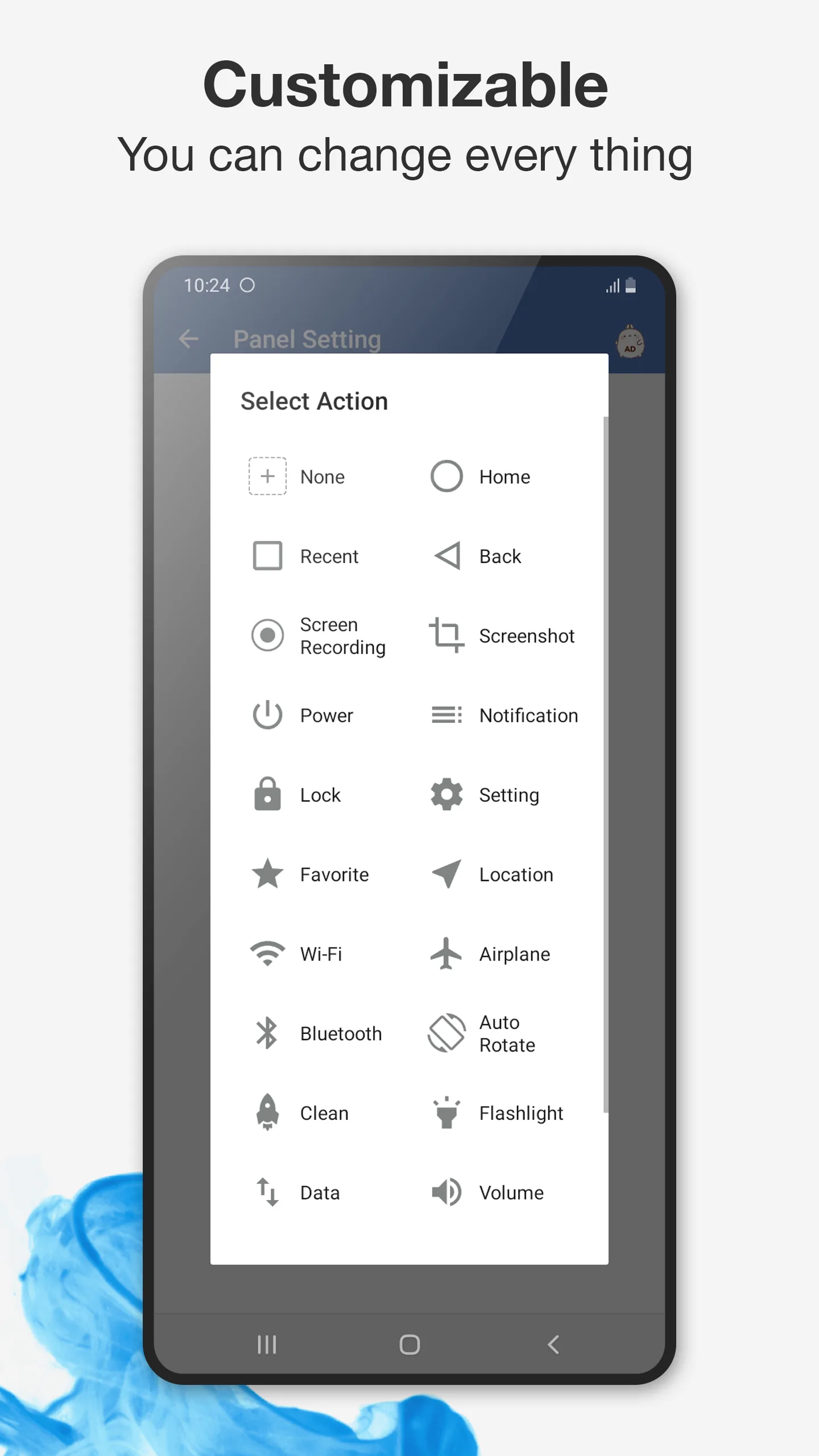
| Customization | Ball + modules, themes | Size, color, gestures |
| Privacy | Accessibility used only for controls; no personal data | Ad-supported |
| Price | Free core + optional unlock | Free (ad-supported) |
| Best for | All-in-one control + monitoring | Simple nav ball |
Floating Assistant, in detail
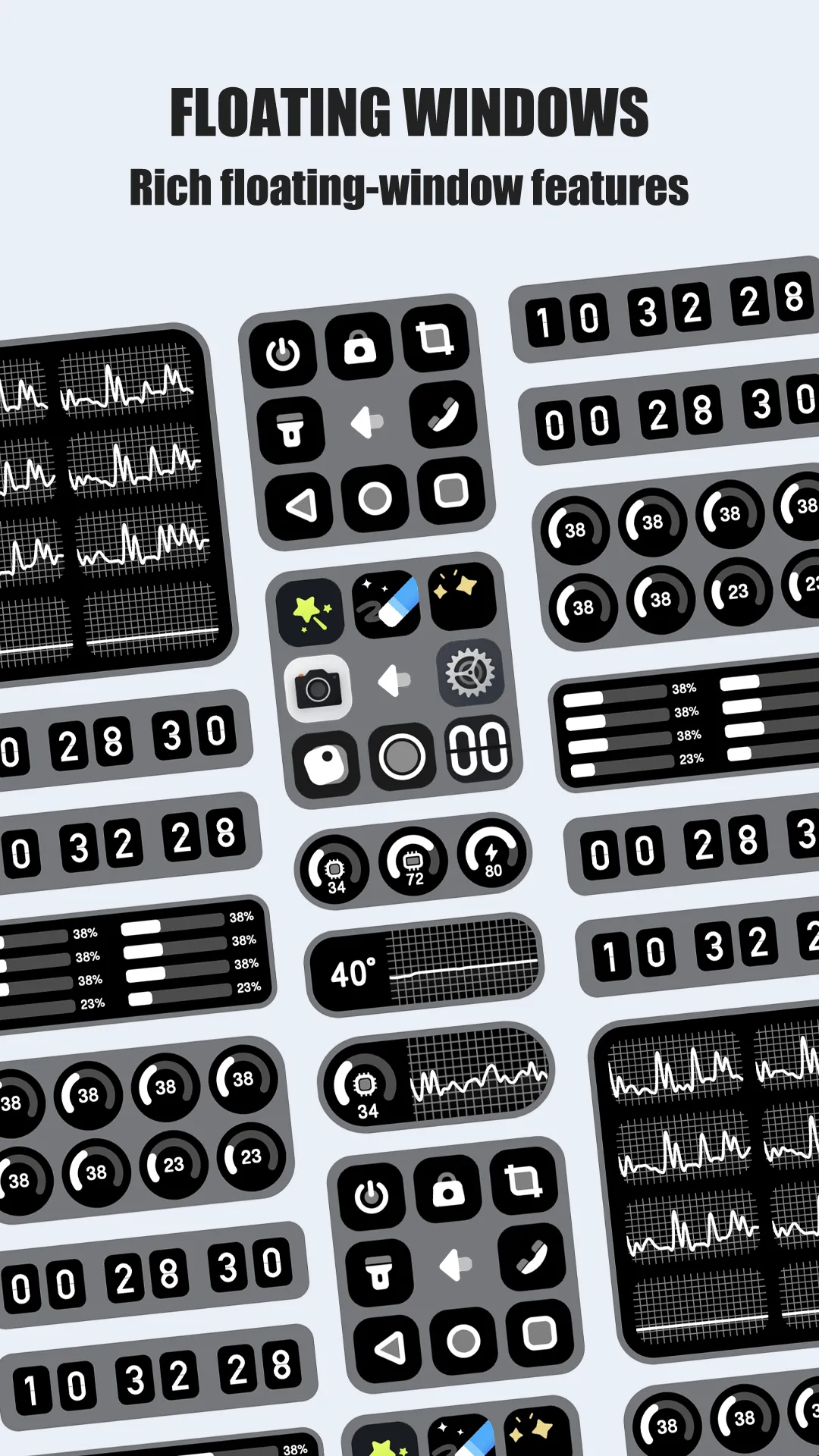
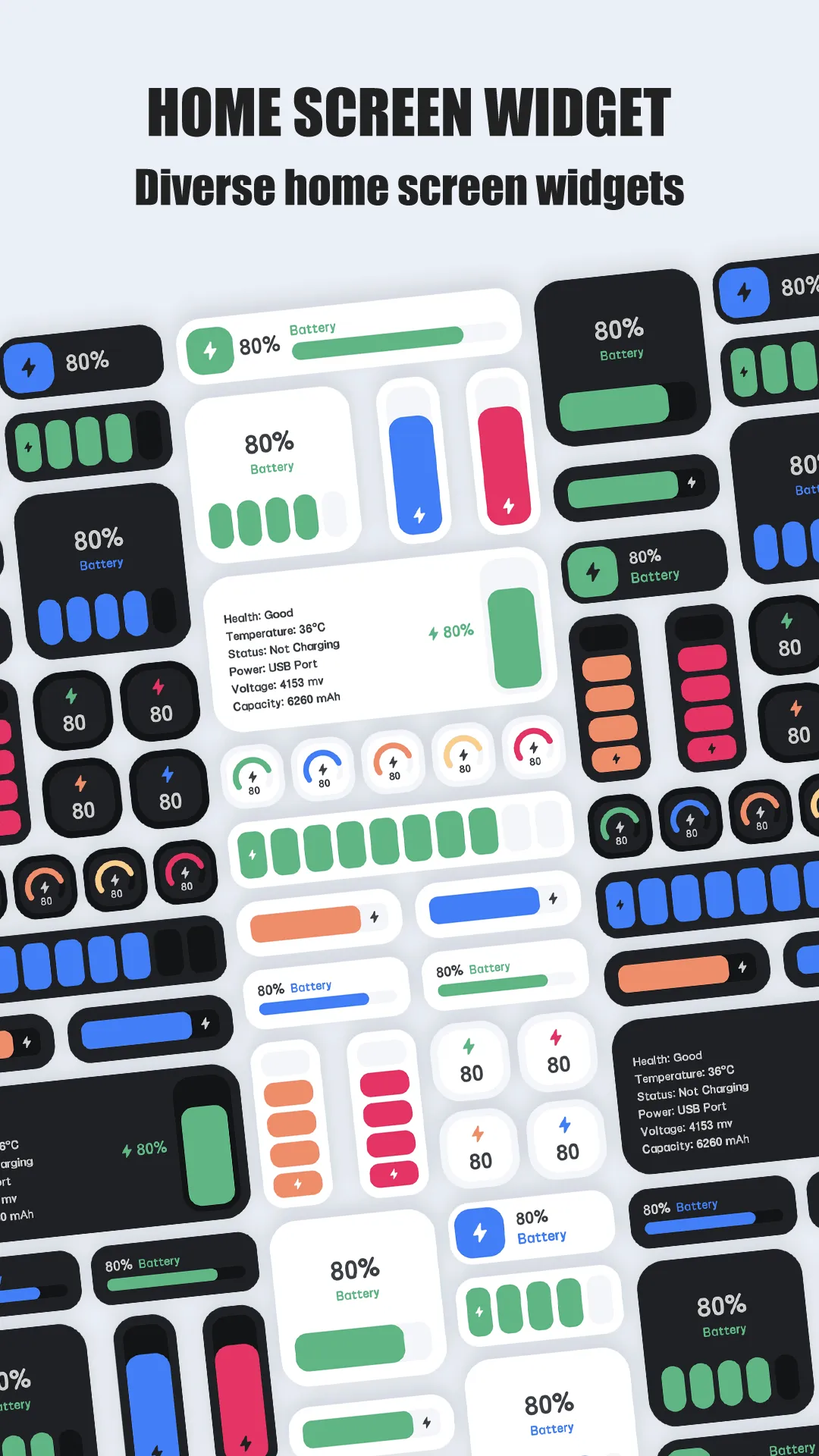
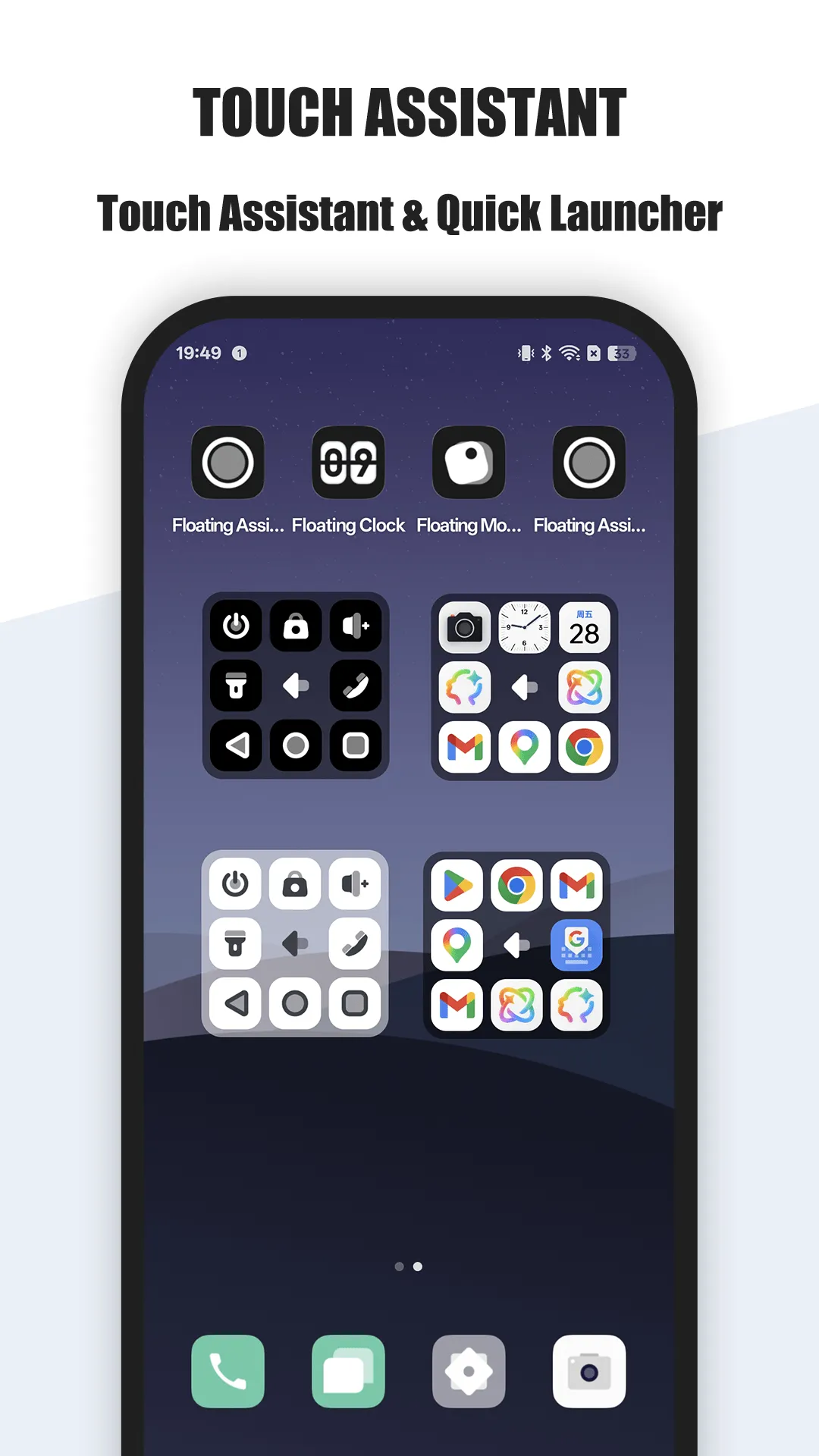
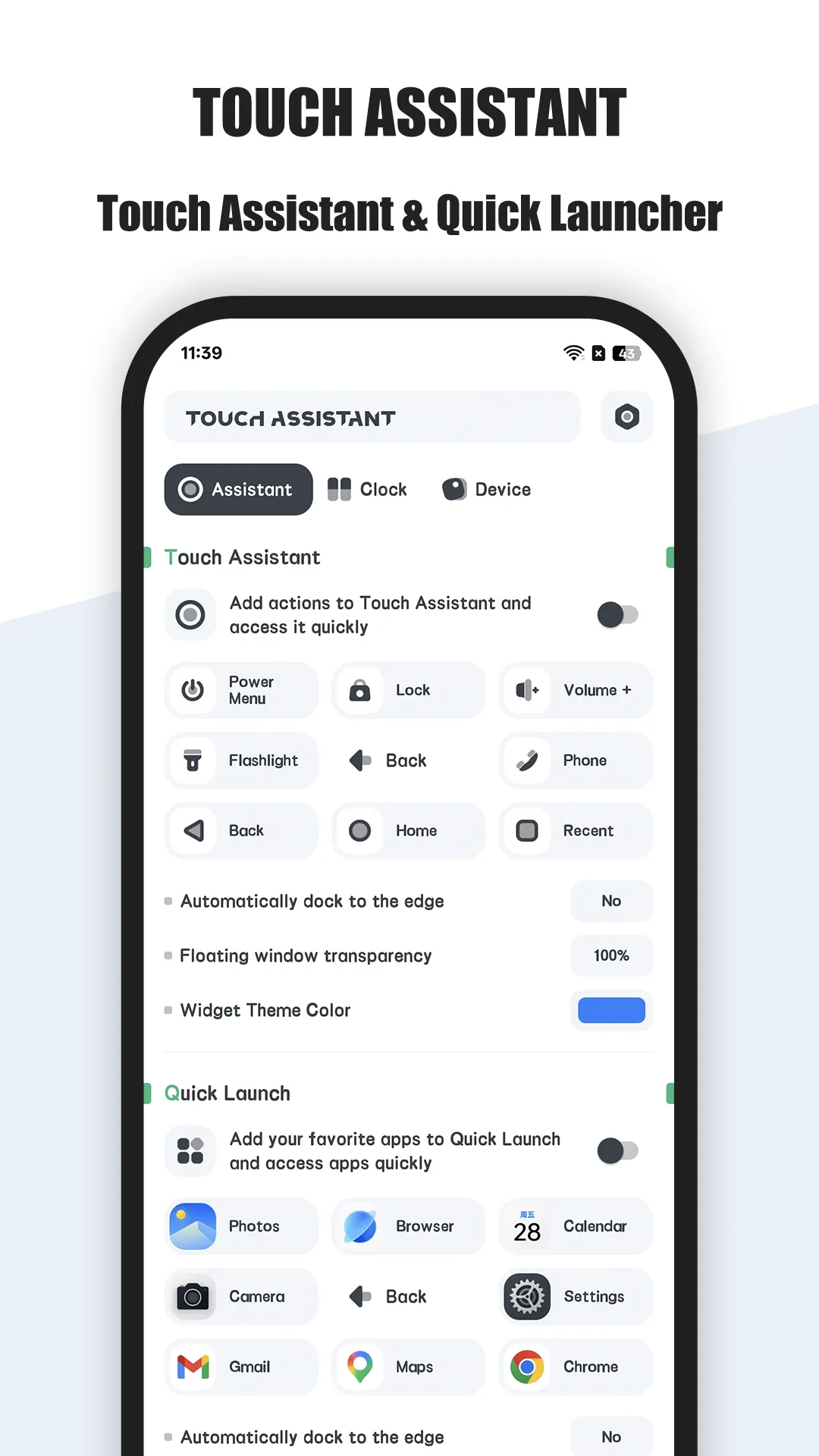
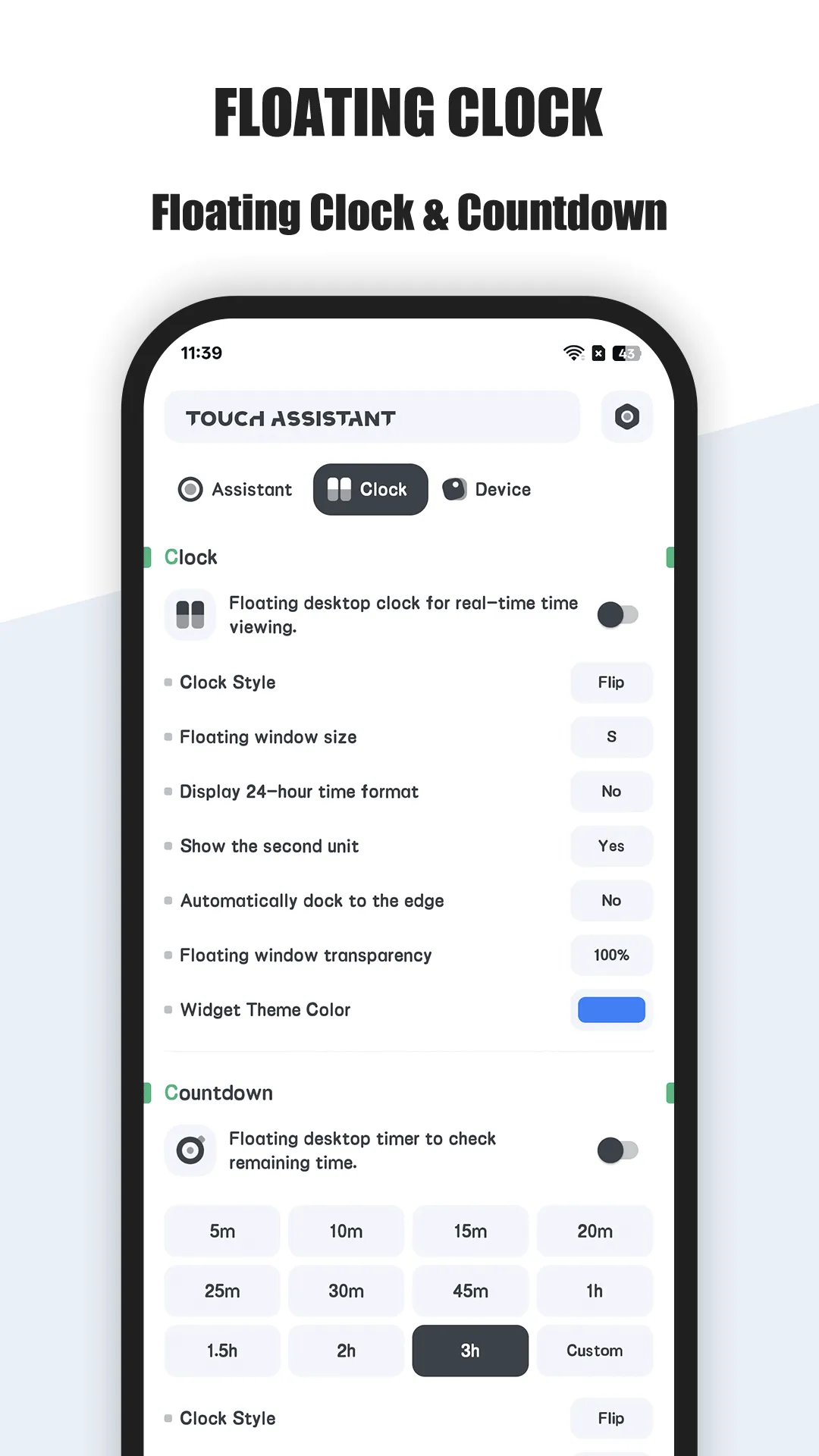
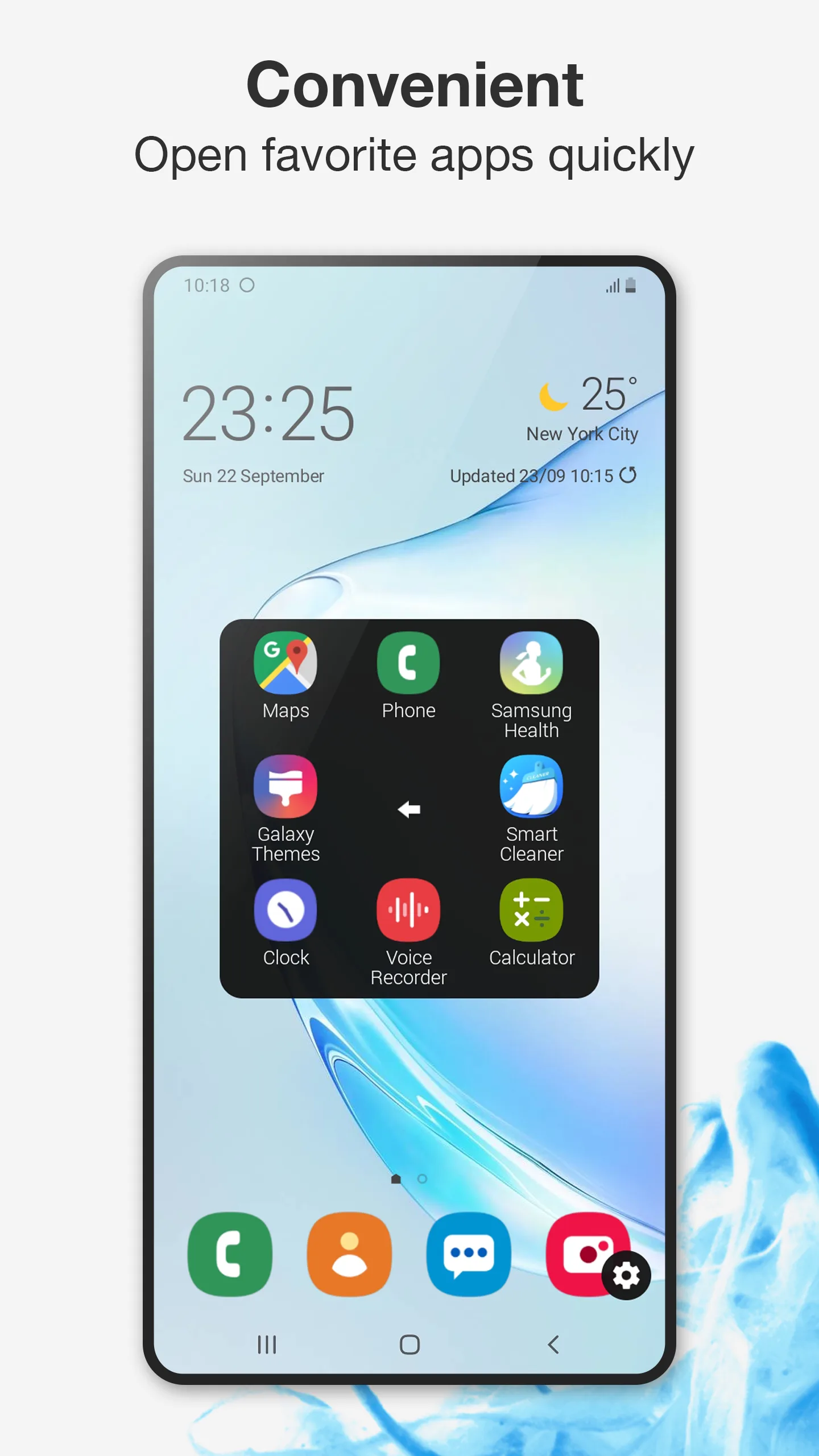
Floating Assistant bundles three tools into one overlay: an assistive-touch ball for navigation, a floating clock you can keep above other apps, and a floating system monitor showing CPU temperature, usage, RAM and battery with a one-tap boost.
Strengths
- Three tools in one overlay — you don’t need separate apps for buttons, a clock, and a monitor.
- Floating clock — keep the time visible above any app or game.
- Live monitor — real-time CPU temperature, usage, RAM and battery, ideal while gaming or charging.
- One-tap boost — free RAM quickly when the phone stutters.
- Screenshot, flashlight, and quick app access from the ball.
- Privacy posture — uses Accessibility only for the listed controls and does not collect personal or sensitive data.
- Protects physical buttons on large-screen phones.
Weaknesses
- Android only — no iOS version.
- Overlay takes some screen space if you keep clock + monitor on.
- Extra themes/modules sit behind an optional unlock.
- More features mean a slightly busier setup than a bare ball.
Best for
Power users and gamers who want buttons and a clock and live system stats from a single floating layer.
Download Floating Assistant
Assistive Touch (Easy Touch), in detail
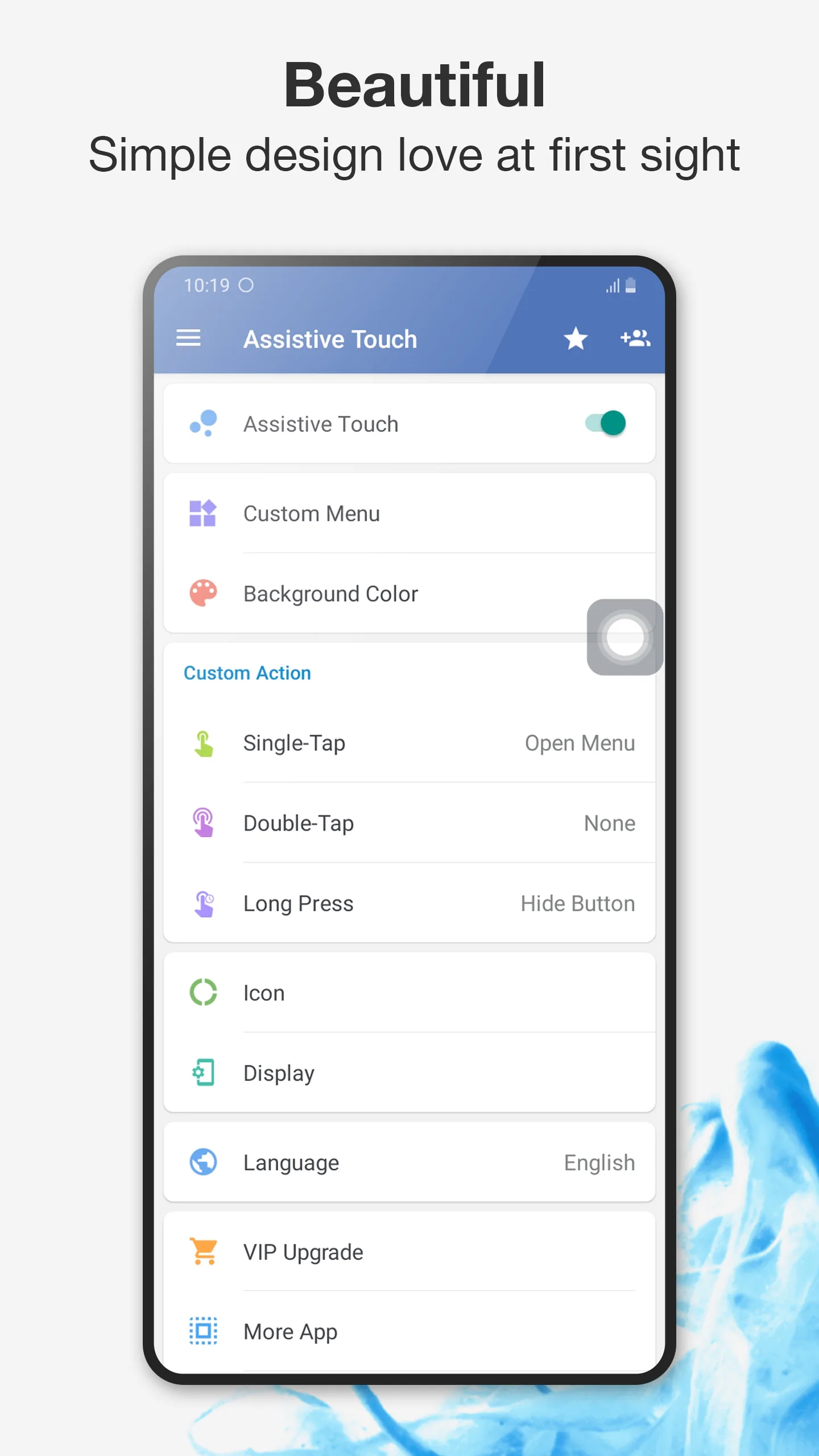
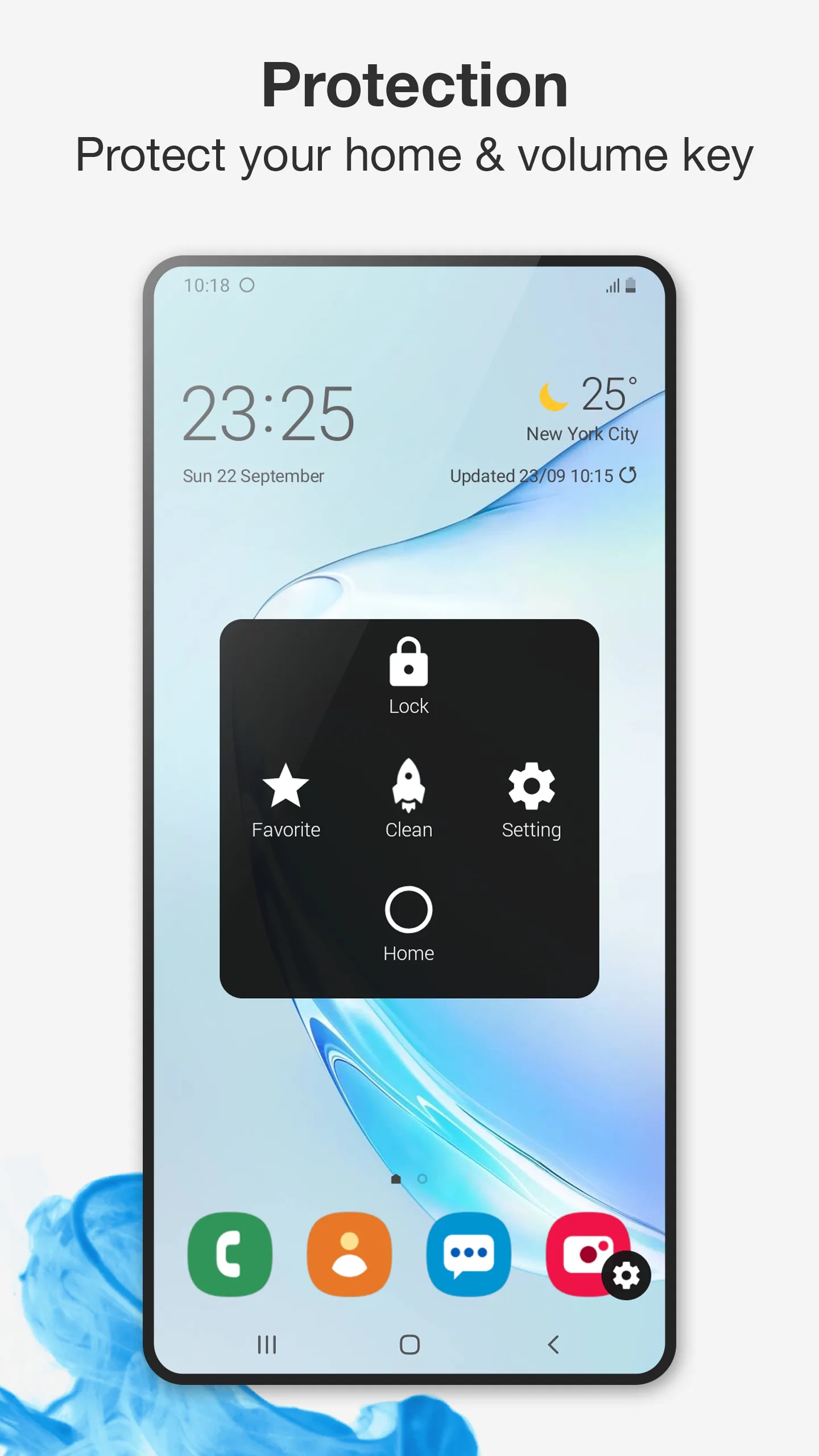
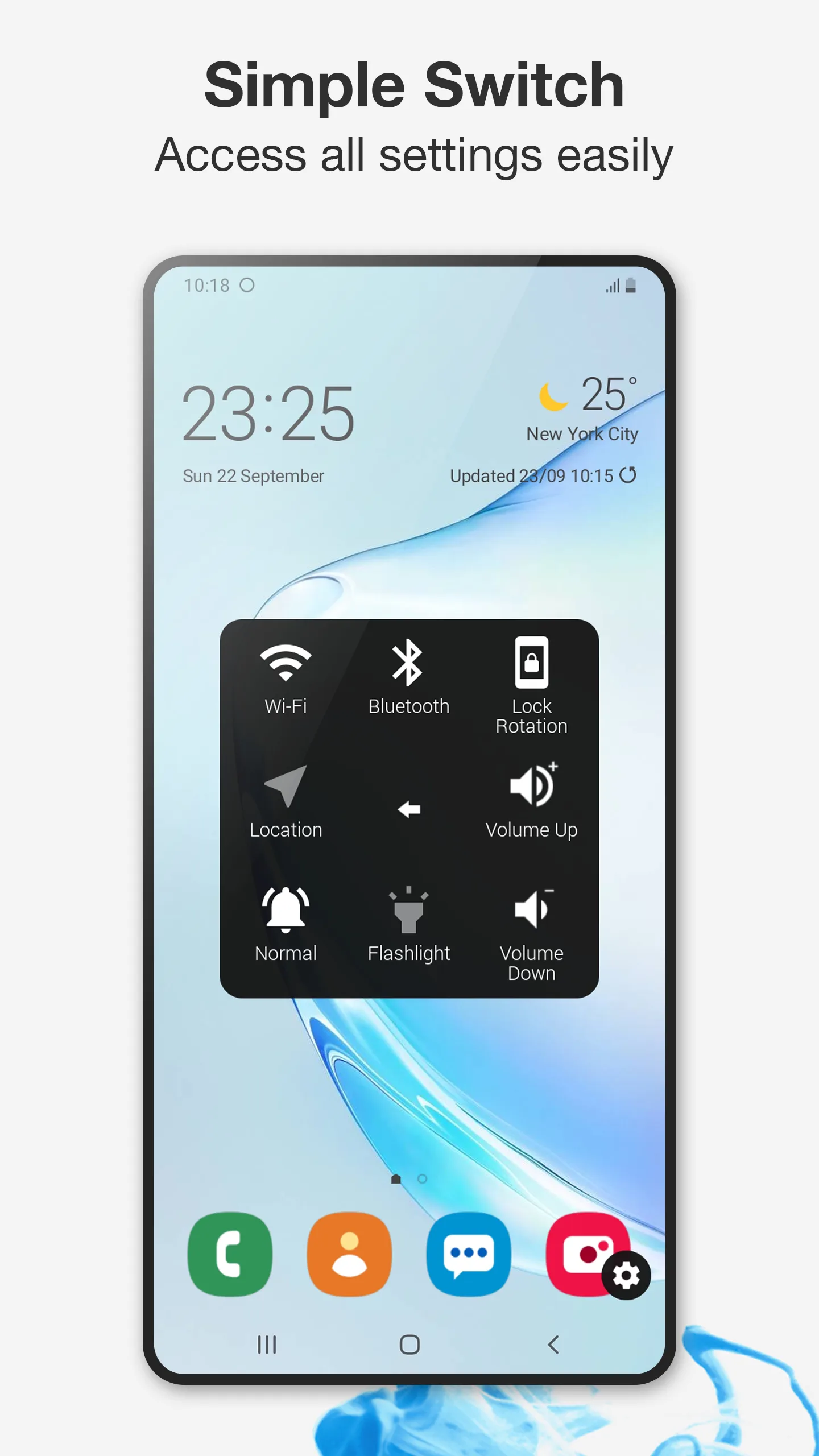
Assistive Touch is the familiar iOS-style floating ball for Android: virtual home, back, recent and volume buttons, plus lock, screenshot, flashlight and customizable gestures — the simplest way to replace worn hardware keys.
Strengths
- Familiar floating ball with virtual home/back/recent/volume controls.
- Quick toggles — Wi-Fi, Bluetooth, flashlight, brightness and sound mode.
- Customizable gestures (double-tap, long-press) to trigger actions.
- Themes to personalize the ball’s look.
- Free to use, easy to enable and hide.
- Great for protecting physical buttons or one-handed reach.
Weaknesses
- Ad-supported, which can interrupt use.
- No floating clock — it’s navigation only.
- No live monitor — no CPU/RAM/battery readout, no overheat awareness.
- No one-tap boost or RAM management in the core experience.
- Privacy caveats — ad-funded apps typically request broader permissions than a monitor-only tool.
Best for
Users who simply want an iOS-like navigation ball to replace or supplement hardware keys.
Download Assistive Touch (Easy Touch)
How they compare where it matters
Scope of the overlay
Floating Assistant is a toolbox: navigation, clock, and monitoring in one. Assistive Touch is a single-purpose navigation ball. If you only need buttons, the ball is lighter; if you want more from the overlay, Floating Assistant does more.
Monitoring while gaming
This is the clearest gap. Floating Assistant’s live CPU/RAM/battery monitor and one-tap boost help during long sessions; Assistive Touch offers no system visibility at all.
Clock and glanceability
Floating Assistant keeps a clock above other apps — handy as a bedside or desk companion. Assistive Touch focuses on controls and omits a clock.
Privacy and ads
Floating Assistant positions itself as not collecting personal data, with an ad-free core. Assistive Touch is free but ad-supported, which is worth weighing if you’re privacy-conscious.
Which should you choose
- Choose Floating Assistant if you want one overlay that handles navigation, a floating clock, and live system monitoring (great for gaming and older phones).
- Choose Assistive Touch (Easy Touch) if you just need a simple, free floating navigation ball to replace hardware keys.
- For an all-in-one daily driver, Floating Assistant covers more ground without forcing you into multiple apps.