
Floating Assistant Official User Guide
Table of Contents
- App Introduction
- First-time Use
- Grant Overlay & Accessibility
- Enable and Move the Ball
- Ball Actions
- App Shortcuts
- System Toggle Widgets
- Resize, Color, Dock
- One-handed Use
- Free vs Pro
- FAQ
App Introduction
Floating Assistant adds a floating ball to Android for quick app launches, system toggles and one-handed control of a large phone.
🔵 Floating Ball
- A draggable ball that stays above any app (no root)
- Replaces hardware keys via an Accessibility service
⚡ 8 Action Slots
- 15 possible actions: power menu, lock, screenshot, flashlight, phone, back, home, recent, auto-brightness, auto-rotate, volume +/−/mute, and more
�� App Shortcuts
- 8 slots launching your installed apps (the phone/dialer action is available; there is no contacts shortcut)
🔧 System Toggle Widgets
- 11 home-screen widgets: Bluetooth, mobile data, Wi-Fi, torch, rotate, airplane, hotspot, DND, location, vibrate, dark mode
💲 Free + Pro
- Free shows ads; Pro is a separate ad-free app
First-time Use
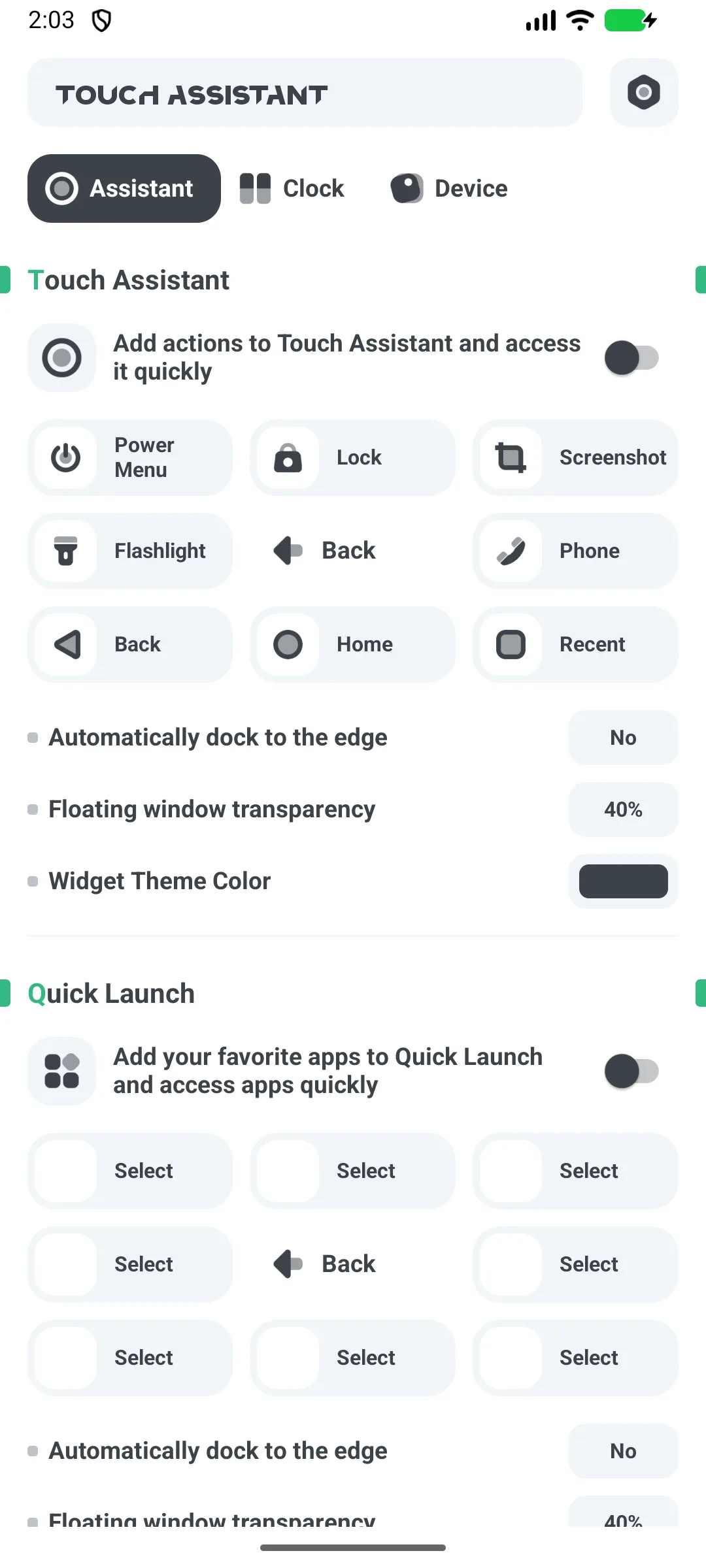
Open the app to the home screen with a top upgrade promo and a “Home entry” switch.
- Turn on Home entry to show the ball
- The settings gear opens language, rate, share and upgrade
Grant Overlay & Accessibility
- Toggle Home entry on
- Grant “Draw over other apps” when prompted (system Settings)
- Accept Accessibility when prompted — the ball’s button actions (home/back/recent/lock/screenshot) need it
- Allow ignoring battery optimization so the ball is not killed
The overlay permission lets the ball draw above apps; Accessibility lets it perform global actions.
Enable and Move the Ball
- Enable Home entry
- The ball appears; drag it to reposition — it auto-snaps to the left/right edge
- Its position is saved as a screen percentage
Ball Actions
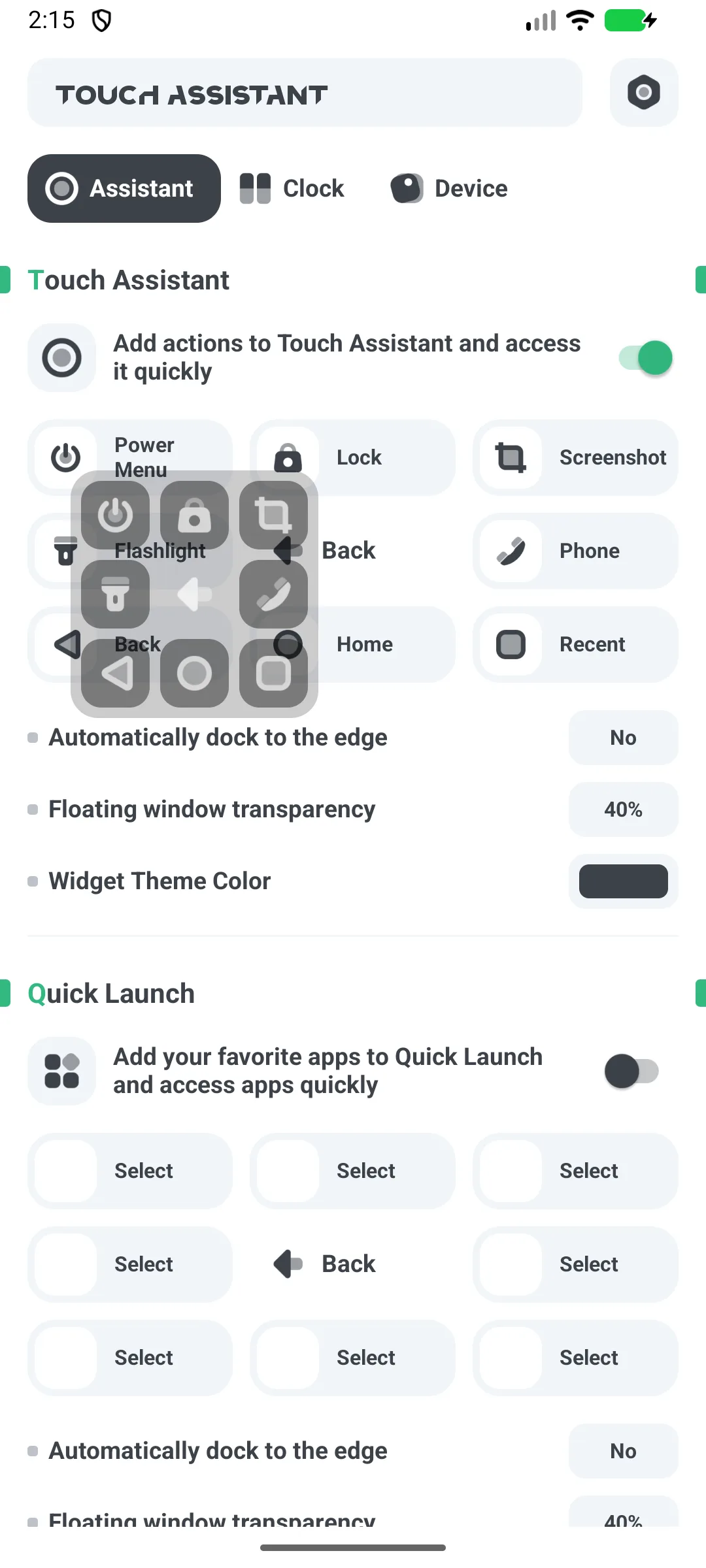
- Tap the ball to expand it into 8 slots
- Each slot triggers its mapped action (power menu, lock, screenshot, flashlight, phone, back, home, recent, …)
- Tap the ball again to collapse
Defaults: 1=power menu, 2=lock, 3=screenshot, 4=flashlight, 6=phone, 7=back, 8=home, 9=recent.
App Shortcuts
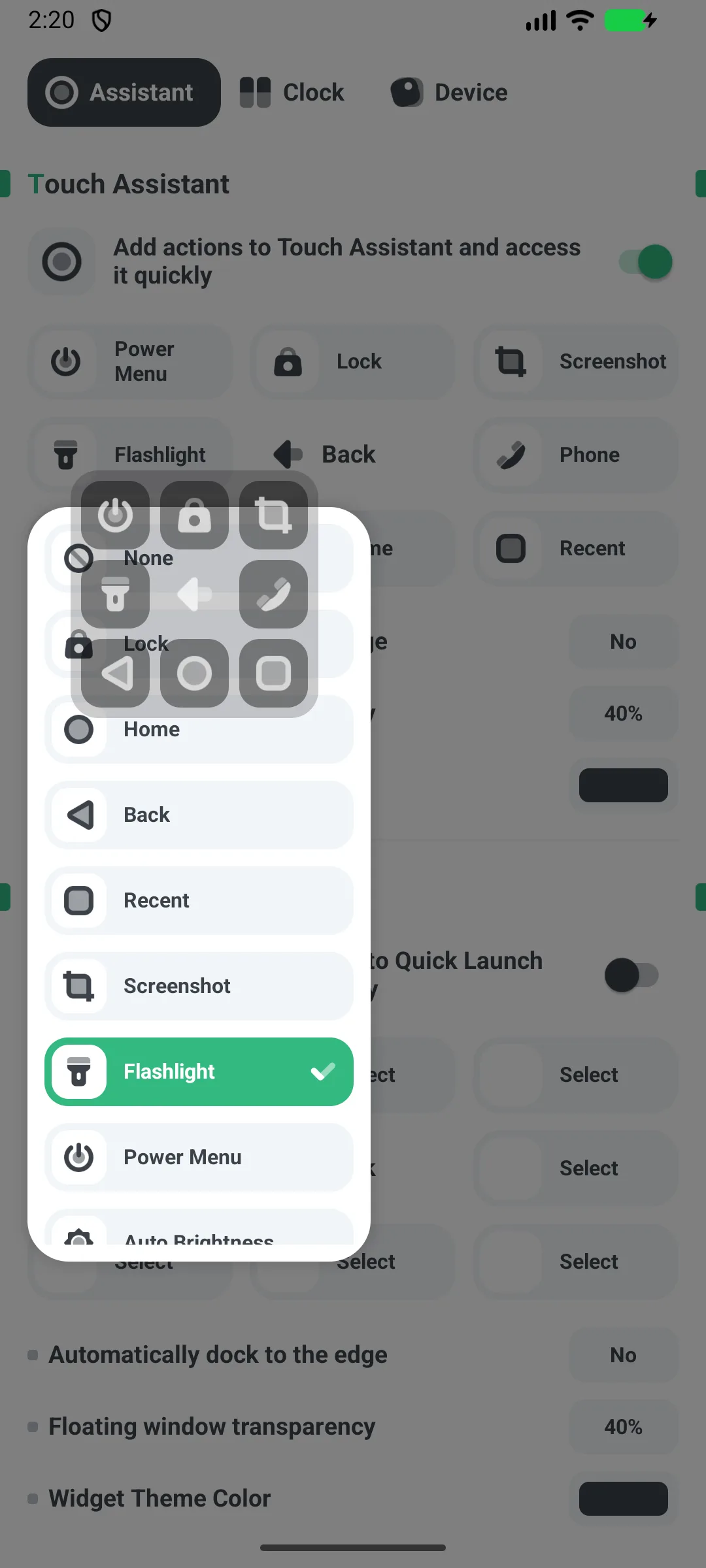
- Configure the app-launcher ball/widget with up to 8 slots
- In each slot, pick an installed app
- Tap to launch it (or Google Play if missing)
System Toggle Widgets
- Add a toggle widget from the widget picker (11 types)
- Examples:
- Torch actually switches the flashlight
- Wi-Fi / Bluetooth / DND open their system settings screens
- Rotate writes the auto-rotate setting
- Use the Combine widget to group several toggles
Resize, Color, Dock
- Size: 5 steps S/M/L/XL/XXL
- Alpha: adjustable (default ~40%)
- Color: black / white / green / blue / yellow / purple (default black)
- Dock: on/off controls edge auto-snapping
One-handed Use
With the ball you can do HOME / BACK / RECENTS / POWER-DIALOG / LOCK / SCREENSHOT through the Accessibility service, plus on-ball flashlight/volume/rotation — so you control the phone with your thumb without reaching for physical buttons.
Free vs Pro
- Free shows ads (banner + interstitial)
- Pro is a separate app with no ads; the in-app upgrade just opens Google Play for it
FAQ
Are there contacts shortcuts?
No. The only people-related action is the phone/dialer shortcut. There is no contacts shortcut.
Can I swipe the ball?
Gestures are tap-to-expand, tap-a-slot, and drag-to-move/dock only. There is no swipe-left/right mapping.
Why Accessibility?
The global button actions (home/back/recent/lock/screenshot) are performed through Android’s Accessibility service.
Summary
Floating Assistant makes a big phone usable one-handed: a floating ball for launches and system actions, plus toggle widgets — free to start, with an ad-free Pro app.