
One Widget Official User Guide
Table of Contents
- App Introduction
- First-time Use
- Browse the 4 Styles
- Add a Widget
- Configure a Widget
- Quick Toggles
- App Shortcuts
- Live Info Widgets
- Settings
- FAQ
App Introduction
One Widget packs 500+ customizable Android home-screen widgets in four trending styles, plus app shortcuts and quick toggles.
🎨 Four Styles
- One UI (default; the only style included in the free “lite” app)
- Nothing
- Glass
- Material You
“Material You” here is a style name using fixed blue/purple day-night palettes — it is not Android 12 wallpaper-based dynamic color.
⚡ Quick Toggles
- 11 toggles: Bluetooth, mobile data, Wi-Fi, torch, rotate, airplane, hotspot, do-not-disturb, location, vibrate, dark mode
�� App Shortcuts & Contacts
- One-tap launchers for your apps and the phone/dialer
📊 Live Info
- Clock, calendar, battery and RAM widgets that update in place
💲 Two Apps, Not One
- A free “lite” app (only the One UI style) and a paid “full” app (all four styles). There is no in-app purchase — install the full app from Google Play to unlock everything.
First-time Use
Open One Widget to a 4-tab gallery: One UI / Nothing / Glass / Material You.
- Each style page lists categories: Tools, Entry, Hardware, Clock, Launcher, Combo, Note, Contact
- Tap a category to see the widget previews
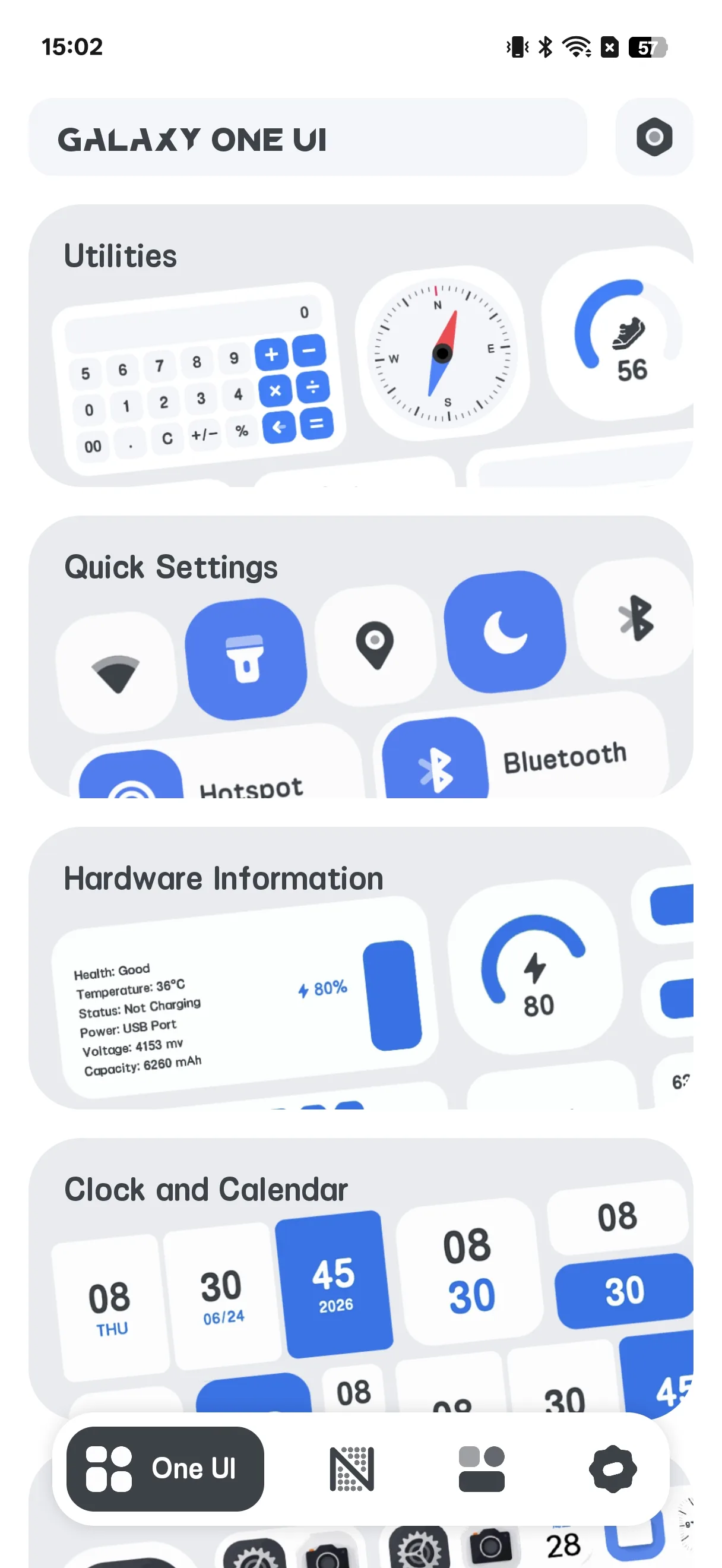
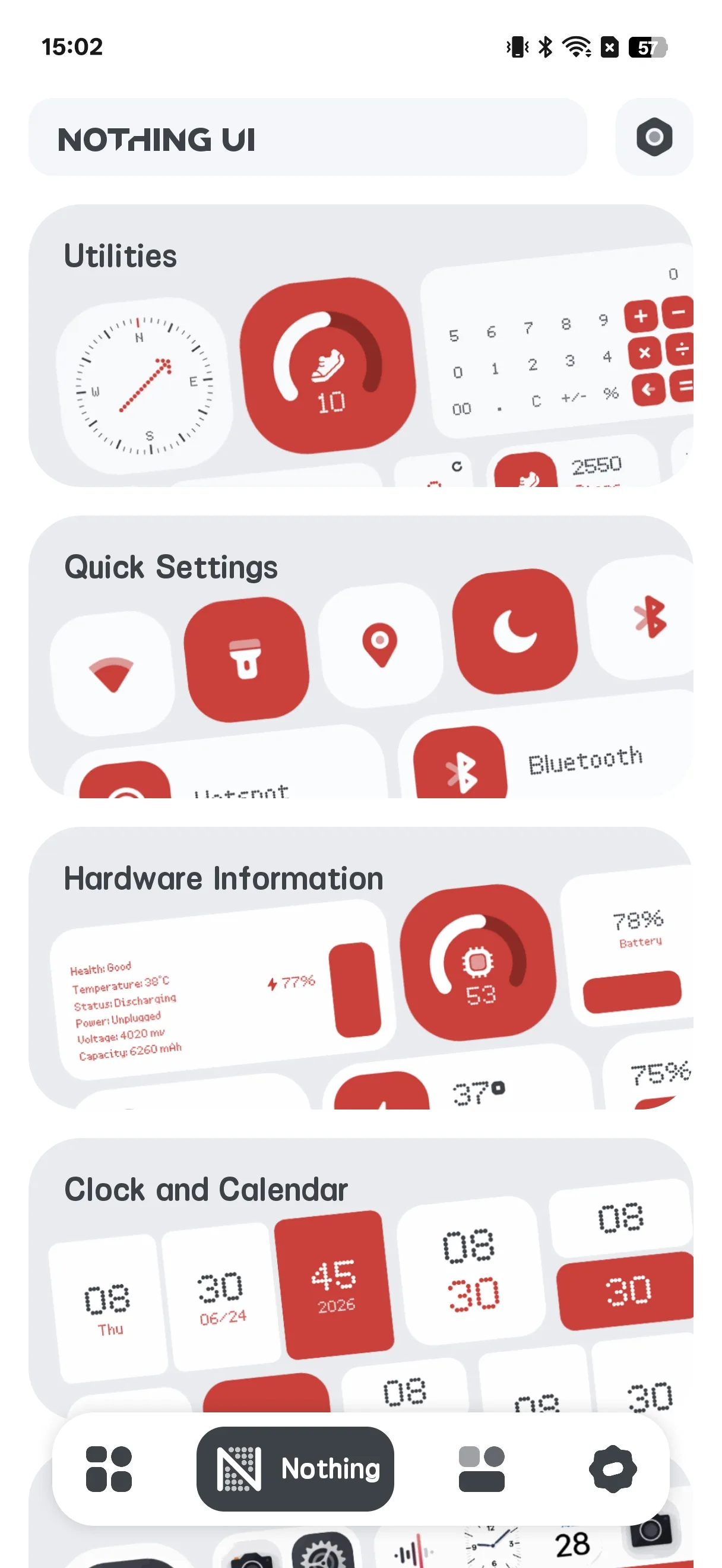
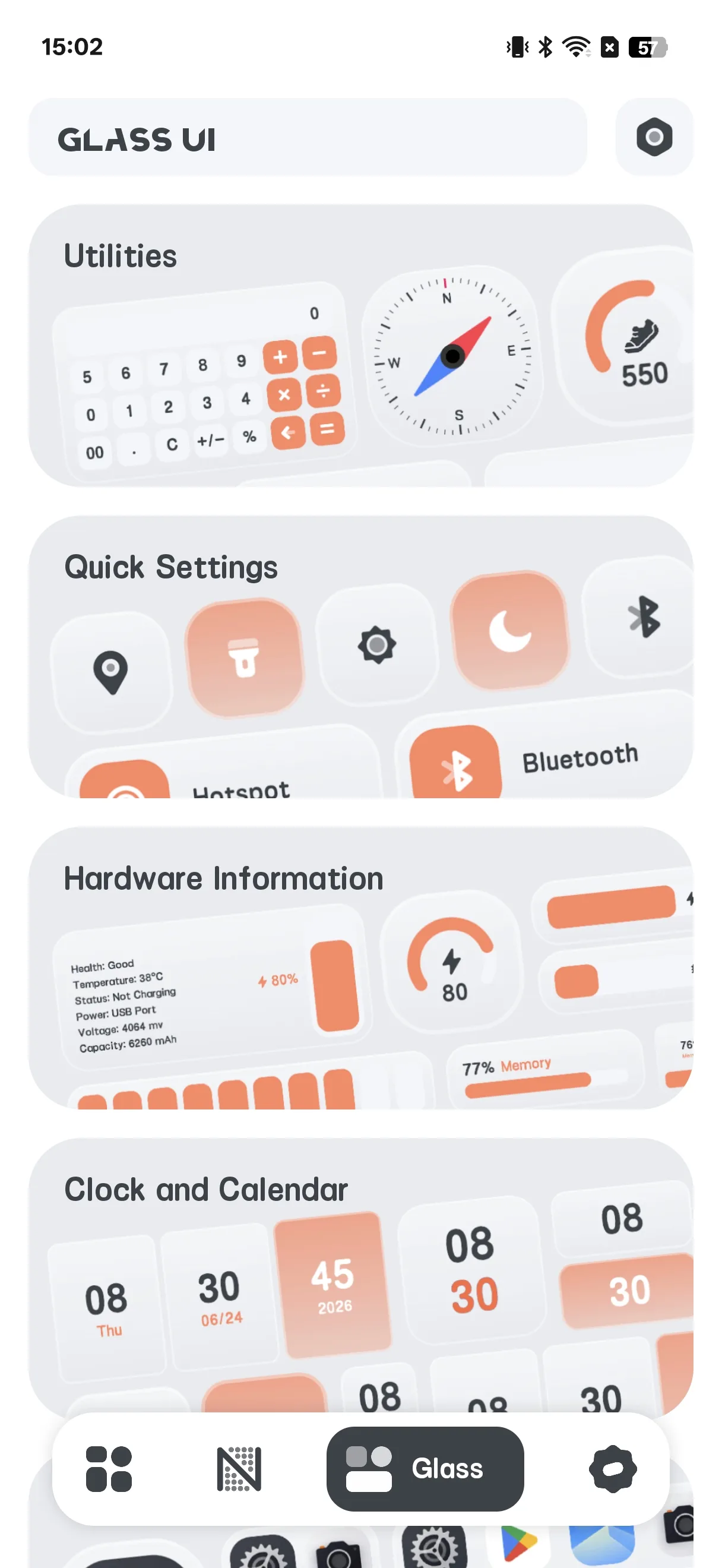
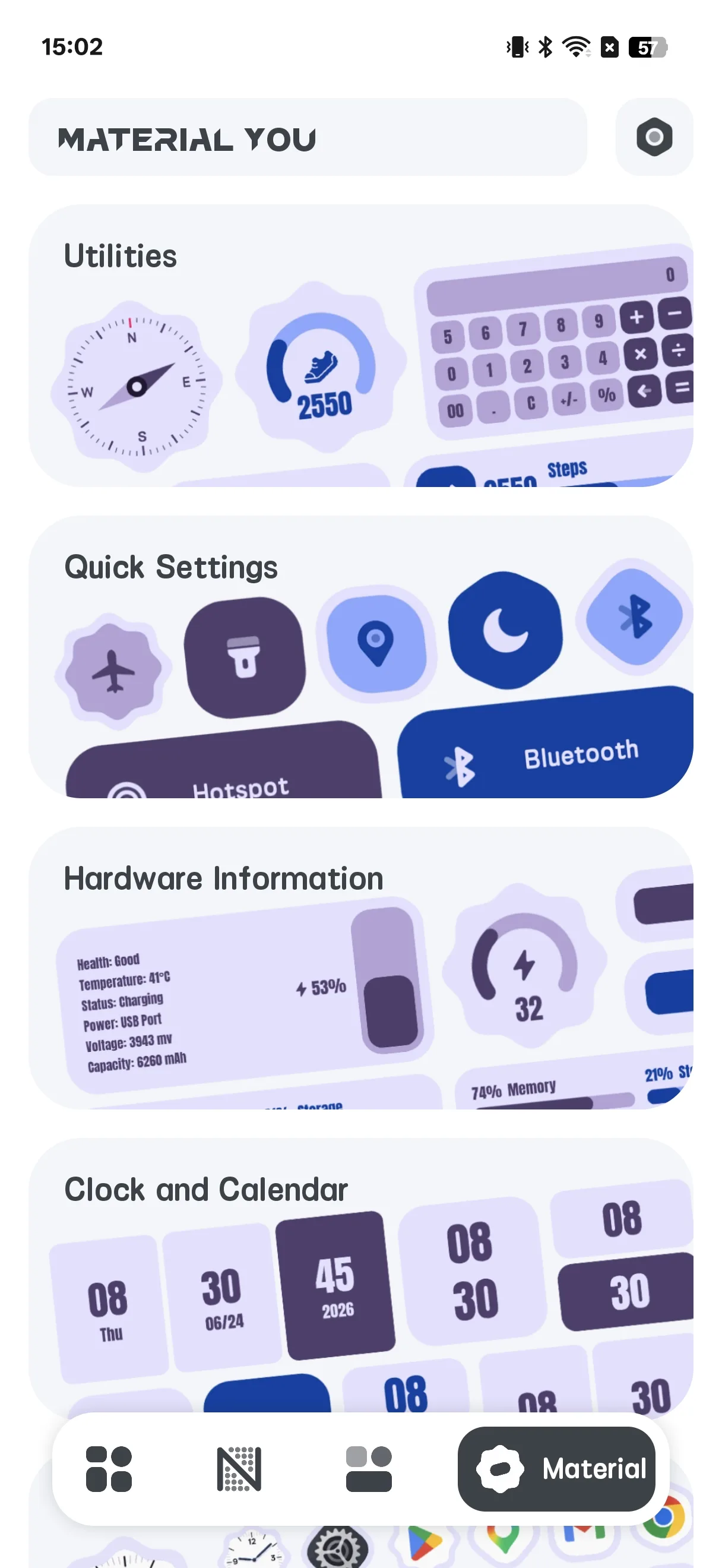
Browse the 4 Styles
Switch the top tabs to preview each style. One UI is the default and is available in the free lite app; Nothing / Glass / Material You require the paid full app.
Add a Widget
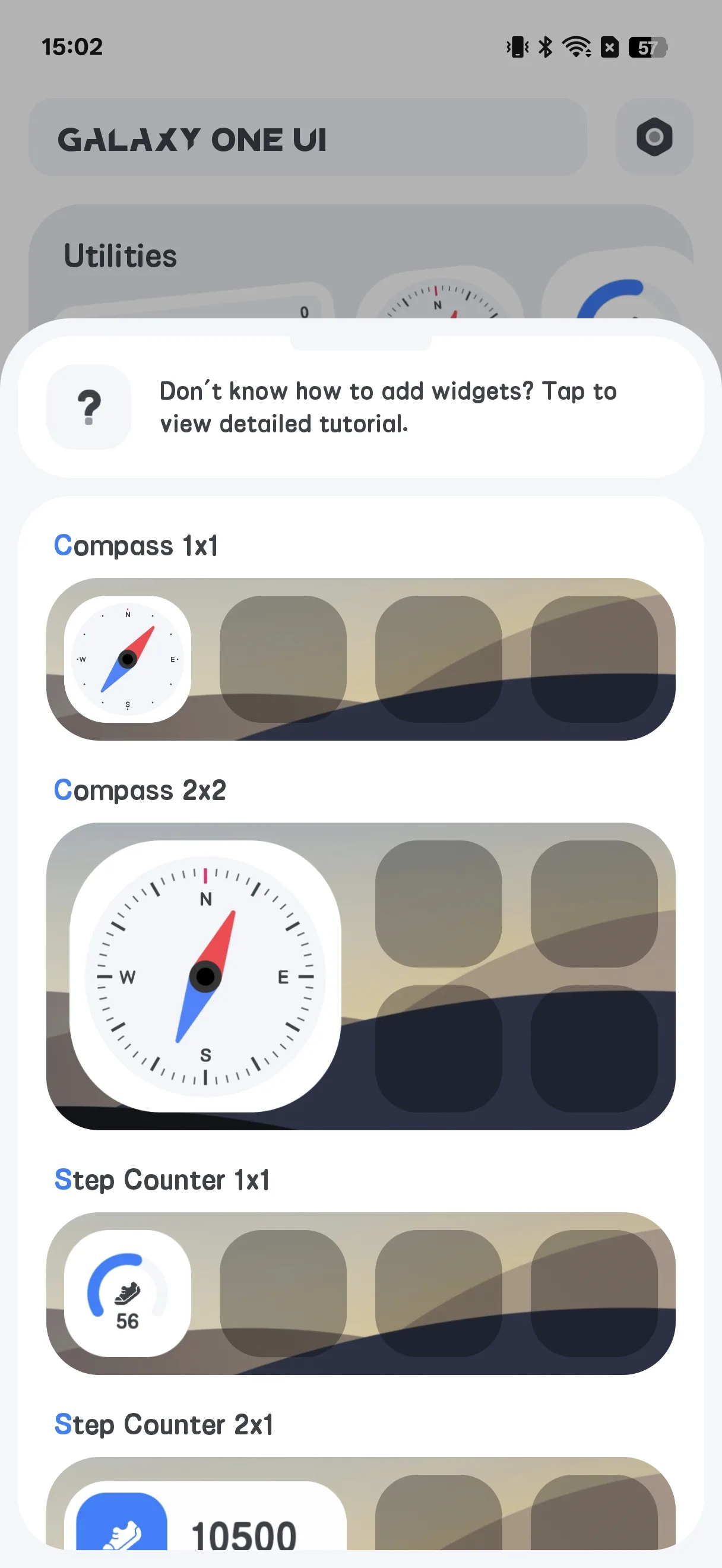
- Long-press your home screen → Widgets
- Find One Widget in the list and pick a variant
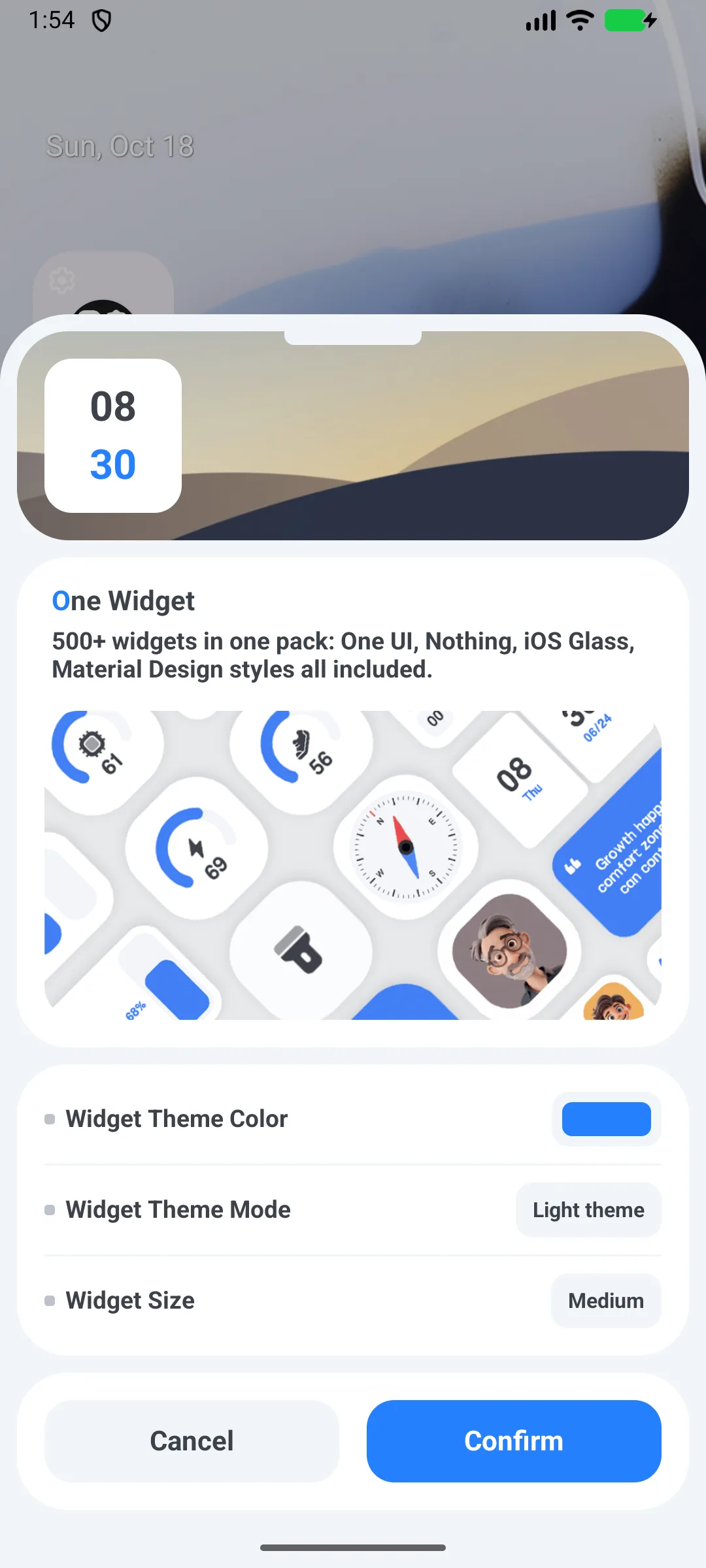
- The system opens the One Widget configure screen
- Set your options and tap Confirm to place it
Configure a Widget
Most widgets share common options:
- Theme color (pop-up palette)
- Dark / light mode
- Shape — circle or rounded rectangle
- Size — grid options such as 1x1, 2x1, 4x1, 5x1, 6x1, 2x2, 4x2, 5x2, 6x2 (up to 6x2)
Icon background color and corner radius are derived from the shape (circle = size/2, rounded = size/3).
Quick Toggles
- From a toggle widget, choose the toggle type (Wi-Fi, Bluetooth, torch, rotate, DND, …)
- Place single toggles, or use the Combine 4x1 widget to put up to 5 toggles in one bar (defaults: Bluetooth / Wi-Fi / mobile data / torch / rotate)
- Tap a toggle to act:
- Torch actually switches the flashlight (
CameraManager) - Wi-Fi / Bluetooth / DND open the relevant system settings screen
- Rotate writes the system auto-rotate setting
- Torch actually switches the flashlight (
App Shortcuts
- Configure an App shortcut widget
- In each slot, pick an installed app from the launcher list
- Tap the widget to launch that app (or Google Play if it is not installed)
Live Info Widgets
- Clock widgets redraw on the system widget-update cycle (every 30 min) and on size change
- Battery / RAM widgets poll device stats roughly every 60 seconds; battery also updates instantly from the battery-changed broadcast
- Calendar / note widgets are static or refresh on the 30-minute cycle
Settings
Settings include dark mode, language, temperature unit, rate, share, feedback, privacy and version.
FAQ
Why can’t I use Nothing / Glass / Material You in the free app?
The free app is a “lite” build that includes only the One UI style. Install the paid full app to unlock the other three styles.
Is “Material You” real dynamic theming?
It is a style that uses fixed blue/purple day-night palettes. It is not wallpaper-based dynamic color.
Do toggles need root?
No. They use standard system APIs and settings; torch uses the camera flashlight API.
Summary
One Widget is the fastest way to give your Android home screen a stylish, all-in-one widget toolkit — hundreds of widgets across four looks, with quick toggles and app shortcuts.