
CPU Monitor Official User Guide
Table of Contents
- App Introduction
- First-time Use
- Real-time CPU
- Floating Window
- Home-screen Widgets
- Overheat Alarm
- History Curves
- Upgrade to Pro
- Settings
- FAQ
App Introduction
CPU Monitor shows real-time CPU temperature and frequency, RAM, battery and storage on Android, with a floating window, widgets, an overheat alarm and history curves.
📈 Live Monitoring
- CPU temperature & frequency, per-core usage
- RAM, battery and storage stats in one place
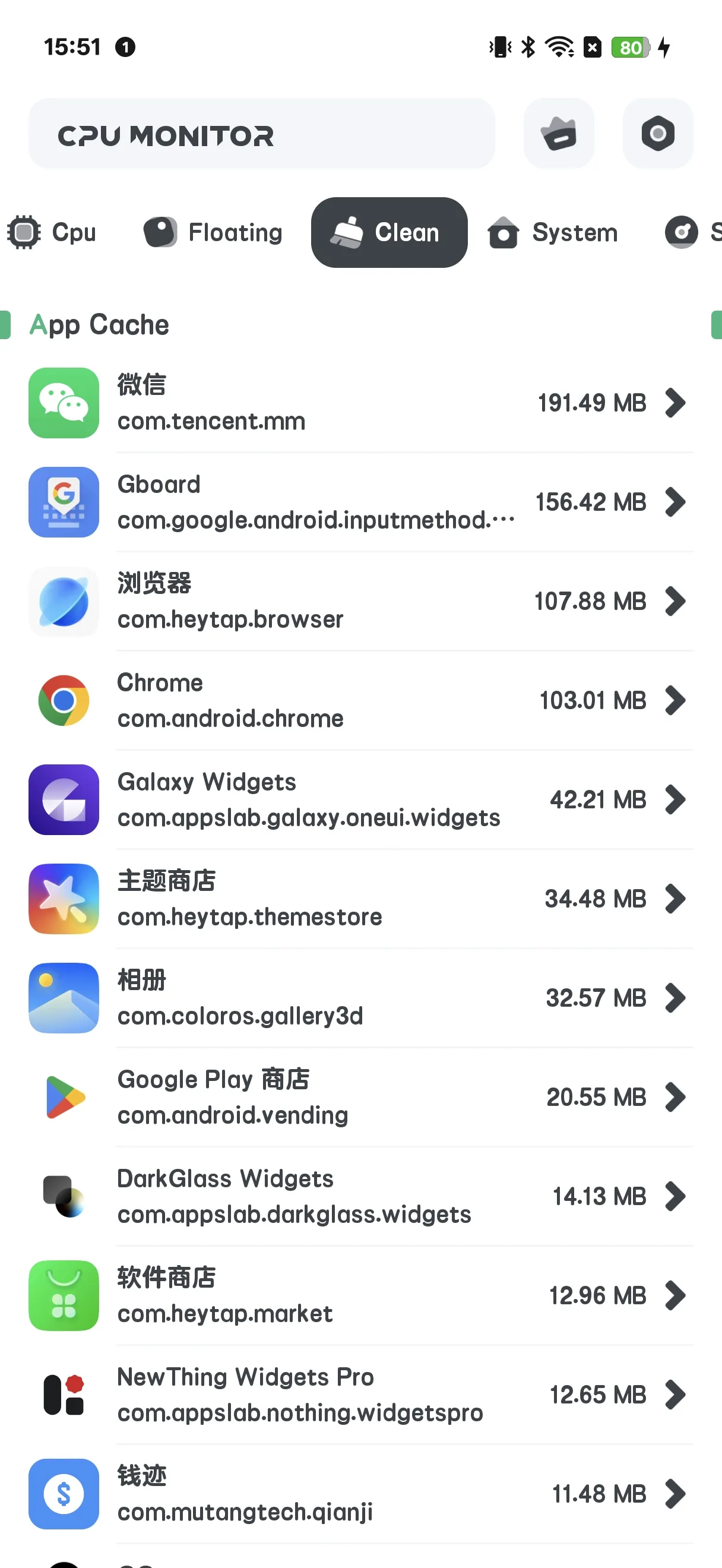
🧹 Clean
- A CLEAN screen lists app cache/junk and lets you clear it
🌡 Overheat Alarm
- Warns before heat damages performance or battery
📉 History
- Temperature / frequency curves to spot what spikes your heat
💲 Free + Pro
- The free version is ad-supported
- Pro removes ads and unlocks the “Powerful System Monitor” toolset
First-time Use
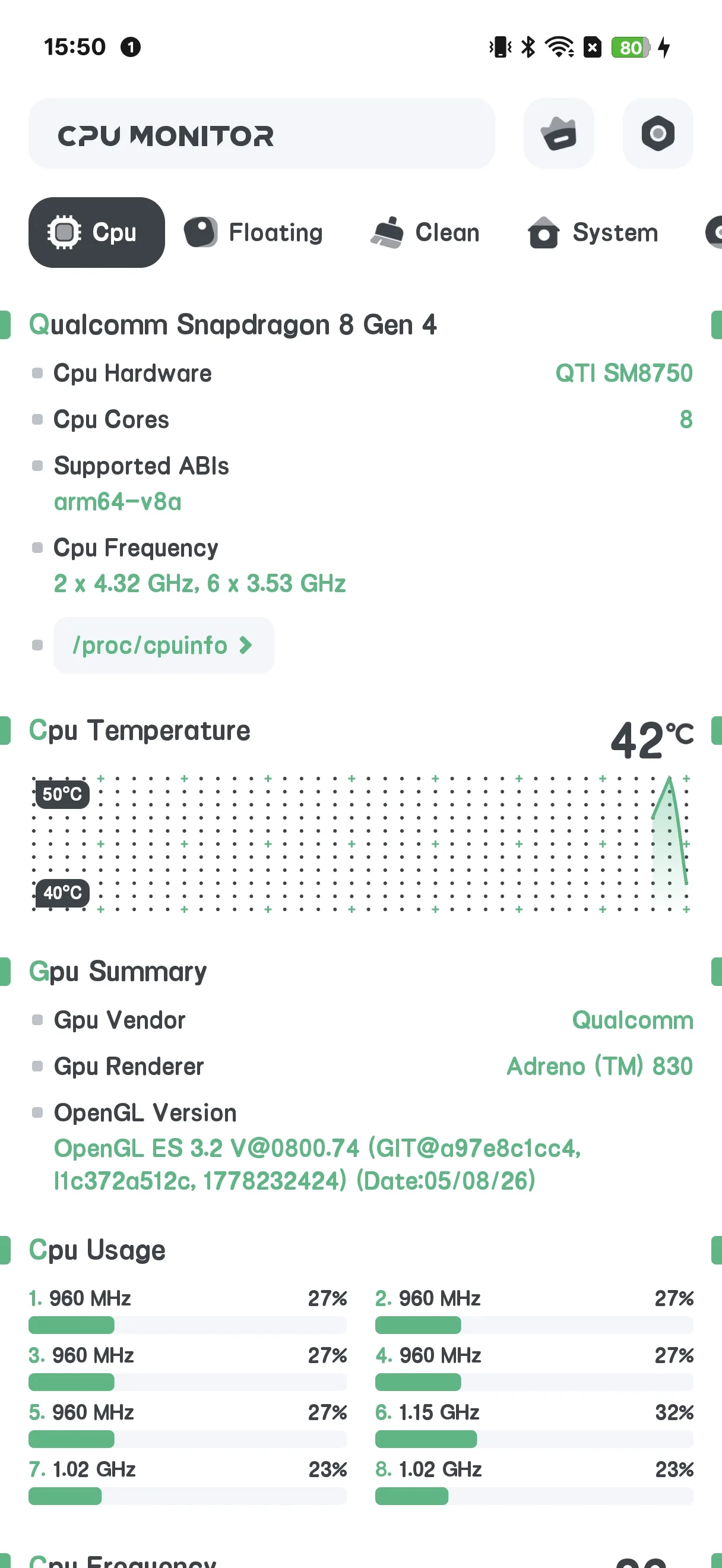
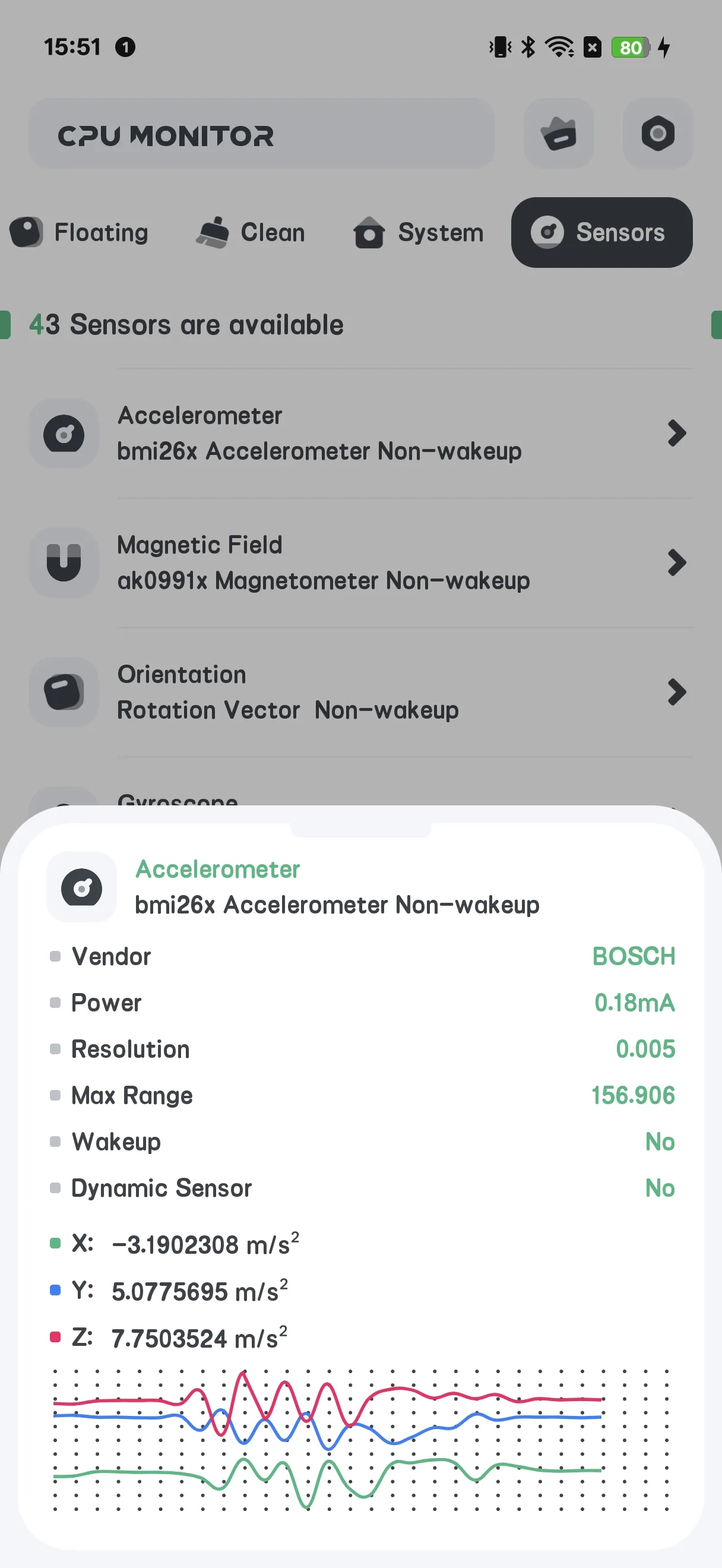
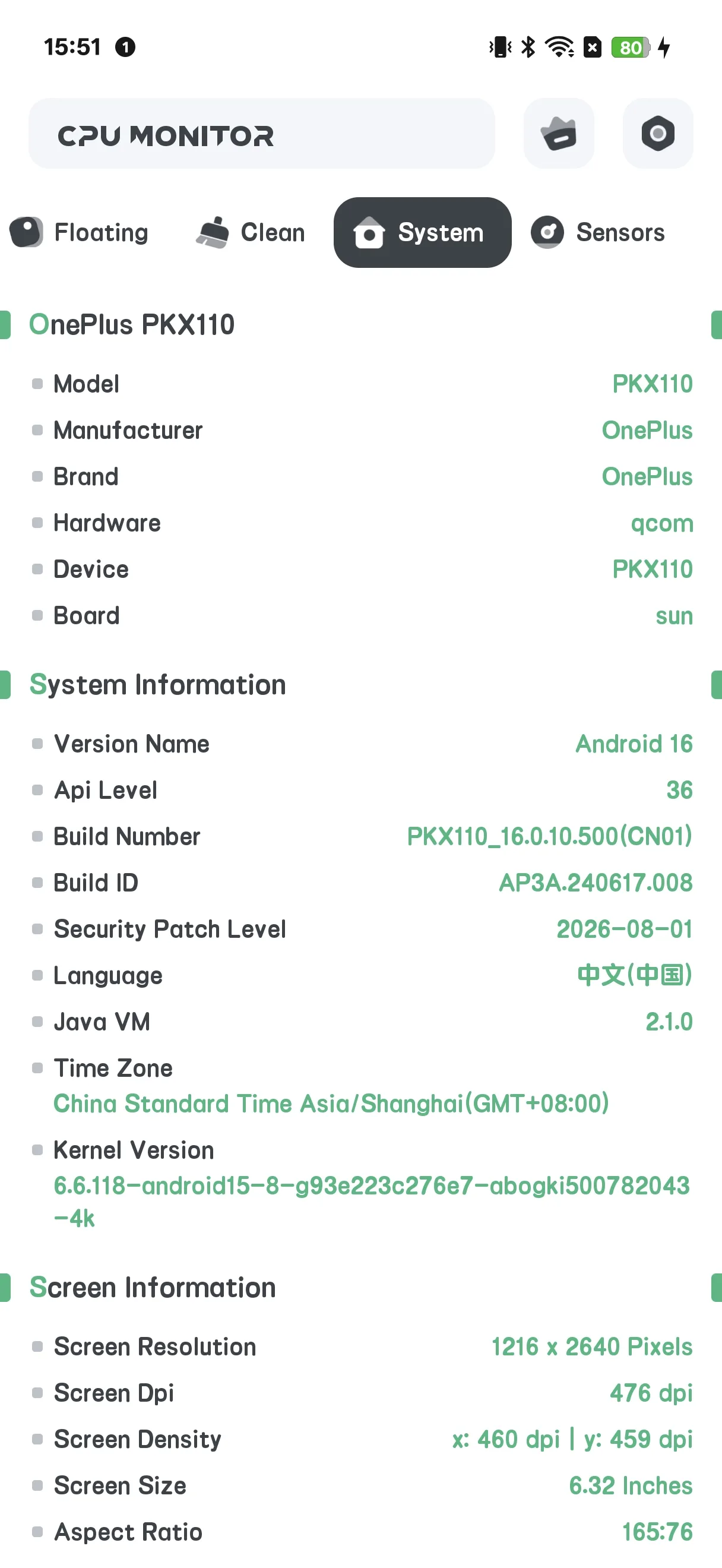
The home screen has tabs: CPU / SYSTEM / FLOATING / SENSOR, with an Upgrade button at the top.
Real-time CPU
- Open the CPU tab
- Read live CPU temperature, frequency and per-core load
- The free version shows a banner ad here
Floating Window
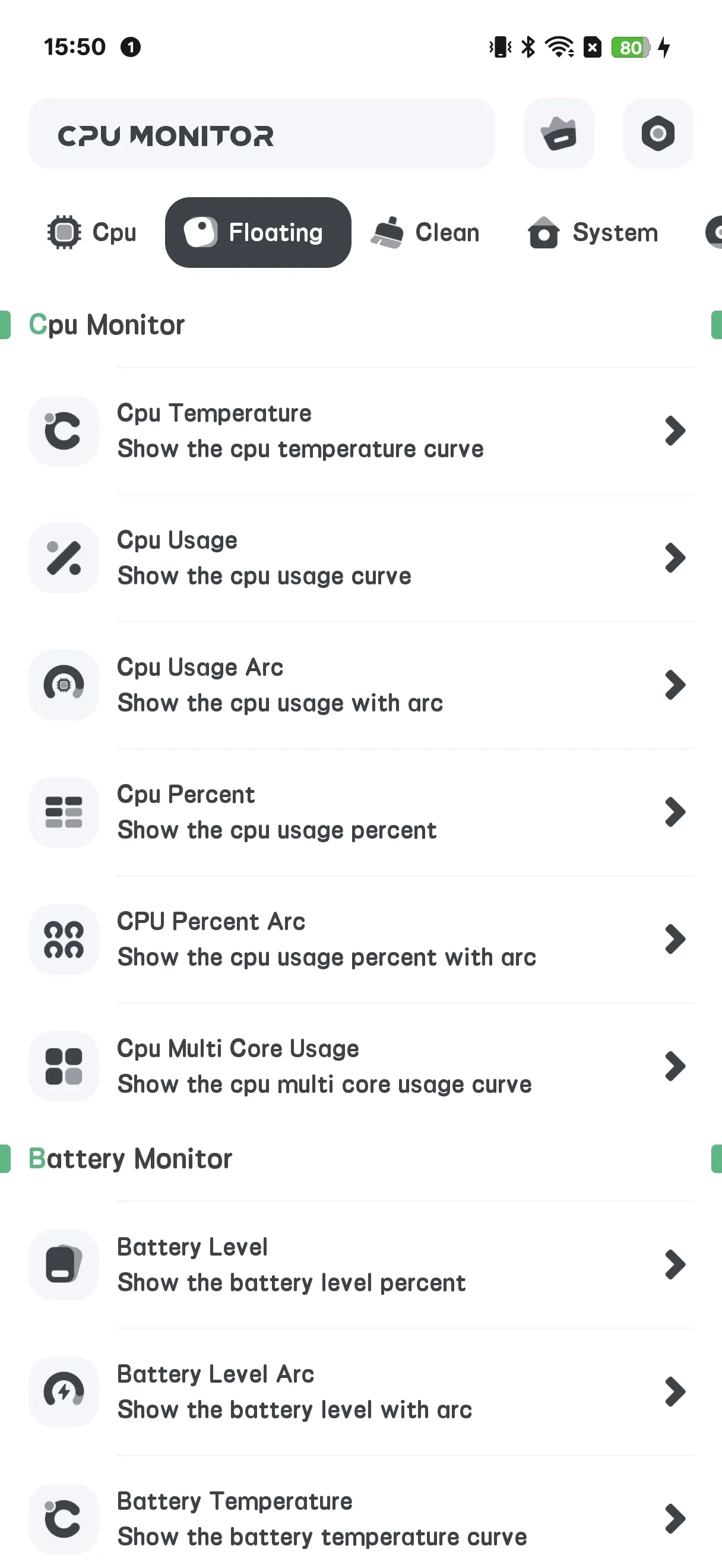
- Open the FLOATING tab
- Toggle monitors (CPU temp/usage/arc, battery, FPS, RAM, System Monitor)
- Grant the overlay permission when prompted
- Live stats float above any app
Home-screen Widgets
- Open Settings → Widget gallery (CPU-only set)
- Place a CPU temp / usage widget on your home screen
Overheat Alarm
- Open Settings → Overheat alarm
- Toggle CPU and/or battery alarms and set thresholds
- You’ll be warned before things get damaging
History Curves
In the floating/history views you can see temperature and frequency curves over time — handy to find which game or app spikes your heat.
Upgrade to Pro
Tap Upgrade to open the Pro screen: “Powerful System Monitor” removes all ads and unlocks all features.
Settings
Settings include Upgrade, theme, overheat alarm, temperature unit, refresh rate, and the widget gallery.
FAQ
Is CPU Monitor the same as System Monitor?
They share code, but CPU Monitor adds a CLEAN (cache) screen and a Pro upgrade; System Monitor is read-only with no cleaning.
Why am I seeing ads?
The free version is ad-supported. Upgrade to Pro to remove them.
Summary
CPU Monitor is a practical live-monitoring toolkit — real-time temps, an overheat alarm, floating stats, widgets and history curves — with a cache cleaner thrown in.