
Best Assistive Touch Alternatives for Android in 2026
Looking for alternatives to Assistive Touch in 2026? We compare six floating-button and gesture tools — Floating Assistant, Easy Touch, Assistive Touch (Easy Tools), Button Mapper, All in One Gestures and Assistive Touch — across virtual buttons, floating clock/monitor, gestures and privacy, with a core-capability table and a pick-by-need guide. (iPhone users: AssistiveTouch is built into iOS.)
If you want on-screen navigation without hardware keys, these alternatives to Assistive Touch go from simple floating balls to full overlays and gesture control. (iPhone users: AssistiveTouch is built into iOS — Settings > Accessibility > Touch > AssistiveTouch — so no app is needed.)
Below we compare six Android tools across price, capabilities and the things that actually matter, so you can pick the right one.
Why look beyond a basic Assistive Touch app
- Ad-heavy free apps that interrupt the calm overlay experience.
- Limited to virtual buttons — no clock, no monitor, no extras.
- Broad accessibility permissions with unclear data practices in some clones.
- You may want gestures or hardware-button remapping instead of a floating ball.
- A good alternative bundles more useful floating tools in one place.
The best Assistive Touch alternatives at a glance
| App | Price (2026) | Core | Extras |
|---|---|---|---|
| Floating Assistant | Free core + unlock | Assistive touch | Floating clock + live monitor |
| Easy Touch | Free (ads) | iOS-style ball | Virtual buttons, gestures |
| Assistive Touch, Easy Tools | Free (ads) | Navigation bar | Quick toggles, screenshot |
| Button Mapper | Free + Pro | Hardware remap | Custom button actions |
| All in One Gestures | Free + Pro | Gesture control | Hide soft keys |
| Assistive Touch | Free (ads) | Floating touch | Virtual buttons, quick settings |
1. Floating Assistant — best all-in-one
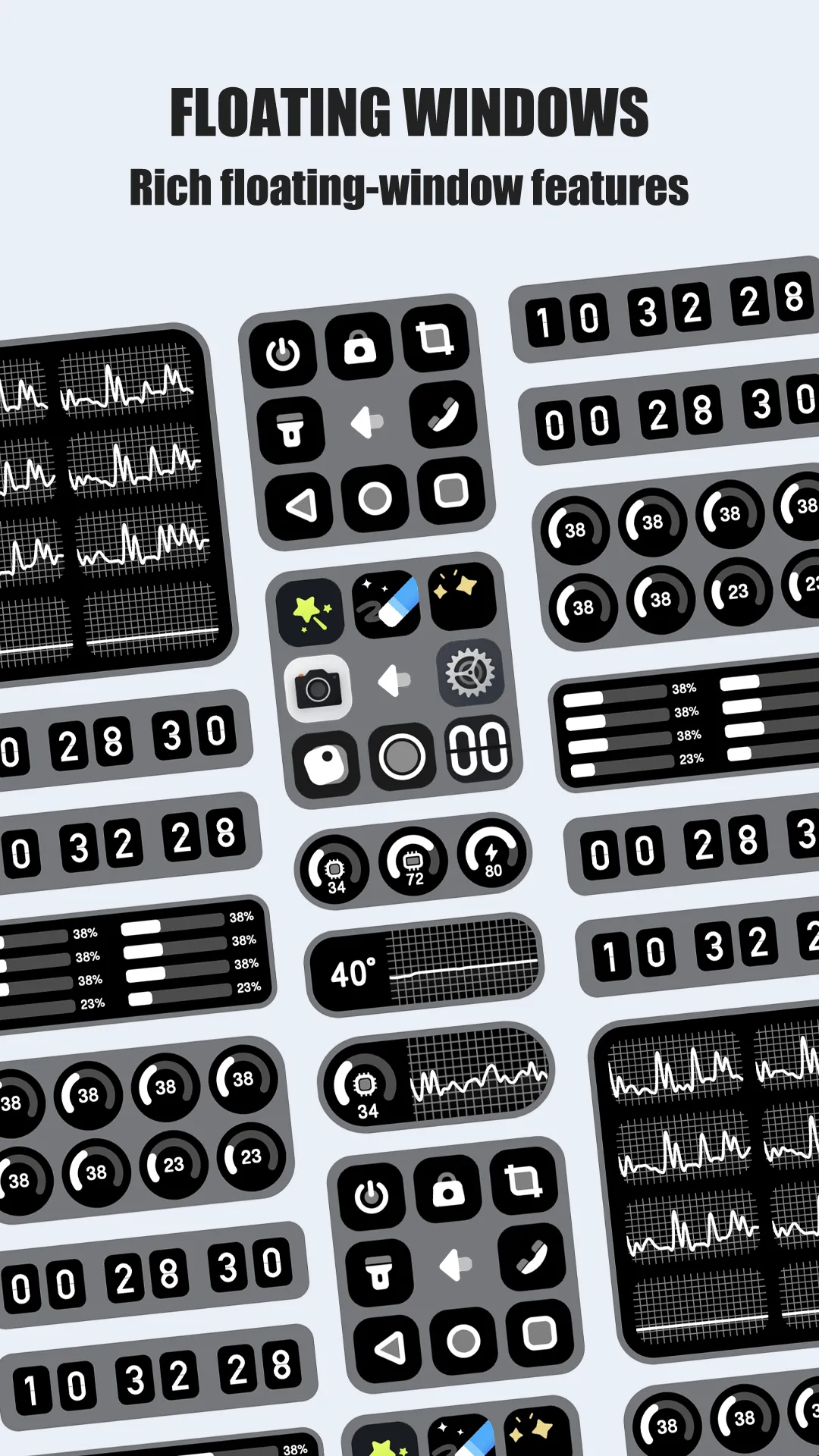
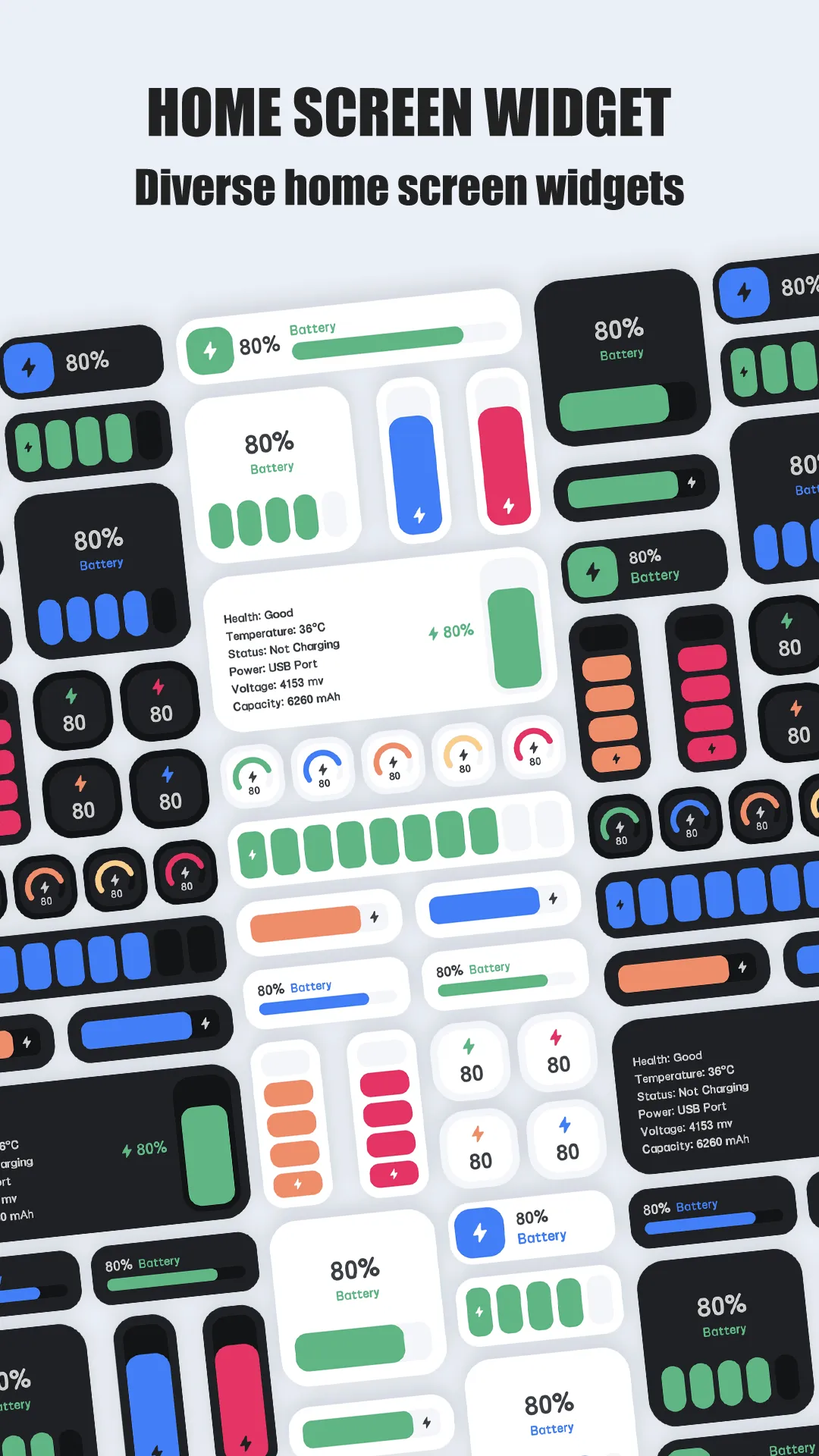
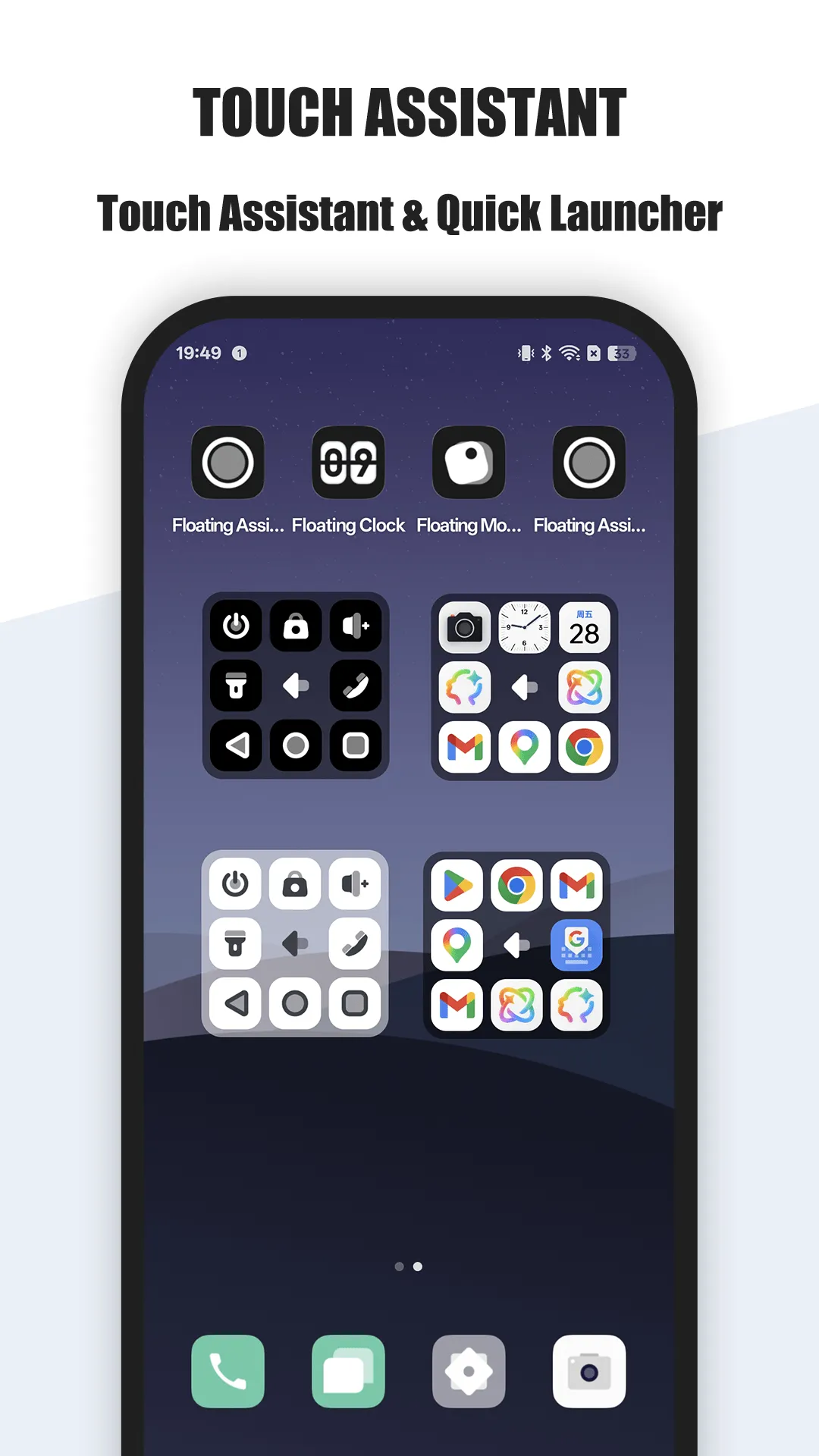
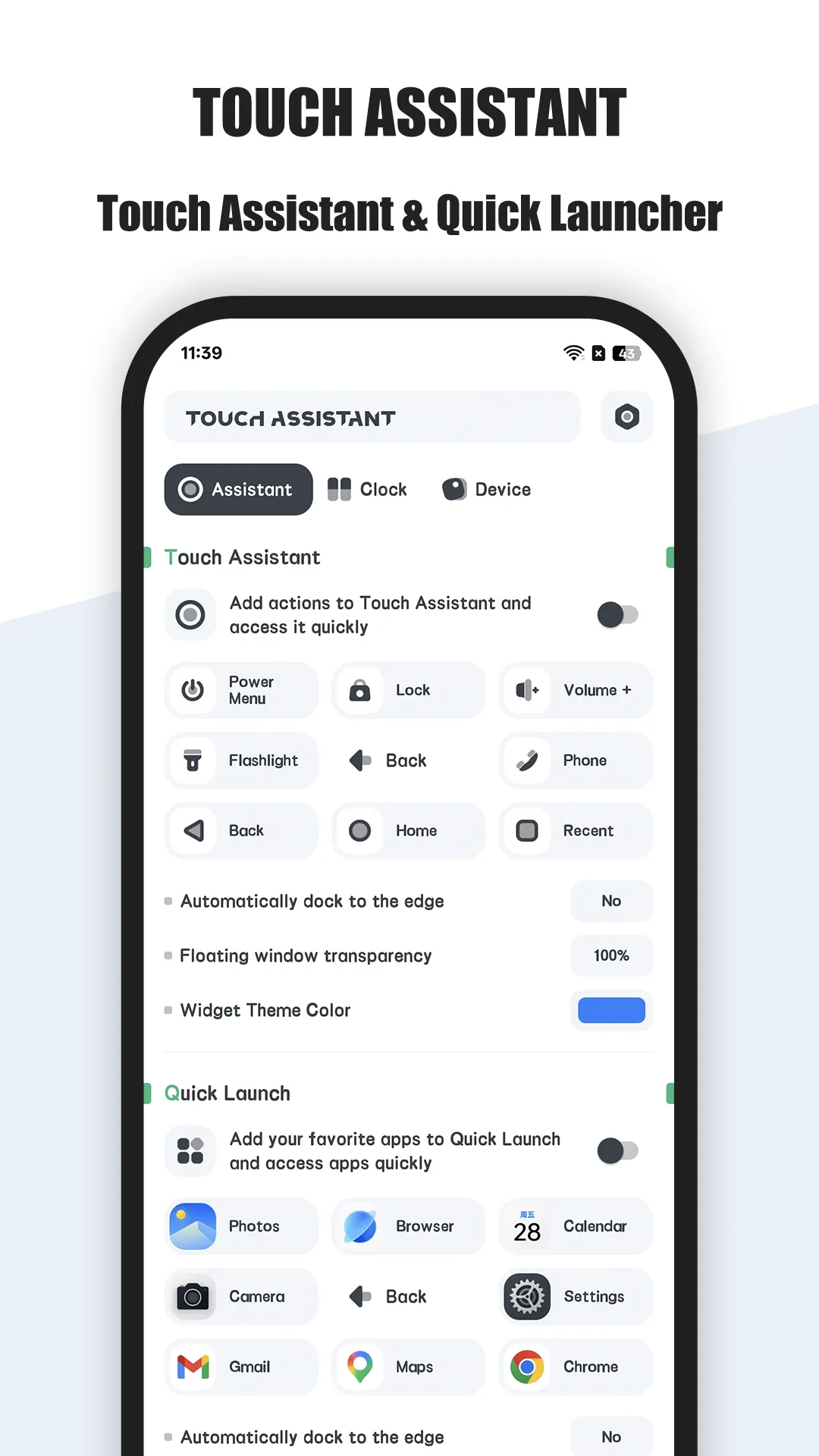
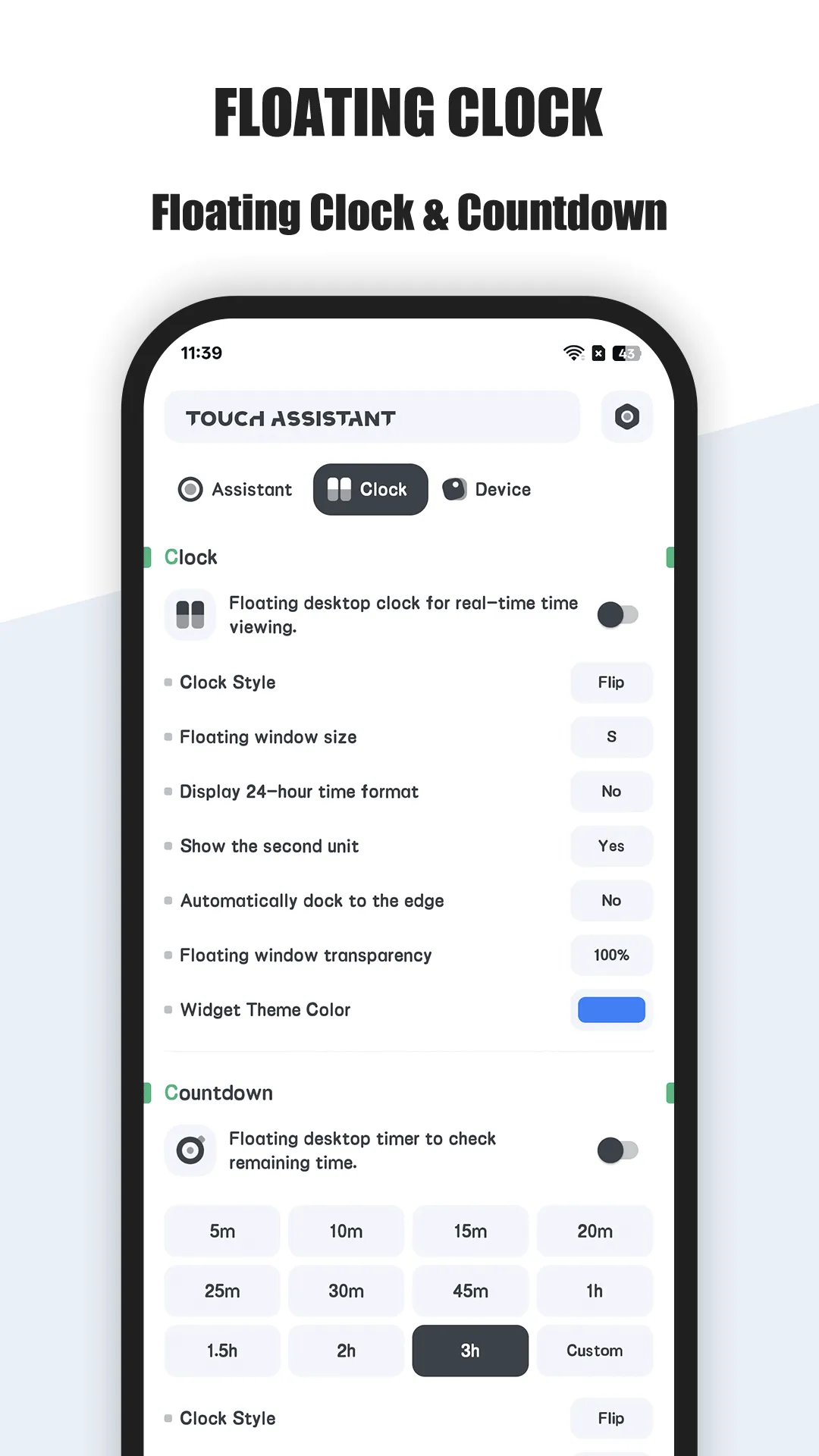
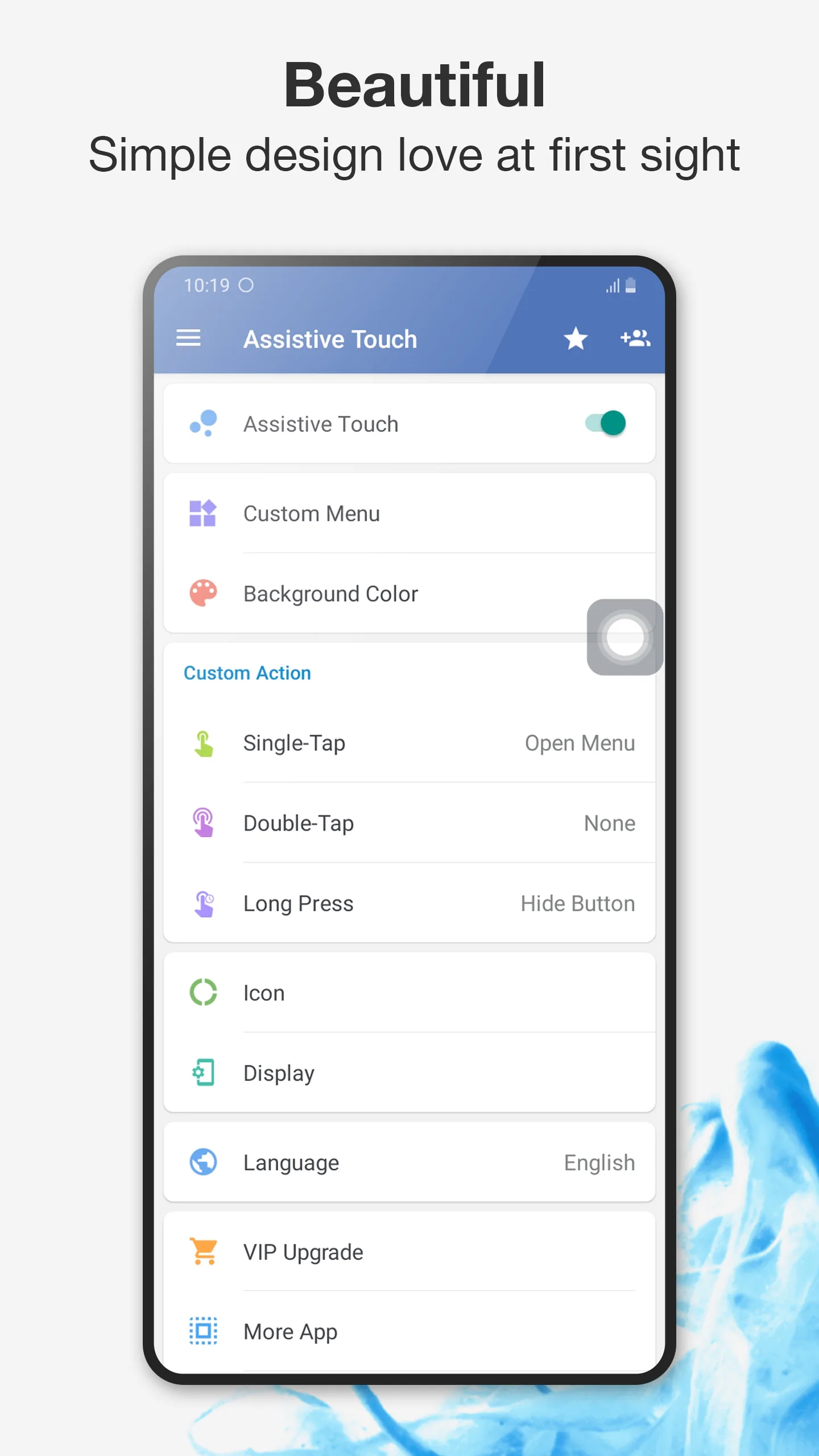
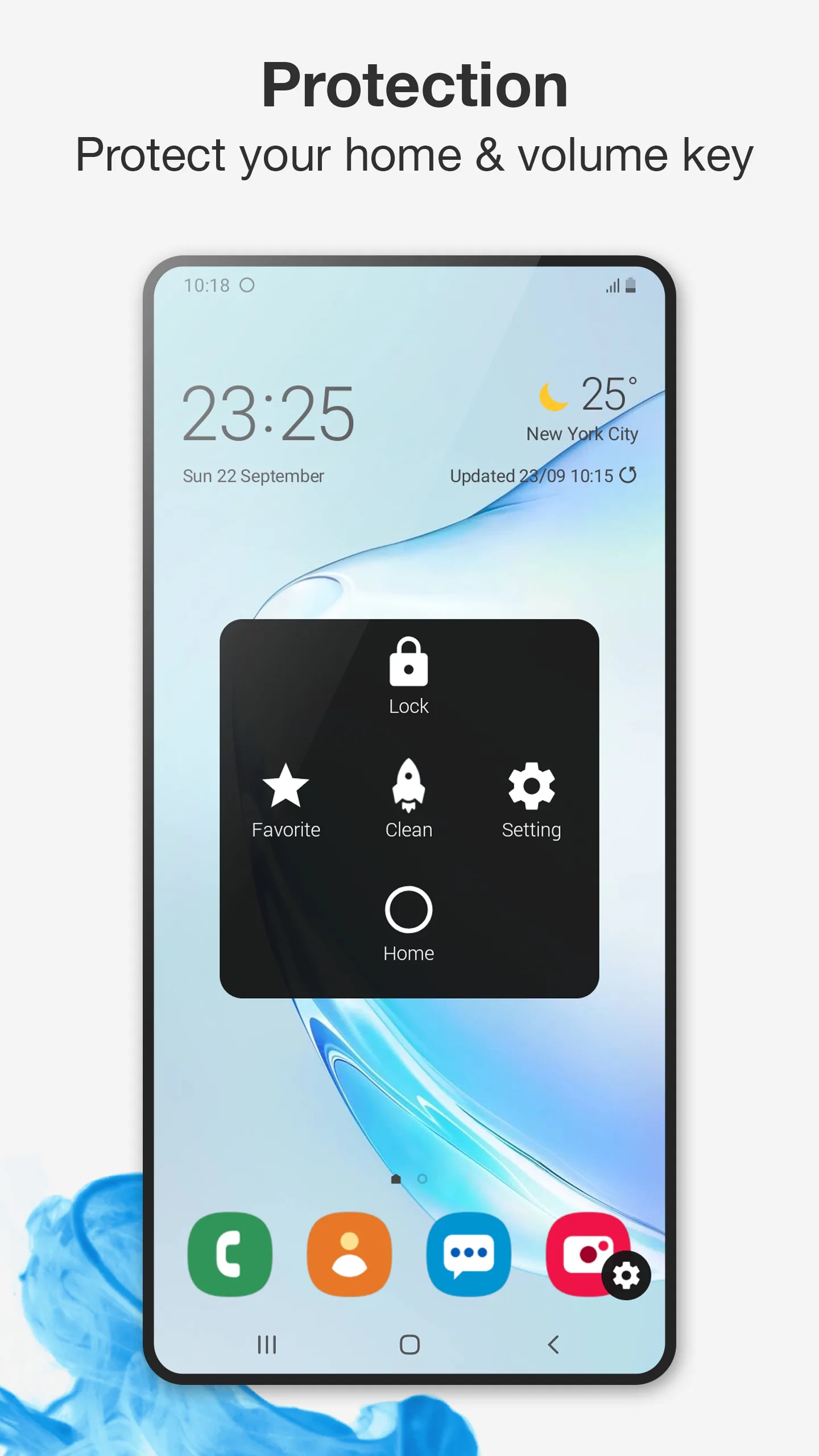
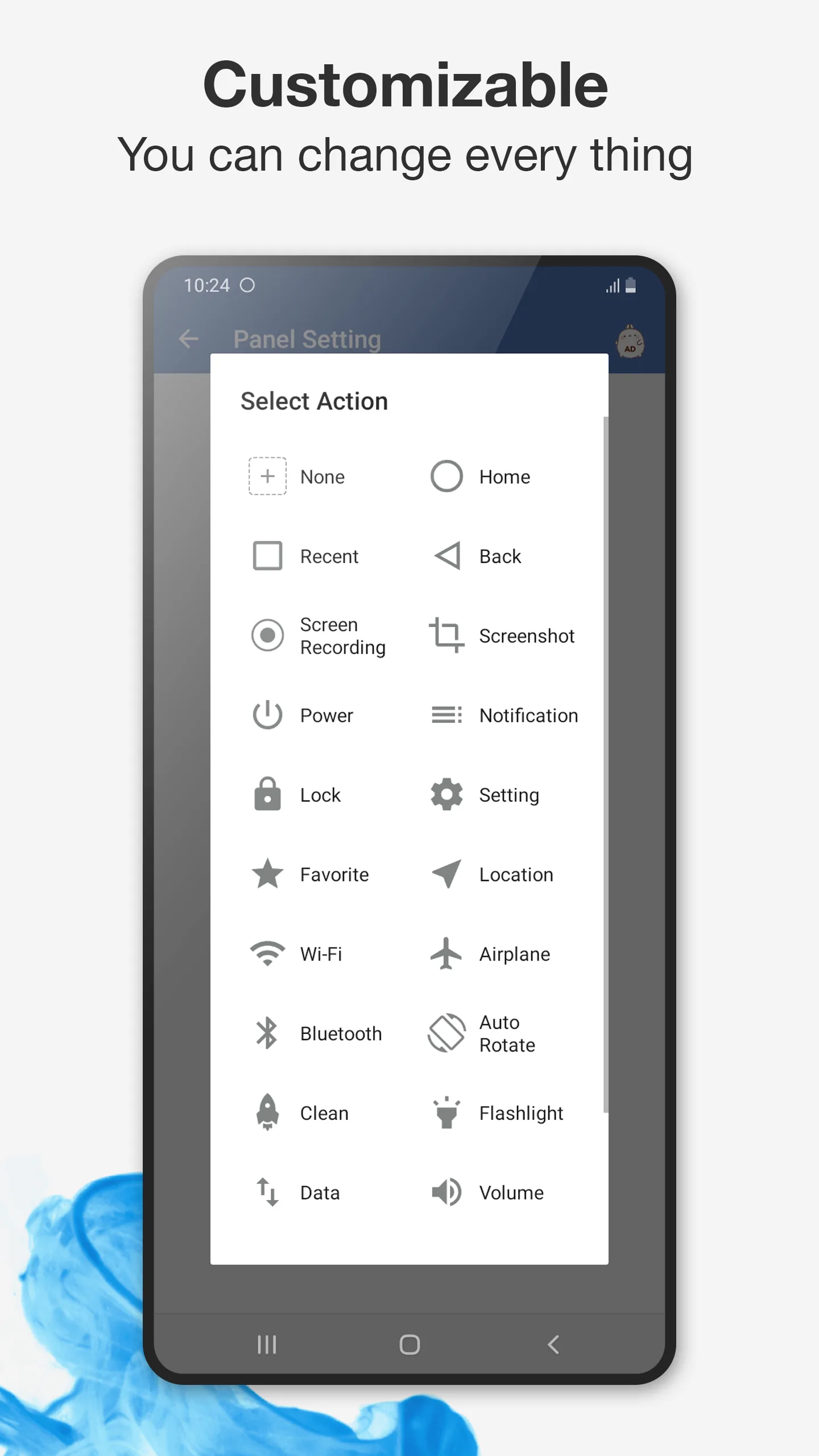
Floating Assistant brings assistive touch, a floating clock and a floating system monitor to your Android screen, letting you control your phone from one handy overlay.
Strengths
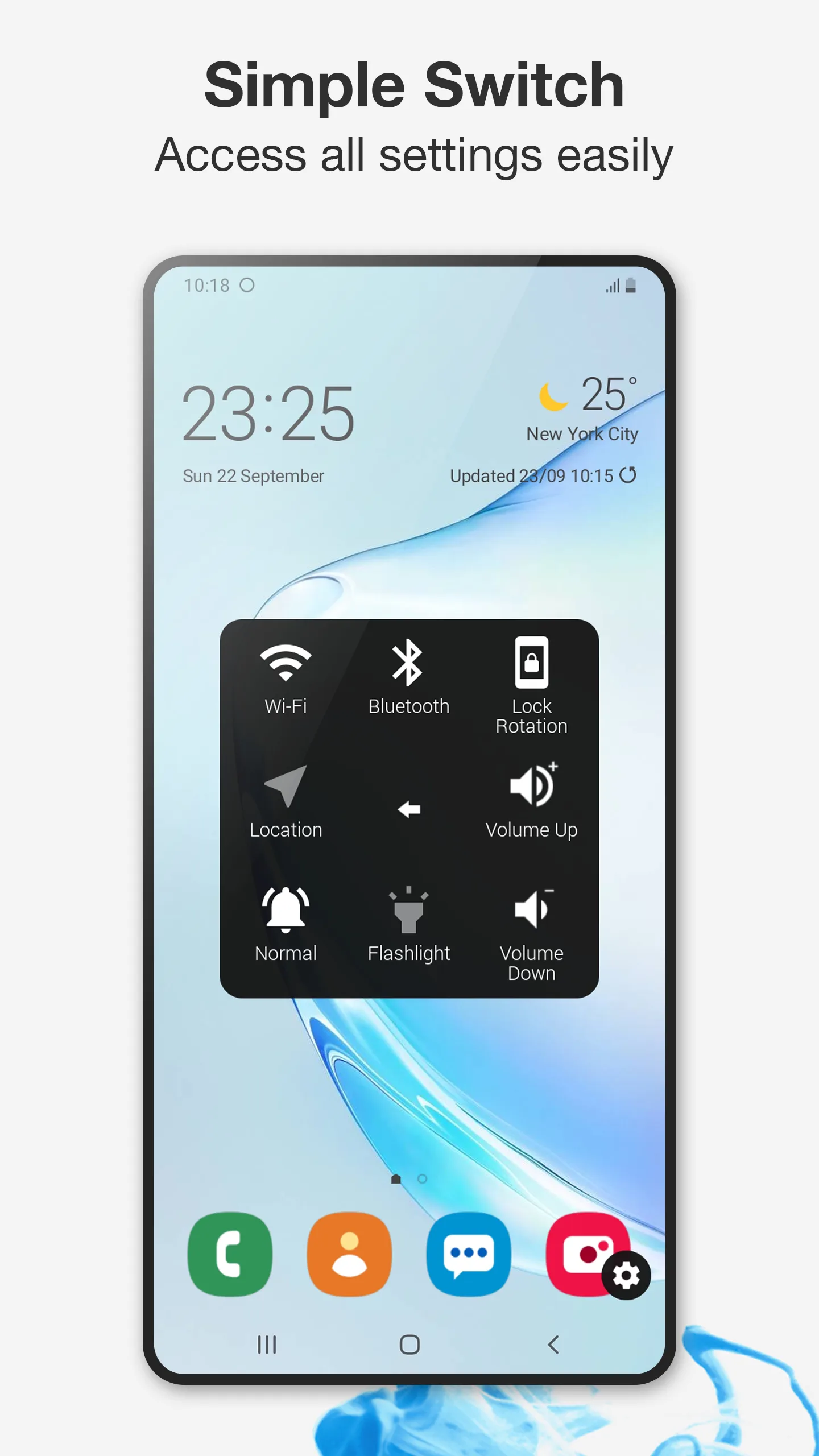
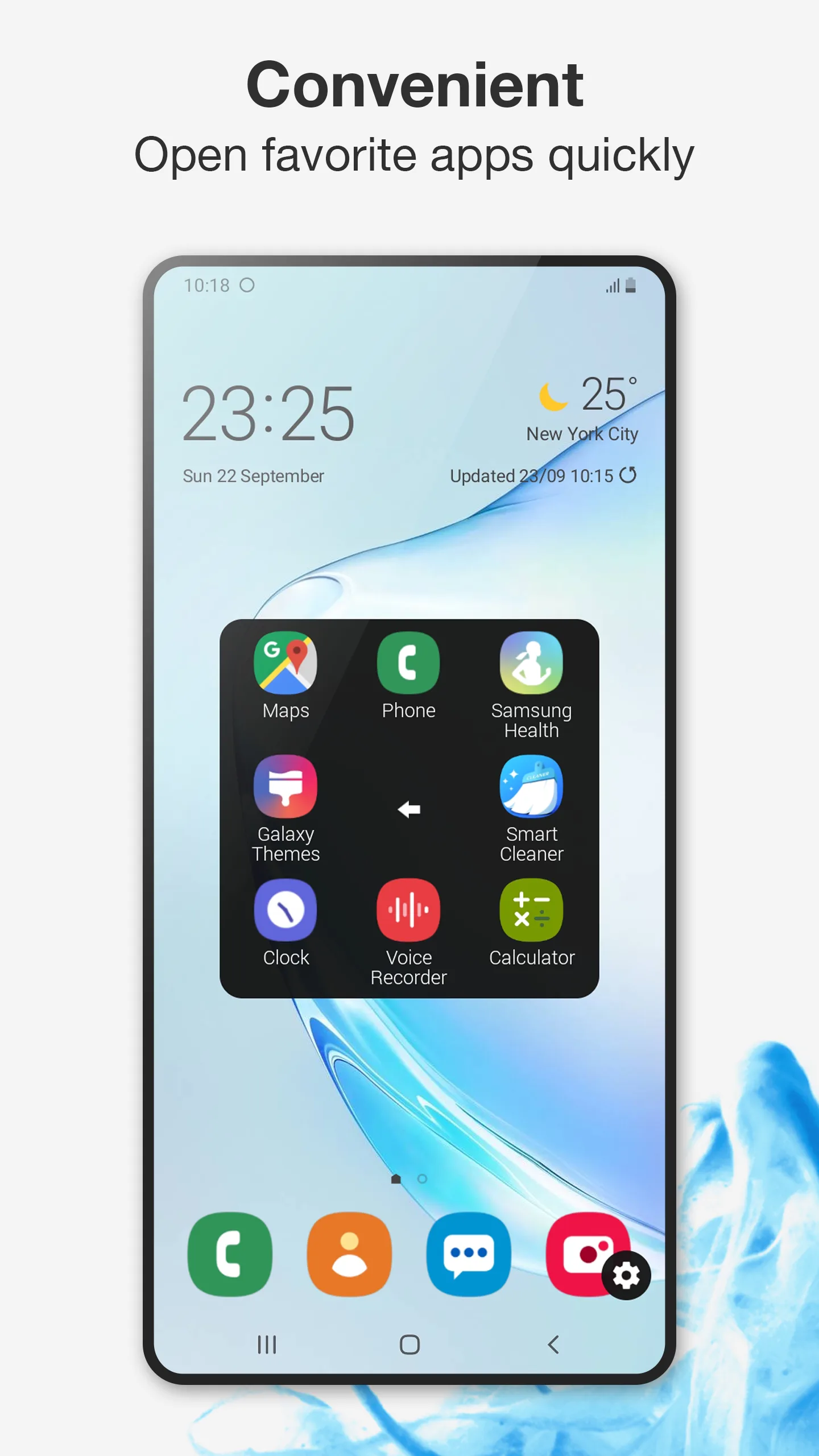
- Assistive touch ball with virtual home, back, recent and volume buttons, one-tap boost, screen lock, screenshot, flashlight and quick app access.
- Floating clock and countdown above other apps — handy during full-screen use.
- Floating monitor shows real-time CPU temperature, usage, RAM and battery, with one-tap boost — ideal while gaming.
- Uses Accessibility services only for listed controls and does not collect personal or sensitive data.
- Protects physical buttons and works great on large-screen phones.
- Free core with an unlock for extra customization.
Weaknesses
- Android only — no iOS app.
- Some themes and monitor extras sit behind the unlock.
- Floating layers take a little screen space.
Best for: users who want one overlay that does buttons, clock and monitoring.
Download Floating Assistant
2. Easy Touch — best iOS-style ball
Easy Touch is a popular iOS-style assistive ball for Android, with virtual navigation, quick toggles, gestures and themes that mimic iPhone’s AssistiveTouch.
Strengths
- Floating ball with home, back, recent and volume controls.
- Quick toggles for Wi-Fi, Bluetooth, flashlight, screen brightness and sound mode.
- Gestures (double-tap, long-press) to trigger actions.
- Themes updated regularly to personalize the ball.
- Free to use.
Weaknesses
- Ad-supported, which can interrupt use.
- No built-in clock or system monitor.
- Lighter on deep customization than Floating Assistant.
Best for: users who specifically want the iPhone-style floating ball.
Download Easy Touch
3. Assistive Touch, Easy Tools — best quick toggles
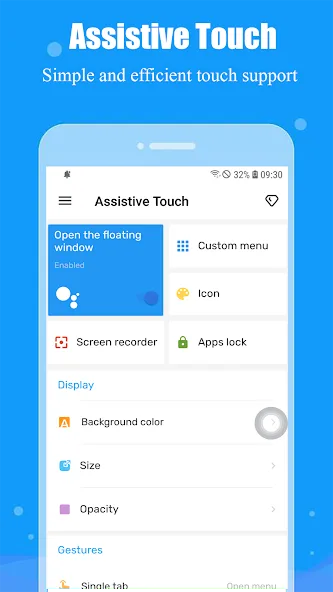
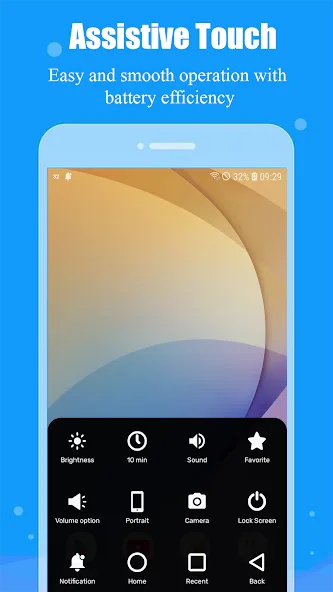
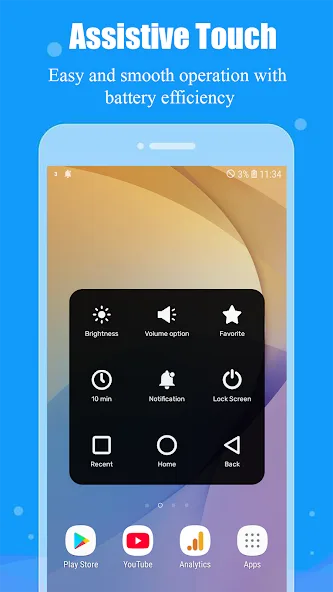
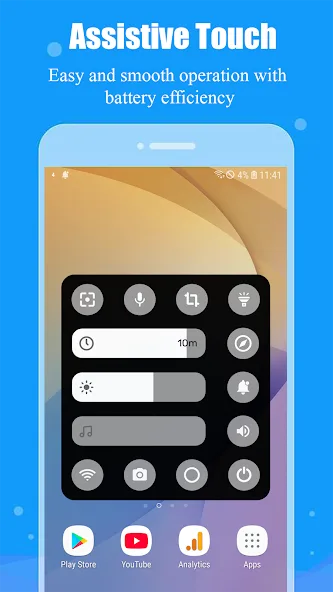
Assistive Touch, Easy Tools adds a navigation bar overlay with recent/home/back plus a broad set of quick toggles, screenshot and screen recording.
Strengths
- Navigation controls (recent, home, back) without hardware keys.
- Quick toggles for Wi-Fi, Bluetooth, flashlight, power, airplane mode, location.
- Brightness/volume adjustment and favorite-app launcher.
- Screenshot and screen recording shortcuts.
- Free with ads.
Weaknesses
- Ad-supported free tier.
- No floating clock or monitor.
- Overlay can feel busy with many toggles.
Best for: users who want the most quick settings in one panel.
Download Assistive Touch, Easy Tools
4. Button Mapper — best hardware-button remapping
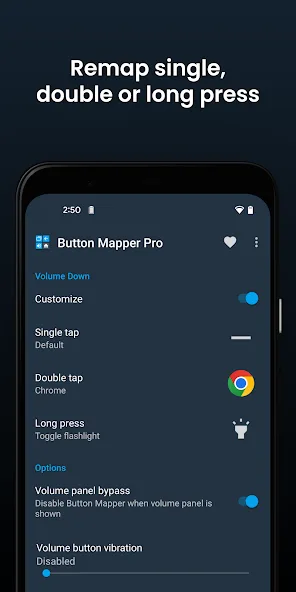
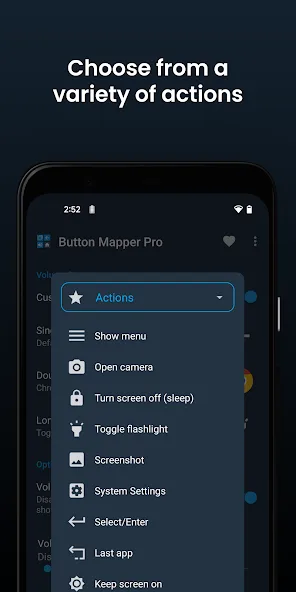
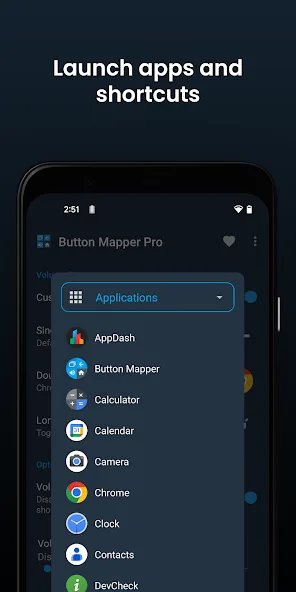
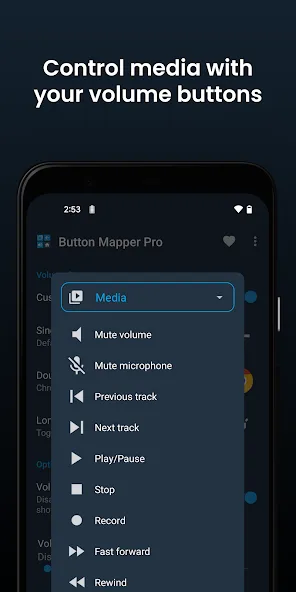
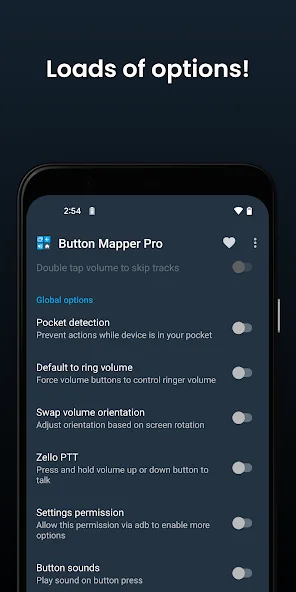
Button Mapper remaps your physical buttons (volume, Bixby, and more) to custom actions — a different approach to “assistive control” that doesn’t need a floating ball at all.
Strengths
- Remap hardware buttons to launch apps, toggle torch, screenshot, media control and more.
- Works without an overlay, so nothing floats over your screen.
- Great for broken or awkward buttons and accessibility needs.
- Trusted developer (same as DevCheck), free with a Pro upgrade.
- No ads in the core experience.
Weaknesses
- Not a floating assistive ball — different paradigm.
- Some buttons and actions need the Pro version.
- Setup is more technical than a simple ball.
Best for: users who’d rather repurpose real buttons than use a floating icon.
Download Button Mapper
5. All in One Gestures — best gesture control
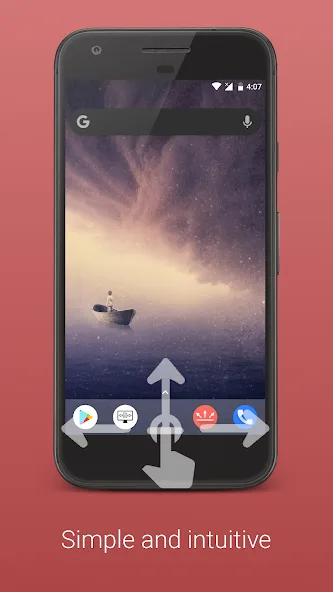
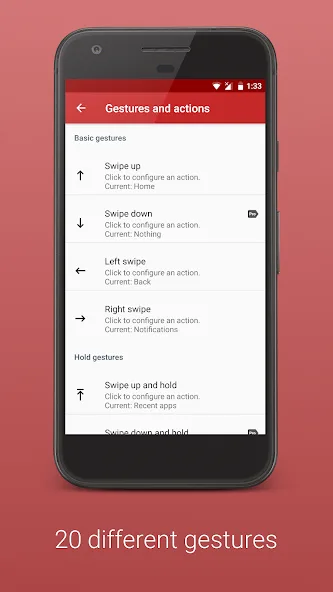
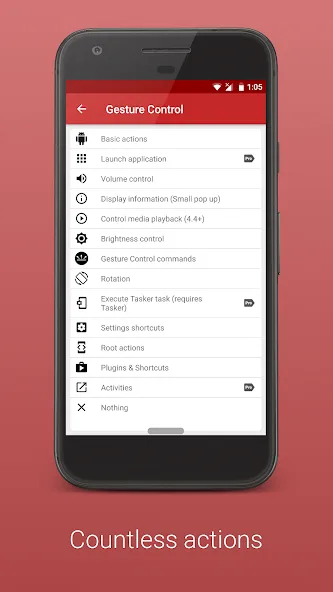
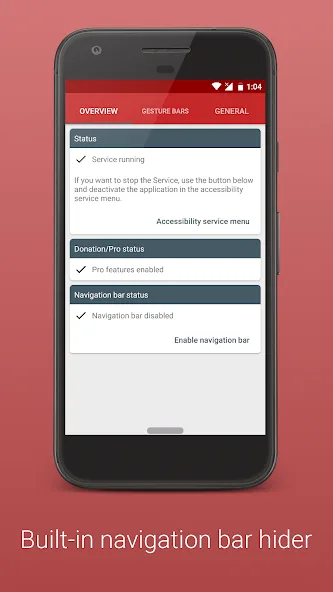
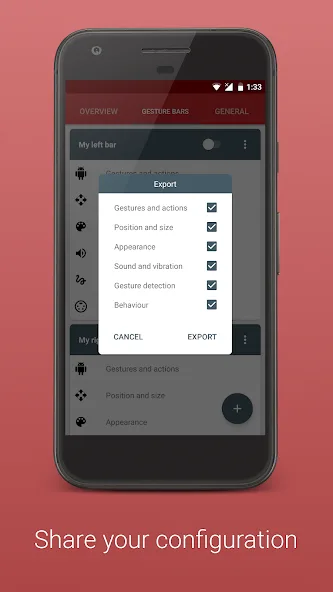
All in One Gestures lets you hide the soft keys and control your device with gestures — swipes, pinch and more — for a clean, button-free experience.
Strengths
- Gesture control (swipe, pinch, long-press) to trigger actions.
- Hide navigation bar for a full-screen, immersive feel.
- Customizable gesture-to-action mapping.
- Lightweight and stable.
- Free with a Pro upgrade.
Weaknesses
- Gesture learning curve for new users.
- No floating clock or monitor.
- Less “assistive” for users who want visible buttons.
Best for: users who prefer gestures over a floating ball.
Download All in One Gestures
6. Assistive Touch — best simple floating touch
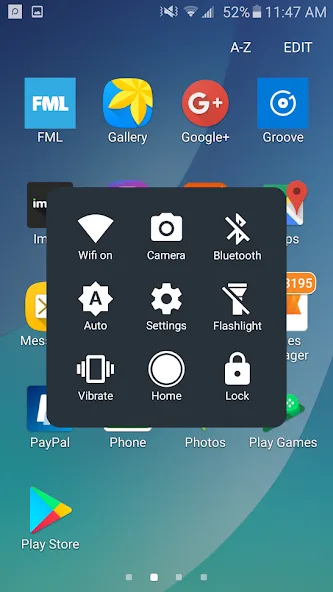
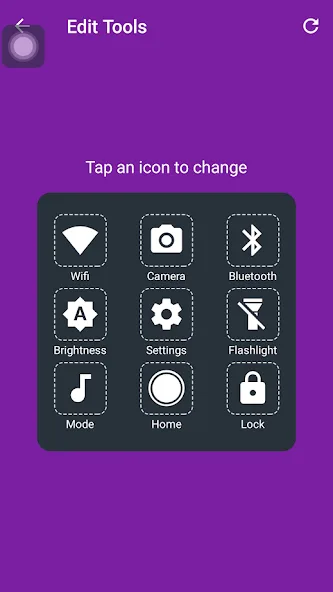
Assistive Touch (smarttool) is a straightforward floating-touch app with virtual buttons and quick settings, close to the classic AssistiveTouch experience.
Strengths
- Floating touch button with home/back/recent and volume.
- Quick settings shortcuts for common toggles.
- Simple, familiar layout.
- Free to use.
- Easy to enable and hide.
Weaknesses
- Ad-supported.
- Fewer extras (no clock/monitor) than Floating Assistant.
- Clone-style UI with limited theming.
Best for: users who want the classic floating-touch behavior, nothing more.
Download Assistive Touch
Core-capability comparison
| Capability | Floating Assistant | Easy Touch | Assistive Touch, Easy Tools | Button Mapper | All in One Gestures | Assistive Touch |
|---|---|---|---|---|---|---|
| Platforms | Android | Android | Android | Android | Android | Android |
| Floating assistive ball | Yes | Yes | Yes (nav bar) | No (hardware) | No (gestures) | Yes |
| Virtual home/back/recent | Yes | Yes | Yes | Via buttons | Via gestures | Yes |
| Volume / quick toggles | Yes | Yes | Yes | Yes (mapped) | Yes (mapped) | Yes |
| One-tap boost / cleaner | Yes | No | No | No | No | No |
| Screenshot / flashlight | Yes | Yes | Yes | Mappable | Mappable | Partial |
| Floating clock | Yes | No | No | No | No | No |
| Floating system monitor | Yes (CPU/RAM/battery) | No | No | No | No | No |
| Gestures | Partial | Yes | Partial | No | Yes (strong) | Partial |
| Customizable shortcuts/apps | Yes | Yes | Yes | Yes (buttons) | Yes (gestures) | Yes |
| Privacy posture | Strong (no data) | Caution (ads) | Caution (ads) | Strong | Strong | Caution (ads) |
| Ads / IAP | Free core | Ads | Ads | Free + Pro (no ads) | Free + Pro | Ads |
| Free tier | Generous | Yes | Yes | Yes | Yes | Yes |
How to choose
- Want buttons + clock + live monitor in one overlay → Floating Assistant
- Want the iPhone-style floating ball → Easy Touch
- Want the most quick toggles in a panel → Assistive Touch, Easy Tools
- Prefer repurposing real buttons → Button Mapper
- Prefer gestures over a ball → All in One Gestures
- Want the classic simple floating touch → Assistive Touch
How to migrate to a better Assistive Touch alternative
- Decide your style — floating ball, hardware remap, or gestures — then pick from the table.
- Install and grant permissions: display-over-other-apps for overlays, and Accessibility for button/gesture actions.
- Customize the ball or gestures — add your most-used apps, toggles and screenshot.
- Enable extras you’ll use — Floating Assistant’s clock/monitor, or Button Mapper’s volume-key shortcuts.
- Review privacy: prefer apps that don’t collect data (Floating Assistant, Button Mapper, All in One Gestures) over ad-heavy clones.