
Only Clock Official User Guide
Table of Contents
- App Introduction
- First-time Use
- Flip Clock Display
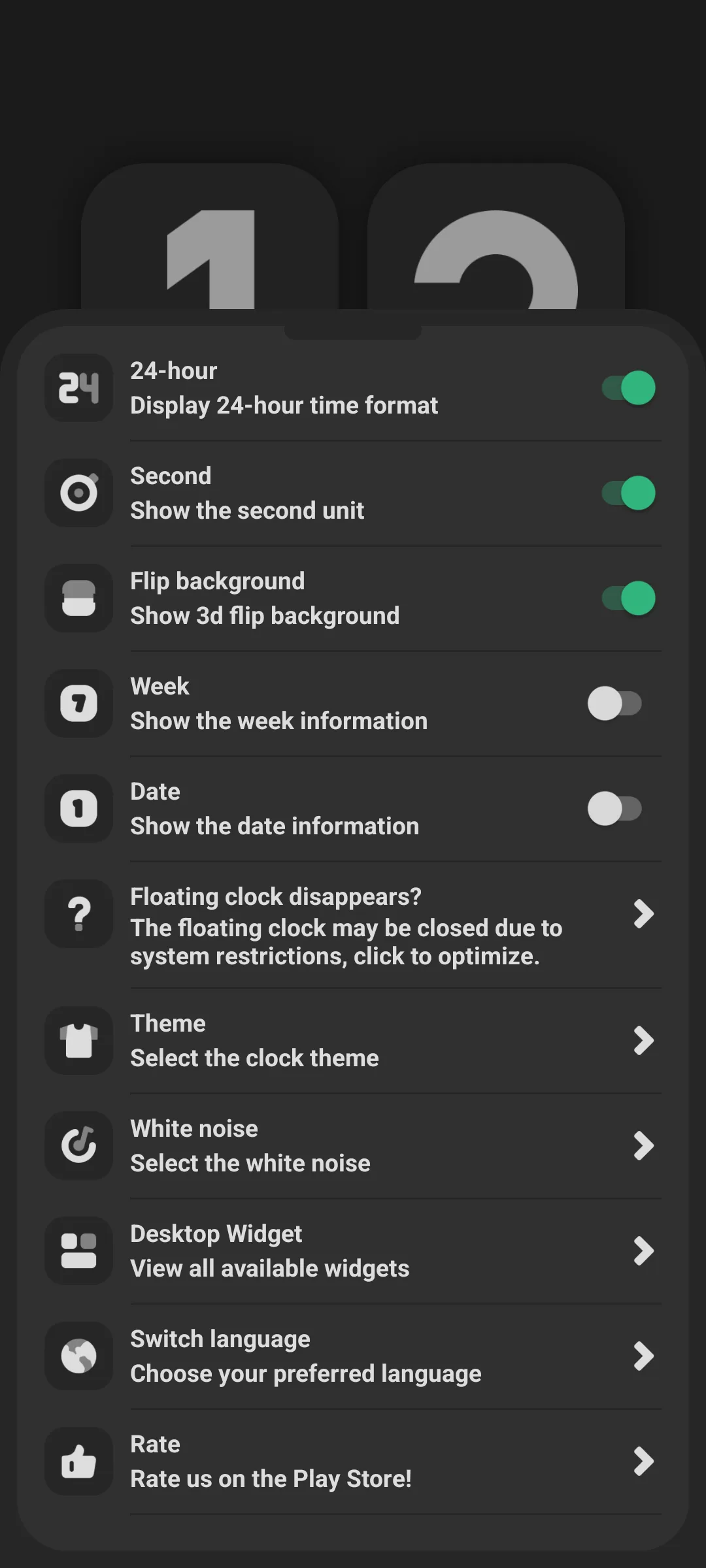
- 12/24-hour, Seconds, Date
- Clock Widgets
- White Noise
- Floating Clock
- Spare Phone as a Clock
- Free vs Pro
- FAQ
App Introduction
Only Clock is a beautiful full-screen flip clock for Android and iOS — turn any phone or tablet into a desk or nightstand clock.
🕐 Flip Animation
- A smooth page-flip transition as digits change (about 600 ms per digit)
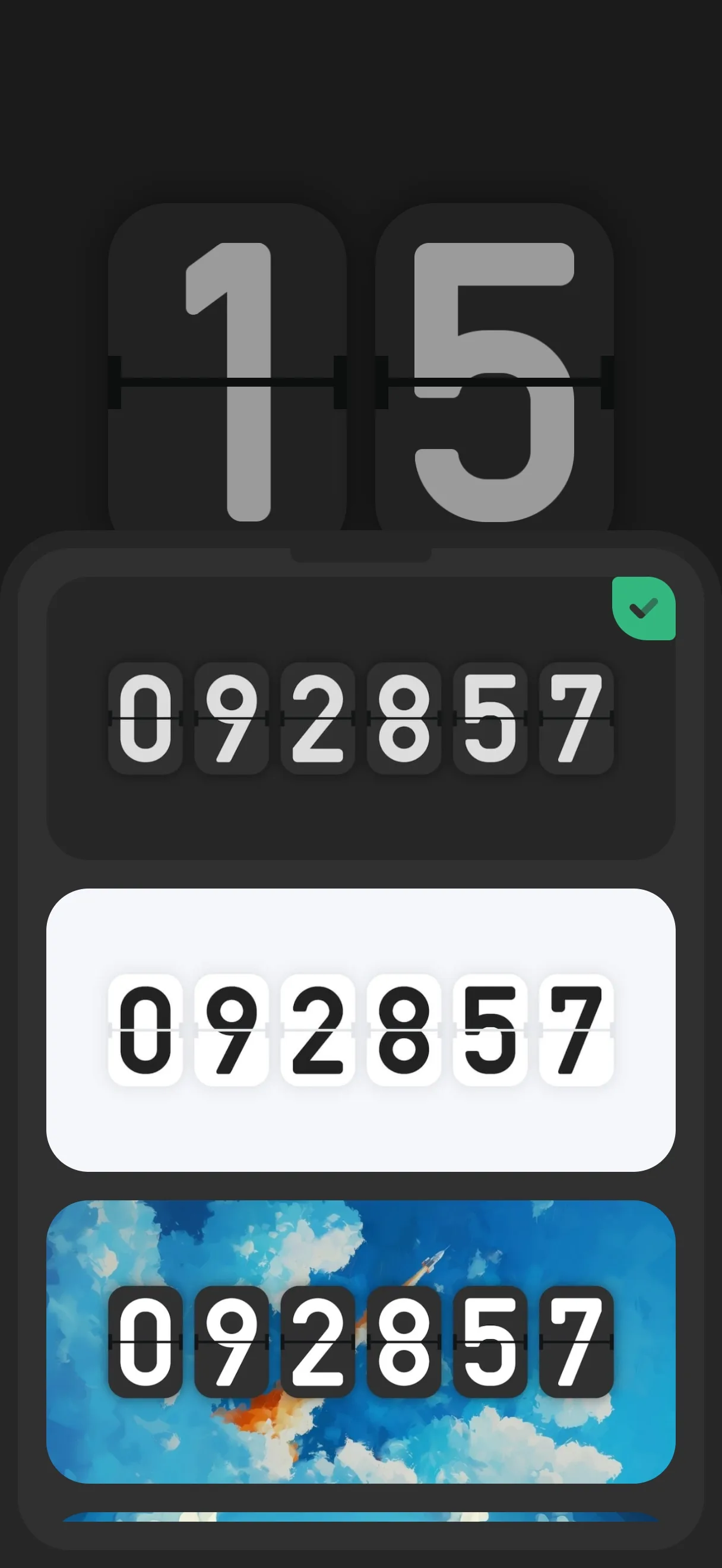
- Multiple themes (e.g. Black, White, Sky)
🪟 Widgets
- 18 themed clock widgets plus clock-grid widgets (1x1, 2x1, 2x2, 4x1, 4x2, flat/split)
🔊 White Noise
- Built-in ambient sounds (same engine as the standalone white-noise app) to help you focus or sleep
📅 Flexible Display
- Toggle 12/24-hour, seconds, week and date
Note: Only Clock itself has no pomodoro/focus timer — that lives in a separate sibling app. The clock’s white noise just helps you concentrate.
First-time Use
Open the app to the full-screen flip clock.
- The toolbar (top) gives quick access to settings, theme, sound and size
- The screen stays awake while the clock is showing
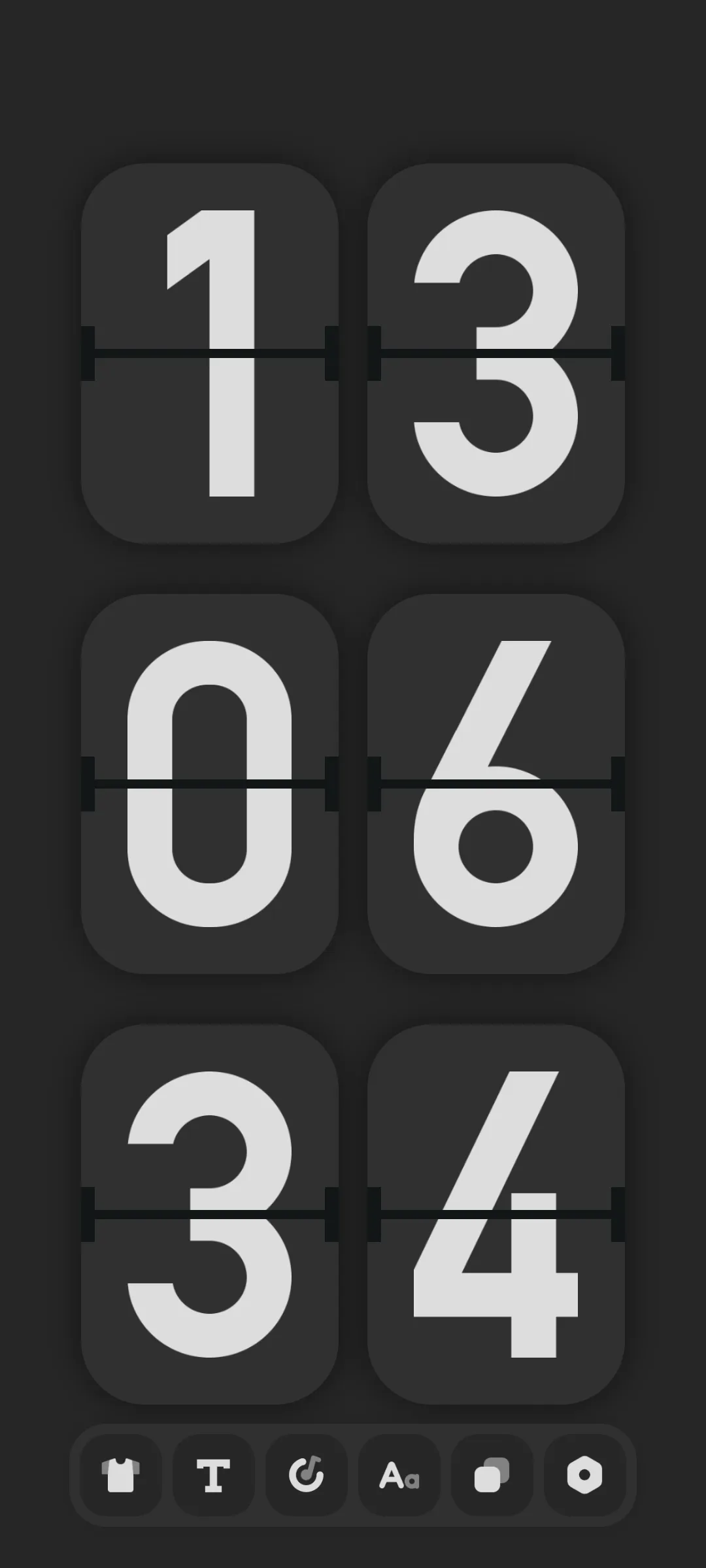
Flip Clock Display
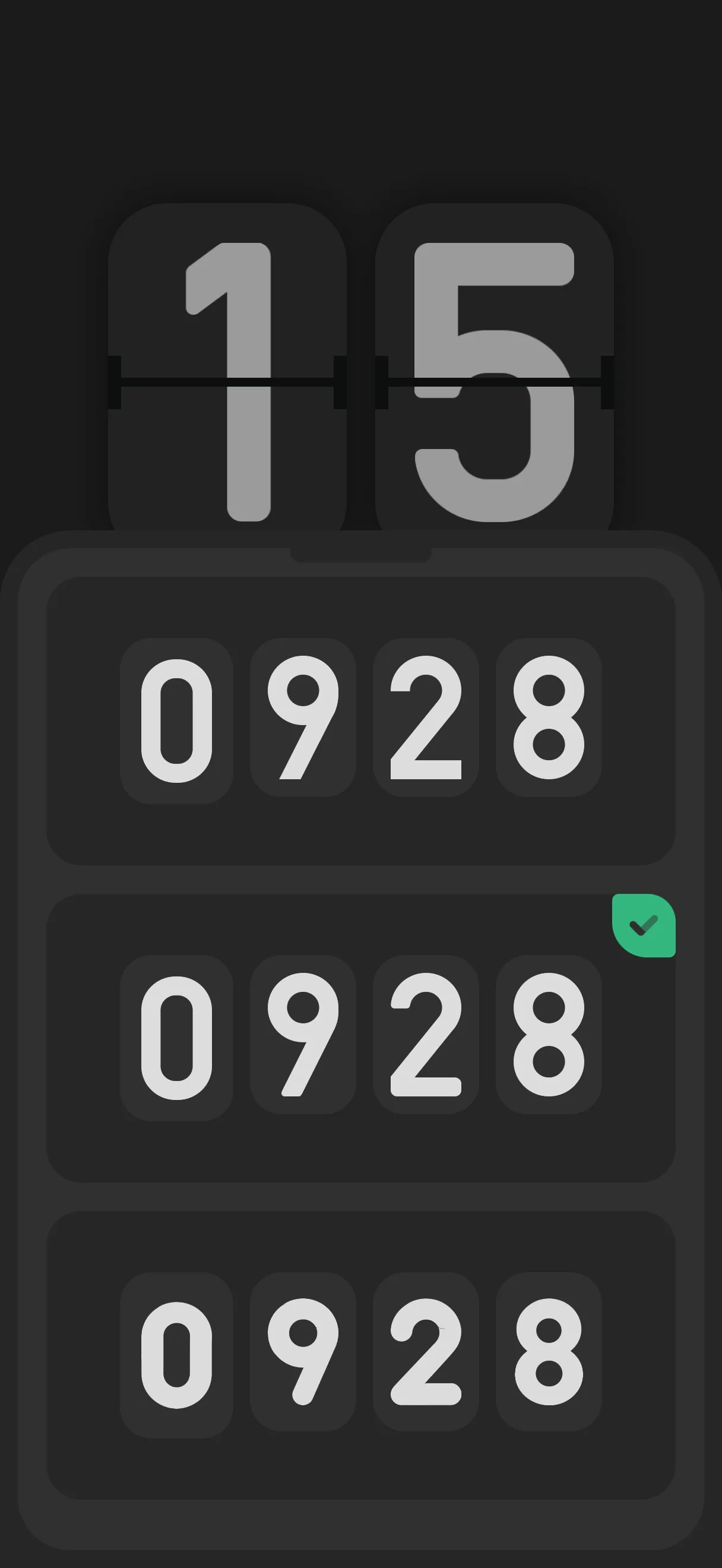
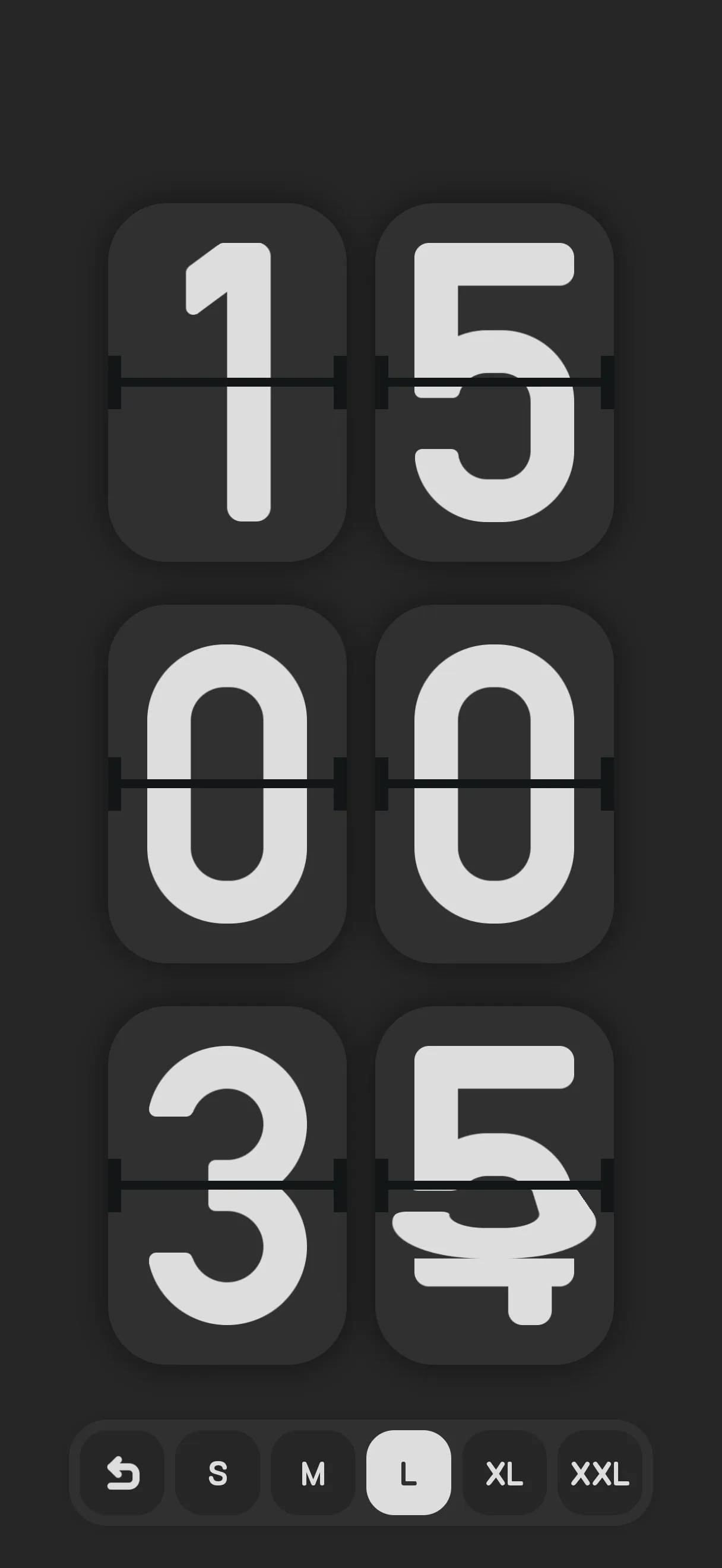
The clock shows a flip-style time. Tap the toolbar to change the theme (Clock Theme), font (Clock Font) and size (Clock Size).
12/24-hour, Seconds, Date
- Open Settings
- Toggle:
- 24-hour (default on)
- Seconds (default on)
- Week (default off)
- Date (default off)
- Flip background mask (default on)
Clock Widgets
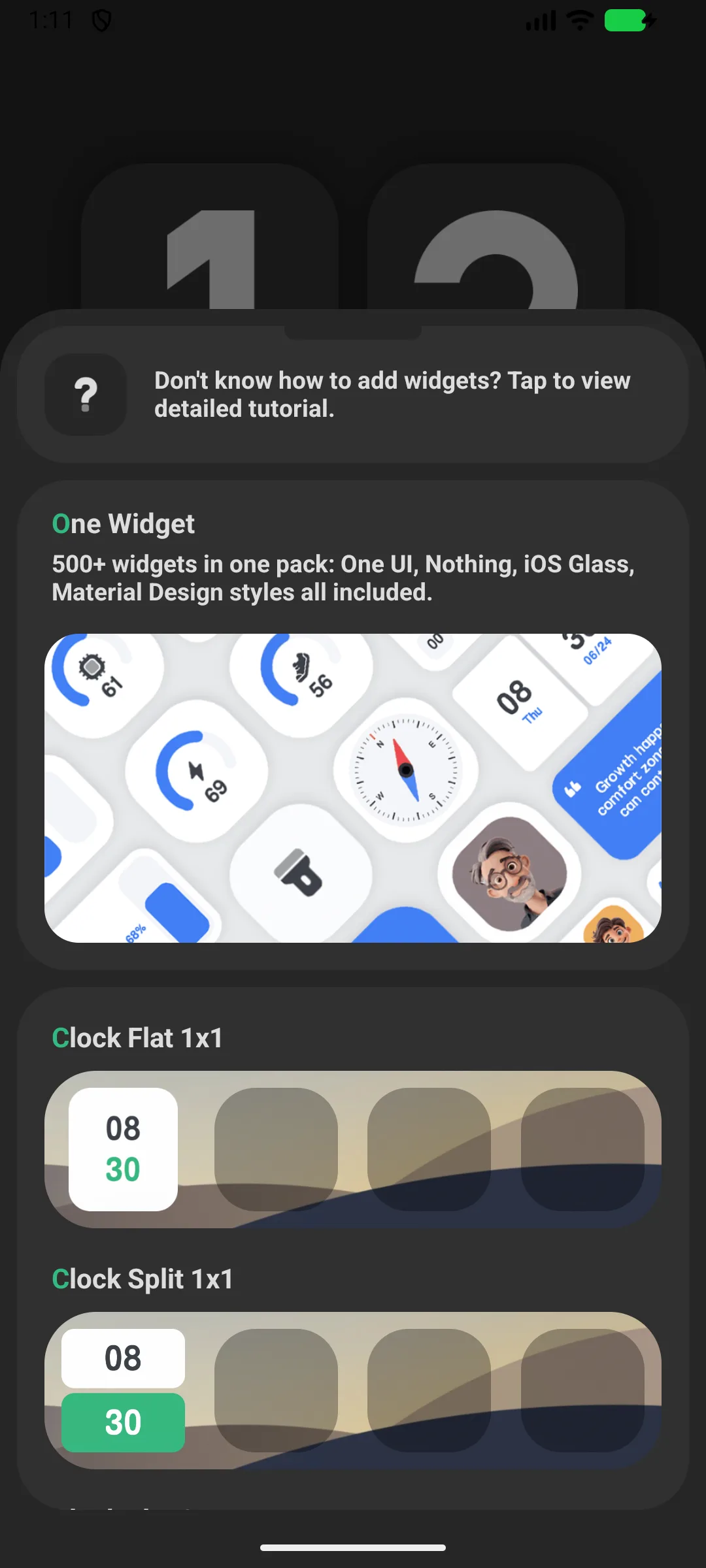
- Open Settings → Widget
- Browse the gallery of 26 styles
- Tap a style → the app shows the “long-press home to add” guide
- Long-press your home/lock screen → Widgets → pick Only Clock → place it
- The 4x2 flip widget has its own config (seconds / mask / week / date)
White Noise
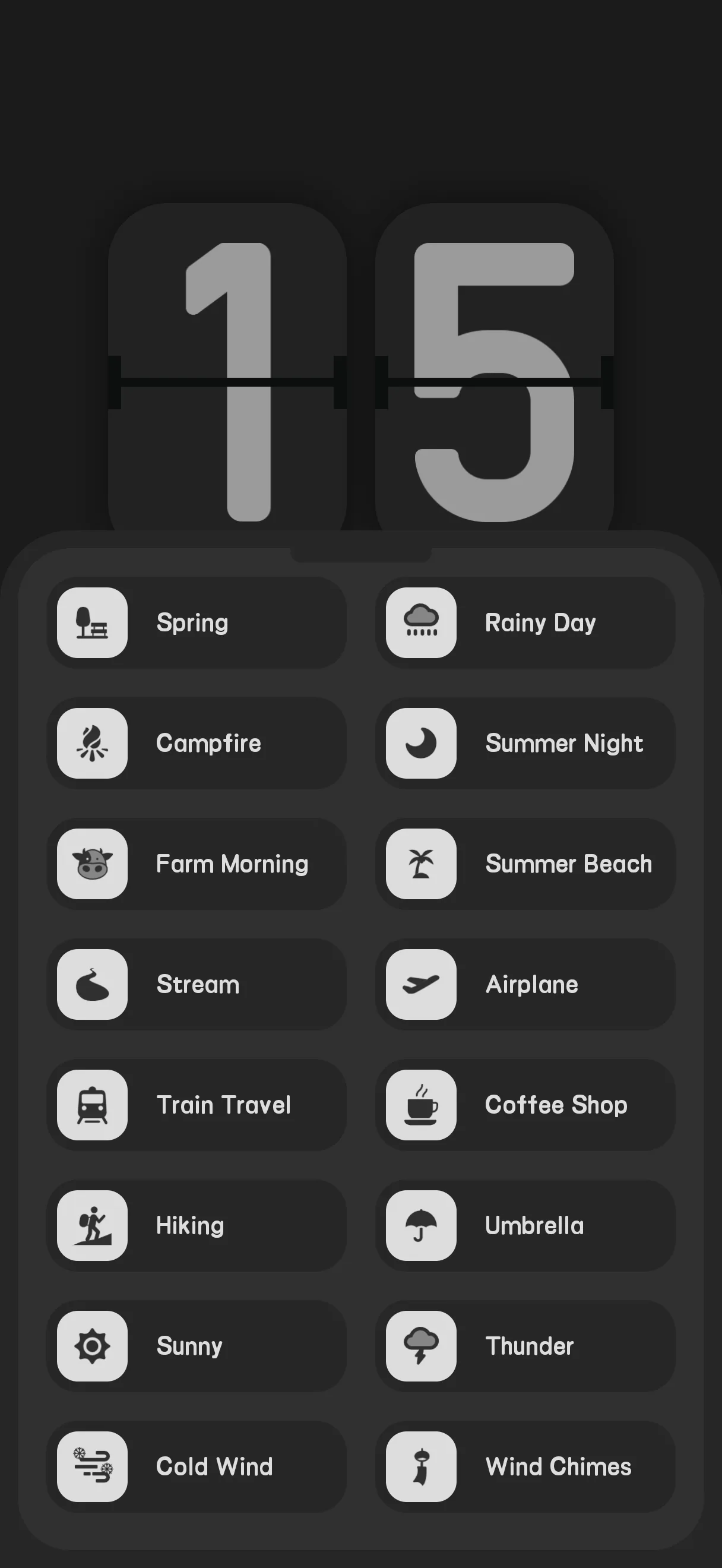
- Open Settings → White noise
- Pick a sound from the 2-column grid (some are premium)
- Tap to play/stop
The clock shares the same sound engine as the standalone white-noise app.
Floating Clock
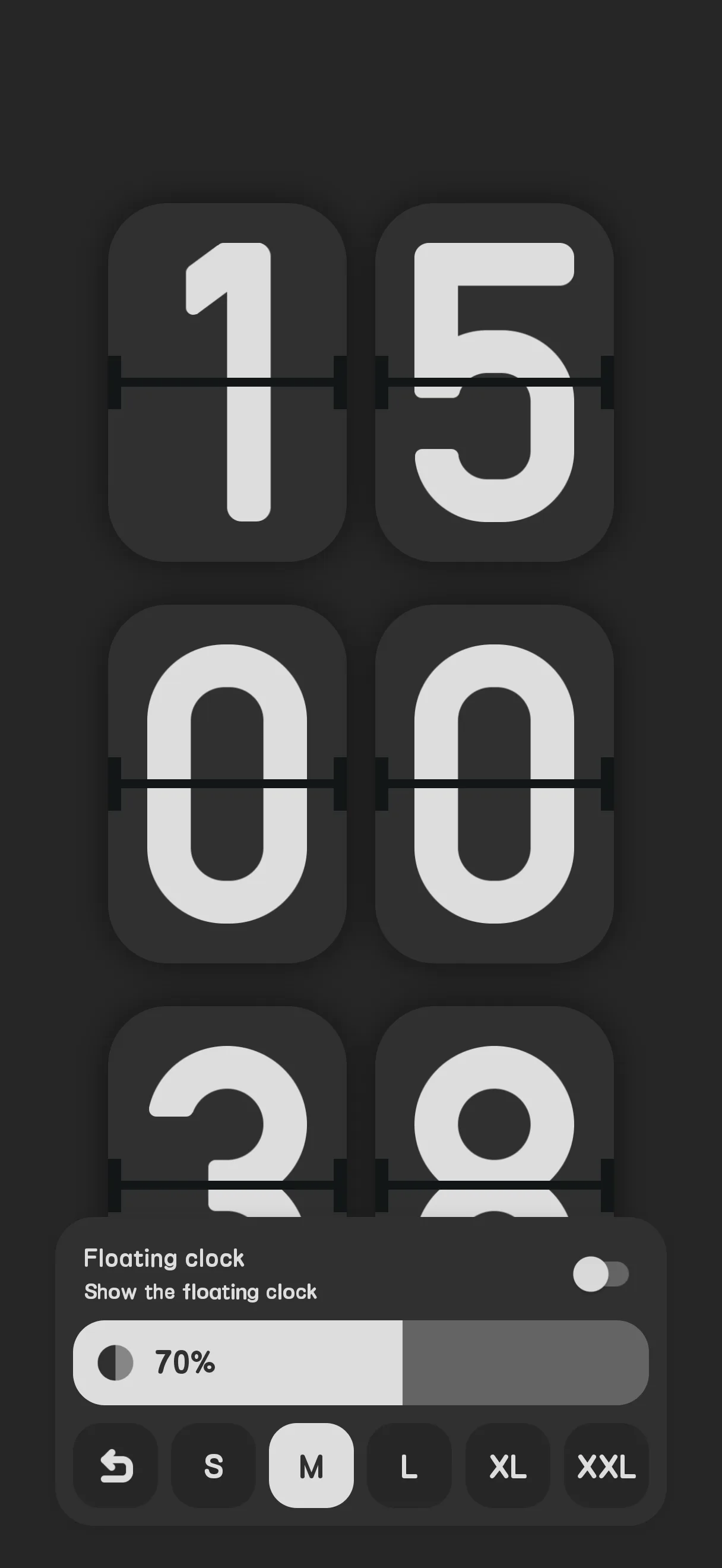
- Enable the floating-clock switch in the home toolbar
- Grant the overlay permission if asked
- A clock overlay shows above other apps
Spare Phone as a Clock
Because the screen stays awake (FLAG_KEEP_SCREEN_ON) and you can place widgets, an old phone or tablet works great as a dedicated desk/nightstand clock. Allow battery optimization to be ignored so it is not killed.
Free vs Pro
- Free shows ads and gates some themes/fonts/sounds behind reward ads or purchase
- Pro removes ads and unlocks everything
FAQ
Is there a focus/pomodoro timer in Only Clock?
No. The focus timer is a separate app. Only Clock provides the flip clock, widgets and white noise.
Does it keep the screen on?
Yes — the clock uses a keep-screen-on flag while displayed; for a nightstand use, also ignore battery optimization.
Summary
Only Clock turns any device into a gorgeous flip-clock display with widgets and soothing white noise — free to start, with a Pro upgrade to remove ads and unlock all themes.